
Home > Monitor and Manage Your Backup > AvePoint Cloud Backup
Download this articleAvePoint Cloud Backup
For services protected by AvePoint Cloud Backup, the Backup details page displays the last backup job details by default, including the number of successful, skipped, and objects with errors in this job or the progress of the running backup, the backup status, start time, finish time, data size, duration, and the operator on the main pane. For the backup jobs in progress, the successful items and items with errors during the backup are provided in the page.
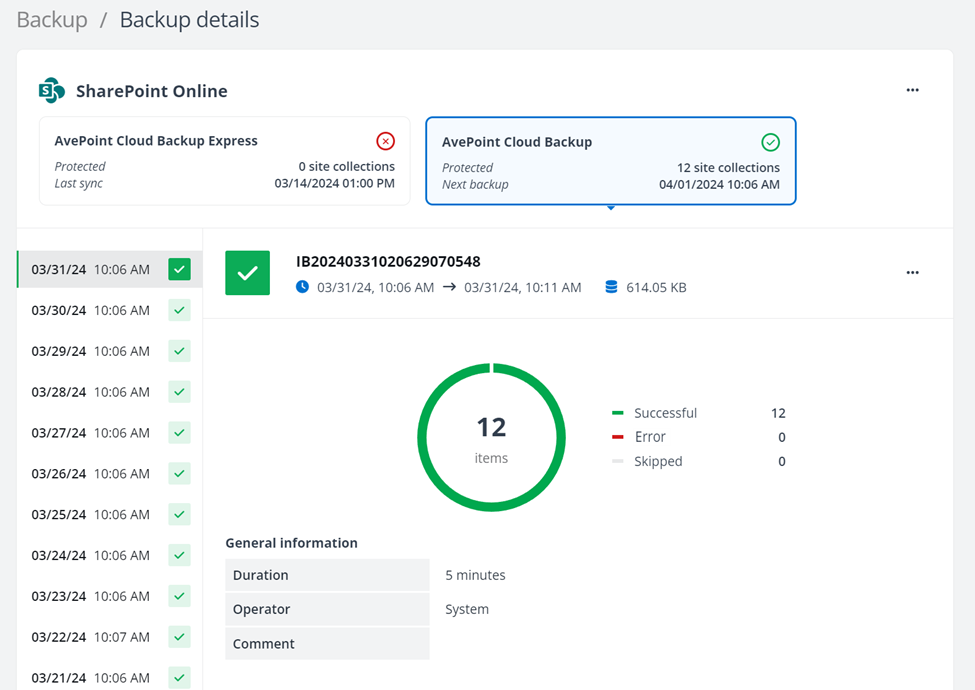
You can generate the job report directly from the Backup details page. Follow the steps below:
-
Click the Generate report option from the More commands list. The Generate report window appears.
-
You can choose to generate a simple or detailed report as needed, and then click Generate.
-
After the report is successfully generated, expand the Job report list and click the Download report option to download the job report to a local location.
You can also click the View more in job monitor link to navigate to the Job monitor page to check the job history or download report. For details, refer to Job Monitor.
In the Backup history area, you can click any badge to view the details of a preview backup job from the last 20 backup job records.
The backup job will not back up the SharePoint sites that have not had any changes made since the last backup. If there are security changes but no changes on the content in the sites, the scheduled incremental backup jobs will not back up the securities too. The changes on the securities in the sites (including the SharePoint Online sites, OneDrive, and Microsoft 365 Groups/Teams team sites) that have not yet been backed up, in this case, will be included in an incremental backup once a week.