
Home > Configure Settings for AvePoint Cloud Backup > Configure Backup Settings
Download this articleConfigure Backup Settings
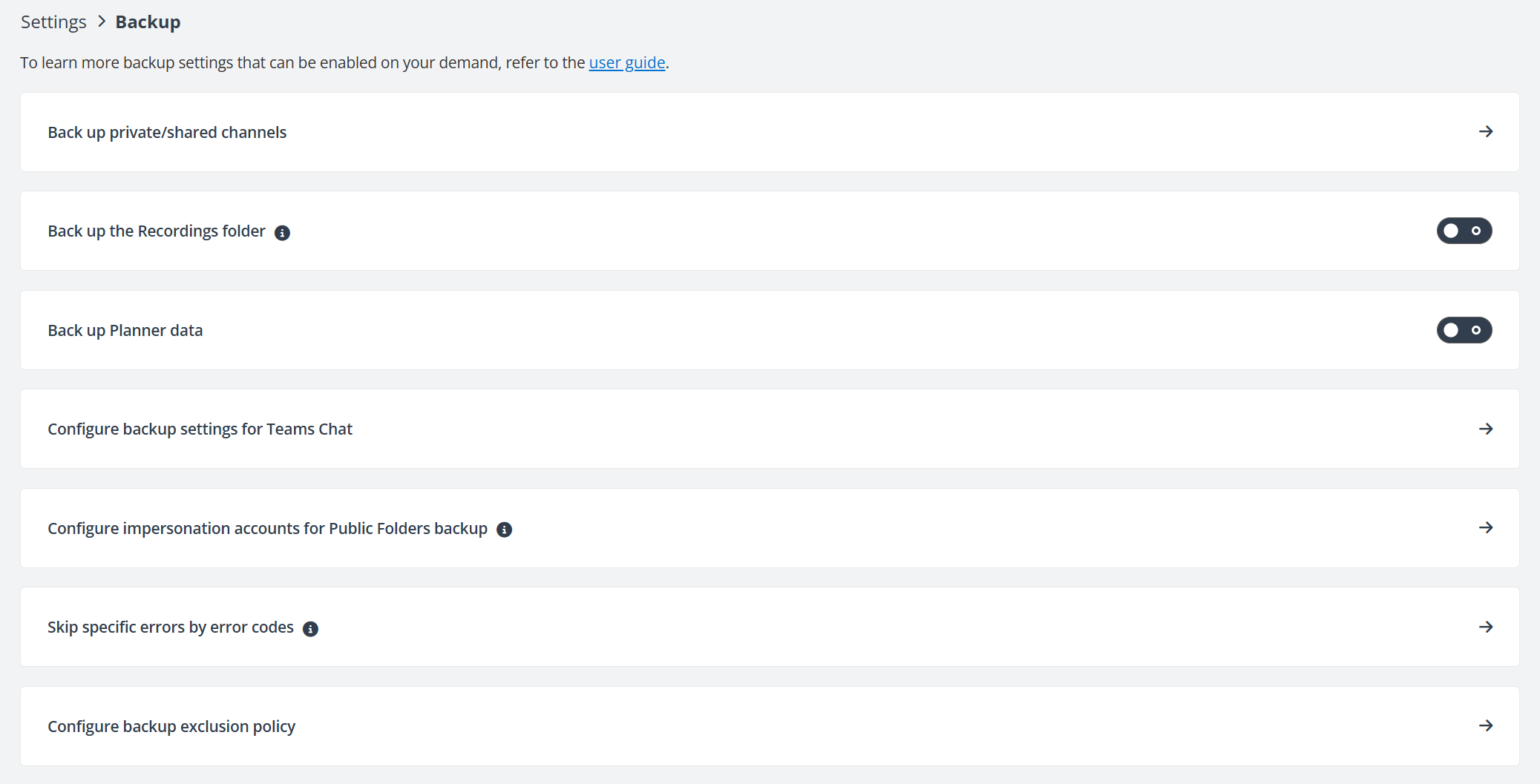
The Settings > Backup page displays the common backup settings that you can directly enable.
You can choose to:
-
Back up private/shared channels
-
Back up the Recordings folder
-
Back up Planner data
-
Configure backup settings for Teams Chat
-
Configure impersonation accounts for Public Folders backup
-
Skip specific errors by error codes
-
Configure backup exclusion policy
For more backup settings, contact the AvePoint support team for assistance. For additional backup settings that can be enabled on your demand, refer to On-Demand Backup Settings.
Back up private/shared channels
Select whether to back up private/shared channels in Microsoft Teams. You can configure an app profile to connect your tenant for a successful backup of private/shared channels or you can still use the obsolete service account method. The service account you use must be an owner of all current and future private/shared channels. For details, refer to Manage Scan Profile.
Back up Recordings folder
As updated by Microsoft for Microsoft Teams, all new Teams meeting recordings will be saved to OneDrive and SharePoint. (The change from using Microsoft Stream to OneDrive and SharePoint for meeting recordings will be a phased approach. For details, refer to this Microsoft article.)
Microsoft will create the Recordings folder or use the existing Recordings folder in your OneDrive (user’s OneDrive/Recordings) or the Recordings folder in the Documents library of Teams primary site (Teams primary site/Documents/ Channel Name /Recordings) to store the meeting recording files.
You can now use the Back up Recordings folder option to control whether to include the Recordings folder in the backup. By default, the Back up Recordings folder option is deselected. For the Core and Flex subscription type, the Back up Recordings folder option is not available, and the Recordings folder will not be protected.
Once you select this option to back up the Recordings folder, the Recordings folder will always be included in the subscription consumption, even if you deselect it in the future.
Note the following for excluding the Recordings folder from backup:
-
If you are using a custom app to protect OneDrive, to exclude the Recordings folder from the OneDrive backup, ensure the Microsoft Graph permission has been updated.
-
As there aren’t any properties to distinguish the Stream files from the other MP4 files or if the Recordings folder was created manually or automatically, the Recordings folder found in the specific paths will be excluded, as well as all the content in it. Please do not use this folder to store the other files that you want to protect via AvePoint Cloud Backup services.
-
If you delete a public channel from Teams, its connected channel folder in the team site (the folder with the channel name under the Documents library) will not be deleted. This folder will no longer be identified as a channel folder, and its Recordings folder will no longer be regarded as the folder storing meeting recording files for a channel. If you deselected the Back up Recordings folder option at this time, the backup job will still include this Recordings folder as well as its parent folder for the backup of site content.
-
(API limitation) In the app context (using app profile authentication or the hybrid mode), the backup service for OneDrive will create the Recordings folder automatically if it does not exist.
-
If you want to exclude the Recordings folder after this Recordings folder has been protected for a while, you will be notified that deselecting this folder will create a gap in backups for recordings saved between this point in time and whenever you choose to enable this option again. We will not retroactively protect recordings outside this window.
Back up Planner Data
Select whether to protect the Planner data. This option is by default disabled if you are a new customer to Cloud Backup for Microsoft 365 after June 2023 release, or you have been using app profile only for Auto discovery.
If you are an existing customer who has been using service account authentication for auto discovery or using app profile authentication with an additional delegated app to protect Planner data, this option will be enabled in this case, and your Planner data will continuously be protected.
Configure backup settings for Teams Chat
If you enable the Teams Chat service, Cloud Backup for Microsoft 365 uses the Teams Export API model B for Teams Chat backup and you must customize the backup start date for Teams chat messages. Teams Export API model B provides high-performance, reliable, and efficient export of large-scale Teams data through the Microsoft Graph API. Note that the backup start date cannot be changed once saved.
Effective August 25, 2025, Microsoft discontinued usage charges for the Teams Export API (Model B) globally. After this date, no further billing events were registered and no client changes were required. For details, refer to Microsoft documentation: Overview of metered APIs and services in Microsoft Graph and Metered APIs and services in Microsoft Graph.
Configure impersonation accounts for Public Folders
The impersonation accounts that you configured for Public Folders in AvePoint Online Services interface are synchronized to Cloud Backup for Microsoft 365 after June 2023 release. Cloud Backup in app context only will use the impersonation accounts for the backup and restore of Public Folders.
The Public Folders service will perform operations by using the permissions that are associated with the impersonation accounts. We recommend a 1:500 ratio for the impersonation accounts and the Public Folders. For more information about impersonation technology, see Impersonation and EWS in Exchange.
The impersonation accounts configured must meet the following conditions:
-
The impersonation account must have the Exchange Online product license.
-
This user must also have the Owner permission to the Public Folders.
Skip specific errors by error codes
For some job errors, Cloud Backup for Microsoft 365 provides error codes, and you can find them in the job report. For more information, refer to the Error Codes. If you wish to ignore specific errors and prevent them from affecting the job status, you can skip these errors by error codes.
The configuration will apply to all objects in all service types that encounter the corresponding errors, including newly scanned objects.
Configure backup exclusion policies
You can configure exclusion policies to exclude all data or specific containers for Teams channel conversations and Teams mailboxes from future backups. You can also exclude specific files or folders in OneDrive, SharePoint Online, Teams, and Microsoft 365 Groups site collections based on path, size, file type, and date.
To configure a backup exclusion policy, follow these steps:
-
Navigate to Settings > Backup, then select Configure backup exclusion policy.
-
In the Site Collection, OneDrive, Mailbox, or Channel Conversation section, click Add to create a rule.
-
Configure rules for the required data type.
-
For Site Collection and OneDrive, configure the following fields:
-
Rule – Enter a rule name.
-
Service – For Site Collection, select a service type from SharePoint Online, OneDrive, or Microsoft 365 Groups.
-
Container – Select the containers to which the rule applies from the available list.
-
Data level – Select Folder or File.
-
Conditions – Configure one or more conditions:
-
Select the Property and Condition, then enter the Value for the filter.
Incorrect formatting may cause exclusion rules to work unexpectedly. Follow the guidelines below to ensure exclusion rules are configured correctly.
The Object Path property supports the following conditions:
-
Equals / Does Not Equal - Enter only the URL path of the target object, not the full URL. The value must exactly match the complete object path.
Original URL from Microsoft Value https://contoso.sharepoint.com/sites/ProjectA/Documents/Design/Specs/sites/ProjectA/Documents/Design/Specshttps://contoso-my.sharepoint.com/personal/alice_contoso_com/Documents/Reports/2025/personal/alice_contoso_com/Documents/Reports/2025NOTE-
SharePoint Online site collection paths must start with
/sites/or/teams/. -
OneDrive paths must start with
/personal/. -
Always include a forward slash (
/) at the beginning of the path.
-
-
Contains / Does Not Contain - Enter a partial or relative path. The rule applies to any object path that contains the specified value.
Original URL from Microsoft Value https://contoso.sharepoint.com/sites/ProjectA/Documents/Design/Specs/Documents/Designhttps://contoso-my.sharepoint.com/personal/alice_contoso_com/Documents/Reports/2025/Documents/Reports
NOTESome URLs may contain encoded characters (for example, spaces, special characters, or non‑English text).
In such cases, enter the decoded and human-readable folder or file name in the Value field.
Original URL from Microsoft Value https://contoso.sharepoint.com/sites/HRPortal/Shared%20Documents/Policies/sites/HRPortal/Shared Documents/Policies -
-
Click the Add icon next to the condition to add another condition. To remove a condition, click the Remove icon.
-
Select And or Or to define how multiple conditions are applied.
- And – All conditions must be met.
- Or – Any condition can be met.
-
-
-
For Mailbox and Channel Conversation, configure the following fields:
-
Rule – Enter a rule name.
-
Service – The service is Teams.
-
Container – Select the containers to which the rule applies from the available list.
-
Channel type – For Channel Conversation, select one or more channel types: Private channel, Shared channel, or Standard channel.
-
-
-
Click Save. You can continue adding rules for other data types. To edit or remove a rule, click the More commands icon next the rule and select Edit or Remove. When you finish, close the panel.
On-Demand Backup Settings
We have removed several backup settings that are less common. If you want to enable these settings, you can contact the support team for assistance. For details, refer to the following:
Back up recoverable items and their primary mailboxes
You can choose to protect the Recoverable Items folder in the user’s primary mailbox for the Exchange Online service. If you want to enable this feature, contact support for assistance. Note that an additional cost is required. Currently, we support the Deletions, Purges, Versions, and DiscoveryHolders subfolders in the Recoverable Items. For more information about Recoverable Items, refer to this Microsoft article: Recoverable Items folder in Exchange Online. On the backup data tree, you can find the data in the following directory: mailbox address/Recoverable Items folder (System). This folder cannot be a destination for an out of place restore, and the backup data of this folder being restored to its original mailbox will use the following name: Recovery Items folder (System) _ Restored. Note that due to the API limitation, this folder directory will always be displayed in English regardless of the preferred display language of Microsoft 365.
Back up the Preservation Hold library
By default, the Preservation Hold library is not protected by AvePoint Cloud Backup for Microsoft 365. If you want to enable this feature, contact support for assistance. Note that an additional cost is required.
Back up item and file versions
By default, history versions of items and files are not backed up due to the regular recovery points created by backup jobs, as well as Microsoft 365 API overhead and limitations related to versions. Our experience shows that most user and legal requests pertain only to the most recent active version. Additionally, we capture multiple roll-back points during our daily backups to ensure you have a change history for each document outside native versioning.
If you need to back up the versions for some reason and are willing to accept the performance impact, please contact AvePoint support to have it enabled
Once the function is enabled, only versions created after this point can be backed up in subsequent jobs. Earlier versions will not be included. The backup job will include the most recent 10 versions by default. Due to API limitations, the OneDrive service does not support protecting items and file versions.
Include specific mailbox folders (Deleted Items and Junk Email)
By default, the Deleted Items folder and the Junk Email folder will not be protected. Keeping these options unchecked will improve job performance.
Back up Public Folder metadata
By default, Public Folder metadata will not be protected. Cloud Backup for Microsoft 365 now supports the backup of Public Folder metadata via app profile authentication. To protect Public Folder metadata, ensure your backup for Public Folder metadata is enabled and the Exchange Administrator role is assigned to the app in Microsoft Entra ID.