
Home > Microsoft Tenants Onboarding Process
Download this articleMicrosoft Tenants Onboarding Process
This page provides an end-to-end onboarding flow for setting up and operating Microsoft tenants in AvePoint Online Services.
- Account onboarding – Sign up, choose a data center, select services, and activate your account.
- Access setup – Sign in using local or Microsoft 365 accounts, including MFA and password reset options.
- Tenant and identity configuration – Connect your Microsoft tenant, configure app profiles, and optionally set up service account profiles.
- Discovery and operations setup – Create scan profiles for supported object types, such as Microsoft 365, Power Platform, Active Directory, and etc. Configure SaaS application connections as needed.
Sign up
AvePoint Online Services provides new tenants with a 30-day trial subscription for each online service. On the AvePoint Online Services environment for commercial use or the AvePoint Online Services environment for U.S. Government Public Sector, click Free Trial or Sign Up, and then complete the steps below:
-
Select your data center – Choose the primary residency for your data stored in AvePoint Online Services. For the best performance, select the data center closest to your tenant. Then, click Next.
Note the following:
-
After the signup is finished, you cannot change the data center.
-
For more details on checking the location of your Microsoft 365 tenant, refer to the Check the Location of Your Microsoft 365 Tenant section below.
-
For services not yet supported in your data center, you can select the services you're interested in to receive a notification email once they are supported.
-
If your organization wants to use the Fly service, we recommend selecting a data center that matches or is close to your destination tenant for the best performance.
-
-
Select your services – From the services that are available in your data center, select the services you want to use. Click Next.
-
Provide your information – Complete the required fields, read Preference and Consent terms, and select the I agree to the preference and consent checkbox. Then, click Submit.
-
The Check Email to Activate Your Account page will appear, and a confirmation email will be sent to your corporate email address. If you haven’t received the confirmation email, click the Resend a Confirmation Email button on the bottom of the Check Email to Activate Your Account page. Once you receive the email, click the supplied link to activate your account within one day. The link will be active for one day.
Check the Location of Your Microsoft 365 Tenant
You can refer to the instructions below to check the location of your Microsoft 365 tenant:
-
Log in to your Microsoft 365 admin center.
-
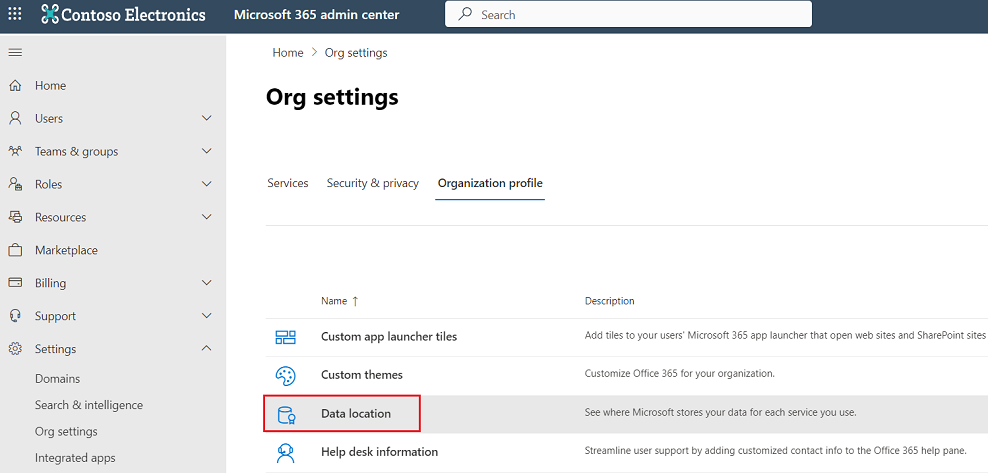
In the left menu, click Settings and choose Org settings.
-
Select the Organization profile tab and click Data location.
-
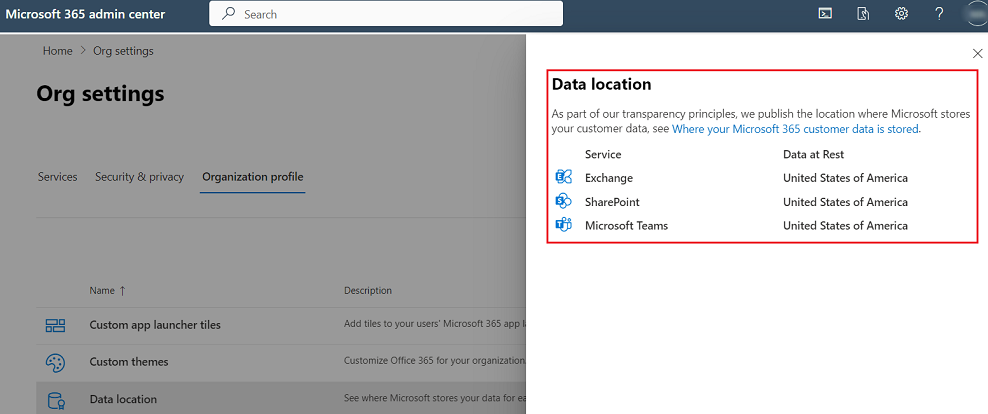
The Data location pane appears and displays your Microsoft 365 tenant’s locations.
Sign in
The sign-in page addresses vary with AvePoint Online Services environments. Access one of the following addresses according to the environment you are using.
-
The insider environment
-
The production environment for commercial use
-
The production environment for U.S. Government Public Sector
On the AvePoint Online Services sign-in page, choose one of the following sign-in methods based on your environment:
-
Local Account
-
Microsoft 365 Account
-
Microsoft 365 U.S. Government Account (for the U.S. Government Public Sector version only)
Sign in with a Local Account
To sign in with an AvePoint Online Services local account, complete the following steps:
-
On the sign-in page, enter your login information:
-
Login ID – Enter the email address used as your AvePoint Online Services local account.
-
Password – Enter your password.
NOTEIf the password is entered incorrectly three consecutive times, your account will be locked. After an hour, it will automatically unlock. You can also refer to the instructions in the following Reset Your Local Account Password section to retrieve and reset your password.
-
-
Click Sign In to access the AvePoint Online Services homepage.
If your organization has enabled the MFA policy for local accounts, continue with the following steps to sign in to AvePoint Online Services:
-
Download and install an authenticator app on your device. The Microsoft Authenticator app is the recommended choice, and most major authenticator apps are also supported. Click Next.
-
Use the authenticator to scan the QR code. This step will connect your authenticator app with your account. Click Next.
-
Enter the 6-digit code shown in the authenticator app. Click OK.
If you need to reconfigure the MFA settings, such as when switching to a new device, contact your administrator to reset MFA for your local account.
Reset Your Local Account Password
To reset the password of your AvePoint Online Services local account, complete the following steps:
-
Navigate to AvePoint Online Services sign-in page.
-
Click the Forgot Password link under the Sign In button.
-
Enter the following information:
-
Username – The email address used as your AvePoint Online Services username.
-
Verification Code – The verification code. Click Refresh to refresh the verification graphic if no image is displayed.
-
-
Click Reset Password to set a new password. A verification email is sent to the email address you specified. Retrieve the email message and click the supplied link to set a new password. After clicking the link, you will be redirected to the Reset Your Password page. Enter the following information on this page:
-
New Password – The new password.
-
Confirm Password – Retype the new password for confirmation.
-
Verification Code – The verification code. Click Refresh to refresh the verification graphic if no image is displayed.
-
-
After setting up the new password, click Reset Password to save your new password, and then click OK in the pop-up window. You are redirected to the sign-in page. You can sign in to AvePoint Online Services with the new password.
The link in the verification email for resetting a new password will expire in 24 hours. If you do not reset the password within 24 hours, repeat the steps above to finish resetting your password.
Sign in with a Microsoft 365 Account
To sign in with a Microsoft 365 account, complete the following steps:
-
On the sign-in page, click Sign in with Microsoft.
NOTEIf you are using the Microsoft 365 account to sign into another app on the same browser, you will be automatically signed into AvePoint Online Services.
-
On the Microsoft 365 authentication page, enter an existing Microsoft 365 login ID and password.
-
Click Sign in.
-
If it is the first time that this Microsoft 365 account is signing into AvePoint Online Services, the required permissions are displayed. Review the permissions and click Accept. The AvePoint Online Services app is generated in My apps on Microsoft 365. You can click the app to access AvePoint Online Services within Microsoft 365. The app will remember your credentials when you sign in through it. For the API permissions required by the AvePoint Online Services app, refer to API Permissions Required by the AvePoint Online Services App (for Microsoft 365 Sign-in Method).
NOTEIf the Need admin approval page appears, the Microsoft 365 Global Administrator can refer to the following instructions to complete the configurations based on your tenant’s user consent settings:
-
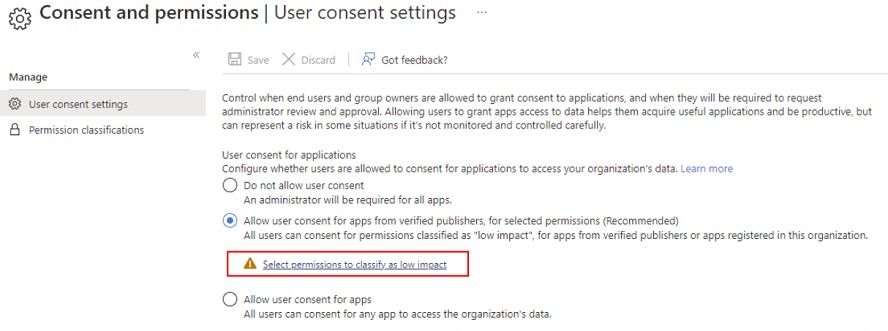
If your tenant’s user consent for applications setting is Allow user consent for apps from verified publishers, for selected permissions (Recommended), the Microsoft 365 Global Administrator must complete the steps below:
-
Sign in to the Microsoft Entra admin center (or Microsoft Azure portal) as a Global Administrator.
-
Navigate to Microsoft Entra ID > Enterprise applications > Consent and permissions > User consent settings.
-
Click Select permissions to classify as low impact.
-
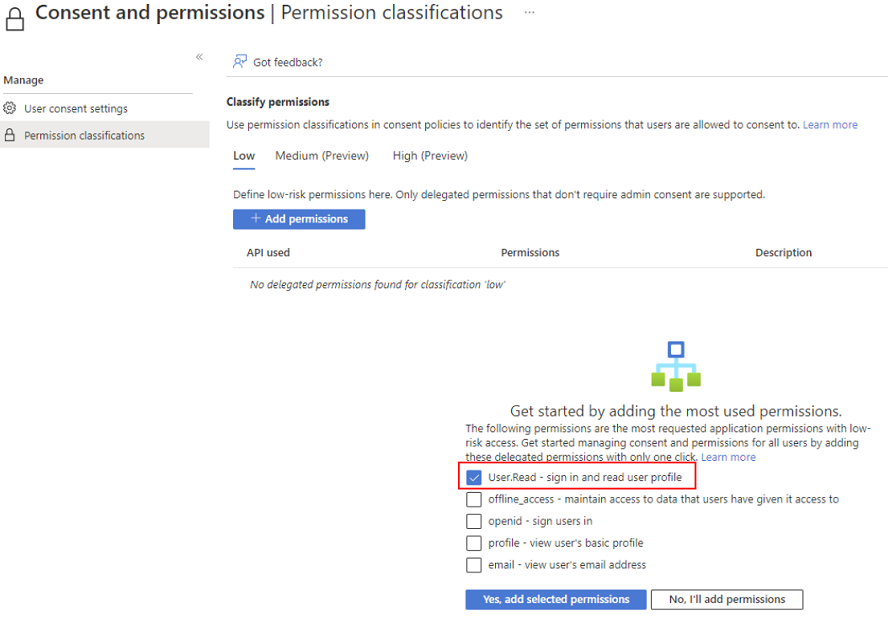
On the Permission classifications page, select the User.Read – sign in and read user profile permission, and click Yes, add selected permissions.
-
-
If your tenant does not allow users to consent to apps, contact your Microsoft 365 Global Administrator or Privileged Role Administrator to consent to the AvePoint Online Services app first. For details of consenting to the AvePoint Online Services app, refer to the What If Your Tenant Does Not Allow Users to Consent to Apps? section.
-
If your Microsoft 365 account does not exist, but your tenant is present in AvePoint Online Services, the Join AvePoint Online Services page will appear. To request to join the existing tenant, contact your Service Administrator for an invitation to AvePoint Online Services.
API Permissions Required by the AvePoint Online Services App (for Microsoft 365 Sign-in Method)
The table below lists the API permissions required by the AvePoint Online Services app, which AvePoint has published to your Microsoft Entra ID.
| API | Permission (description) | Type | Purpose | Is newly required? |
|---|---|---|---|---|
| Microsoft Graph | openid (Sign users in) | Delegated | Support signing into AvePoint Online Services with Microsoft 365 accounts. | No |
| Microsoft Graph | profile (View users’ basic profile) | Delegated | Retrieve users’ profile information. | No |
| Microsoft Graph | offline_access (Maintain access to data you have given it access to) | Delegated | Retrieve users’ information and support functions for other AvePoint online services. | No |
| Microsoft Graph | User.Read (Sign in and read user profile) | Delegated | Support signing into AvePoint Online Services with Microsoft 365 accounts. | No |
| Microsoft Graph | email (View users’ email address) | Delegated | Retrieve users’ email addresses. | No |
The AvePoint Online Services app does not need to be re-consented for the newly added permissions.
Sign in with a Microsoft 365 U.S. Government Account
To sign in with a Microsoft 365 U.S. Government account, complete the following steps:
-
On the sign-in page, click Sign in with Microsoft (U.S. Government).
NOTEIf you are using the Microsoft 365 account to sign into another app on the same browser, you will be automatically signed into AvePoint Online Services.
-
On the Microsoft 365 authentication page, enter an existing Microsoft 365 login ID and password.
-
Click Sign in.
-
If it is the first time that this Microsoft 365 account is signing into AvePoint Online Services, the required permissions are displayed. Review the permissions and click Accept. The AvePoint Online Services app is generated in My apps on Microsoft 365. You can click the app to access AvePoint Online Services within Microsoft 365. The app will remember your credentials when you sign in through it.
NOTEIf the Need admin approval page appears, refer to the instructions in the Sign in with a Microsoft 365 Account section.
If your Microsoft 365 account does not exist, but your tenant exists in AvePoint Online Services, the Join AvePoint Online Services page will appear. If you would like to request to join the existing tenant, you can contact your Service Administrator to invite you to AvePoint Online Services.
Connect Your Microsoft Tenant
This section explains how to connect a Microsoft 365 tenant to AvePoint Online Services so that AvePoint services can manage Microsoft workloads. A Tenant Owner or Service Administrator initiates the connection, and a Microsoft 365 Global Administrator in the same tenant must grant admin consent. During the process, an app named AvePoint Online Services Tenant Registration for Microsoft365 is created in Microsoft Entra ID with a defined set of Microsoft Graph permissions. These permissions enable user sign-in, tenant discovery, group and license information retrieval, and user management. No additional Microsoft licenses are required beyond those listed. After the connection succeeds, administrators can review and correct the SharePoint Online admin center URL if needed.
For more information, refer to Connect Tenants.
Configure App Profiles
App profiles define how AvePoint services authenticate and interact with Microsoft tenants. Administrators can use AvePoint default apps (recommended) or custom Azure apps, depending on organizational requirements. Each app profile is associated with one or more services and is created through Management > App management using modern, classic, or custom setup modes. Creating an app profile requires selecting a tenant, choosing supported services, and granting admin consent with an appropriate administrator role. App profiles can be edited, re-authorized, filtered, or deleted, and re-authorization is required if certain conditions occur, such as MFA changes on consenting accounts. AvePoint securely stores consent tokens for apps that use delegated permissions.
For more information, refer to Manage App Profiles for Microsoft Tenants.
Configure Service Account Profiles
This section describes how to configure service account profiles for AvePoint services that rely on username/password authentication. Service account profiles are managed in Management > Service account and are supported by multiple AvePoint services. Administrators define a profile name, select a tenant and service, and provide credentials for a dedicated Microsoft account with the required permissions. AvePoint recommends using non-personal service accounts without MFA enabled. Service account profiles can be edited or removed when no longer needed, and permission requirements vary by service.
For more information, refer to Manage Microsoft Service Account Profiles.
Create Scan Profiles for Microsoft 365
Scan profiles enable automatic discovery of Microsoft 365 objects and are configured under Auto discovery > Scan profiles. Administrators can create scan profiles to discover objects such as Exchange mailboxes, OneDrive accounts, SharePoint sites, Microsoft 365 Groups, Teams, Viva Engage communities, Project sites, Public Folders, and users. Each scan profile includes settings for the target tenant, object types, scan schedule, notifications, and impersonation options. Discovered objects are organized into containers using either express mode (default structure) or advanced mode (custom rules). The associated app profiles must have the required permissions, and some object types require additional administrator roles.
For more information, refer to Auto Discovery for Microsoft 365.
Create Scan Profiles for Power Platform
This section covers scan profiles for discovering Power Platform objects, including environments, connections, Power Apps, Power Automate flows, Power BI content, solutions, and Power Pages. Scan profiles are created in Auto discovery > Scan profiles, where administrators select object types, configure scan frequency, and define notification settings. Optional features include automatically granting system administrator roles across environments. Scanning Power Platform objects requires specific administrator roles, such as Power Platform Administrator, and Power BI objects also require appropriate Power BI licensing and roles. Containers and rules can be configured in express or advanced mode.
For more information, refer to Auto Discovery for Power Platform.
Create Scan Profiles for Active Directory
Active Directory scan profiles are supported by the EnPower service and are used to discover on-premises AD objects such as users, groups, and mailboxes. These profiles are created in Auto discovery > Scan profiles after EnPower agents have been installed. Administrators configure the scan schedule, notification recipients, and container rules that determine how discovered objects are organized. Scan profiles can use express mode for default organization or advanced mode for rule-based classification.
For details, refer to Auto Discovery for Active Directory
Create Scan Profiles for Agents
This section describes scan profiles used to discover Microsoft agents, such as Copilot Studio agents, SharePoint agents, and Microsoft Foundry agents. Administrators create these profiles in Auto discovery > Scan profiles, selecting the tenant and supported agent types. Scan profile settings include scan frequency, optional auto-granting of administrator roles (where applicable), and notification options. As with other scan profiles, discovered agents are organized using express or advanced container rules, and required app profiles must already be configured.
For more information, refer to Auto Discovery for Agents.
Configure Connections for SaaS Applications
This section explains how to configure connections to third-party SaaS applications for use with Cloud Backup for SaaS Applications. Connections are created in Management > App management > Application connection. Each supported SaaS application (such as Confluence, DocuSign, GitHub, Jira, Okta, and others) requires specific credentials, tokens, or keys, depending on the platform. Administrators must supply the required information and ensure that the account used has sufficient permissions in the source application. Once configured, the SaaS application is available for backup and management within AvePoint Online Services.
For more information, refer to Manage Connections for SaaS Applications.