
Home > Use the Quick Start Wizard
Download this articleUse the Quick Start Wizard
AvePoint Online Services provides a Quick start wizard to help you get started.
If this is your first time accessing AvePoint Online Services after signing up for an account for your organization, read and accept the subscription agreement. Then, click Let’s get started to access the Quick start wizard.
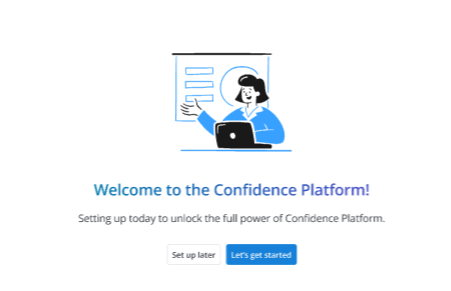
If you do not want to complete the Quick start wizard now, you can click Set up later to go to the My services page. You can always access this wizard by clicking the Quick start option on the left navigation pane.
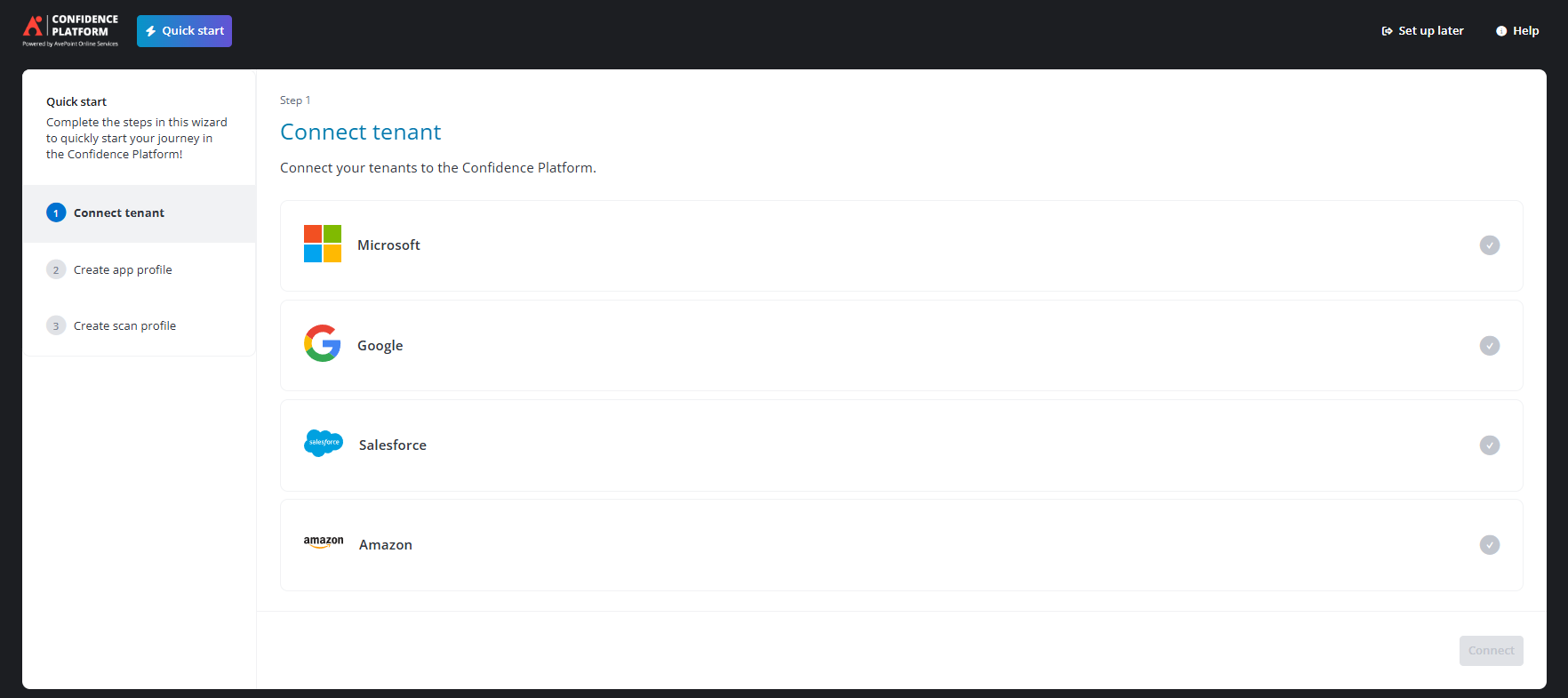
Follow the instructions below to complete the steps listed in the Quick start wizard.
-
Connect tenant – Based on the type of tenant that you want to connect, select the Microsoft, Google, Amazon, or Salesforce platform. For additional details, refer to Connect tenants.
-
Create app profile – An app profile is required for AvePoint Online Services to connect your Microsoft/Google/Salesforce/Amazon environments. Refer to App management to see the additional details to process the following steps: Select services, Choose setup method, and Consent to apps.
NOTEFor the Choose setup method step, the wizard only provides recommended modes for your convenience. For example, only the Modern mode (Recommended) is provided if you select the Cloud Backup for Microsoft 365 service.
-
Create scan profile (optional) – To discover objects in your environments and scan these objects into AvePoint Online Services for management, you must configure scan profiles. Refer to the following sections to choose object types, configure profile settings, as well as configure containers and rules for creating a scan profile.
NOTEThis step is necessary for services that support Auto discovery. If your organization lacks a subscription for this type of service, this step will not appear in the wizard.
Once you complete the initial setup, you can set up users and groups by clicking User management. For additional details, refer to Manage users. Clicking Go to home page will direct you to the My services page.