Home > Report Center for AvePoint Cloud Backup > View the Coverage Report
Export to PDFView the Coverage Report
The Coverage report provides a Dashboard to show what has been protected in Cloud Backup for Microsoft 365 according to service types, the protected data size of each service, and backup trends. The Dashboard consists of four charts: Backup coverage, Protected objects, Protected data size, and Protected data size trend. You can click the Download PDF report button to download the Coverage report as a single PDF. Note that Protected objects, Protected data size, and Protected data size trend are not supported if you are using Cloud Backup for Microsoft 365 in the data center operated by 21Vianet in China.
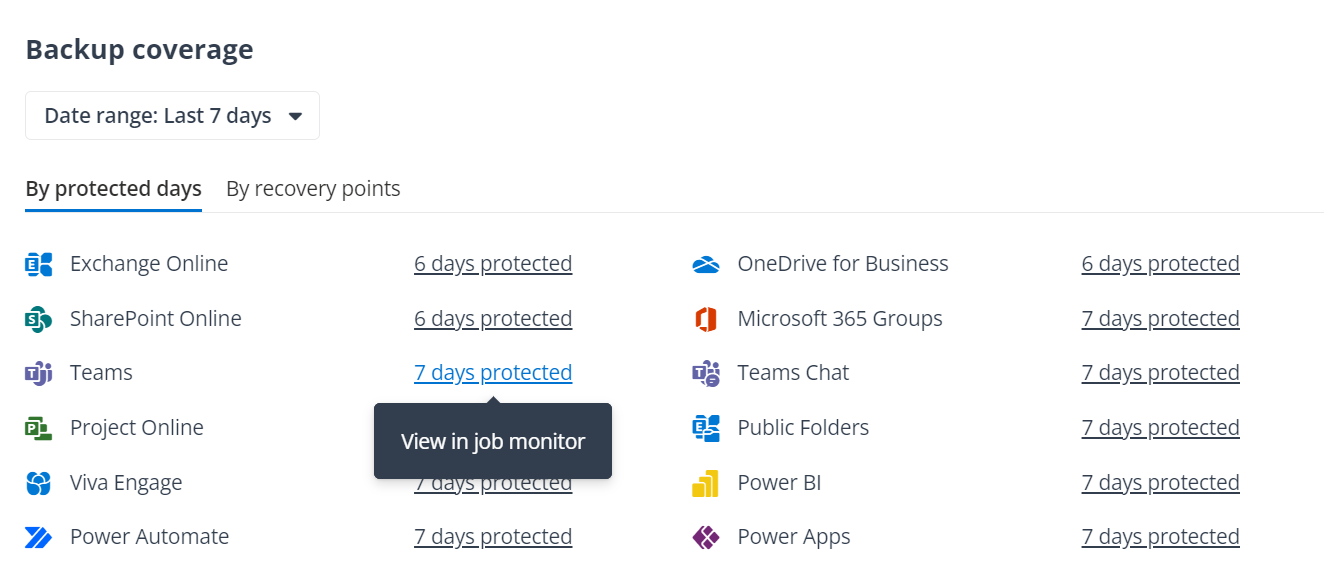
The Backup coverage chart displays how many days each service has been protected for and how many recovery points each service has according to service types in Last 7 days or Last 30 days. The chart is updated once the backup job is completed. You can click the number of protected days and recovery points to view backup jobs in Job monitor. You can also use the Download report option to download a report for the backup jobs in the last 30 days.
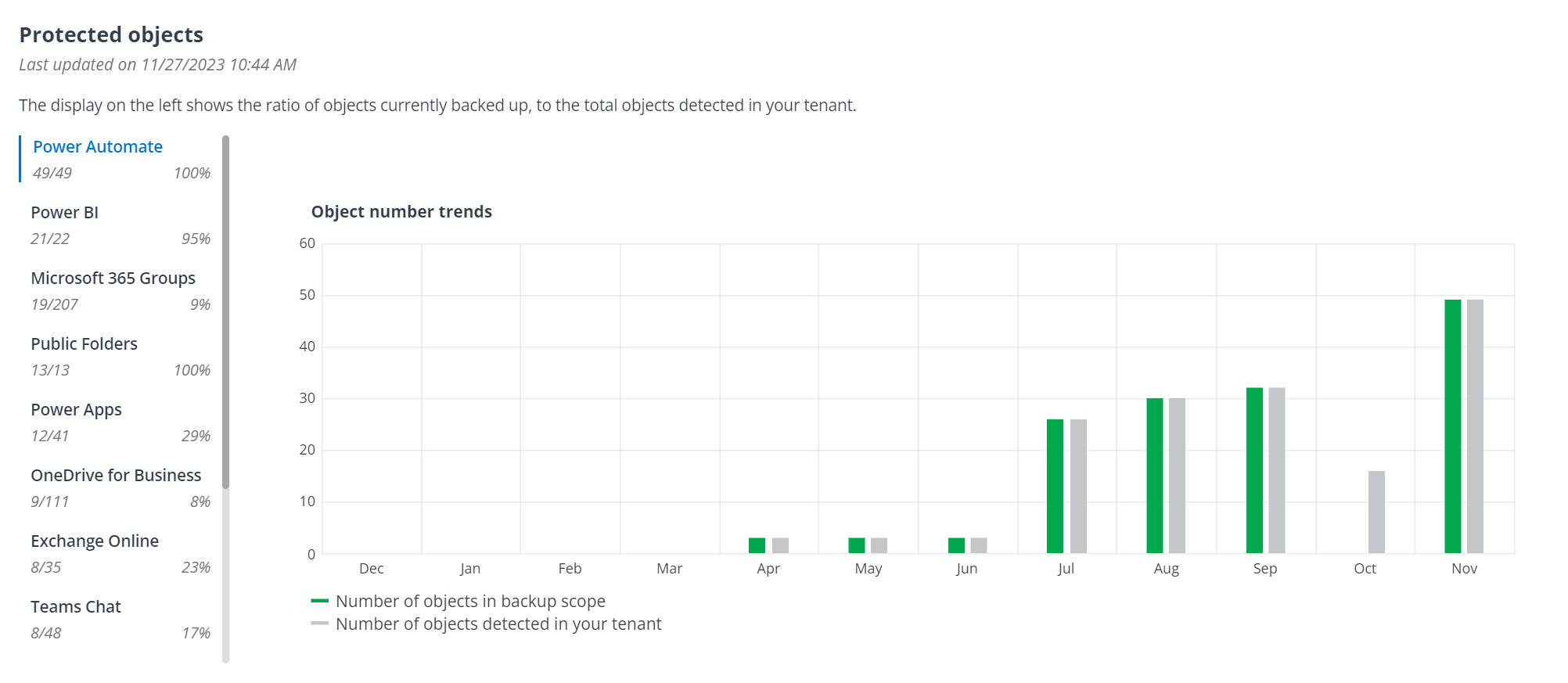
The Protected objects chart has two parts. The display on the left shows the ratio of objects currently backed up, to the total objects detected in your tenant. The right part shows two trends in the past 12 months: the number of objects in backup scope and the number of objects in your tenant. Note that this chart is updated daily.
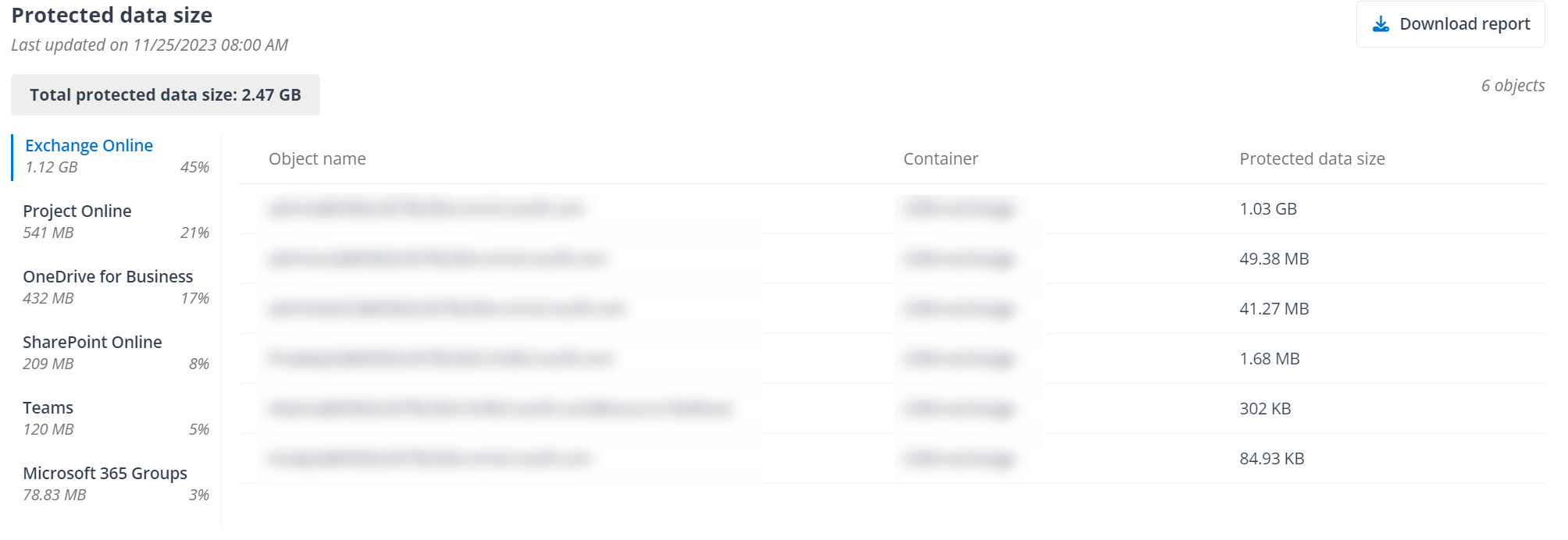
The Protected data size chart displays the total protected data size, the protected data size of each service and its ratio to the total protected data size, and objects with their container and protected data size. The objects are ranked according to their protected data size and only the top 100 objects can be displayed here. The chart is updated once a week and you can click Download report to download a report for all protected objects in your tenant.
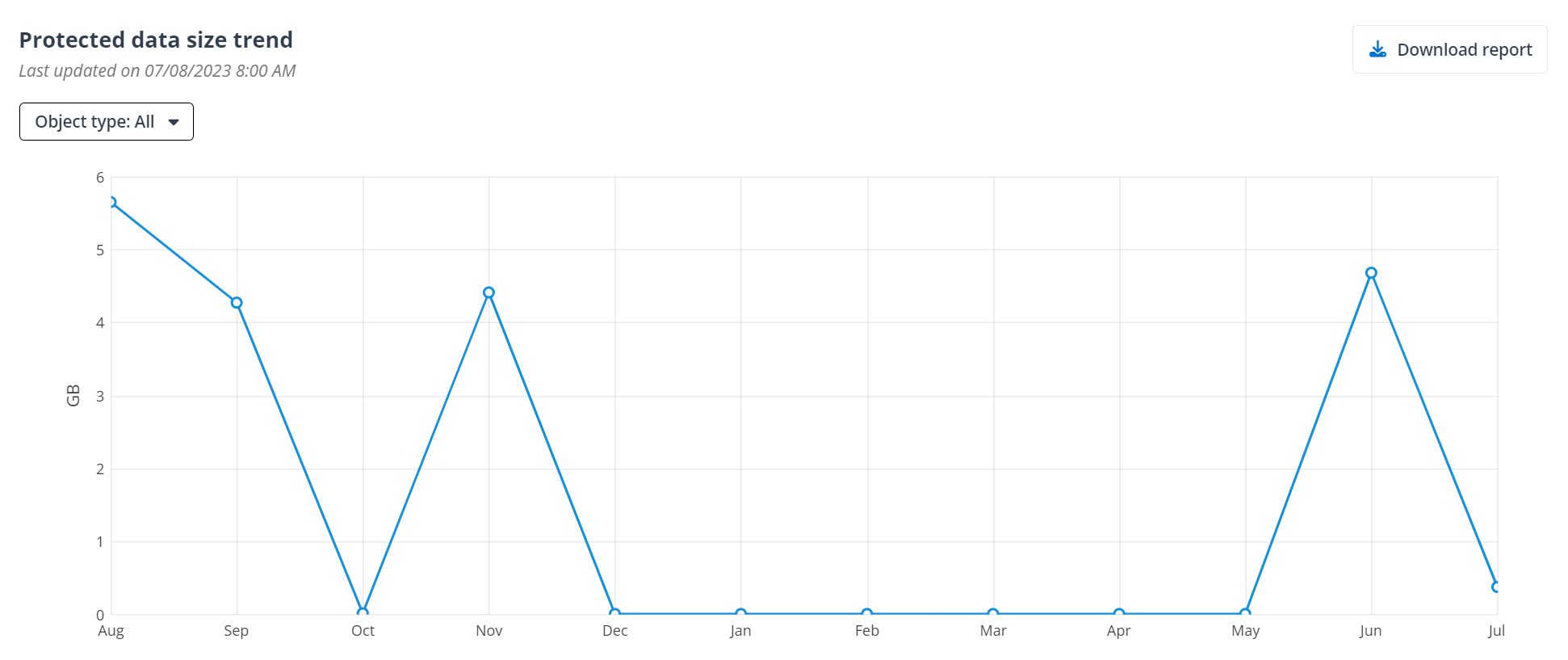
In the Protected data size trend chart, you can click the Object type to show the overall protected data size trend or the trend of objects protected by each service. The chart is updated once a week and you can also click Download report to download a report for all services.
Details
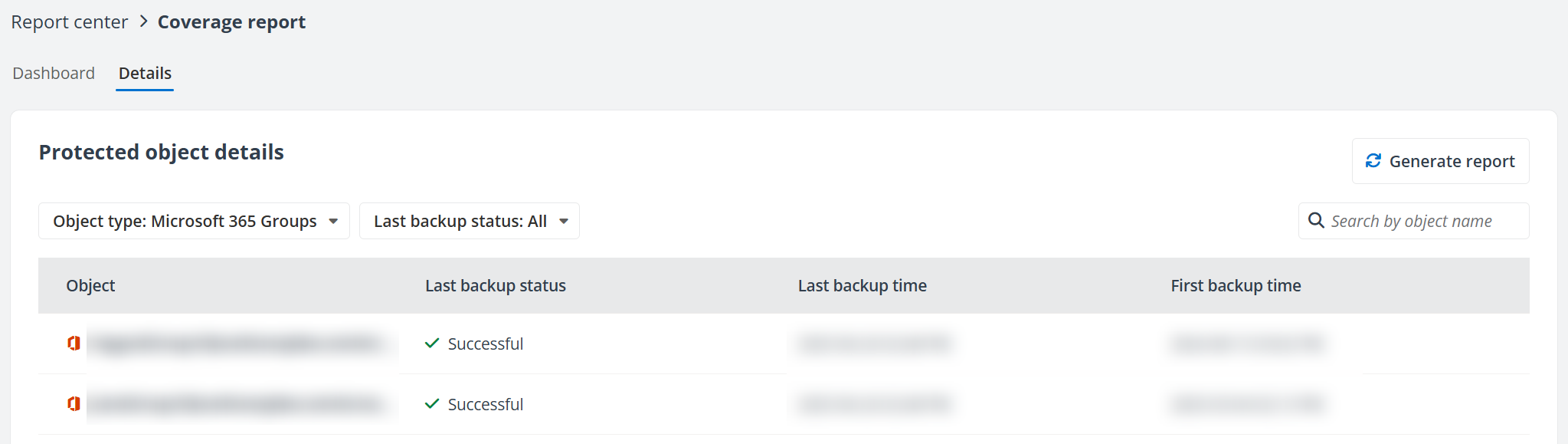
The Details page displays the Last backup status, Last backup time and First backup time of each object protected by Cloud Backup for Microsoft 365 according to the Object type. You can click Generate report to generate a Simple report or Detailed report for protected object details of the object types you selected. A Simple report only includes details of top-level objects and a Detailed report includes details of top-level objects and the items with errors or skipped items.
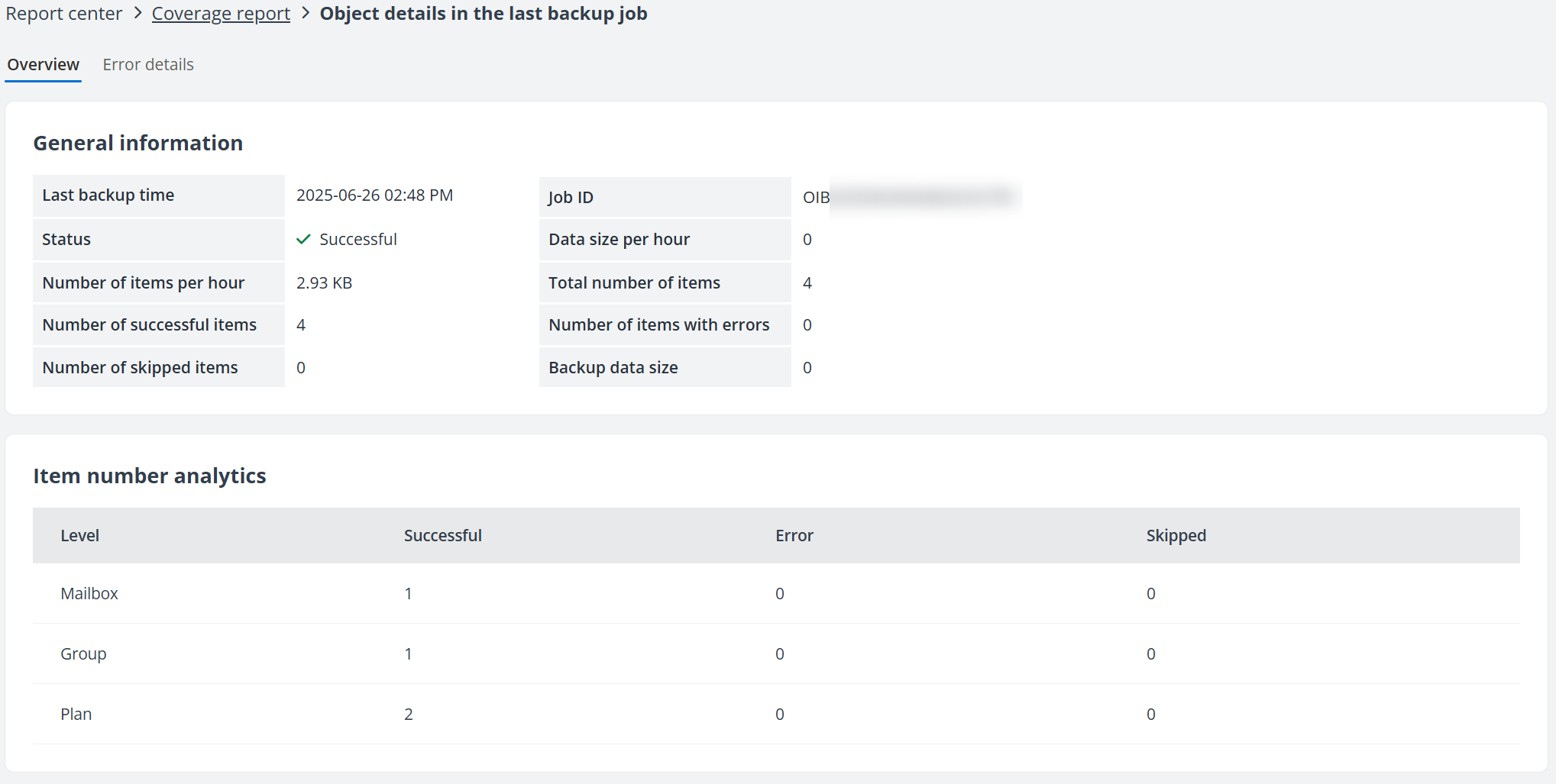
For detailed information about specific objects in the last backup job, click the object name under the Object column. The Object details in the last backup job page displays. In the Overview tab, the General information section shows last backup job information, including the backup time, job ID, job status, data size/number per hour, backup data size, and the overall backup status and number of items protected under the top-level object in the last backup job. The Item number analytics section help you get into details on the backup status and number of items of each level protected in the last backup job.
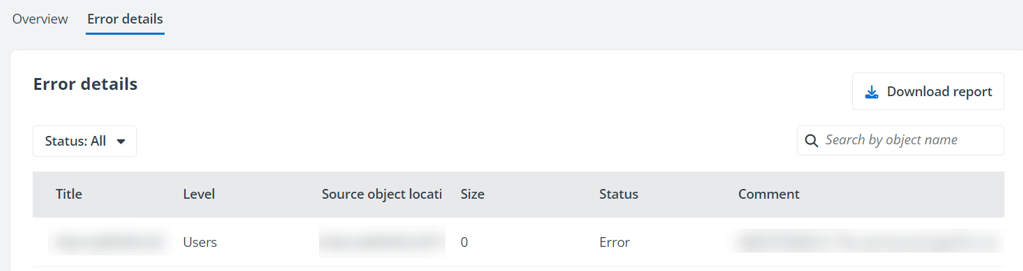
In the Error details tab, you can filter the items with errors and skipped items and get more details. You can also click Download report to download a report for details of all items with errors or skipped items under the top-level object in the last backup job.