
Home > Data Management for AvePoint Cloud Backup > Data Subject Access Requests
Export to PDFData Subject Access Requests
To help your organization comply with GDPR, AvePoint Cloud Backup provides a tool that discovers all copies of the Exchange Online Mailbox, SharePoint Online Site Collections and OneDrive backups of a given data subject stored by AvePoint’s Cloud Backup solution and deletes the user-generated backups of Mailbox, SharePoint Online Site Collections, and OneDrive. After the deletion, the entire object, along with all associated data, is permanently deleted.
The Cloud Backup data stored on the backend is immutable to users. Administrators can enable data availability for data subject access requests in accordance with their organization’s GDPR policy.
Note the following:
-
If you currently have no GDPR requests and want to avoid any accidental deletion of backup data, you can contact AvePoint Support to disable this feature. Note that the Data Subject Access Requests feature and the Manually Delete Backup Data feature will both be disabled.
-
You can enable the approval process for data deletion in Settings > Security to avoid accidental data loss. With this feature enabled, data deletion requests and email notifications will be sent to the administrators when you delete data in Manually delete backup data and Data subject access requests. Then administrators can access the Cloud Backup for Microsoft 365 interface and click My Tasks (
 ) on the upper-right of the interface to approve or reject your requests. The deletion jobs will start when the requests are approved. Note that the requests will be automatically invalidated if not approved within 7 days.
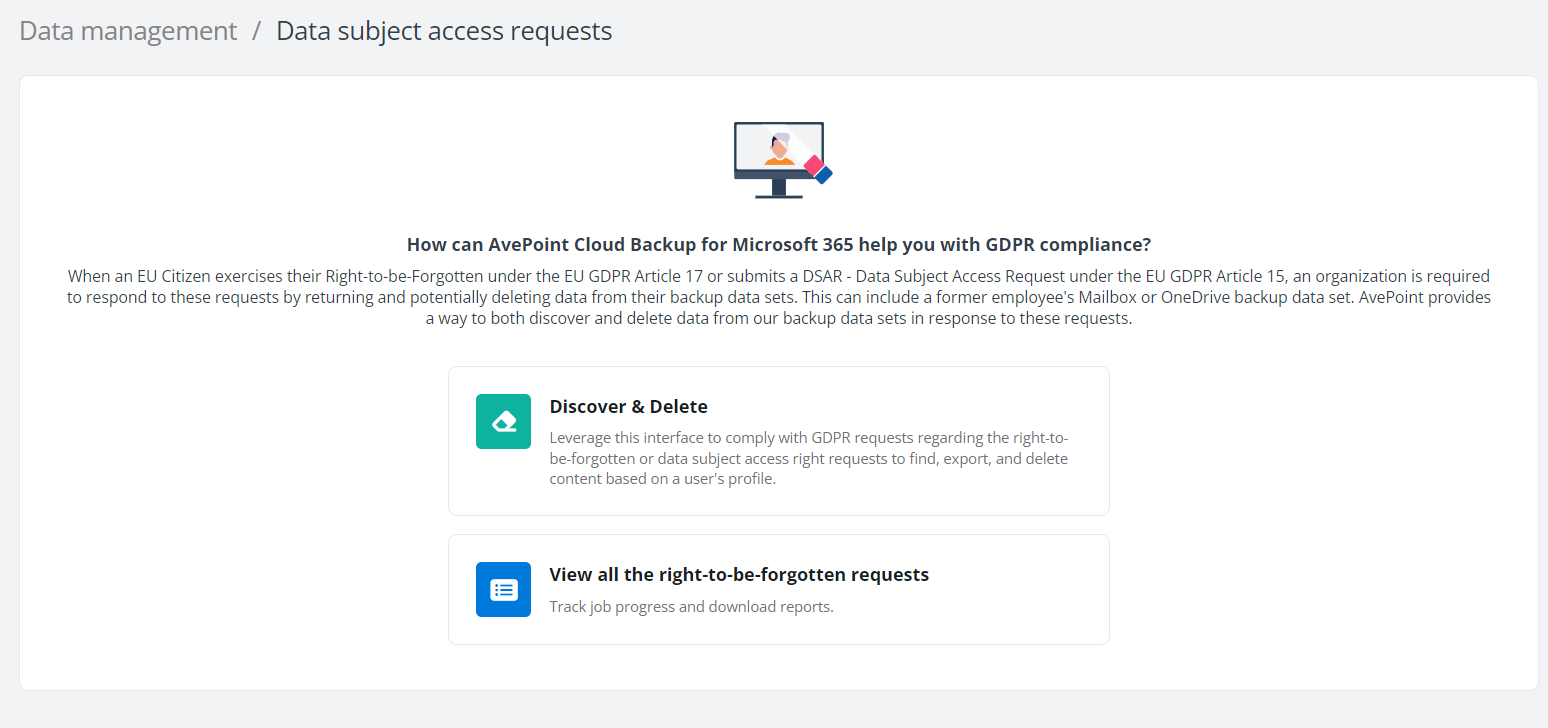
Complete the steps below:
-
Click Data Management > Data subject access requests on the left pane.
-
Click Discover & Delete to enter the What type of content are you looking to identify? page.
-
Select the content type you are looking for. If you want to delete the mailbox backup of the data subject, select Exchange Online; to delete the backup of the data subject’s libraries, select OneDrive; to delete the backup of the site collection backup of the data subject, select SharePoint Online.
-
Enter the keyword to search for the data subject you are looking for. Select the data subject from the list and then click Apply. You can select multiple items in the search result.
-
You can export a list of recovery points to view the object backup history. Select the objects and click Export recovery point. A ZIP file will be automatically saved to the download location of your browser on the local computer.
-
Click Delete to delete all backup data for the selected objects from AvePoint Cloud Backup.
You can continue to discover and delete data, or click View all the right to beforgotten requests to navigate to the Job Monitor page to view deletion jobs in response to the Right to be Forgotten Requests.