
Home > Risk Intelligence > Ungoverned Users
Download this articleUngoverned Users
On the Ungoverned users page, all internal users, external users, unmanaged users, suspended users, archived users, and deleted users are displayed in the table.
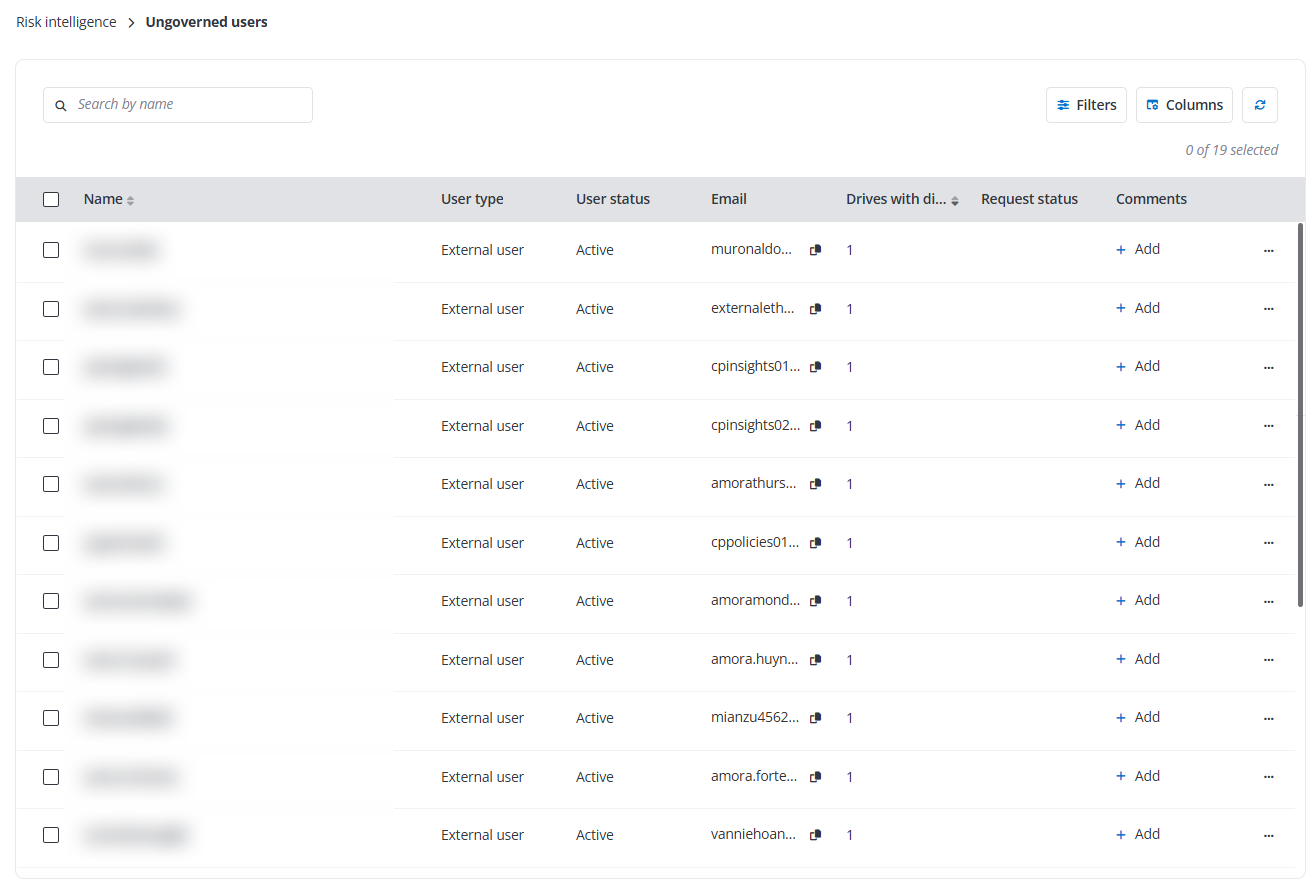
The table displays the following information about the users:
-
Name – The name of the user.
-
User type – The user type.
-
User status – The user account’s activation status.
-
Email – The email address of the user.
-
Drives with direct access – The number of drives that the user have direct access to.
-
Request status – If the user is an external user invited to the organization, this column displays the invitation status.
-
Comments – Comments added to the user in Confidence Platform for Google.
The following actions are available above the table on this page:
-
Filter – Click Filters in the upper-right corner of the table. Click the down arrow button to the right of a column to show the text box or selectable options. Enter keywords in the text box and/or select desired options to define the filter conditions.
-
Manage columns – Click Columns in the upper-right corner of the table, and the drop-down list where all available columns are displayed appears. Select the columns that you want to display in the table and click Apply to apply the column selection. You can also choose Select all to show all columns in the table.
-
Refresh – Click the refresh icon to retrieve the latest user information.
-
Remove permissions – Select one or multiple unmanaged users and click Remove permissions to remove permissions from the selected users for the drives within the configured data scope, including both directly granted permissions and those inherited through membership.
-
Trust – This option allows you to trust the external user or unmanaged user. Select one or multiple active external users and/or unmanaged users, and click Trust above the table, enter your comment in the text box, and click OK to trust the users.
-
Remove from trusted user list – This option allows you to remove users from the trusted user list. Select one or multiple trusted users and click Remove from trusted user list above the table, enter your comment in the text box, and click OK to remove the users from the trusted user list.
The following options are available in the Comments column or the ellipsis drop-down list for each user listed in the table.
-
Add comments – In the Comments column, click Add to add comments to the object. If needed, you can add multiple comments to one user.
If a user already has comments added, click the comments icon to view the comment details or add more comments.
-
View activities – This option allows you to View User Activities.
-
Access report – This option allows you to View Access Report.
-
Remove permissions – This option allows you to remove permissions from the unmanaged user for the drives within the configured data scope, including both directly granted permissions and those inherited through membership.
View User Activities
On the View activities page, activities are listed in the table and sorted by Activity time in descending order. The activities for the object of the users to whom you have permissions, or the user activities for the objects to which you have permissions will be displayed on this page.
Click the refresh icon to refresh the activities displayed in the table.
The table displays the following information about the users:
-
Activity time – The time when the activity was performed.
-
Category – The category of the activity, Drive activity, User activity, or Gemini activity.
-
Object name – The related object’s name.
-
Activity – The activity.
-
App name – The related app name.
-
IP address – The IP address of the user when the activity was performed.
-
Object ID – The ID of the object.
View Access Report
On the Access report page, the user access in Google drive and groups are displayed in the following two tabs:
-
Known risk for Google drive – Shows the drives to which the user has been given direct access or where permissions are inherited from groups
-
Membership – Shows the groups to which the user belongs.

Click Remove permissions to remove all permissions from the user for all drives within the configured data scope, including both directly granted permissions and those inherited through membership.
The following actions are available in the Known risk for Google drive tab:
-
Filter – Click Filters in the upper-right corner of the table. Click the down arrow button to the right of a column to show the text box or selectable options. Enter keywords in the text box and/or select desired options to define the filter conditions.
-
View details – In the ellipsis drop-down list for each drive listed in the table, select this option to view the Google drive details and risk information in the Details window.
-
View activities – Select this option to View Object Activities.
The following actions are available in the Membership tab:
-
In the Number of members column, click the number to open the View group members window and check the group’s membership details.
-
In the Number of drives column, click the number to go to the Access report that shows the drives to which the user has been given direct access or where permissions are inherited from groups.