
Home > Risk Intelligence > Risky Objects
Download this articleRisky Objects
The Risky objects page contains the Risky objects and Sensitive files accessed by AI tabs. Regularly reviewing these tabs can enhance your organization’s visibility into data usage and strengthen overall security posture.
The following actions are available under both tabs:
-
Search – Find specific objects by entering the partial or full name of the objects in the search box, and press Enter on the keyboard. All matching objects are displayed.
-
Filter – Click Filters in the upper-right corner of the table. Click the down arrow button to the right of a column to show the text box or selectable options. Enter keywords in the text box and/or select desired options to define the filter conditions.
-
Manage columns – Click Columns in the upper-right corner of the table, and the drop-down list where all available columns are displayed appears. Select the columns that you want to display in the table and click Apply to apply the column selection. You can also choose Select all to show all columns in the table.
-
Refresh – Click the refresh button to retrieve the latest object information.
Risky objects
The Risky objects tab provides a list of files and objects identified as potential security risks within your Google environment. It allows you to quickly assess and prioritize remediation efforts based on the calculated risk, sensitivity, and exposure levels of each item.
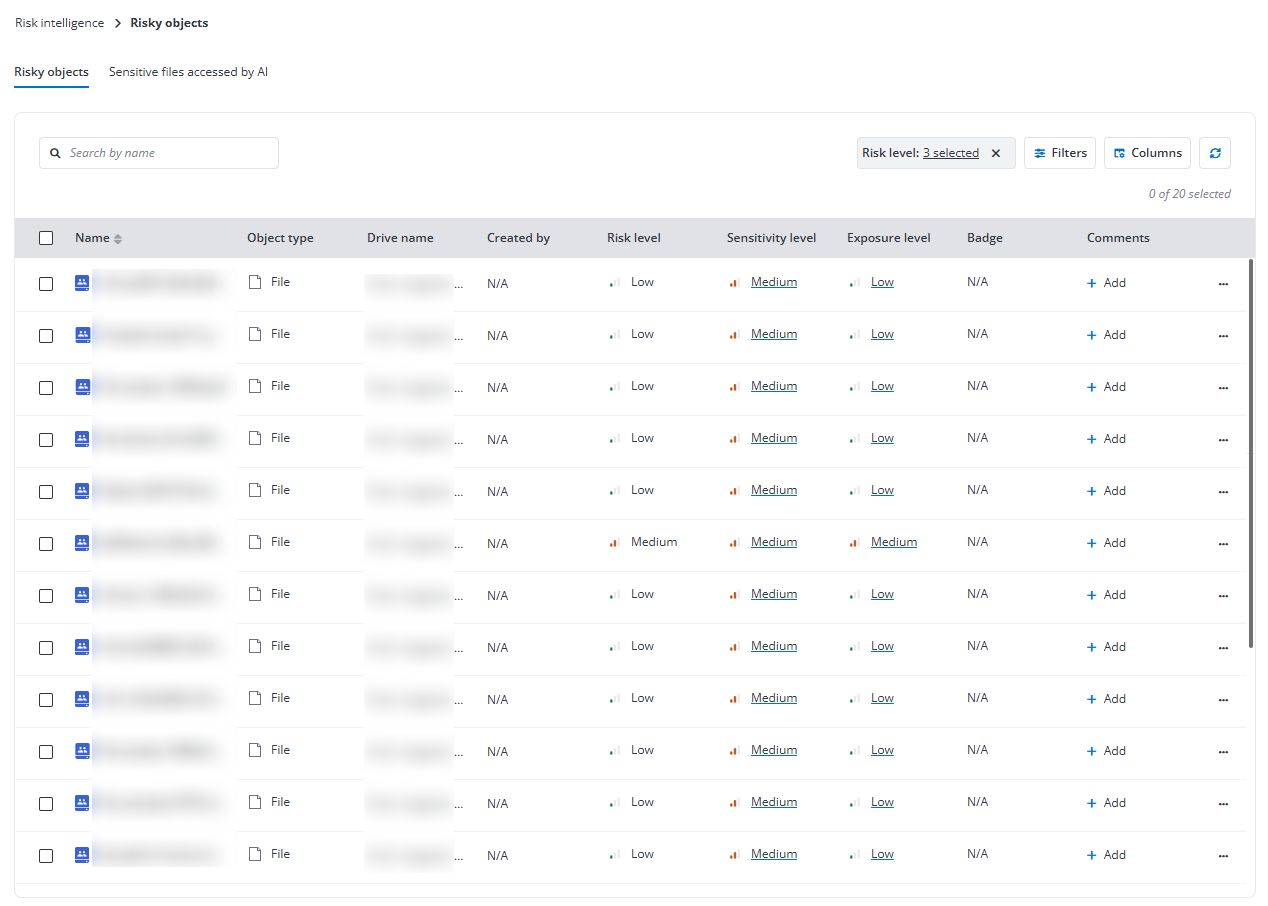
The following actions are available above the table on this page after you select one or multiple objects:
-
Add tag – Select one or multiple objects and click Add tag above the table. The Add tag window appears. Select a tag from the drop-down list or enter the tag name in the text box. You can also create a new tag by entering a new tag name. Enter an optional comment in the text box and click Add to add the tag and comment to the objects.
-
Manage label – Select one or multiple files and click Manage label above the table. The Manage label window appears. Select a Google label you want to apply from the drop-down list. If there are any fields configured for the label, you can select field values. Then, click Apply to apply the label to the files.
The following options are available in the Comments column or the ellipsis drop-down list for each object listed in the table.
-
Add comments – In the Comments column, click Add to add comments to the object. If needed, you can add multiple comments to one object.
If an object already has comments added, click the comments icon to view the comment details or add more comments to it.
-
View details – This option allows you to view the risk level, permission report, and activity report of an object. For more information, refer to View Object Details.
-
View permissions – This option allows you to access the View Object Permissions page of the object.
-
View activities – This option allows you to access the View Object Activities page of the object.
-
Add tag – This option allows you to add a tag and optional comments to the object.
-
Manage label – This option allows you to apply or update the Google label applied to the file.
Sensitive files accessed by AI
The Sensitive files accessed by AI tab provides a list of files that have been accessed by artificial intelligence systems within your Google environment. Monitoring these interactions can help you identify potential risks associated with automated processes and ensure that sensitive information is being handled appropriately.
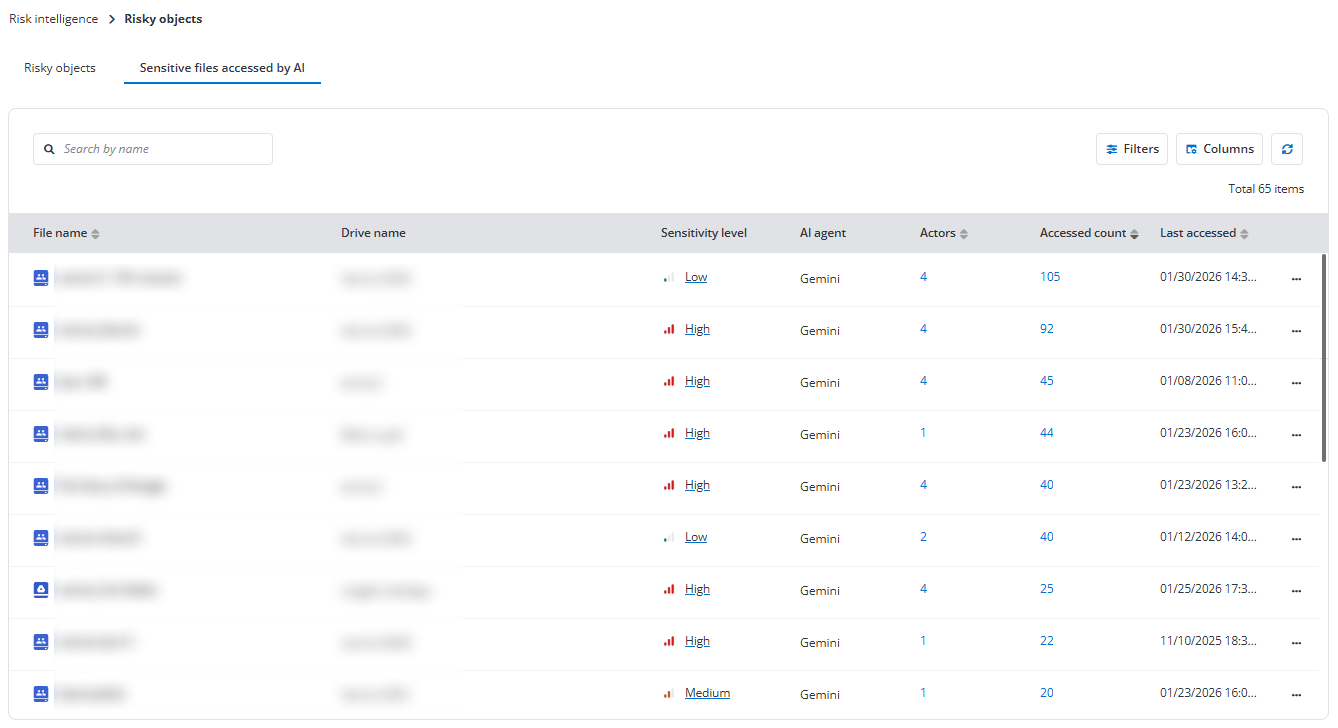
Click the number link under Actors for a file to view the users who accessed the file using AI, how many times they accessed it, and when it was last accessed.
Click the number link under Accessed count for a file to view the corresponding access activities in Activity Explorer.
The following options are available in the ellipsis drop-down list for each file listed in the table.
-
View details – This option allows you to view the risk level, permission report, and activity report of an object. For more information, refer to View Object Details.
-
View permissions – This option allows you to access the View Object Permissions page of the object.
-
View activities – This option allows you to access the View Object Activities page of the object.
View Object Details
On the View details page of a risky object, information is displayed in the following three tabs:
-
Permissions – You can view the permission-related information, including the users and groups who have permissions to the object, their roles, type, and permission expiration time. Click the refresh icon in the upper-right corner of the tab to refresh the users and groups displayed in the table.
-
Activities – All activities within the object are displayed. You can click Filters to narrow down the display scope or click the refresh icon to refresh the activities displayed in the table.
-
Details – The basic information of the object is displayed under Basic information. You can click the copy button to copy the URL and location of the object.
Under Risk information, the risk level, exposure level and exposure rule, and sensitivity level of the object are displayed.
View Object Permissions
The users and groups who have permissions to the object are listed in the table with the following columns:
-
User/Group – The user or group that has permissions to the object, or the shared link to the object. Hover your mouse over the user/group name to view the user or group email. Clicking a group name allows you to view all members.
-
Role – The role in the object the user/group has.
-
Type – The type of the user or group.
-
Expiration time – If the object is shared via link, the expiration date of the link will be displayed here.
Click the refresh icon to refresh the permissions in the table.
Click Check permissions in the upper-right corner of the page, and the Check permissions window appears. Enter the name or email address of the user or group in the text box and select the user/group from the suggestion list. The permission details of the user or group to the object are displayed below.
View Object Activities
On the View activities page, activities are listed in the table and sorted by Activity time in descending order. The activities for the object of the users to whom you have permissions, or the user activities for the objects to which you have permissions will be displayed on this page.
Click Filters to filter activities and only display the matched activities in the table.
Click the refresh icon to refresh the activities displayed in the table.
In the Basic information tab, you can view the basic information of the object. You can click the copy button to copy the drive URL and location of the object.