
Home > Dashboard
Download this articleDashboard
The Dashboard module provides a centralized view of your organization's Google Workspace environment, offering tailored insights based on your active subscriptions. This module presents three specialized dashboard views, each designed to highlight different aspects of your digital workspace management:
Based on your subscriptions, you may see the following dashboard pages:
-
Overview – Brings together key metrics related to workspaces, shared drives, users, policy violations, and risk exposure in a unified visual interface.
-
Risk Posture – Displays key metrics across several critical areas including risk exposure, policy violations, sensitive data exposure, and external sharing activities.
-
AI Usage Analysis – Provides a comprehensive overview of Gemini usage, risk exposure, and adoption trends across your Google tenants.
-
Information Lifecycle – Provides key metrics on information lifecycle management to help you gain a comprehensive understanding of records managed by the Information management module.
-
Activity Overview – Displays the analyzed and aggregated activity data in the last 7 days to help you quickly assess engagement levels, identify patterns in user behavior, and spot any unusual spikes or drops in activity.
Together, these dashboards provide comprehensive visibility into your Google Workspace ecosystem, enabling administrators to quickly assess security status, monitor compliance adherence, and make informed decisions about resource management and risk mitigation strategies.
On each page of the dashboard, you can filter the data displayed on the cards by the data time range. Click Date range in the upper-right corner, then select Last 7 days, Last 30 days, Last 3 months, and Last 6 months.
In Information Lifecycle, only data in the Record count by status - Google Drive chart can be filtered.
Overview
On the Overview dashboard, you can view an overall summary of your Google environment’s security, compliance, and usage status. Key metrics and governance insights are presented through interactive cards and visualizations categorized in the following sections:
-
Total workspaces and workspace violations detected – Provides a high-level overview of the total number of workspaces in your environment and the number of workspaces with policy violations detected.

-
Total shared drives and shared drive violations detection – Monitors the quantity of shared drives and the number of shared drives with detected policy violations. This section offers insight into collaborative content management and security adherence across team-based resources. By clicking the violation number, you will be redirected to check the detailed violations.

-
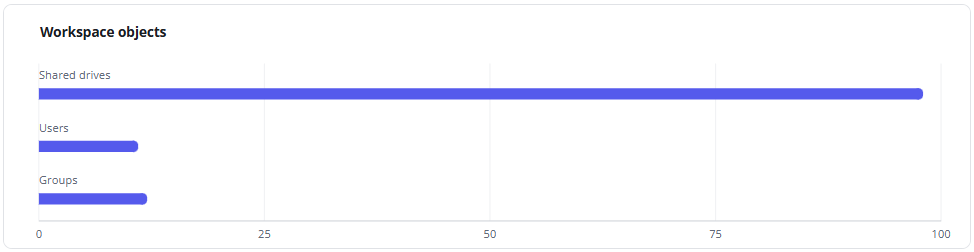
Workspace objects – Offers visibility into the distribution of different Google Workspaces object types, including user drives, shared drives, and users.
-
Renewal statuses – Displays key lifecycle management metrics, including pending, successfully renewed, and overdue renewals. This helps ensure timely governance and continuity of workspace operations.

-
Workspaces and sensitive objects – Displays the number of workspaces with sensitive objects, the links sharing objects with public users, and the number of detected sensitive objects.

-
Total users and user violations detected – Monitors the total user count and the number of users with policy violations in this section. It provides a snapshot of user-based compliance and helps identify areas requiring attention. By clicking the violation number, you will be redirected to check the detailed violations.

-
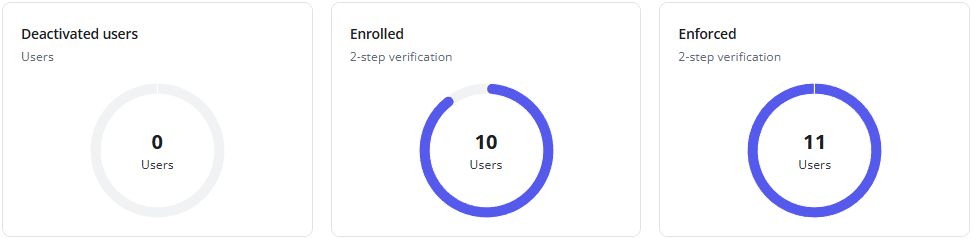
User statuses – Delivers critical identity and access management insights, including deactivated and risky users, as well as the enrollment and enforcement status of two-step verification – key for maintaining account security.
Risk Posture
By bringing together the following critical security dimensions, the Risk Posture dashboard enables administrators to quickly assess overall risk levels, measure compliance effectiveness, and make data-driven decisions to strengthen the organization's security posture:
-
Drives with high-risk objects - Highlights user drives and shared drives containing high-risk objects, providing visibility into potential security vulnerabilities.

-
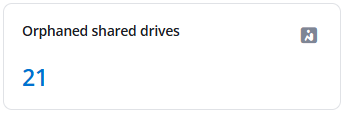
Orphaned shared drives – Orphaned drives are shared drives that lack active ownership or management. This section helps identify such drives to ensure proper governance, reduce security risks, and maintain accountability for content and access controls.
-
Drives shared with external users – Monitors both user drives and shared drives that have been shared with external users. It supports external collaboration and helps prevent unintended exposure of sensitive organizational data.

-
User drive policy compliance – Monitors the enforcement of policies on user drives here, including how many are actively monitored, number of drives with violations, and those pending resolving. This section aids in measuring the effectiveness of automated policy enforcement and compliance workflows. By clicking the violation number, you will be redirected to check the detailed violations.

-
Shared drive policy compliance – Tracks policy implementation on shared drives, showcasing the number of drives under monitoring, number of drives with detected violations, and those pending resolving. It reflects the health of policy governance across collaborative workspaces. By clicking the violation number, you will be redirected to check the detailed violations.

-
Sensitive objects and exposure – Provides insight into sensitive objects and their exposure levels – whether shared publicly, externally, or with target audiences. This section enables rapid response to potential data leaks and reinforces sensitive information handling protocols.

-
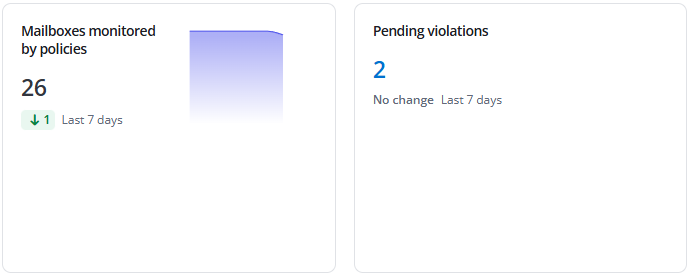
Mailbox policy compliance – Provides review of policy compliance for mailboxes, including monitoring coverage and detected violations that are pending resolving. This ensures email communication aligns with organizational security and compliance standards.
-
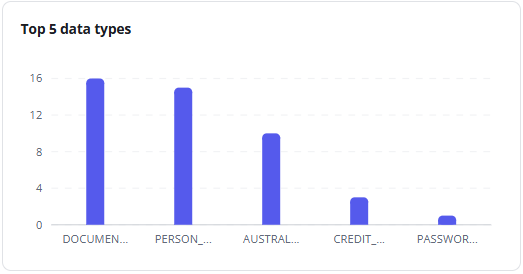
Top 5 data types – Displays the most frequently occurring sensitive data types in your environment. Understanding these trends helps focus data protection strategies and regulatory compliance efforts.
-
Ungoverned users – Tracks external users, orphaned users, and unmanaged users in this section. Identifying these users helps reduce identity-related risks and ensures all users are under appropriate governance controls.

-
Risky groups – Highlights groups containing external users and orphaned groups. Monitoring these groups helps maintain access control integrity and reduces security risks.

-
User policy compliance – Monitors policy enforcement for users, including how many are monitored, number of users with violations detected, and those pending resolving. This helps ensure user activities comply with organizational policies. By clicking the violation number, you will be redirected to check the detailed violations.

-
Group policy compliance – Tracks policy implementation for groups in this section, including monitoring coverage, number of groups with violations identified, and violations pending resolutions. This maintains security across group-based collaborations. By clicking the violation number, you will be redirected to check the detailed violations.

-
Public and organization links – Monitors total number of sharing links created for public and organization-wide access, with highlighted numbers of sensitive records. Tracking these links helps control data exposure and maintain sharing governance.
AI Usage Analysis
The AI Usage Analysis dashboard provides a comprehensive overview of Gemini usage, risk exposure, and adoption trends across your Google tenants.
In the upper-right corner of the dashboard page, you can select the date range during which the AI usage analysis report you want to view. By default, AI usage in the last 7 days will be analyzed.
-
Total prompts – The total number of prompts generated across the tenants via chats on Gemini app. You can also view the changes in numbers in the selected date range below.
-
Active AI users – The number of users that have ever used AI in the selected date range. You can also view the changes in numbers in the selected date range below.
-
Sensitive files accessed by AI – The number of sensitive files that have been accessed by AI in the selected date range. Click the number link to access the Risky objects page with the Sensitive files accessed by AI tab selected. You can also view the changes in numbers in the selected date range below.
-
Top 6 categories by action – The top 6 categories of AI usage with the number of actions for each category.
-
Top 6 categories by user – The top 6 categories of AI usage with the number of users for each category.
-
AI prompts – The trend of AI prompts in the selected date range. Click a dot in the trend to view the number of AI prompts at that day or month.
-
Active users – The trend of users that have ever used AI in the selected date range. Click a dot in the trend to view the number of active AI users at that day or month.
-
Total accessed files – The trend of total files that have been accessed by AI in the selected date range. Click a dot in the trend to view the number of total accessed files at that day or month.
-
Sensitive files accessed by AI – The trend of sensitive files that have been accessed by AI in the selected date range. Click a dot in the trend to view the number of sensitive files at that day or month.
-
Total activities – The trend of total AI activities in the selected date range. Click a dot in the trend to view the number of activities on that day or month.
-
Activities on sensitive files – The trend of AI activities to sensitive files in the selected date range. Click a dot in the trend to view the number of activities on that day or month.
-
Top 5 sensitive files accessed by AI – The top 5 sensitive files that have accessed by AI most. You can view the file name, sensitivity level, AI agent, the access count, and the last accessed time. Click the access count link to view the corresponding activities on the Activity explorer page. Click View all to view all sensitive files accessed by AI on the Risky objects page.
Information Lifecycle
The Information Lifecycle dashboard provides reports in different graphs based on different conditions to help you gain a comprehensive understanding of records managed by the Information management module in your environment.
-
Total records – Represents the sum of the following three categories currently managed and tracked by the Information management module:
-
Active – The number of records with classifications and content synchronization enabled.
-
Archived – The number of records moved to archival storage according to rules.
-
Destroyed – The number of records that have been destroyed according to rules.
-
-
Record count by status - Google Drive – Displays the number of records in different statuses within a configured time frame. The time selector allows you to view trends over the past 12 months, 10 weeks, or 10 days.
-
Created – Displays the number of records that have been created in the configured time frame.
-
Destroyed – Displays the number of records that have been destroyed in the configured time frame.
-
Submitted for approval – Displays the number of records that have been submitted for approval in the configured time frame.
-
-
Record statistics – Provides a quick, aggregated view of critical data points.
-
Top 10 most used classifications – Shows the classifications that are most frequently applied to files in Google Drive.
-
Top 10 workspaces with the most records – Identifies the drives that contain the highest number of managed records.
-
Top 10 users with the most records awaiting approval – Highlights the users who have the highest number of records that are awaiting approval.
-
Activity Overview
The overview page of activities displays the analyzed and aggregated activity data in the last 7 days. It helps quickly assess engagement levels, identify patterns in user behavior, and spot any unusual spikes or drops in activity.
Summary
There are three charts in the Summary section.
-
Total activities – This chart displays the number of total activities in the last 7 days. You can view the proportion of Google Drive activities and Google login on each bar. Hover your mouse over a bar to view the exact numbers respectively.
-
New risks detected – This chart displays the trends of newly detected risks for the last 7 days. Hover your mouse over a trend to view the number of new risks of the day.
-
Login failures – This chart displays the trends of login failures for the last 7 days. Hover your mouse over a trend to view the number of login failures of the day.
Risk detections
In this section, you can view the number of users whose activities match each detection rule.
-
Sign-in failure – Sign-in failures of a user has exceeded 3 times per day.
-
Untrusted IP address – User signs in from an IP address that hasn’t appeared on the IP address list within the last 7 days.
-
Untrusted location – User signs in from a location that hasn’t appeared on the location list within the last 7 days.
-
Suspicious login – User signs in from an anonymous IP address.
-
Abnormal file deletions – A user permanently deletes more than 30 files per day.
-
Abnormal file modifications – A user modifies more than 100 files per day.
-
Abnormal file downloads – A user downloads more than 50 files per day.
-
Mass access to sensitive files – A user accesses to more than 100 sensitive files.
-
Activity from suspicious login – A user signs in via suspicious login method and has some activities in Google Drive.
Activity analysis
In the Activity analysis section, the following components can be viewed.
-
Top 10 users with the most activities – Top 10 users are displayed with the number of their activities in the last 7 days.
-
Top 10 sensitive objects with the most activities – Top 10 sensitive objects are displayed with the number of user activities on them in the last 7 days.
Click a number to view the corresponding activities on the Activity Explorer page.
Sign-in distribution
In the Sign-in distribution section, the following components can be viewed.
-
Top 5 locations – The top 5 locations from where sign-in activities are performed in the last 7 days.
-
Top 5 new locations – The top 5 new locations from where sign-in activities are performed in the last 7 days.
-
Top 5 IP addresses – The top 5 IPs from where sign-in activities are performed in the last 7 days.
-
Top 5 new IP addresses – The top 5 new IPs from where sign-in activities are performed in the last 7 days.
Click a number to view the corresponding activities on the Activity Explorer page.
Select the Map view in the upper-right corner of this section to view the sign-in distribution statistics on the map.