Home > App Suite > Office Equipment Management > Settings for Office Equipment Management App

Download this article
お知らせ: このページは現在英語のみで提供されています。日本語版は準備中です。ご不便をおかけして申し訳ございません。

Settings for Office Equipment Management App

App administrators can manage the following settings for the office equipment management app:

Manage Equipment

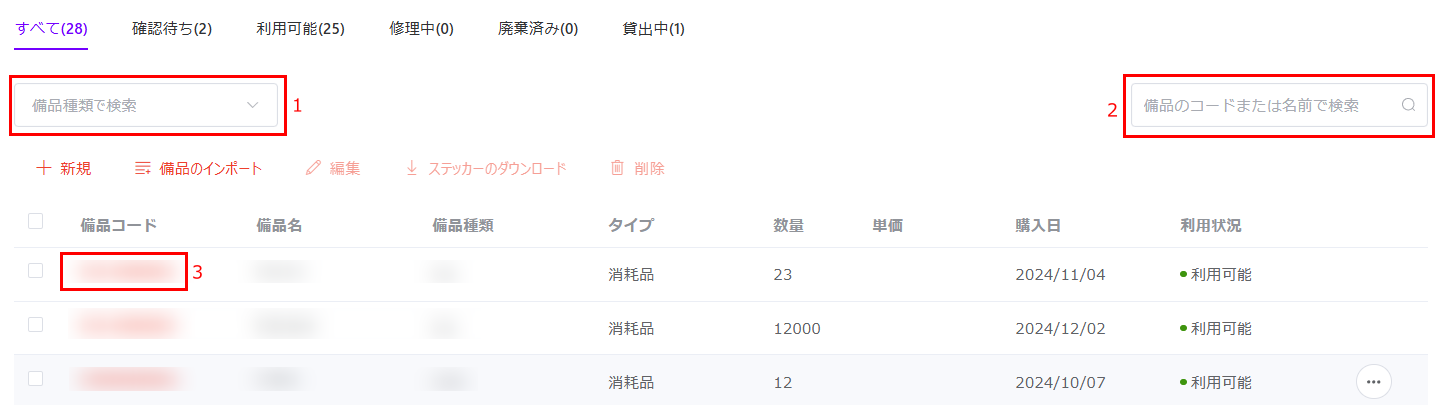
Click Equipment Management in the left navigation to access the equipment management page. The information of all equipment of the current office is displayed by default. You can view the equipment of the current office that is pending review, available, in maintenance, retired, and on loan in the corresponding tabs.

Manage equipment

  1. Click the Select drop-down list in the upper-left corner of each tab and select the desired equipment type to view the equipment of the selected equipment type.

  2. To search for equipment, enter the name or code of the desired equipment in the search box in the upper-right corner of each tab and click the search button to start the search.

  3. Click the equipment code link to view the information and successful request history of the equipment.

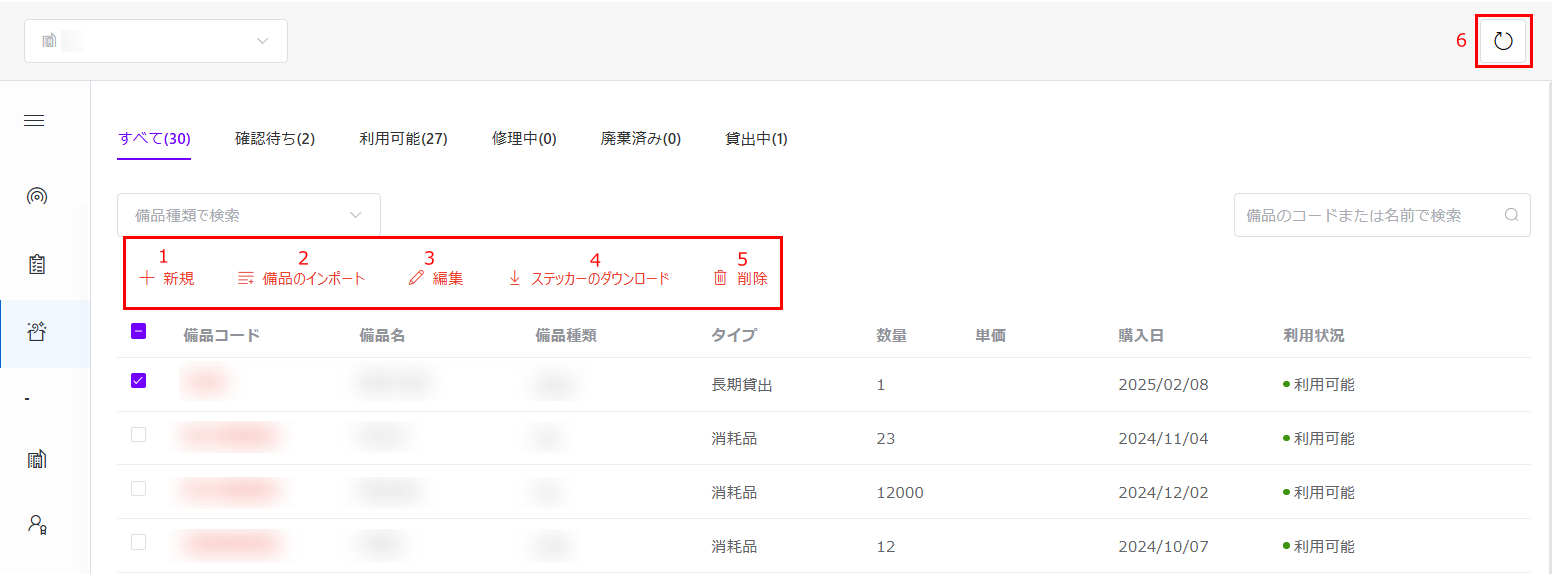
The following actions are available on this page:

Available actions.

  1. Add Equipment – Click Add Equipment and the Add Equipment window appears. Complete the information in the window and click Save to add the equipment. For details about the fields in the window, refer to the Add Equipment section on the Initial Configuration page.

  2. Import Equipment – You can import equipment using the following steps:

    1. Click Import Equipment and the Import Equipment window appears.

    2. Click download the template and an Excel file is downloaded to your browser's download folder.

    3. In the Excel file, add equipment information and save it.

    4. Drag the completed Excel file to the Import Equipment window; or you can click browse and select the file, and then click Open to insert the file.

    5. Click Save to import the equipment data from the Excel file.

  3. Edit Equipment – You can edit equipment using the following steps:

    1. Select the desired equipment and click Edit on the ribbon to access the Edit Equipment window. You can also hover your mouse over the desired equipment, click the more action button to the right of the equipment, and then select Edit from the drop-down list to access the Edit Equipment window.

    2. In the window, edit the desired information.

    3. After all edits are completed, click Update to save your edits.

  4. Download Stickers – Select one or more equipment and click Download Stickers on the ribbon to download stickers for the selected equipment. When downloading stickers for more than 200 equipment items, they are split into multiple files, with each file containing 200 stickers.

  5. Delete Equipment – Select one or more equipment and click Delete on the ribbon to delete the selected equipment, or you can hover your mouse over the desired equipment, click the more action button to the right of the equipment, and then select Delete from the drop-down list to delete specific equipment.

  6. Refresh – Click the refresh button in the upper-right corner of the page to refresh the equipment displayed on this page.

Manage Office

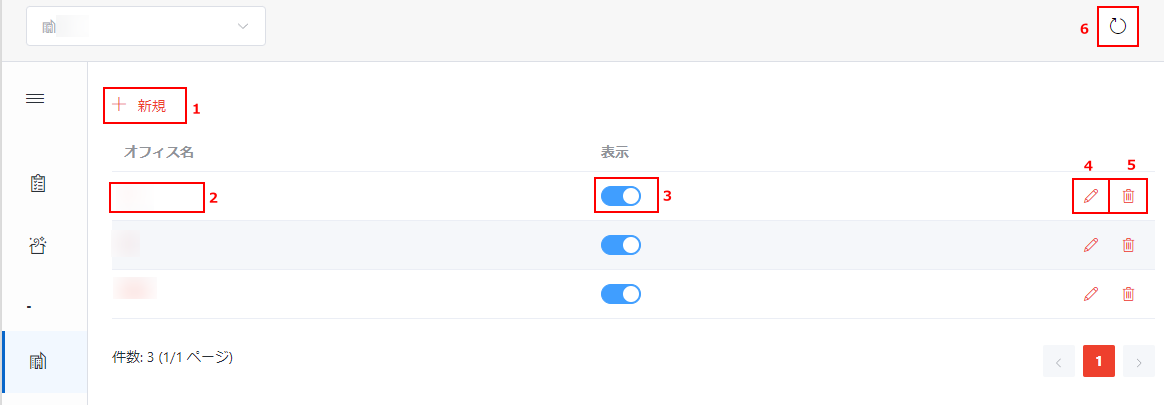
Click Office Management in the left navigation to access the office management page. On this page, the following actions are available:

NOTE

Offices can only be managed by app administrators.

Available actions.

  1. Add Office – Click Add Office and the Add Office window appears. Complete the information in the window and click Save to save the office. For details about the fields in the window, refer to the Add Offices of your Organization section on the Initial Configuration page.

  2. View Office Information – Click the desired office name link to view the office information.

  3. Change Visible for End Users Setting – Turn off or turn on the Visible for End Users switch to set the office not available or available for end users.

  4. Edit Office – You can edit an office using the following steps:

    1. Click the edit button to the right of the desired office. The Edit Office window appears.

    2. In the window, edit the desired information.

    3. After all edits are completed, click Save to save your edits.

  5. Delete Office – Click the delete button to the right of the desired office to delete it.

  6. Refresh – Click the refresh button in the upper-right corner of the page to refresh the offices displayed on this page.

Manage Users

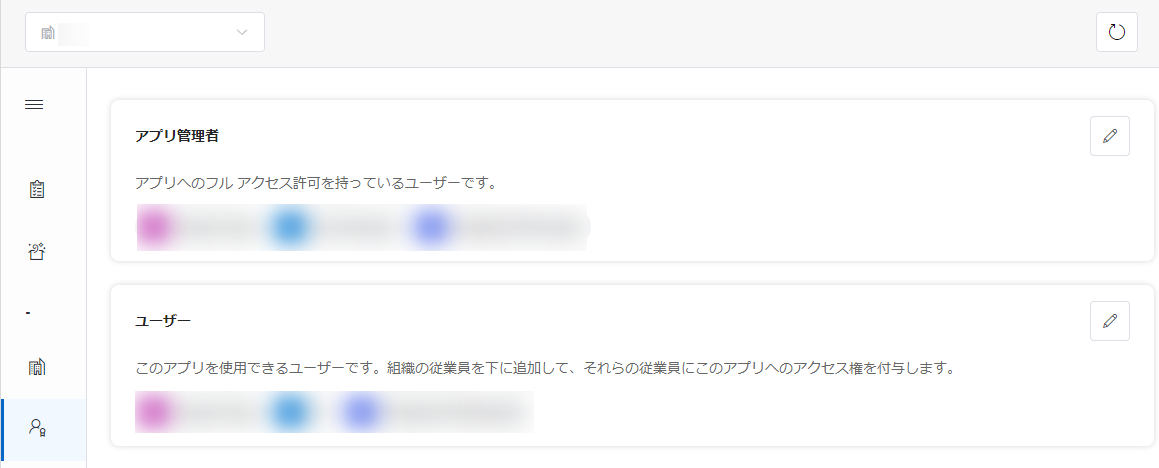
Click User Management in the left navigation to access the user management page. On this page, you can manage the app administrators and users of the office equipment management app.

Manage Users.

NOTE

Users for the app can only be managed by app administrators.

App Administrators are the users who have full access to the app. Users are the users who can use the app in Microsoft Teams.

For details about managing the app administrators and users of the app, refer to the Specify Users for the App section on the Initial Configuration page.

NOTE

The "Everyone" and "Everyone except external users" groups are supported to be added to both roles. However, if the app resides on a private site and your organization's policy prohibits adding the "Everyone except external users" group to private sites, attempting to add this group will result in an error. For assistance, contact your SharePoint or global administrator.

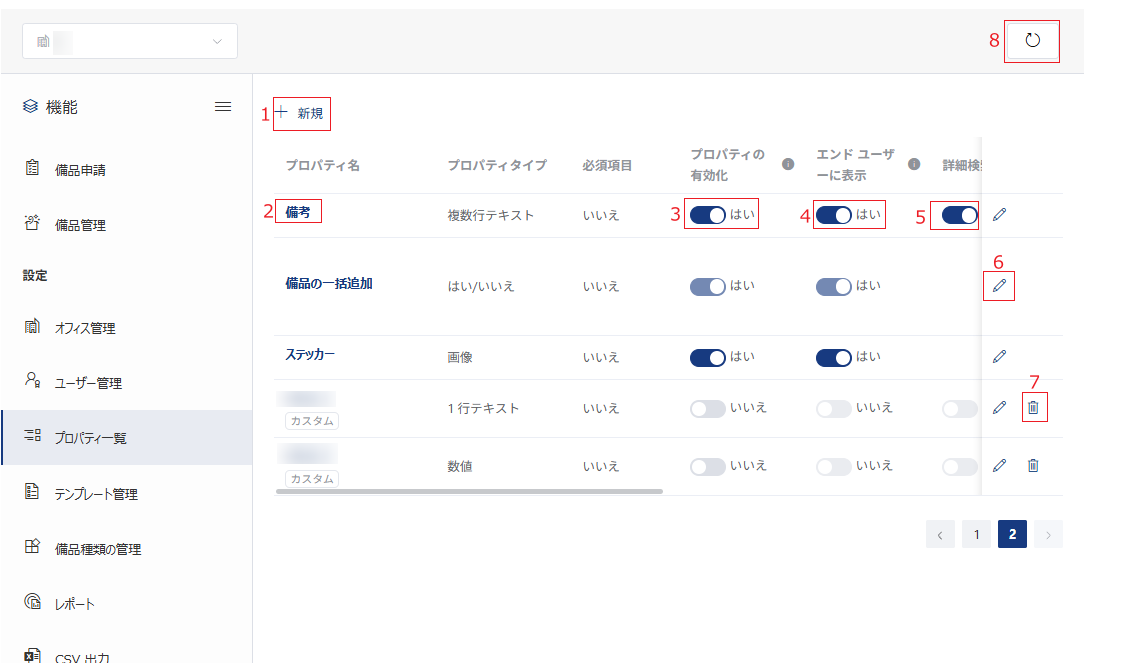
Manage Equipment Property

Click Property Management in the left navigation to access the property management page. On the page, the following actions are available:

NOTE

Equipment Properties can only be managed by app administrators.

Property Management.

  1. Add Property – You can add a property using the following steps:

    1. Click Add Property above the table, and the Add Property window appears.

    2. Complete the following information in the window:

      • Property Name – Enter the property name in the text box.

      • Property Type – Select the property type from the Property Type drop-down list.

        NOTE

        Based on the property type you selected, you will be required to complete the follow-up information.

      • Required – Select whether the property is required while adding or editing equipment.

      • Visible for End Users – Select whether the property is visible for end users.

      • Description – Enter the description for the property.

    3. Click Save to save the property.

  2. View Property Information – Click the desired Property Name link to view the property information in the Property Information window.

  3. Enable Property – Turn on/off the Enable Property toggle to determine whether the property is enabled and available on administrative pages such as Equipment Management and Equipment Request.

  4. Update Property Display Setting – Turn on/off the Visible for End Users toggle to determine whether the property is displayed on user-facing pages, such as the homepage and Borrowed Equipment & Requests.

    NOTE
    • The Enable Property and Visible for End Users settings for some properties cannot be changed.

    • When the Enable Property toggle is turned off, the property is hidden from all pages, and its corresponding functionality is disabled. For example, if the Sticker property is disabled, administrators on longer need to configure stickers while managing equipment and its related settings will be hidden.

    • When the Enable Property toggle is turned on, you can turn on/off the Visible for End Users toggle to determine whether the property is also available for end users. If turned off, the Visible for End Users setting is disabled and locked.

    • When the Visible for End Users toggle is turned off, you can turn on/off the Available for Advanced Search toggle to determine whether the property is used as a search criterion for advanced search. If turned off, the Available for Advanced Search setting is disabled and locked.

  5. Change Available for Advanced Search Settings – Turn on/off the Available for Advanced Search toggle to determine whether to use the property as a search criterion for advanced search.

  6. Edit Property Information – Click the edit button to the right of the desired property. Then, you can edit the information in the Edit Property window. After all edits are completed, click Save to save your edits. Alternatively, click Edit in the Property Information window. Then, Edit the desired information based on your requirements in the Edit Property window and click Save to save your edits.

  7. Delete Property – Click the delete button to the right of the desired property to delete it.

  8. Refresh – Click the refresh button in the upper-right corner of the page to refresh the equipment properties displayed on this page.

Manage Template

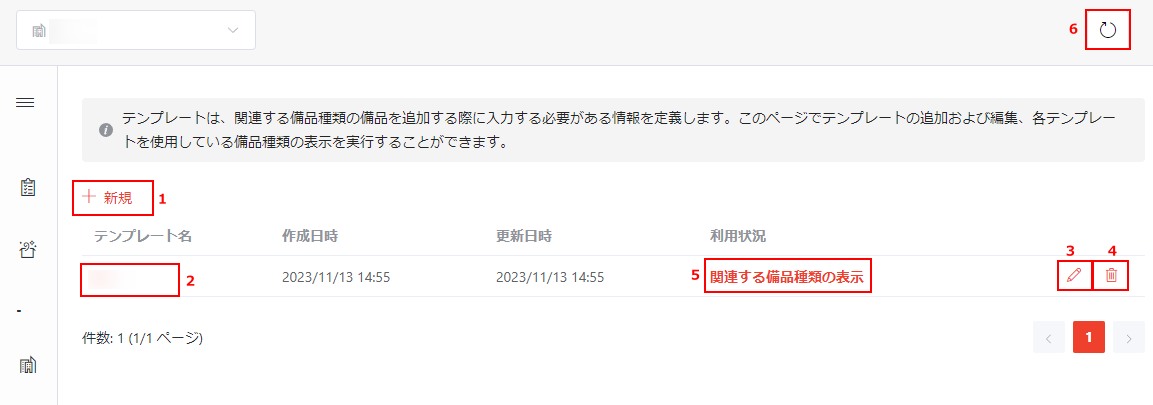
Templates define the information to be completed while adding equipment of the associated equipment types. Click Template Management in the left navigation to access the template management page. On the page, all templates of the organization are displayed.

The following actions are available on this page:

Available actions.

  1. Add Template – Click Add Template and the Add Template page appears. Complete the information on the page and click Save to save the template. For details about the fields on the page, refer to the Add Equipment Templates section on the Initial Configuration page.

  2. View Template Information – Click the template name link to view information of the template.

  3. Edit Template – You can edit a template using the following steps:

    1. Click the edit button to the right of the desired template. The Add Template page appears.

    2. Edit the template based on your requirements.

    3. After all edits are completed, click Save to save your edits.

  4. Delete Template – Click the delete button to the right of the desired template to delete it.

  5. View Template Usage – Click the View Associated Equipment Types link to the right of the desired template. The View Associated Equipment Types window appears. You can view the equipment types that use the template in the window.

  6. Refresh – Click the refresh button in the upper-right corner of the page to refresh the templates displayed on this page.

Manage Equipment Type

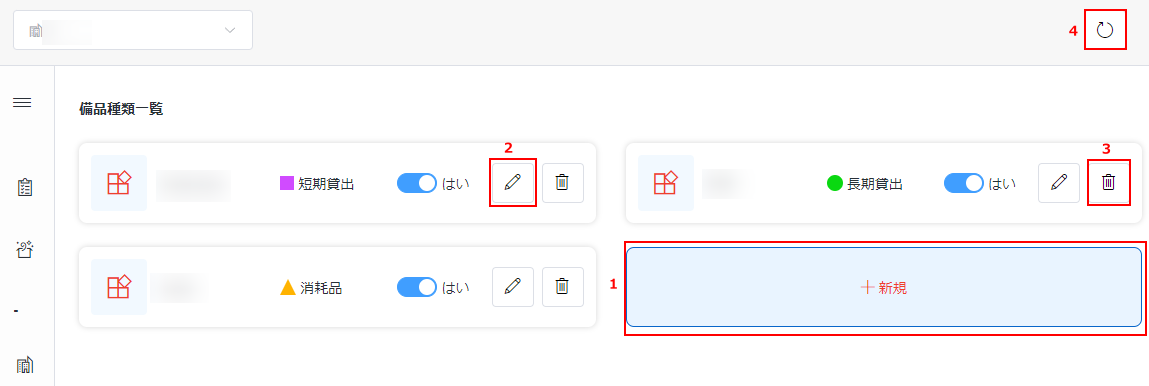
Click Equipment Type Management in the left navigation to access the equipment type management page. On the page, all equipment types of the current office are displayed. You can view the icon, name, and type of each equipment type and whether the equipment type is visible in each equipment type tile.

The following actions are available:

Available actions.

  1. Add Equipment Type – Click Add Equipment Type and the Add Equipment Type window appears. Complete the information in the window and click Save to save the equipment type. For details about the fields in the window, refer to the Add Equipment Types section on the Initial Configuration page.

  2. Edit Equipment Type – You can edit an equipment type using the following steps:

    1. Click the edit button. The Add Equipment Type window appears.

    2. In the window, edit the desired information.

    3. After all edits are completed, click Save to save your edits.

  3. Delete Equipment Type – Click the delete button to the right of the desired equipment type to delete it.

  4. Refresh – Click the refresh button in the upper-right corner of the page to refresh the equipment types displayed on this page.

View Reports

Click Reports in the left navigation to access the reports page. On this page, the following reports are available in the corresponding tabs: purchase expenses report, equipment consumption report, and long-term loans report.

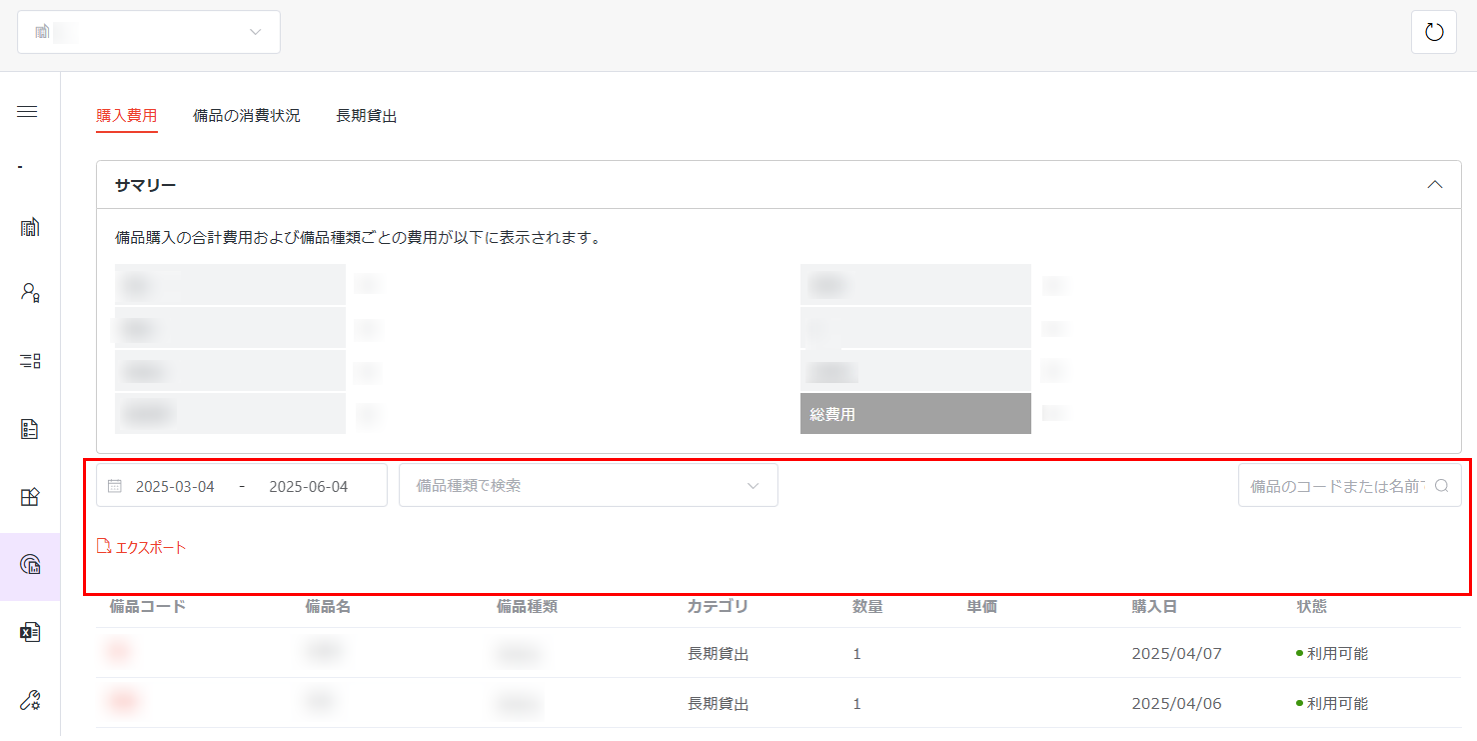
  • Purchase Expenses – In the Purchase Expense tab, you can view purchase expenses of each equipment type and the total purchase expense within the last 3 months in the Summary section by default. The equipment and expense details are displayed in the table below.

    Purchase expenses.

    You can view the purchase expense reports in customized date ranges, of specific equipment types, or of specific equipment by using the date range drop-down list, equipment type drop-down list, or equipment search box.

    You can export the purchase expenses report in the report scope by clicking Export above the table and the report will be exported to the download location of the current browser.

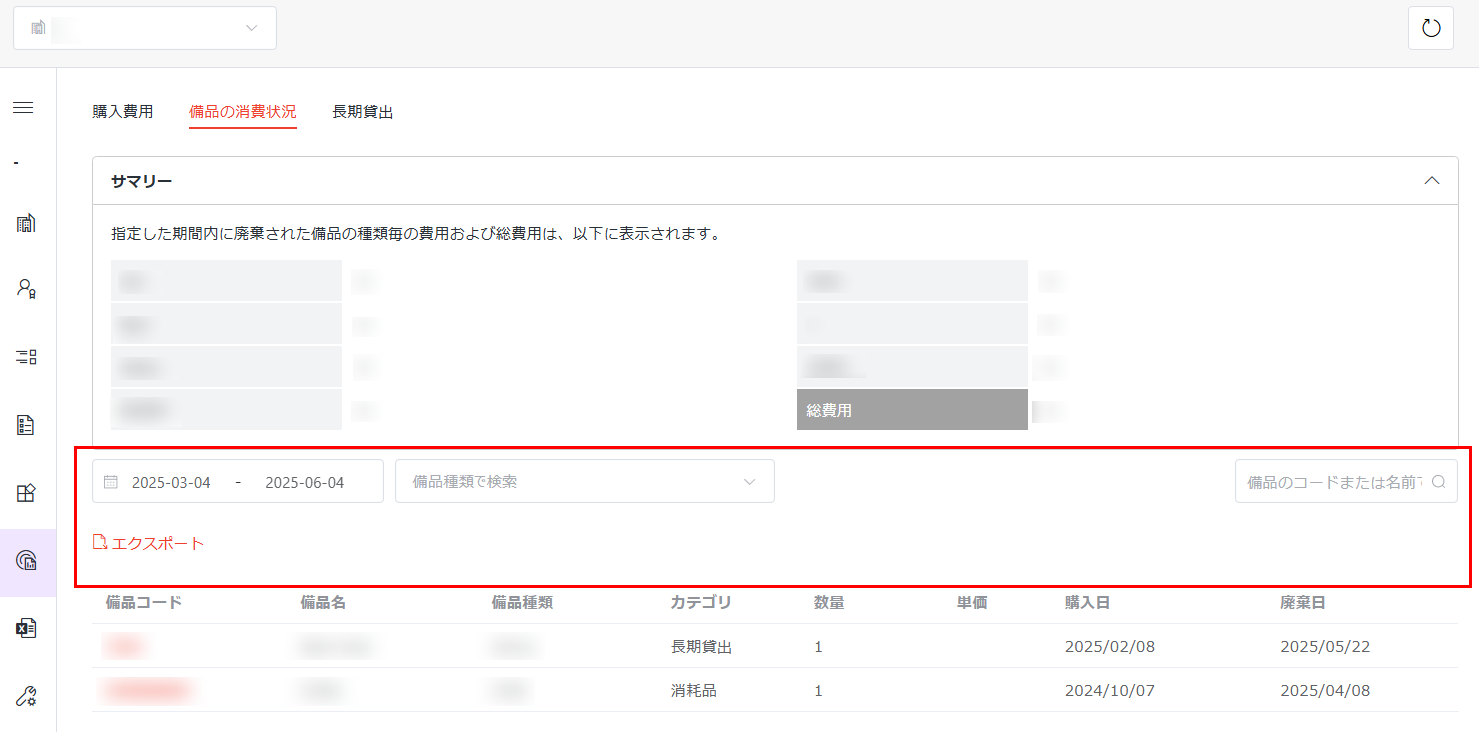
  • Equipment Consumption – In the Equipment Consumption tab, you can view expenses of equipment that retired within 3 months and the total expense in the Summary section by default. The retired equipment and expense details are displayed in the table below.

    Equipment consumption.

    You can view the equipment consumption reports in customized date ranges, of specific equipment types, or of specific equipment by using the date range drop-down list, equipment type drop-down list, or equipment search box.

    You can export the equipment consumption report in the report scope by clicking Export above the table and the report will be exported to the download location of the current browser.

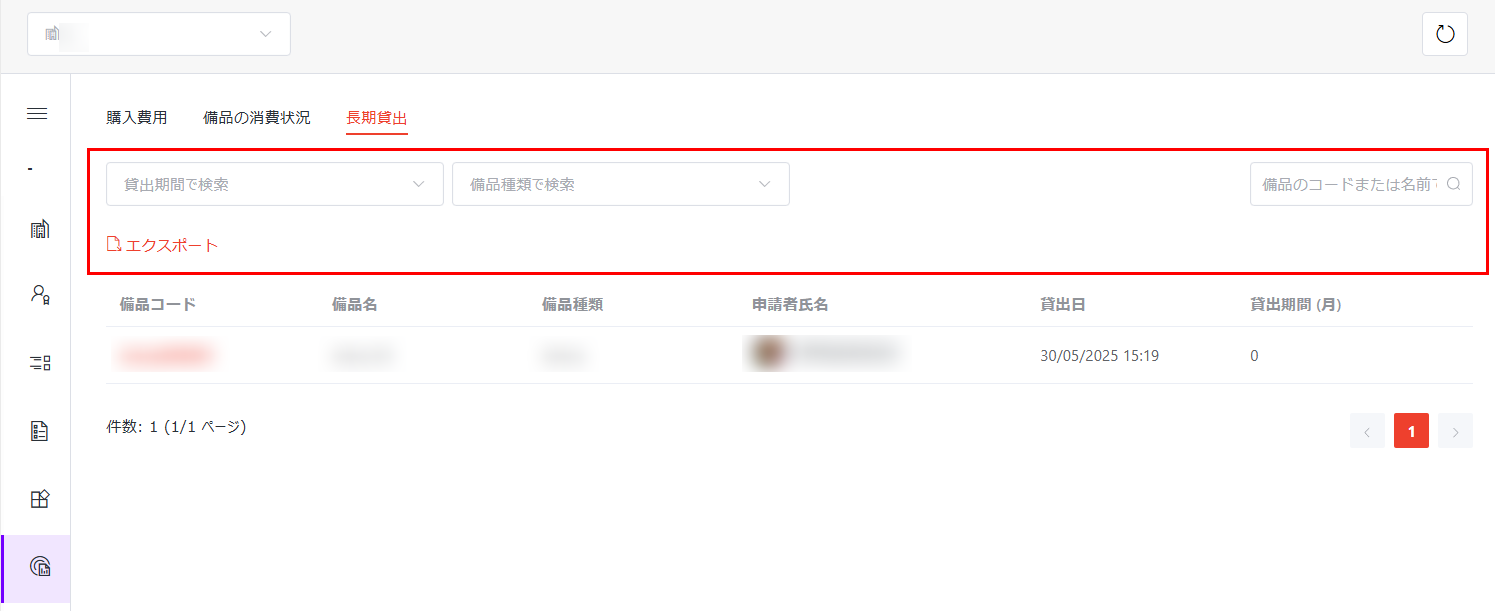
  • Long-term Loans – In the Long-term Loans tab, you can view the equipment that is on loan.

    Long-term loans.

    You can view equipment that has been lent for specific loan durations, equipment of specific equipment types, or specific equipment by using the loan duration drop-down list, equipment type drop-down list, or equipment search box.

    You can export the long-term loan report in the report scope by clicking Export above the table and the report will be exported to the download location of the current browser.

Export Requests to CSV

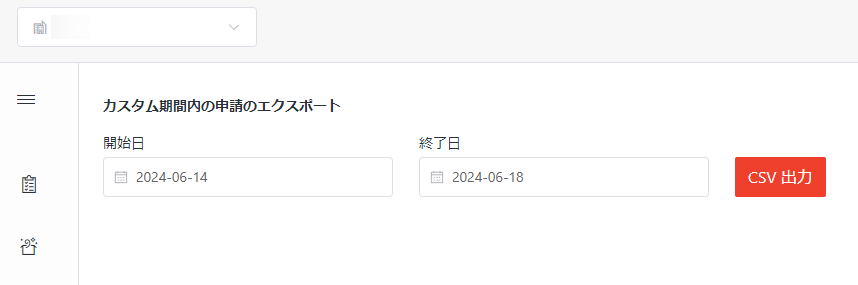
Click Export Requests to CSV in the left navigation to access the export page. On this page, you can complete the following steps to customize a date range and export requests to which you have permissions in the date range to a CSV file:

Export requests.

  1. Click the Start Date field and select a start date from the calendar.

  2. Click the End Date field and select an end date from the calendar.

  3. Click Export Requests to CSV to export all requests to which you have permissions to the CSV file.

General Settings

Click General Settings in the left navigation to access the General Settings page. On this page, the following settings are available:

  • Require users to submit requests before returning equipment – Enable this setting to require users to submit a return request before returning equipment. When this setting is disabled, users can return the equipment directly upon completion of usage.

  • Equipment type display order for end users – On the equipment request page within the user portal, equipment types are organized and displayed according to their respective categories. This setting allows you to customize the display order of these categories, enabling you to select how the equipment types are presented by selecting the desired order from the drop-down list next to each category.

App Permissions

The following table lists the user roles and their permissions to the app:

PermissionApp AdministratorEquipment AdministratorEnd UserComment
Manage Users
Manage Equipment Properties
Manage Offices
Manage Templates
Manage Equipment TypesEquipment Administrators can only manage equipment types of their offices.
Manage EquipmentEquipment Administrators can only manage equipment of their offices.
Export RequestsEquipment Administrators can only export requests of their offices.
Request for Equipment
Request Equipment for OthersEquipment Administrators can request for only equipment of their offices on behalf of others.
Review RequestsEquipment Administrators can only review equipment requests of their offices.
View ReportsEquipment Administrators can only view report of their offices.