Home > App Suite > Conference Room Reservation > Settings for Conference Room Reservation App

Download this article
お知らせ: このページは現在英語のみで提供されています。日本語版は準備中です。ご不便をおかけして申し訳ございません。

Settings for Conference Room Reservation App

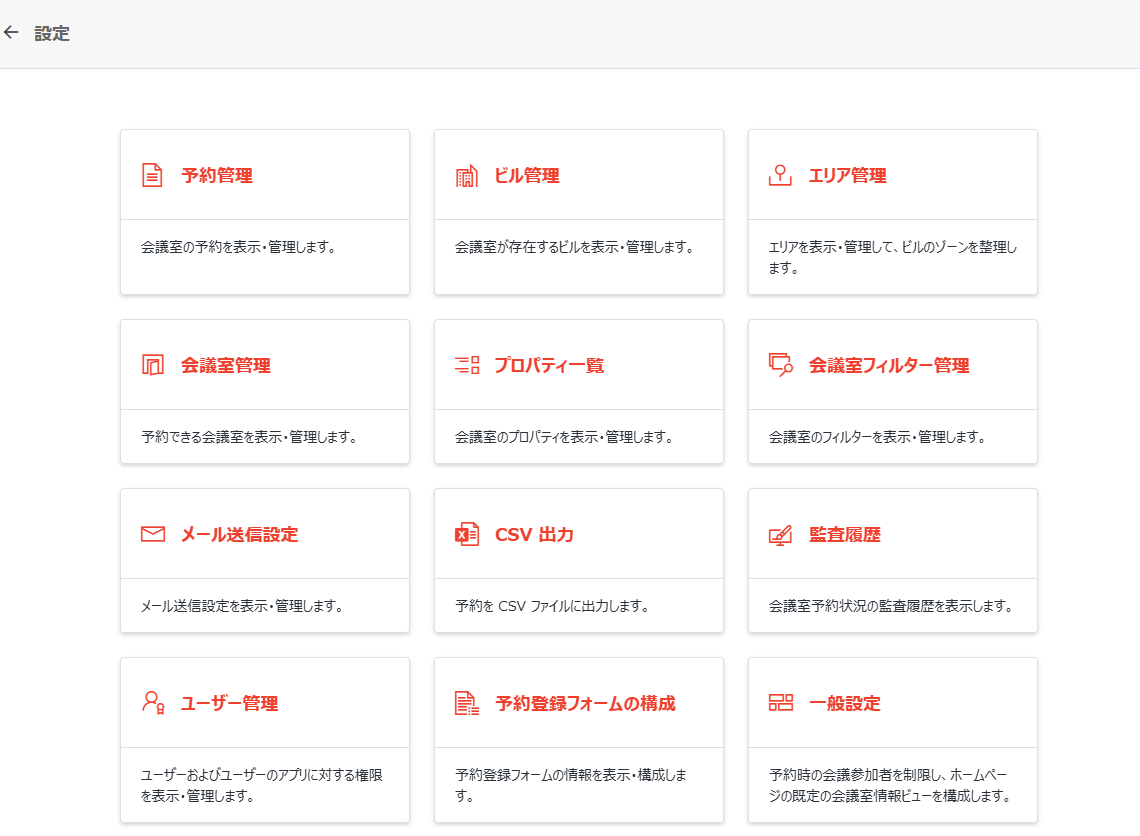
On the Settings page, authorized users can configure the following settings for the conference room reservation app:

NOTE

Users can only view and configure the settings to which they have permission.

The Settings page.

Reservation Management

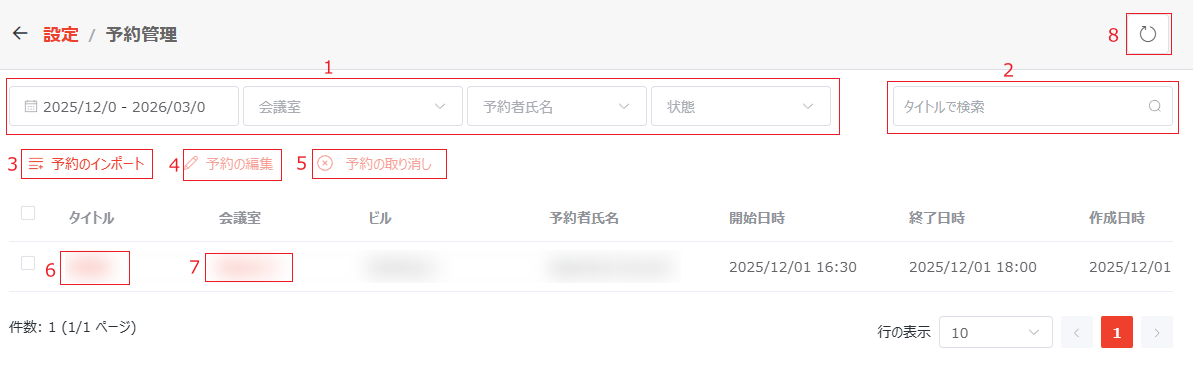
Click the Reservation Management tile on the Settings page, and the Reservation Management page appears. On this page, you can view and manage conference room reservations that you have permission. The following actions are available:

Reservation Manangement.

  1. Filter Reservations – You can filter reservations by period, conference room, “Reserve For” user, and reservation status using the filters in the upper-left corner of the table. To clear a filter, click the clear button next to the filter condition.

  2. Search Reservations – Use the search box in the upper-right corner of table to search reservations by title.

  3. Import Reservations – Click Import Reservations. In the Import Reservations window, click download the template to download the template. After adding the reservation information to the template and saving the file, return to the Import Reservations window and either drag and drop the file or click browse to upload it. Once uploaded, the reservations from the file will be imported directly into the table.

    NOTE
    • Reservations that require approval will be automatically approved during the import process.
    • It may take some time to import more than 500 reservations. You’ll receive an email notification with the import results upon completion.
    • You can only import reservations for conference rooms of buildings you have permission.
  4. Edit Reservation – Select a reservation and click Edit Reservation, or click the title link to edit the reservation in the registration panel. Then, save your edits when you finish.

    NOTE
    • Modifying the reservation time and participants is not restricted by the conference room reservation rules or allowed participant scope for that room.
    • Only users who exist in User Management can be specified in the Reserve For field.
  5. Cancel Reservation – Select one or more reservations and click Cancel Reservation above the table.

  6. View Reservation Details – Click the title link to access the reservation registration panel, where the reservation details are displayed. If necessary, you can update the reservation details or cancel this reservation in the panel.

  7. View/Edit Conference Room Information – Click the conference room link to view the detailed information of the reserved conference room. If necessary, you can click Edit to edit the conference room information.

  8. Refresh Reservations – Click the refresh button in the upper-right corner of the page to refresh the conference room reservations displayed on this page.

Building Management

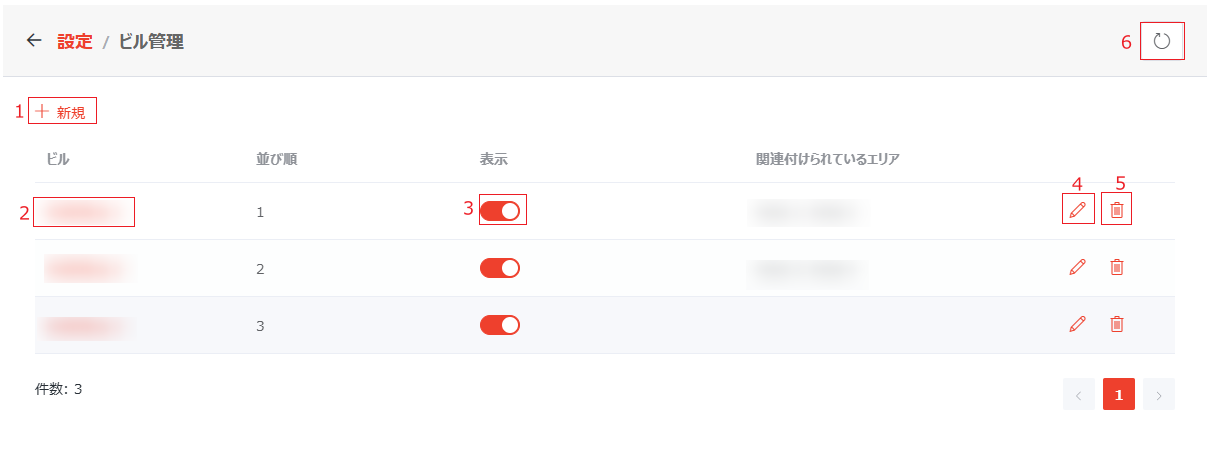
Click the Building Management title on the Settings page, and the Building Management page appears. On this page, you can view the information of the buildings to which you have permission, including the name, display order, display setting, and associated areas. The following actions are available on the page:

Building Management.

  1. Add Building – Click Add Building above the table, and the Add Building window appears. Fill in the fields in the window and click Save to add the building.

  2. View Building Information – Click the desired building link to view the building information in the Building Information window that appears on the right pane.

  3. Update Display Setting – Turn on/off the Visible for End Users toggle to determine whether to display the building and conference rooms within the building to end users.

  4. Edit Building Information – Click the edit button to the right of the building of which you want to edit the information and the Edit Building window appears. Edit the fields in the window and click Save to save your edits.

  5. Delete Building – Click the delete button to the right of the desired building to delete it.

  6. Refresh Buildings - Click the refresh button in the upper-right corner of the page to refresh the buildings displayed on this page.

Area Management

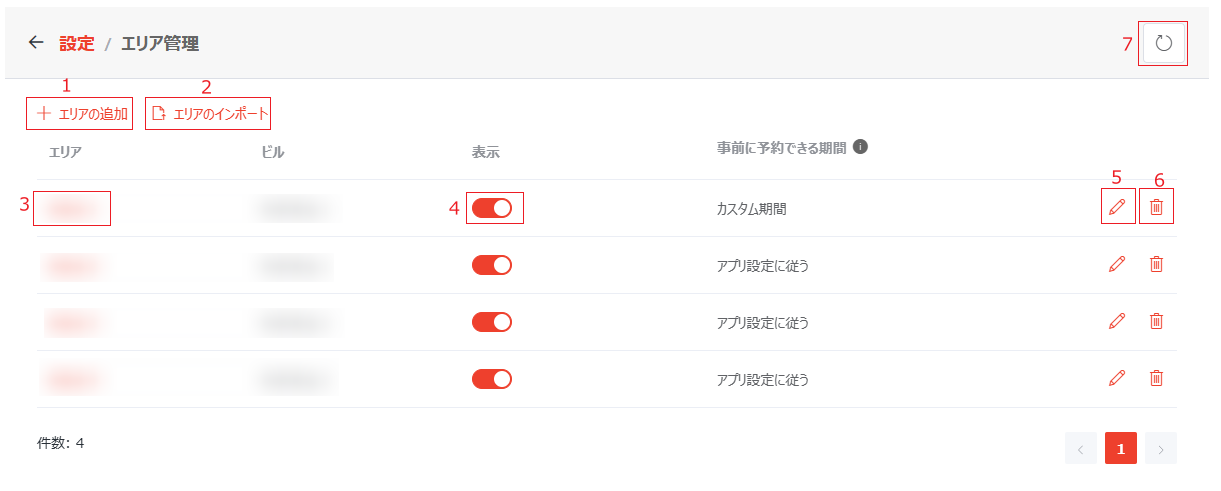
Click the Area Management tile on the Settings page, and the Area Management page appears. On this page, you can view the information of areas to which you have permission, including the area name, building in which the area is located, display setting, and the area-specific date range for reservation. The following actions are available on the page.

NOTE

The Area Management functionality is only available when the Enable Area Level for Building setting is enabled in General Settings.

Area Management.

  1. Add Area – Click Add Area. In the Add Area panel, complete the following information and then click Save to create the area.

    • Area – Enter a name for the area.

    • Building – Select the building in which the area is located. Note that the selected building cannot be changed once the area is created.

    • Visible for End Users – Select Yes or No to display or hide the area from end users. If No is selected, conference rooms in this area will also be hidden from end users.

    • Display Order – Enter the display order of this area.

    • Area Administrator – Area administrators are responsible for maintaining the area and its associated room information and managing reservations within the area, but they cannot create or delete areas or rooms. To assign a user with the area administrator role, enter the name or email address of the user and select the user from the suggestion list. You can assign multiple area administrators.

    • Additional Area Administrative Roles – Additional area administrative roles include area conference room administrator and area reservation administrator.

      • Area Conference Room Administrator – Area conference room administrators can edit information of conference rooms in this area. Building conference room administrators who retain full control over all conference rooms across the entire building, including this area, are auto-populated and read-only. You can still assign area-specific conference room administrators for dedicated management.

      • Area Reservation Administrator – Area reservation administrators can manage all reservations in this area. Building reservation administrators who retain full control over all reservations across the entire building, including this area, are auto-populated and read-only. You can still assign area-specific reservation administrators for dedicated management.

      To assign the area-specific role to users, enter the name or email address of the user in the corresponding field and select the user from the suggestion list. You can add multiple users for each role.

      To remove an added user, click the remove button next to them.

      To remove all added users, click Remove Custom Additional Area Administrators.

    • Area Reservation Setting – The reservation date range for this area defines how long in advance end users can submit reservations for conference rooms in this area. You can choose from the following options:

      • Follow Date Range in User Management – Follows the Date Range for Reservation setting configured for users with short-term/long-term reservation permissions in User Management.

      • Customize Date Range for Reservation – With this option selected, define the area-specific date range for users with short-term/long-term reservation permissions

        NOTE

        When reserving a conference room within this area, the date ranges set here for users with short-term/long-term reservation permissions take precedence over the date range for reservation settings in User Management.

  2. Import Areas – Click Import Areas. In the Import Areas window, click download the template to download the template. After adding the area information to the template and saving the file, return to the Import Areas window and either drag and drop the file or click browse to upload it. Once uploaded, the areas from the file will be imported directly into the table.

  3. View Area Information – Click the area name link to view the area information in the Area Information panel.

  4. Update Display Setting – Turn on/off the Visible for End Users toggle to display or hide this area from end users.

  5. Edit Area Information – Click the edit button to the right of the area and the Edit Area window appears. Edit the fields in the window and click Save to save your edits.

  6. Delete Area – Click the delete button to the right of the area to delete it.

  7. Refresh Areas - Click the refresh button in the upper-right corner of the page to refresh the areas displayed on this page.

Conference Room Management

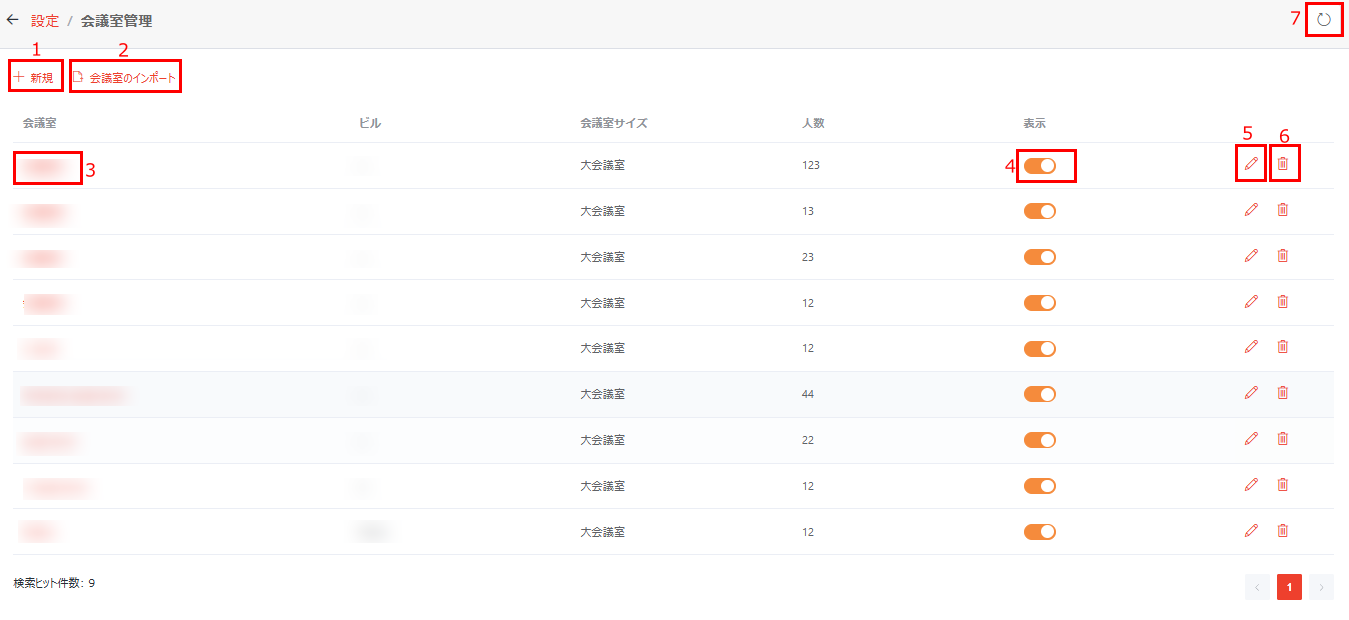
Click the Conference Room Management tile on the Settings page, and the Conference Room Management page appears. On this page, you can view the information of the conference rooms to which you have permissions, including the name, building in which the conference room is located, room size, capacity, and whether the conference room is available for end users. The following actions are available on the page:

Conference room management actions.

  1. Add Conference Room – Click Add Conference Room above the table and the Add Conference Room window appears. Fill in the fields in the window and click Save to add the conference room.

    NOTE

    To associate a conference room with a room mailbox in Outlook, make sure that your Microsoft 365 Global Administrator approves the Place.Read.All permission request in the SharePoint admin center.

  2. Import Conference Rooms – Click Import Conference Rooms above the table, download and add conference room information to the template file, and then upload the updated file. Upon clicking Save, the import process starts. Imported conference rooms will be displayed on the table.

  3. View Conference Room Information – Click the desired room link to view the conference room information in the Conference Room Information window that appears on the right pane.

  4. Update Display Setting – Turn on/off the switch in the Visible for End Users column to display the conference room or hide it from end users.

  5. Edit Conference Room Information – Click the edit button to the right of the conference room of which you want to edit the information and the Edit Conference Room window appears. Edit the fields in the window and click Save to save your edits.

  6. Delete Conference Rooms – Click the delete button to the right of the desired conference room to delete it.

  7. Refresh Conference Rooms – Click the refresh button in the upper-right corner of the page to refresh the conference rooms displayed on this page.

Room Property Management

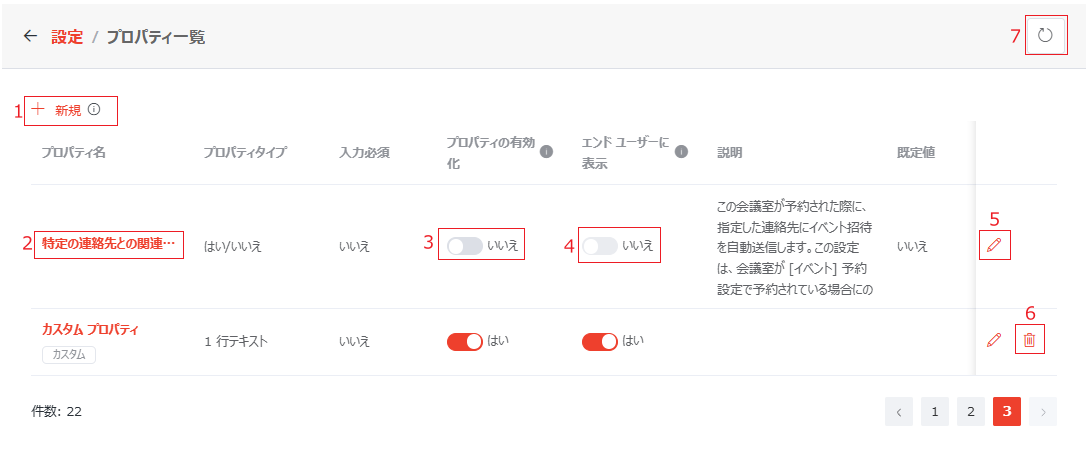
Click the Room Property Management tile on the Settings page, and the Room Property Management page appears. On this page, you can view the information on conference room properties, such as the property name type, whether the property is required while adding or editing a conference room, whether the property is enabled and visible for end users. The following actions are available on the page:

Room property management.

  1. Add Property – Click Add Property above the table and the Add Property window appears. Fill in the fields in the window and click Save to add the property.

    NOTE

    A maximum of 50 properties is allowed for this app. When the limit has reached, the Add Property button will be greyed out and not clickable.

  2. View Property Information – Click the property name link to view the property information in the Property Information window.

  3. Enable Property – Turn on/off the Enable Property toggle to determine whether the property is enabled and available on administrative pages such as Conference Room Management and Auditor.

  4. Update Property Display Setting – Turn on/off the Visible for End Users toggle to determine whether the property is displayed on user-facing pages, such as the homepage, registration form, and My Reservations.

    NOTE
    • The Enable Property and Visible for End Users settings for some properties cannot be changed.

    • When the Enable Property toggle is turned off, the property is hidden from all pages, and its corresponding functionality is disabled. For example, if the Approval Required for Reservations property is disabled, administrators on longer need to configure whether approval is required to reserve a conference room and no approval will be required when end users make conference room reservations.

    • When the Enable Property toggle is turned on, you can turn on/off the Visible for End Users toggle to determine whether the property is also available for end users. If turned off, the Visible for End Users setting is disabled and locked.

  5. Edit Property Information – To edit the property information, click the edit button to the right of the desired property. Then you can edit the fields in the Edit Property window. After all necessary edits are made, click Update to save your edits. Alternatively, click Edit in the Property Information window. Then, edit the fields in and the Edit Property window and click Update to save your edits.

    NOTE
    • The editable fields vary with properties. Fields that cannot be edited are grayed out.

    • If this app is already in use and the choices for a Choice type property are updated, administrators and end users need to take the following steps to ensure conference rooms with the updated property values are correctly filtered:

      1. Users with conference room management permissions should modify the affected rooms to use the new property values, so that end users can filter rooms using the updated choices.

      2. For end users, to include conference rooms with the updated property values, ensure your filters are updated to incorporate the new choices.

  6. Delete Custom Properties – Custom properties are marked with a Custom label under their names. To delete a custom property, click the delete button to the right of the it.

    NOTE

    If the property is currently being used in end-user filters, the property filter will also be deleted from these end-user filters once it's deleted.

  7. Refresh Properties – Click the refresh button in the upper-right corner of the page to refresh the properties displayed on the page.

Room Filter Management

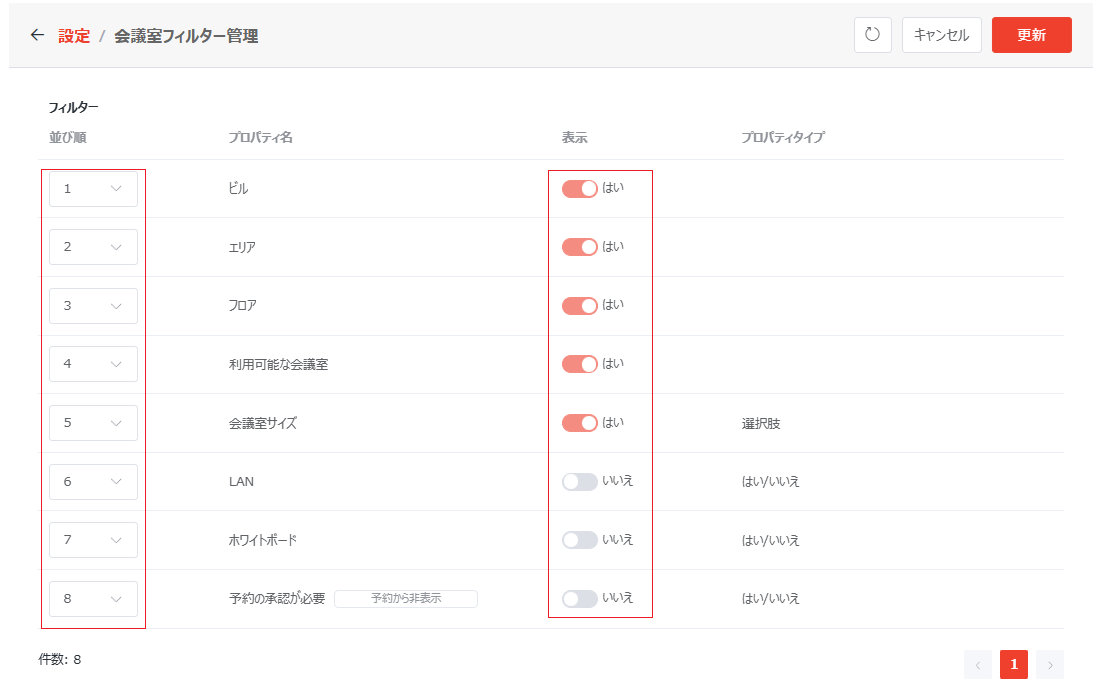
Click the Room Filter Management tile on the Settings page, and the Room Filter Management page appears. On this page, you can view and manage the filters that are used in the Filter window when you search for conference rooms on the homepage.

Room Filter Management.

You can edit the display order of a filter in the Filter window by clicking the display order of the desired filter and selecting the desired option from the drop-down list.

Turn on the Visible for End Users switch of a filter to display the filter in the Filter window. If you want to hide a filter from being used in the Filter window, turn off the Visible for End Users of the filter.

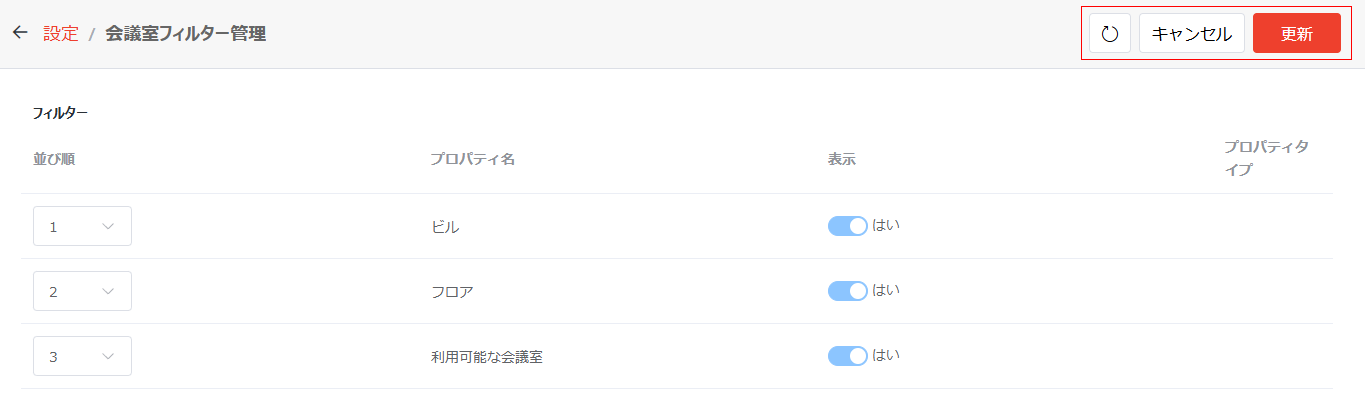
Available actions.

After all necessary configurations are made on this page, click Update in the upper-right corner to update the configurations to the Filter window.

Click the refresh button to refresh the filters displayed on the page.

Click Cancel, the go back button, or Settings to go back to the Settings page.

Email Template Management

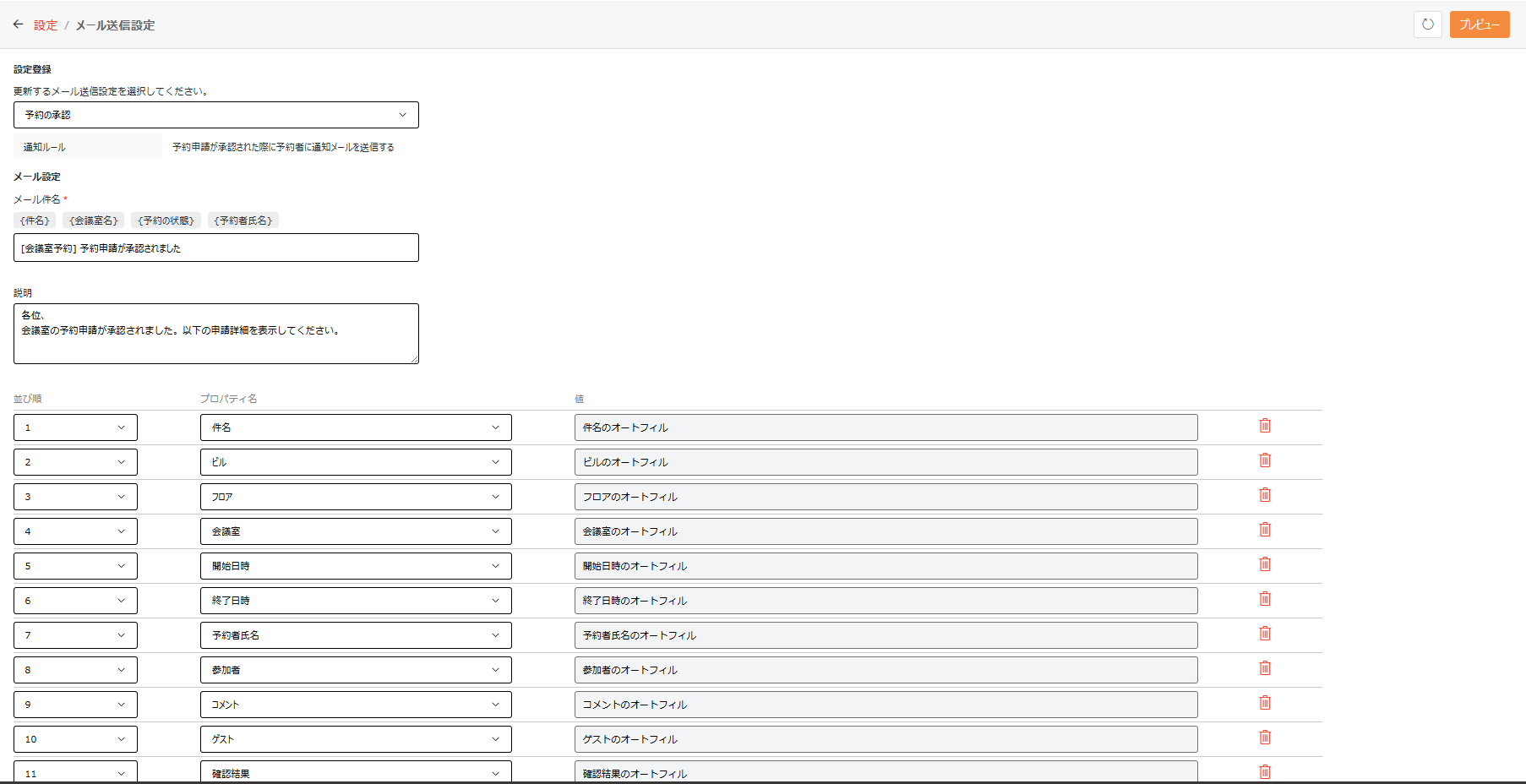
Click Email Template Management tile on the Settings page, and the Email Template Management page appears. On this page, you can configure the emails to be sent in different reservation stages. Complete the following steps to configure an email template:

Email Template Management.

  1. In the Select the email template you want to edit. field, select the desired email template from the drop-down list. The current email settings for the template are displayed in the viewing pane. You can view when the selected email will be sent in the Notification Rule field.

  2. Under Email Settings, you can edit the following fields:

    • Email Subject – Edit the email subject in the email subject textbox if required. You can insert one or more of the [Title], [Conference Room Name], and [Reserve For] variables into the subject and the variables will be replaced by the corresponding information of the reservation in email notifications.

    • Email Body – Edit the content in the email body textbox if required. You can also insert the reservation information to which the email is related in the email body.

      • Display Order – Select the desired display order of the reservation information from the display order drop-down list.

      • Information – Select the desired reservation information from the information drop-down list.

      • Value – The content that was entered and registered for the information will be displayed automatically.

      You can remove the reservation information from the email template by clicking the delete button to the right of the desired information. You can also add the reservation information to the email template by clicking Add Row below the information and configuring the Display Order and Information fields of the information.

      NOTE

      The following information can be inserted to the email template: title, room, building, floor, start time for reservation, end time for reservation, reserve for, attendees, and comments. If all information above has been added, Add Row is grayed out and you are not allowed to add information anymore.

    • Email Closing – Edit the email closing in the email closing textbox if required.

  3. You can click Preview to preview the email template.

  4. Click Save to save your edits.

Export Reservations to CSV

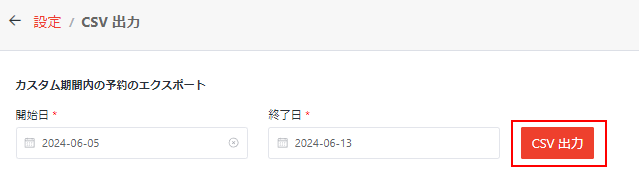
Click the Export Reservations to CSV tile on the Settings page, and the Export Reservations to CSV page appears. On this page, you can complete the following steps to customize a date range and export the conference room reservations to which you have permissions in the date range to a CSV file:

  1. Click the Start Date field and select a start date from the calendar.

  2. Click the End Date field and select an end date from the calendar.

  3. Click Export Reservations to CSV to export all reservations to which you have permissions to the CSV file.

    Export reservations.

Auditor

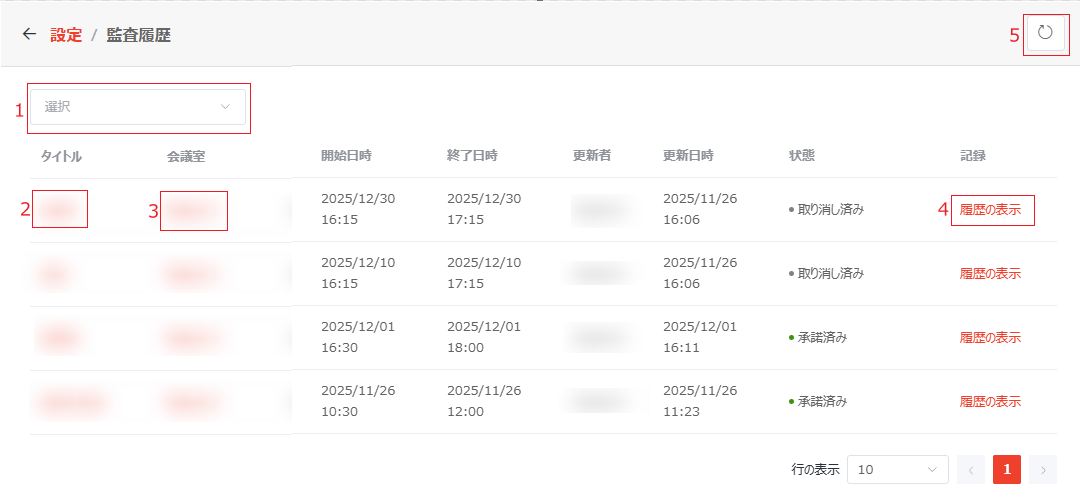
Click the Auditor tile on the Settings page, and the Auditor page appears. On this page, you can view information on all or the filtered conference room reservations, including the conference room reserved, the building in which the conference room is located, the reserve for user, the start time and end time for the reservation, the user who modified the reservation, the date and time of the reservation’s last modification, the status, and audit records. The following actions are available:

Auditor.

  1. Filter Reservations – Click the Select drop-down list above the table and select the desired options to filter the conference room reservations in the selected statuses. You can click a selected option to deselect the option or click the delete button to the right of a selected option displayed in the field to delete the selection.

  2. View Reservation Details – Click the title link to view the reservation details in the Registration panel.

  3. View Conference Room Information – Click the conference room name link to view the conference room information in the Conference Room Information panel.

  4. View Audit History – Click View History to the right of the desired conference room reservation, and then you can view its audit history in the View History window.

  5. Refresh Reservations – Click the refresh button in the upper-right corner of the page to refresh the reservations displayed on the page.

User Management

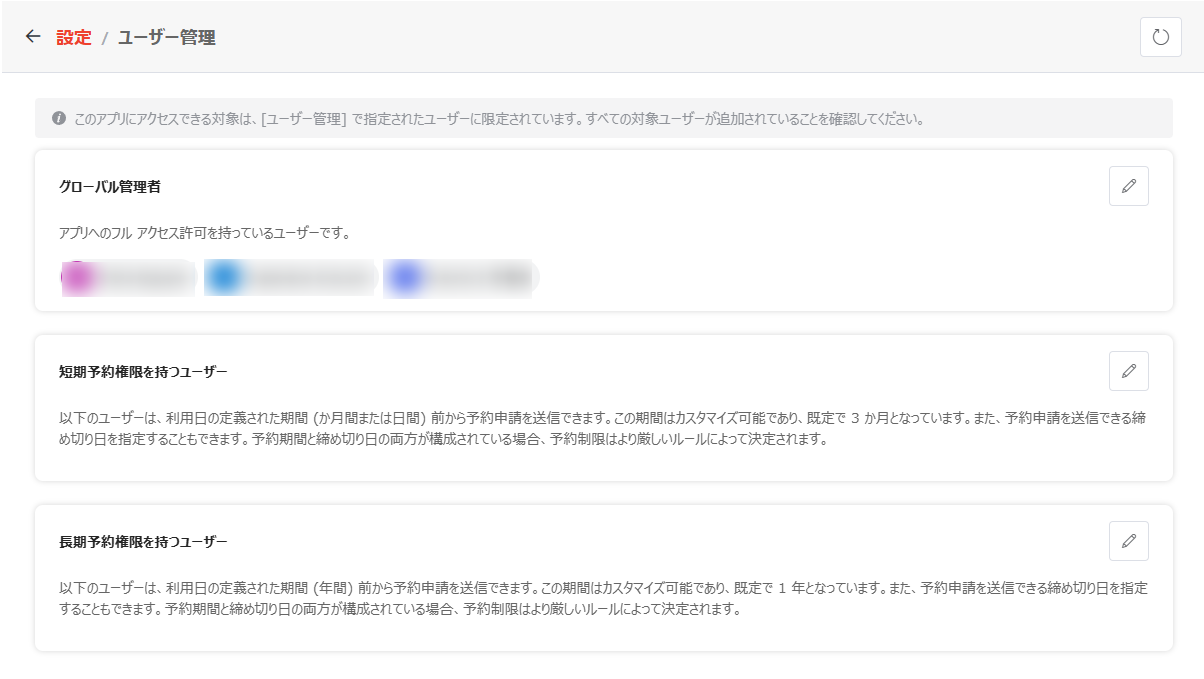
Click the User Management tile on the Settings page, and the User Management page appears. On this page, you can manage the global administrators and app users.

User Management.

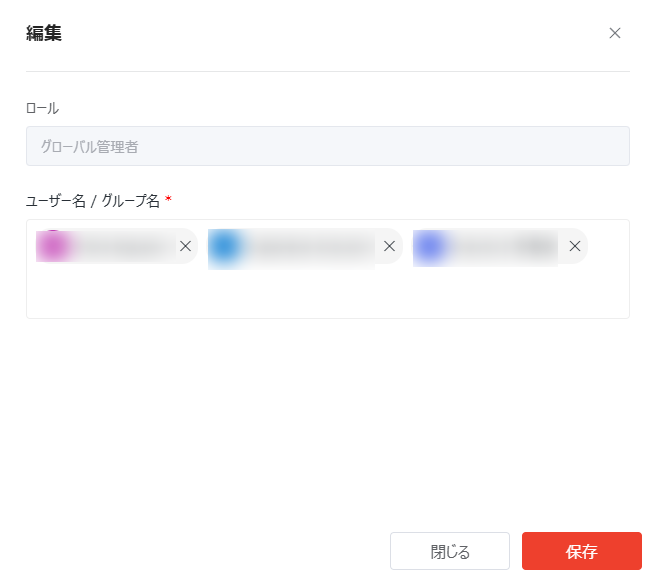
Global administrators are users who have full access to the app. To manage global administrators, click the edit button. In the Edit window, the current role is displayed in read-only status. You can add users and groups as global administrators by entering their names in the User/Group Name field or remove existing global administrators by clicking the delete button next to them. Click Save when you finish editing the global administrators.

NOTE

Users who are blocked from signing in to Microsoft 365 cannot be added as global administrators.

  • Edit global administrators.

Based on the reservation period allowed, users are categorized into those with short-term reservation permissions and those with long-term reservation permissions. By default, these users can reserve conference rooms starting from 3 months or 1 year before the intended usage date. The short-term and long-term periods can be customized. To manage users of each category, click the edit button. In the Edit window, the user category currently being edited is displayed in read-only state. Follow the steps below to manage app users:

NOTE

Users who are blocked from signing in to Microsoft 365 cannot be added as app users.

  1. In the Date Range for Reservation section, complete the following configurations:

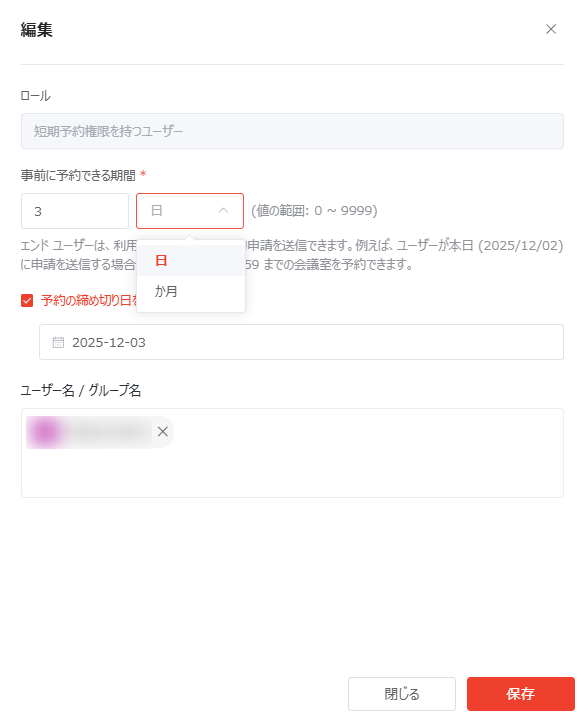
    • For users with short-term reservation permissions, enter a number and then select either Days or Months as the time unit. The number you can enter varies with the selected time unit. When Days is selected, you can enter 0 to limit end users to make reservations for the request date only.

      Edit users with short-term reservation permissions

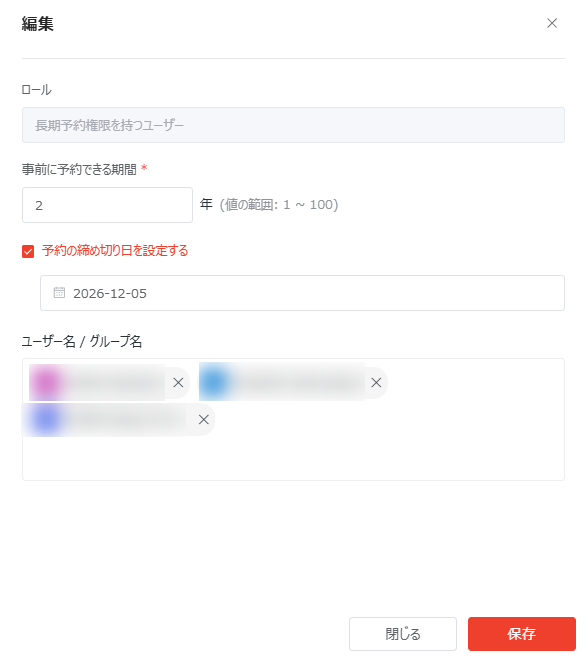
    • For users with long-term reservation permissions, enter a number before Years to define the period.

      Edit users with long-term reservation permissions.

  2. You can choose to Set Reservation Cutoff Date and select the date as the last day any reservation can be submitted.

    NOTE
    • The reservation cutoff date for users with short-term reservation permissions cannot be later than that of users with long-term reservation permissions.
    • When both reservation date range and cutoff date are configured, the more restrictive rule will be enforced.
  3. In the User/Group Name field, enter the user or group name to whom you want to assign the role and select the desired user or group from the suggestion list. You can add multiple users and groups. To remove existing app users, click the delete button next to them.

  4. After the necessary edits are completed, click Save to save your edits.

NOTE

The "Everyone" and "Everyone except external users" groups can be added to both roles. However, if the app resides on a private site and your organization's policy prohibits adding the "Everyone except external users" group to private sites, attempting to add this group will result in an error. For assistance, contact your SharePoint or global administrator.

Registration Form Configuration

Click the Registration Form Configuration tile on the Settings page, and the Registration Form Configuration page appears.

On this page, you can view and configure information in the registration form.

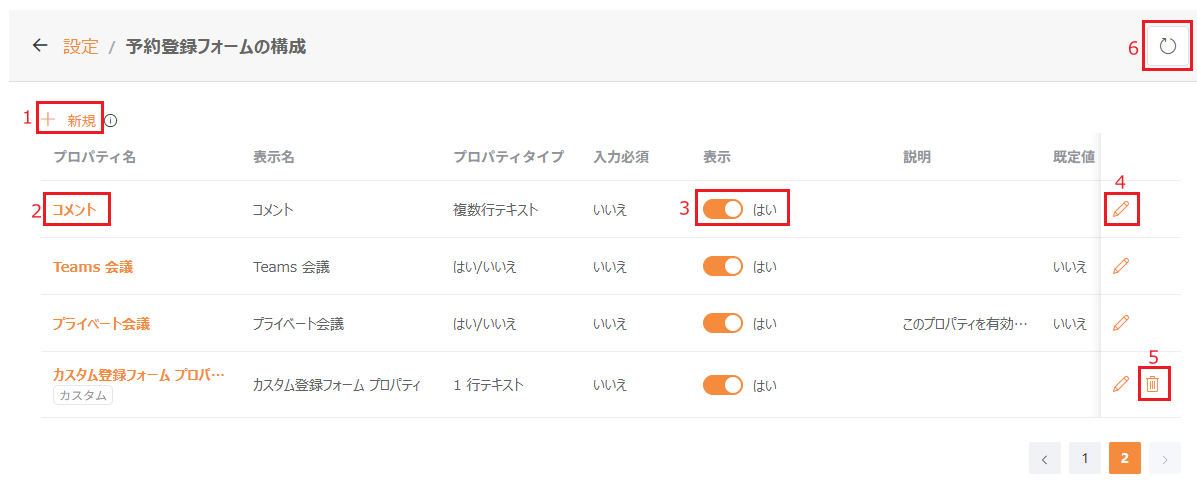
Registration Form Configuration.

  1. Add Custom Property – Click Add Property above the table. In the Add Property window, fill in the fields and click Save to add the property.

    NOTE

    A maximum of 50 properties is allowed for this app. When the limit has reached, the Add Property button will be greyed out and not clickable.

  2. View Property Information – Click the desired property name link to access the Property Information window.

  3. Update Display Setting – Turn on/off the toggle in the Visible for End Users column to define whether to display or hide the property from the registration form.

    NOTE

    The display setting for some properties cannot be changed.

    • Teams Meeting – With this property visible for end users, users can select whether to schedule a Microsoft Teams meeting while reserving a conference room.

    • Private Meeting – With this property visible for end users, users can select to set the meeting as private while reserving a conference room. Private information of the meeting, such as the title and attendees, will be hidden from users who are not the requester, attendees, and related administrators.

  4. Edit Property Information – Access the Edit Property window by clicking the edit button next to the property or clicking Edit in the Property Information window. Update information in the window and click Update when you finish.

  5. Delete Custom Property – Custom properties are marked with a Custom label below their names. To delete a custom property, click the delete button.

  6. Refresh – Click the refresh button in the upper-right corner of the page to refresh the properties displayed on this page.

General Settings

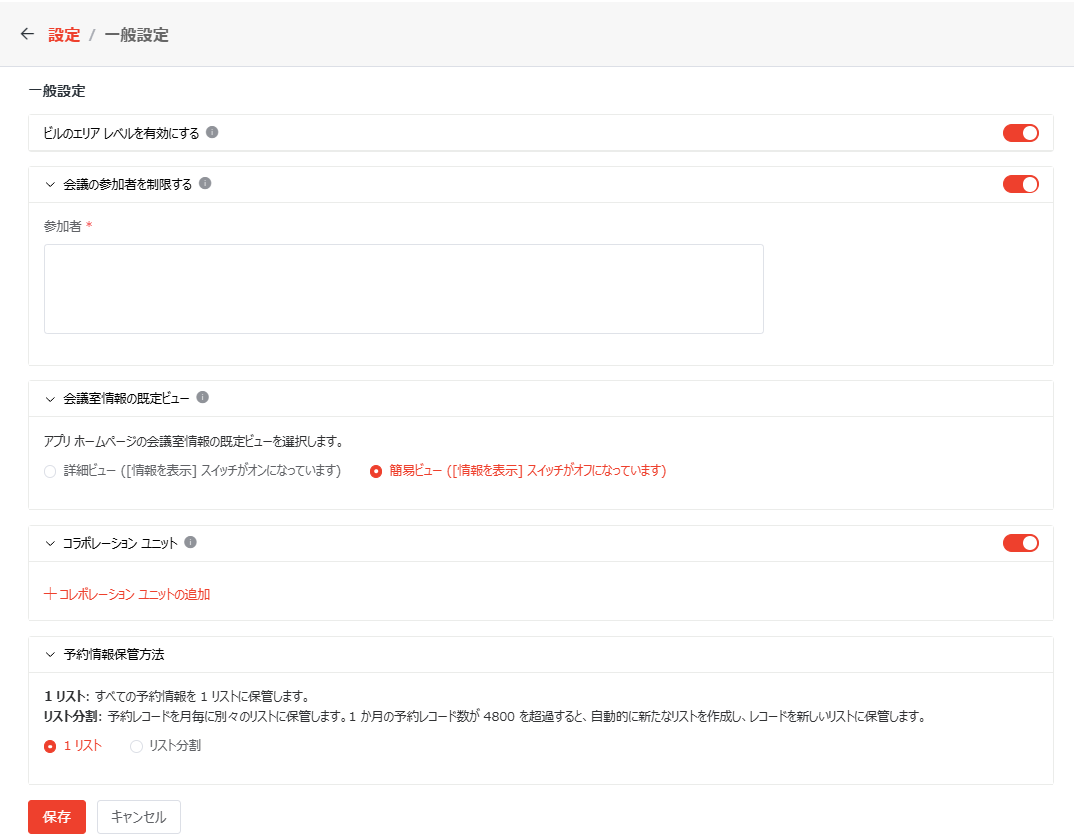
Click the General Settings tile on the Settings page, and the General Settings page appears. On the page, configure the following settings and click Save when you finish.

NOTE

Make sure to click Save after updating any setting, otherwise your changes will be lost.

General Settings.

  • Enable Area Level for Building – Enable an additional “area” hierarchy level to organize conference rooms within a building into specific areas. This setting is disabled by default. When enabled, there will be three levels: building, area, and conference room. The Area Management setting will be available on the Settings page, allowing you to manage areas. If disabled again, the structure will revert to two levels (building and conference room), the Area Management setting will be hidden, and all area-related settings will be disabled and no longer visible.

  • Limit Meeting Participants – Limit users and groups who are searchable and can be specified as the "Reserve For" user and participants when reserving conference rooms. Enter the names of these intended users and groups in the Participants field.

    NOTE

    This setting also applies to a connected Address Book app, which prevents users and groups outside the scope from reserving rooms and being added as participants from the Address Book app.

  • Default Room Information View – Select the default view for conference room information displayed on the app homepage.

    • Detailed View – Room details will be displayed in the room listing by default.

    • Brief View – Only room names will be displayed in the room listing by default.

    End users can change the displayed view using the Show Info toggle on the app homepage.

  • Collaboration Units – Choose whether to enable the collaboration units functionality. This function is disabled by default. Once enabled, assistants can submit reservations on behalf of principals and manage reservations for other assistants who have selected the unit within the Registration panel. If Collaboration Units is enabled, follow the instructions below to manage collaboration units:

    • Add Collaboration Unit – Click Add Collaboration Unit. In the Add panel, enter the collaboration unit name, specify the assistants and principals, and click Add. You can add multiple users and groups as assistants and principals.

      NOTE

      If you disabled the function and later re-enable it, the previously added collaboration units will remain available.

    • Edit Collaboration Unit – Click the more actions button to the right of the collaboration unit you want to edit and click Edit. In the Edit panel, you can edit the collaboration unit name, assistants, and principals based on your requirements and click Save to save your updates.

      If users are removed from the assistants, they’ll no longer be able to view or manage reservations made by other assistants. Additionally, if those users are not reservation administrators, they’ll also lose the ability to submit reservations on behalf of the unit’s principals. When users are not assistants of any collaboration unit, the Collaborative Reservations tab will be hidden from their My Reservations page.

    • Delete Collaboration Unit – To delete a collaboration unit, click the more actions button to the right of it and click Delete.

      When a collaboration unit is deleted, all reservations for this unit will no longer be visible to assistants and will be visible to the “Reserve For” user of each reservation only.

  • Reservation Record Storage Method – Choose how reservation records are stored for the app:

    • Single List – Store all reservation records in a single list.

    • Segmented Lists – Divide reservation records into monthly lists. Each list can store up to 4800 reservation records. When the limit is reached in a month, a new list will be created automatically for additional storage. This option is efficient for managing large amounts of storage data.

    NOTE

    Once saved, the reservation record storage method cannot be changed anymore.

App Permissions

The following table lists the user roles and their permissions to the app:

PermissionApp AdministratorBuilding AdministratorArea AdministratorBuilding Conference Room AdministratorBuilding Reservation AdministratorArea Conference Room AdministratorArea Reservation AdministratorEnd UserComment
Manage Users
Manage Room Properties
Add Buildings
Delete Buildings
Edit BuildingsBuilding administrators can only edit the buildings they own.
Add Areas
Delete Areas
Manage AreasArea administrators can only edit the areas they own.
Add Rooms
Delete Rooms
Edit RoomsArea administrators can only edit conference rooms within the areas they own.
Manage Room Filters
Export ReportsApp administrators can export reservation reports of all buildings, while others can only export those they own.
View Auditor
Manage Emil Templates
Manage My Reservations
Manage Other users’ Reservations
View Other Users’ Reservations