Home > App Suite > Office Equipment Management > Equipment Request and Return Process

Download this article
お知らせ: このページは現在英語のみで提供されています。日本語版は準備中です。ご不便をおかけして申し訳ございません。

Equipment Request and Return Process

For users, the equipment request page is displayed by default when accessing the app.

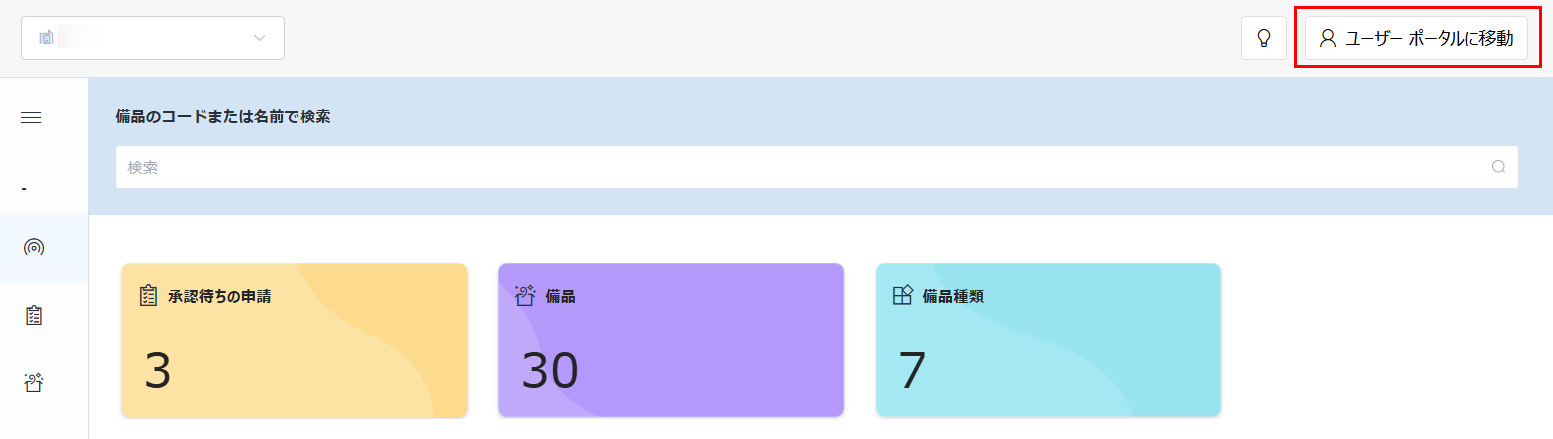
For app administrators and equipment administrators, click Go to User Portal in the upper-right corner of the dashboard page to access the equipment request page in the end user portal.

Go to User Portal.

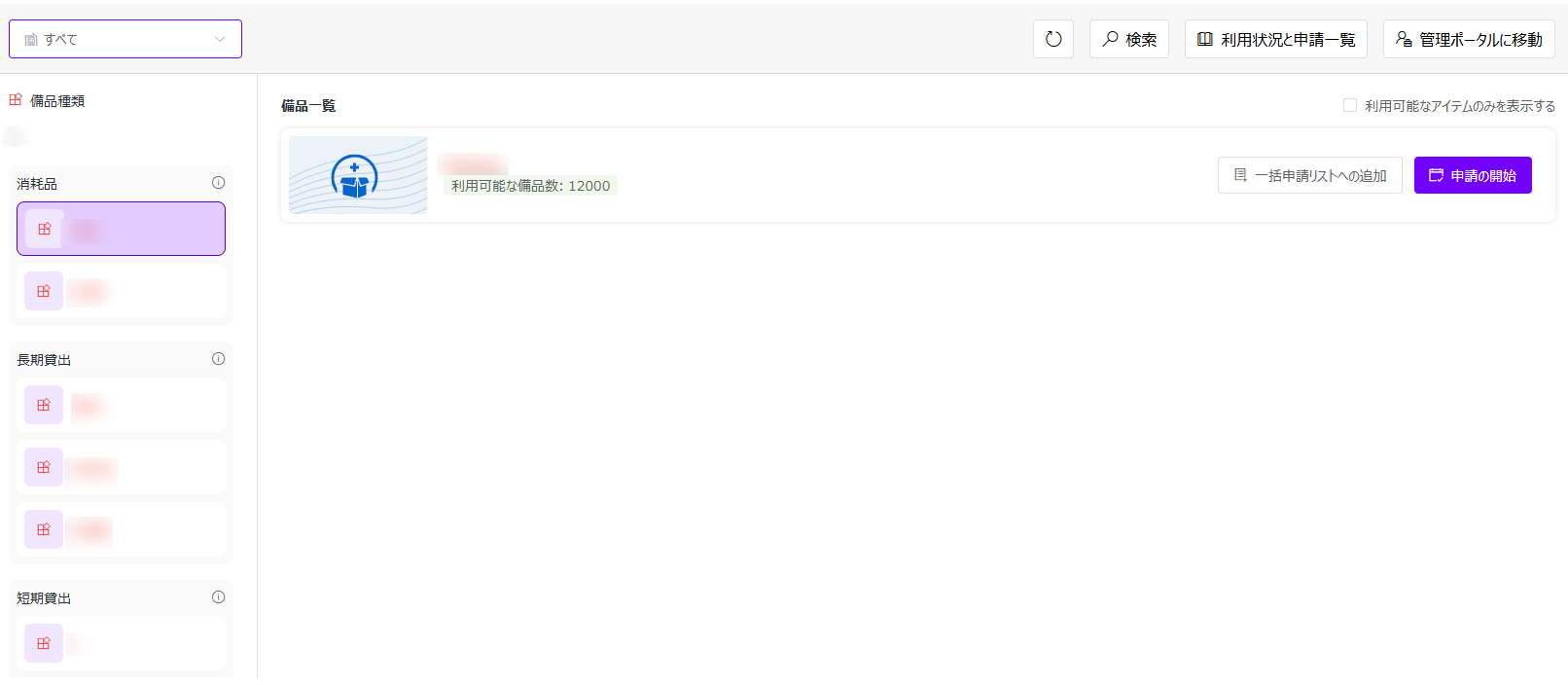
On the equipment request page, equipment types are categorized by Consumable, Long-term Loan, and Short-term Loan:

  • Consumable – Equipment items of this category do not require a return. You can request the items by specifying the desired quantity. Upon approval, you can pick up and use the items.

  • Long-term Loan – Equipment items of this category are available for extended use without requiring a precise return date.

  • Short-term Loan – Equipment items of this category are available for use within a specific period. When requesting, the usage start and end time must be specified.

Equipment type categories.

Click an equipment type in the left pane to access the equipment list of the type. Equipment items in the list with identical names are now grouped. By clicking Start Request, an available item will be automatically assigned. To view details of an equipment item, click the equipment name to access the Equipment Information panel, where you can view additional equipment details such as equipment type, unit price, purchase date, and custom properties.

The following actions are available on the equipment request page:

Available actions.

  • Specify Office – By default, equipment types of all offices are displayed. To display available equipment types of a specific office, select the office from the drop-down list.

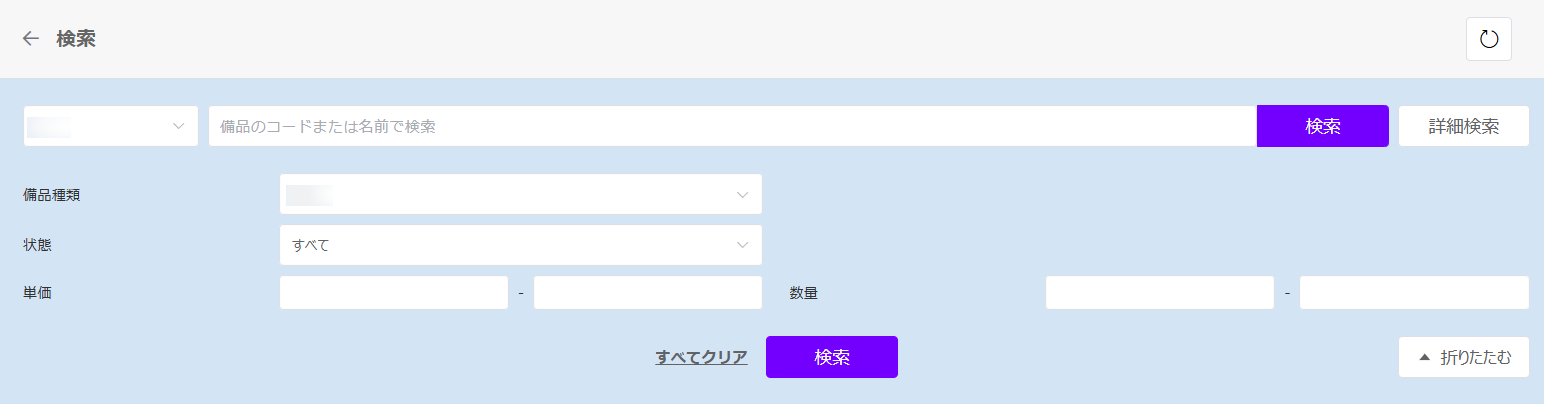
  • Search Equipment – Click Search to access the Search page. On the page, you can search for the desired equipment by equipment code or name.

    To search for equipment items by filters, click Advanced Search and the available filters appear. Configure the filters and click Search to search for your desired equipment items. Click Collapse to collapse the advanced search section.

    Equipment items under the same equipment type with identical names will be grouped. You can click the equipment name to view additional details of the equipment item.

    Advanced Search.

  • Refresh Equipment – Click the Refresh button to refresh the equipment displayed on the page.

  • Go to Admin Portal – Click Go to Admin Portal to access the admin portal.

    NOTE

    This button is only visible for administrators.

  • Borrowed Equipment & Requests – Click Borrowed Equipment & Requests to access the corresponding page. On the page, the following tabs are included:

    • Borrowed Equipment – View information about the in-use and returned equipment items.

    • My Requests – Track your request statuses or cancel pending requests.

Refer to Equipment Request Process for instructions on how users request equipment items and equipment administrators of each office review the equipment requests.

If your organization requires return requests to be submitted before returning equipment, refer to Equipment Return Process for instructions on how users submit return requests and equipment administrators of each office review the return requests.

NOTE

Equipment administrators can only review equipment requests and return requests from the assigned office.

Equipment Request Process

When requesting equipment items, requesters can submit either an individual or batch request for items in the same category from one or multiple offices. For instructions, refer to the Submit an Individual Equipment Request and Submit Batch Equipment Requests sections below. Upon approval, requesters can pick up and use the items.

Equipment administrators can refer to the Review Equipment Requests section below for instructions on reviewing equipment requests.

Submit an Individual Equipment Request

You can submit an individual equipment request on both the equipment request page and the Search page using the steps below:

  1. Available equipment types from all offices are displayed by default. To quickly find the office from which you want to request equipment, you can use the office filter in the upper-left corner of the page.

  2. Under Equipment Type in the left pane, select the equipment type you want to request, and the equipment items of the type are displayed in the Equipment List.

    You can click the Only show available items checkbox to show equipment items that can be requested.

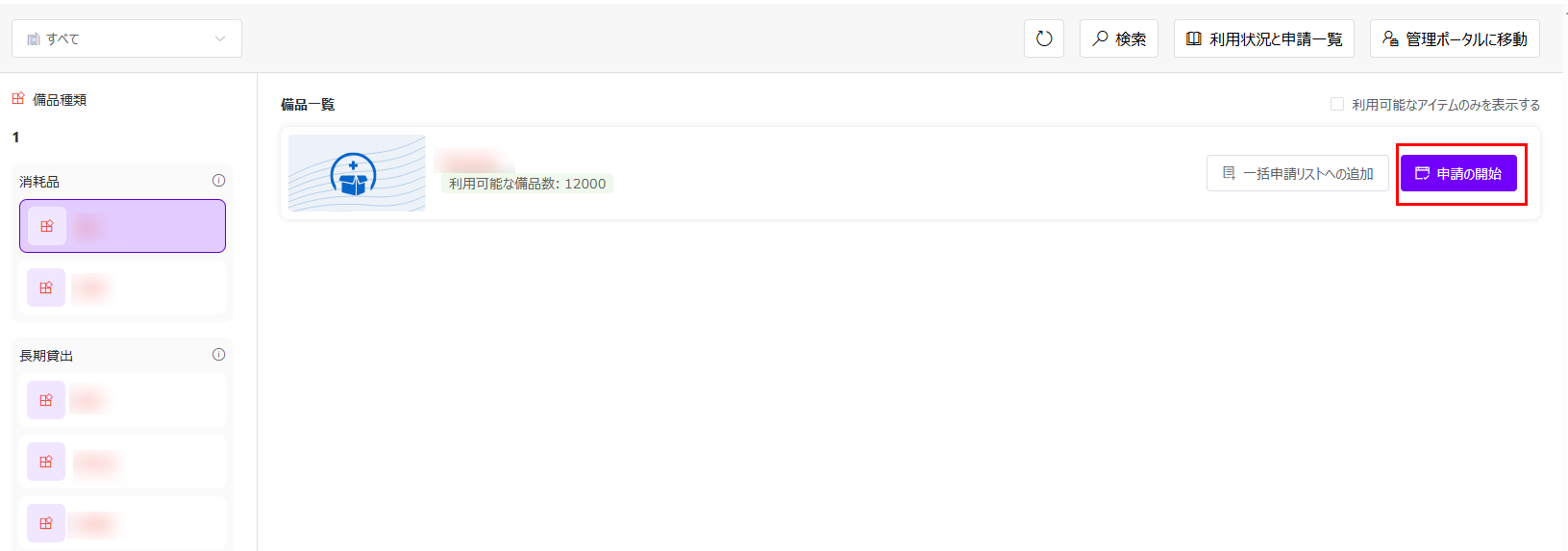
  3. Click Start Request next to the desired equipment item or click Start Request in the Equipment Information panel. The New Request window appears. The information in the window varies based on the category of the selected equipment type. Complete the information below to request equipment of each category:

    Start request.

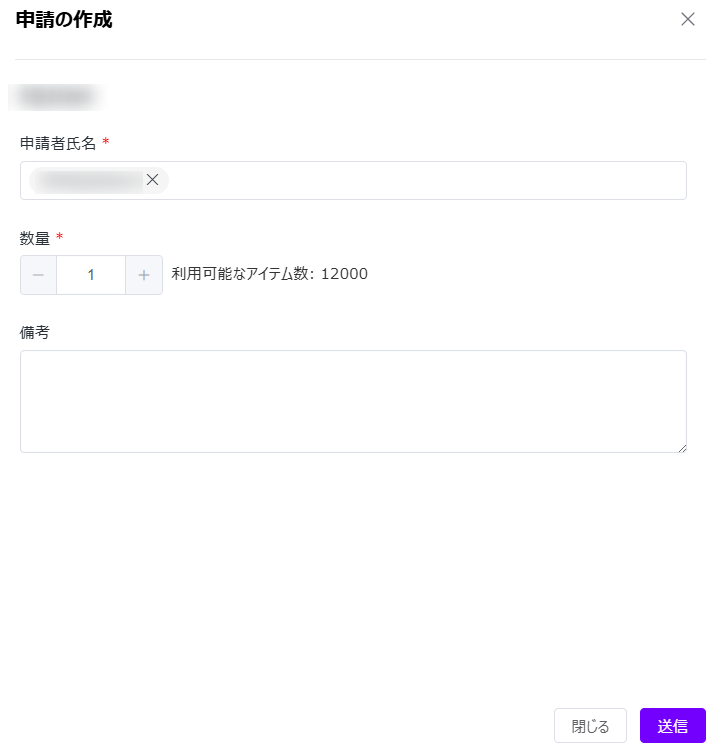
    • The category of the selected equipment type is consumable:

      New request for consumable.

      • Request For – The user for whom the equipment is requested. The current user is displayed by default. For users, this field is read-only. Administrators can change the user in this field.

      • Quantity – Enter the quantity of the current equipment to request. The entered quantity cannot exceed the available quantity of the equipment.

      • Additional Information – Enter any additional information in the text box.

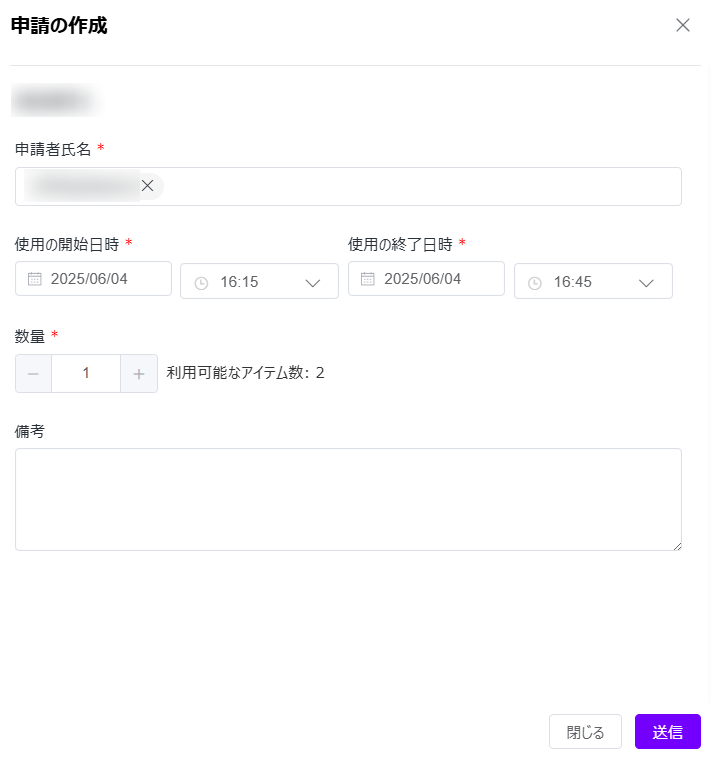
    • The category of the selected equipment type is short-term loan:

      New request for short-term loan item.

      • Request For – The user for whom the equipment is requested. The current user is displayed by default. For users, this field is read-only. Administrators can change the user in this field.

      • Usage Start Time – Select the start date and time from when you want to use the equipment.

      • Usage End Time – Select the end date and time by which time you will finish using the equipment.

      • Quantity – Enter the quantity of the current equipment to request. The entered quantity cannot exceed the available quantity of the equipment.

      • Additional Information – Enter any additional information in the text box.

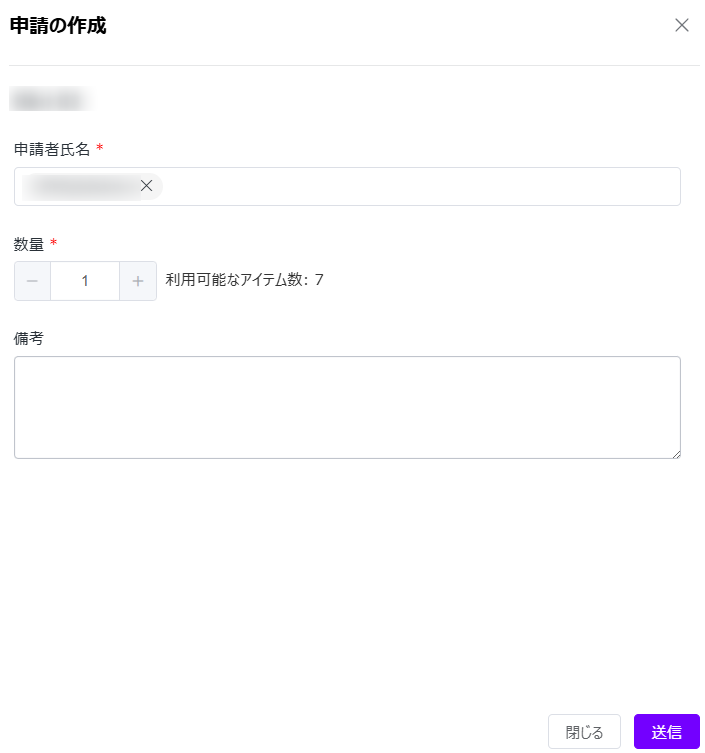
    • The category of the selected equipment type is long-term loan:

      New request for long-term loan item.

      • Request For – The user for whom the equipment is requested. The current user is displayed by default. For users, this field is read-only. Administrators can change the user in this field.

      • Quantity – Enter the quantity of the current equipment to request. The entered quantity cannot exceed the available quantity of the equipment.

      • Additional Information – Enter any additional information in the text box.

  4. Click Submit to submit the request.

Submit Batch Equipment Requests

You can request multiple equipment items of the same category using the following steps:

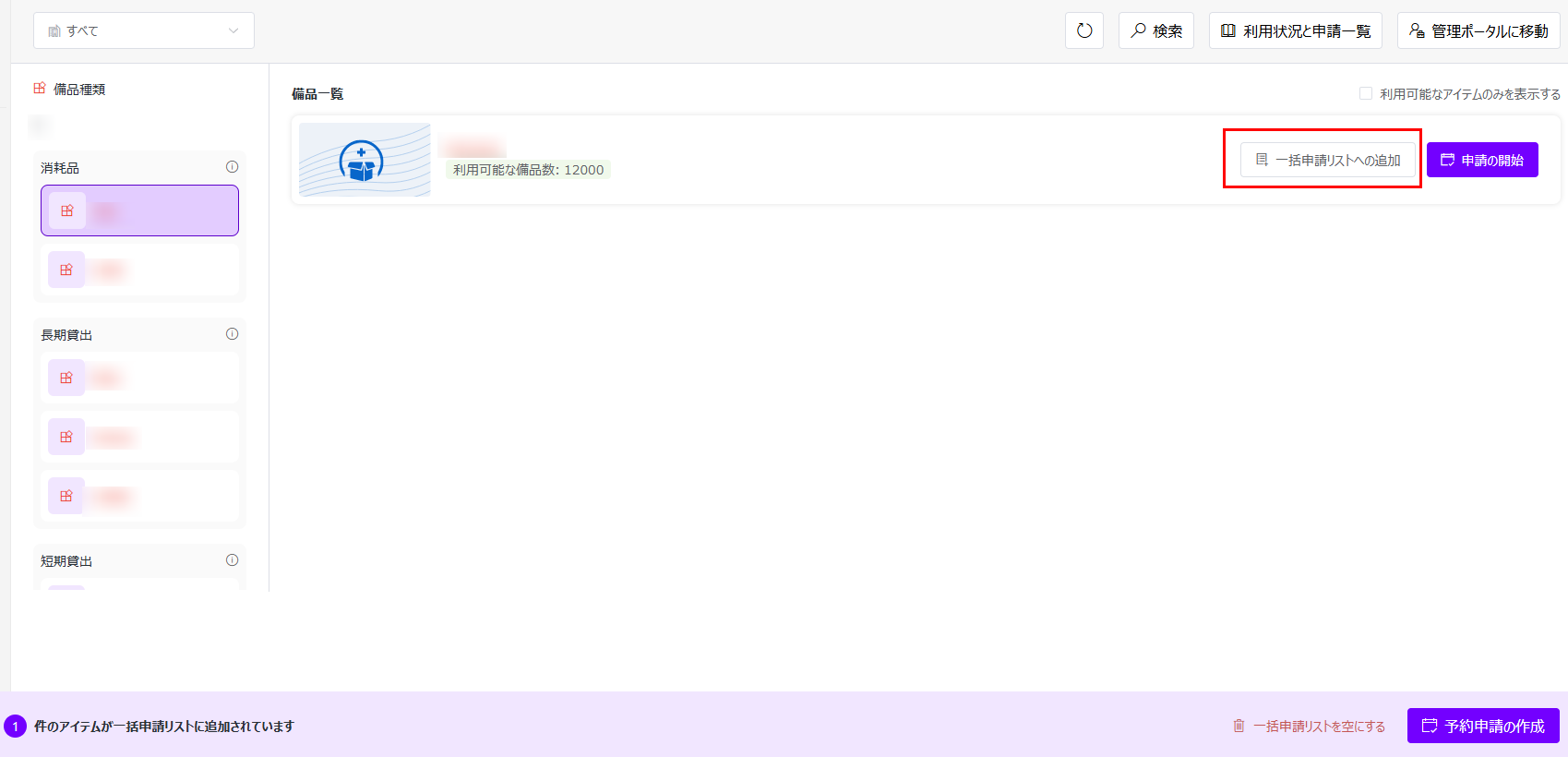
Batch request.

  1. Available equipment types from all offices are displayed by default. To quickly find the office from which you want to request equipment, you can use the office filter in the upper-left corner of the page.

  2. Under Equipment Type in the left pane, select the equipment type you want to request, and equipment items of that type are displayed in the Equipment List.

    You can click the Only show available items checkbox to show equipment items that can be requested.

  3. Click Add to Request List next to the desired equipment item or click Add to Request List in the Equipment Information panel. In the Quantity window, specify the quantity of the equipment to request and click OK. The quantity of items in your request list can be viewed at the bottom of the page.

  4. You can repeat steps 1-3 to add multiple equipment items to the request list.

    NOTE

    You can only submit batch requests for equipment items that belong to the same category, whether they are consumable, long-term loan, or short-term loan. If you attempt to add equipment items from a different category than those already in your request list, an error message will be displayed.

  5. When all desired equipment items are added to the request list, click Start Request to start the batch request.

    To clear all items added to your request list, click Empty Request List.

  6. In the Equipment Request window, complete the following information:

    • Request For – The user for whom the equipment is requested. The current user is displayed by default. For users, this field is read-only. Administrators can change the user in this field.

    • Additional Information – Enter any additional information in the text box.

    • Quantity – You can change the quantity of each equipment to request. The entered quantity cannot exceed the available quantity of the equipment.

    • Usage Start Time – Select the start date and time from when you want to use the equipment.

      NOTE

      This information is only required if you are requesting equipment items of the short-term loan category.

    • Usage End Time – Select the end date and time by which time you will finish using the equipment.

      NOTE

      This information is only required if you are requesting equipment items of the short-term loan category.

    To remove added equipment, click the Delete button next to it.

  7. Click Submit to submit the batch request.

You can edit or cancel equipment requests you have submitted using the following steps:

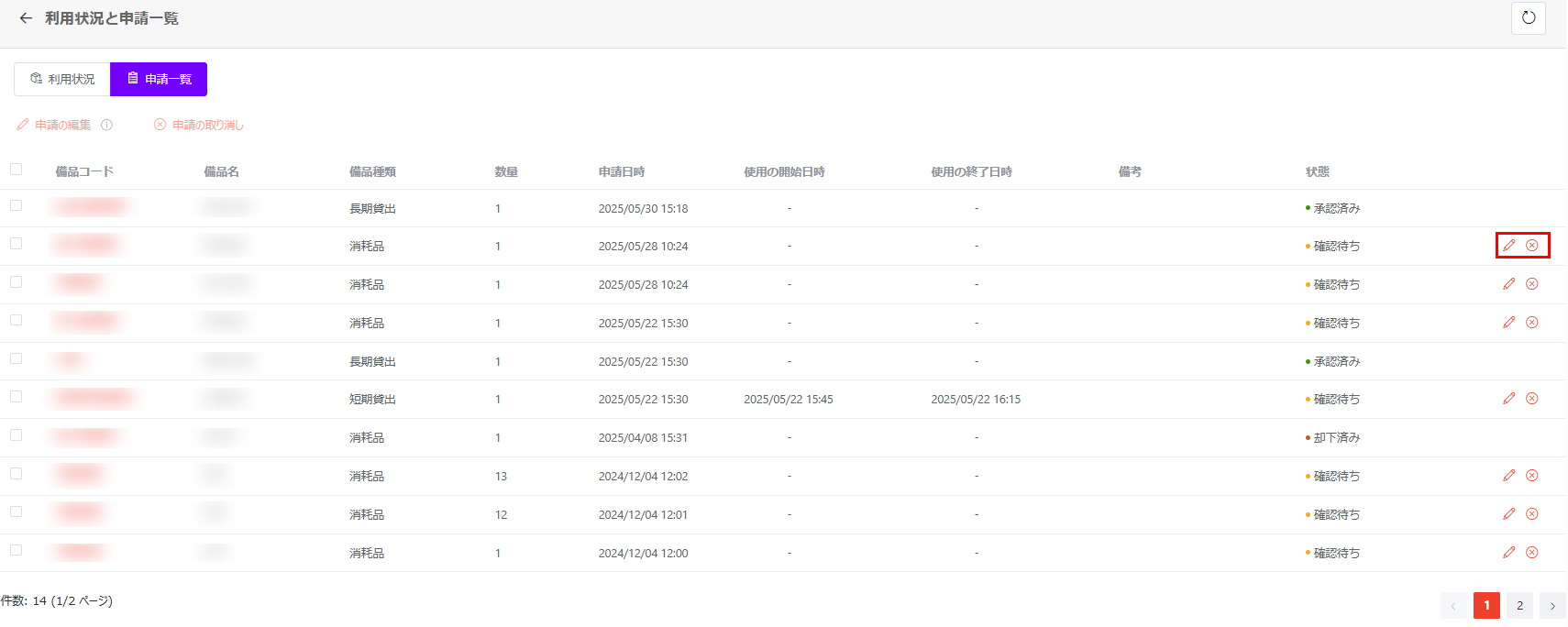
Edit/Cancel request.

  1. On the equipment request page, click Borrowed Equipment & Requests in the upper-right corner. The corresponding page appears.

  2. Click My Requests to access your submitted requests.

    • To edit a request, select the request and click Edit Request above the table, or you can click the Edit Request button to the right of the request.

      In the Edit Request window, update the request based on your requirements and click Submit when you finish.

      NOTE

      Only pending equipment requests for the consumable and short-term loan categories can be edited.

    • To cancel a request, select the request and click Cancel Request above the table, or you can click the Cancel Request button to the right of the request.

      NOTE

      Only pending equipment requests can be canceled.

Review Equipment Requests

If manual approval is required by your organization, equipment administrators of the office will receive notification emails when an equipment request is submitted. Equipment administrators can view the request information in the emails and complete the steps below to approve or reject the request.

  1. Access the app in the deployed location.

  2. Click Equipment Requests in the left navigation to access the equipment requests page.

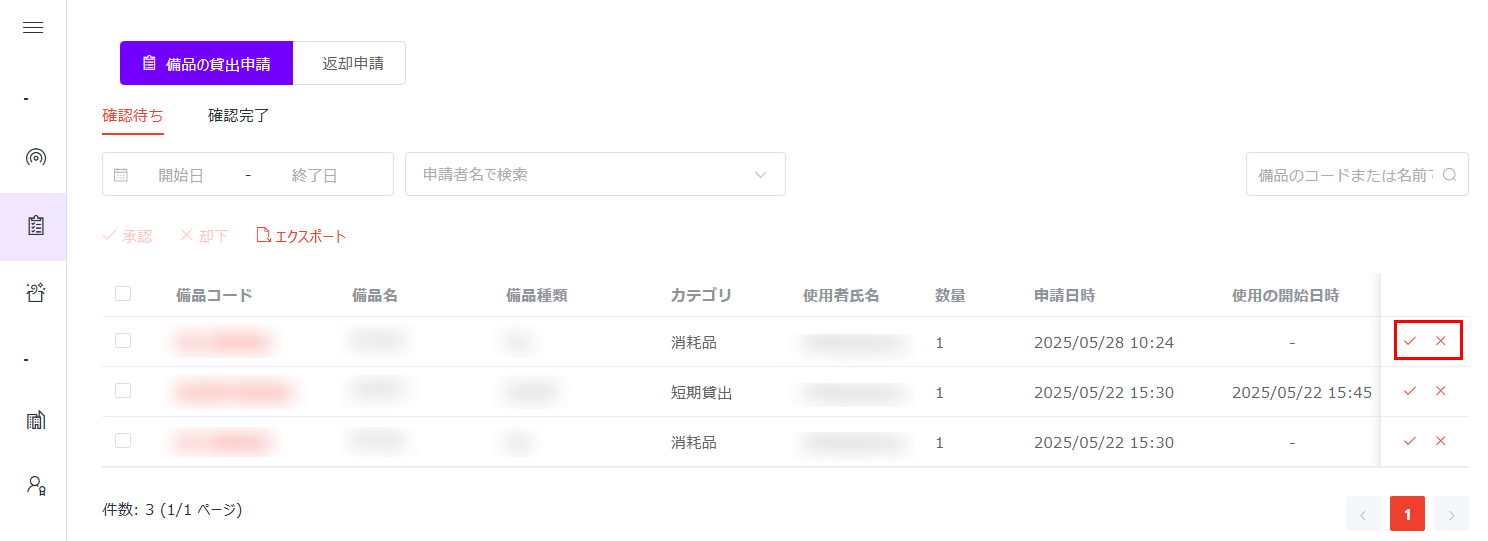
  3. In Borrow Requests > Pending Review, equipment requests that are pending your approval are listed, you can:

    Review equipment requests.

    • Approve requests – Select one or more pending requests and click Approve above the table. You can also click the Approve button to the right of a specific request to approve it.

    • Reject requests – Select one or more pending requests and click Reject above the table. You can also click the Reject button to the right of a specific request to reject it.

For details about managing equipment requests, refer to the Manage Equipment Requests section on the Equipment Overview and Request Management page.

Equipment Return Process

If your organization requires return requests to be submitted and approved before requesters can physically return equipment. Requesters can refer to the Submit Return Requests section below for instructions on submitting return requests.

Equipment administrator can refer to the Review Return Requests section below for instructions on reviewing return requests. The equipment status will become available automatically upon return approval.

In organizations that do not require return requests, employees can return equipment directly upon the completion of usage. Equipment administrators will need to check-in the equipment and manually update the status in this app.

Submit Return Requests

Use the following steps to submit return requests upon the completion of equipment usage:

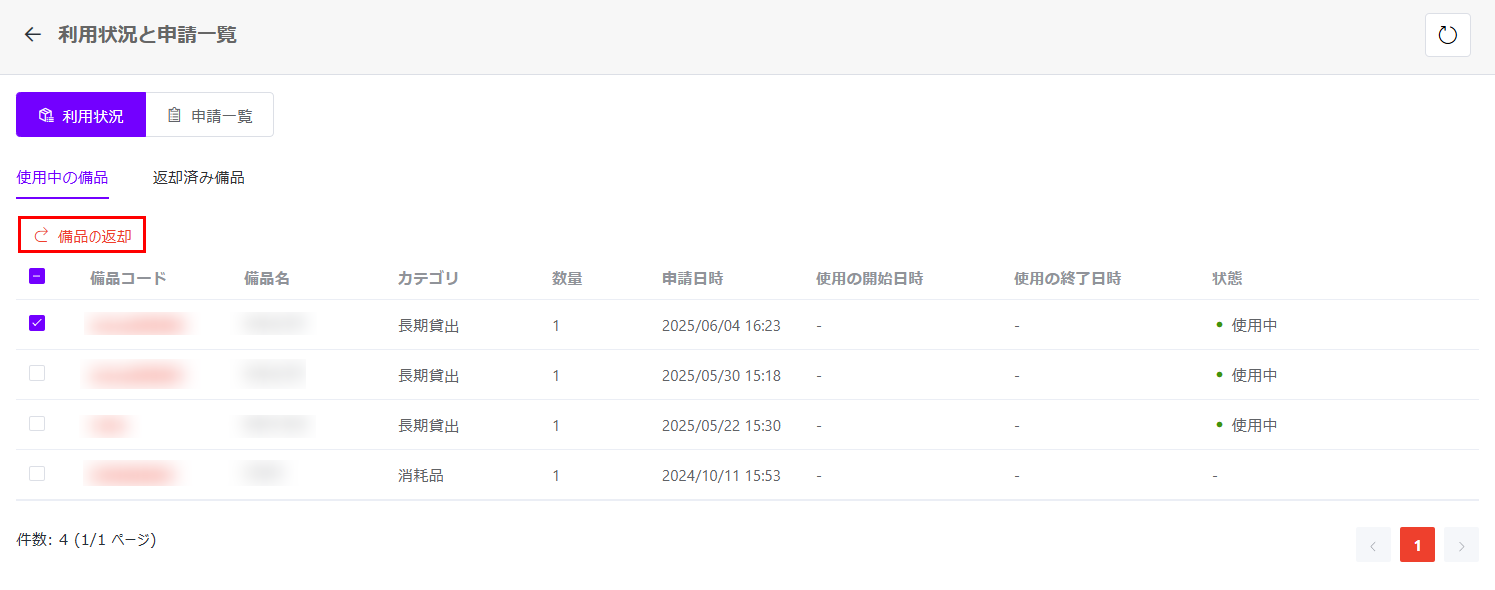
Return Equipment.

  1. On the equipment request page of the user portal, click Borrowed Equipment & Requests to access the borrowed equipment.

  2. In Borrowed Equipment > Equipment in Use, select the equipment to be returned and click Return Equipment above the table.

  3. In the confirmation window, click OK to submit the request.

You can cancel a pending return request you have submitted using the following steps:

  1. On the equipment request page of the user portal, click Borrowed Equipment & Requests to access the borrowed equipment and requests.

  2. On the page, use one of the following methods:

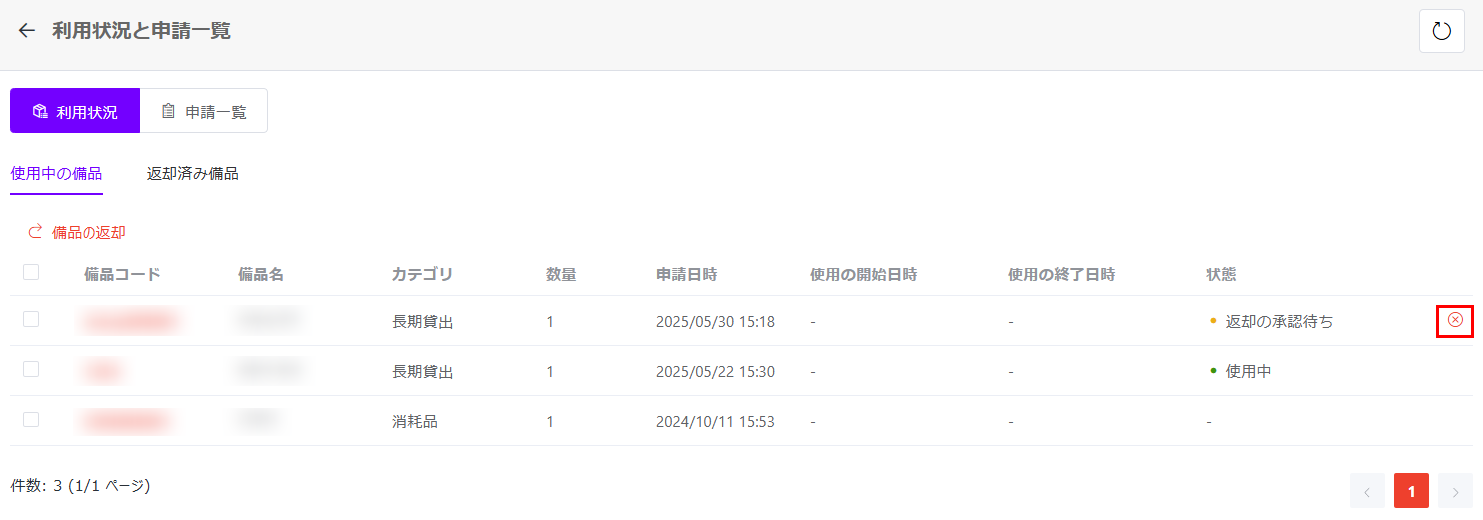
    • In Borrowed Equipment > Equipment in Use, click the Cancel Return Request button to right of the equipment that is pending return approval.

      Cancel return request.

    • In My Requests, select one or more return requests and click Cancel Request above the table. You can also click the Cancel Request button to the right of a specific request to cancel it.

  3. In the confirmation window, click OK to cancel the request.

Review Equipment Requests

If manual approval is required by your organization, equipment administrators of the office will receive notification emails when a return request is submitted. Equipment administrators can view the request information in the emails and complete the steps below to approve or reject the request. Once a return request is approved, the equipment status will become available automatically in the app.

  1. Access the app in the deployed location.

  2. Click Equipment Requests in the left navigation to access the equipment requests page.

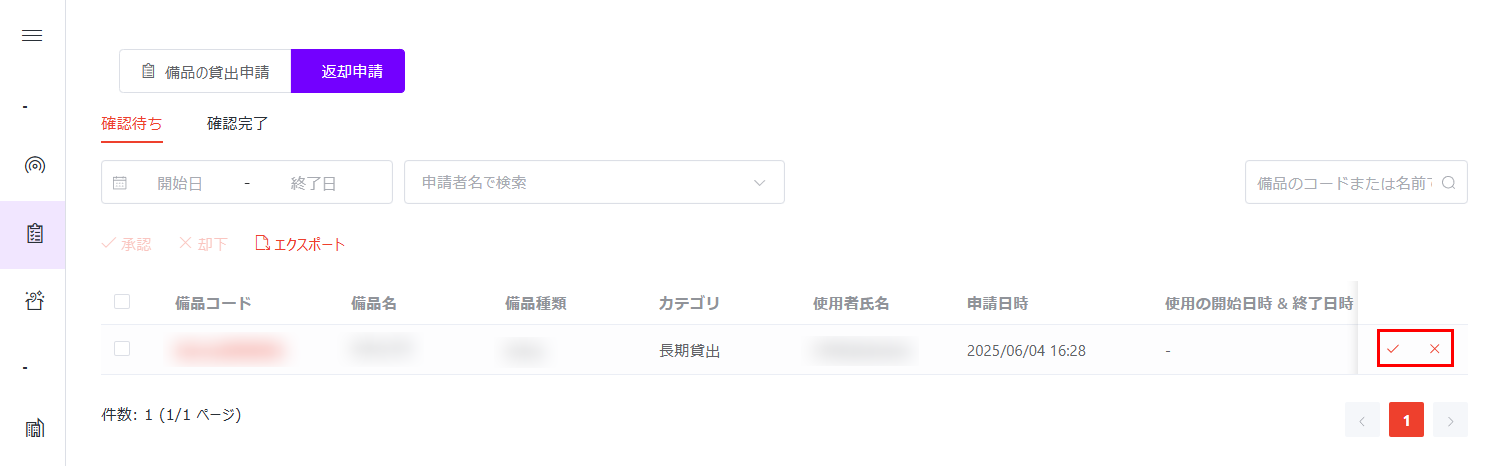
  3. In Return Requests > Pending Review, return requests that are pending your approval are listed, you can:

    Review return requests.

    • Approve requests – Select one or more pending requests and click Approve above the table. You can also click the Approve button to the right of a specific request to approve it.

    • Reject requests – Select one or more pending requests and click Reject above the table. You can also click the Reject button to the right of a specific request to reject it.

For details about managing equipment requests, refer to the Manage Equipment Requests section on the Equipment Overview and Request Management page.