
Home > AvePoint Portal Manager へのアクセス
この記事をダウンロードAvePoint Portal Manager へのアクセス
このセクションでは、イントラネット ポータル サイトの構築・管理・参照を実行する前に新しいアカウントの登録方法およびサービスにサインインする方法など、AvePoint Portal Manager にアクセスする方法について説明します。
アカウントの登録
AvePoint Portal Manager のアカウントを登録する方法については、以下の説明を参照してください。
-
日本データ センターの場合、AvePoint Portal Manager サービスにアクセスするには、URL https://apm.avepointonlineservices.com を使用して AvePoint Online Services にサインアップしてください。
AvePoint Online Services にサインアップする詳細については、AvePoint Online Services のサインアップ を参照してください。
-
東南アジア データ センターの場合、アカウントを登録するには、以下の説明を参照してください。
NOTEAvePoint Portal Manager へのサインアップに使用されるアカウントのユーザーは、テナント所有者 として設定され、ユーザーに AvePoint Portal Manager の 管理者 ロールが割り当てられます。
-
URL https://accpm.avepointonlineservices.com から AvePoint Portal Manager にアクセスします。
-
ページの右上にある [ログイン] をクリックします。
-
AvePoint Portal Manager へのサインインを要求するポップアップ ウィンドウが表示されます。[今すぐサインアップ] をクリックします。
-
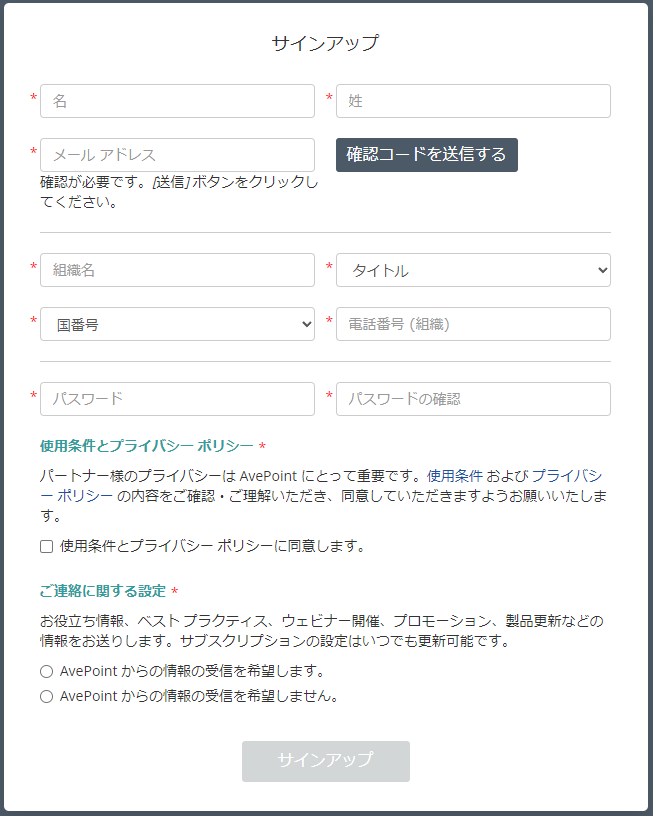
ウィンドウで必要な情報を入力して、[サインアップ] をクリックします。
NOTEアカウントの登録に使用したメール アドレスが有効であることを確認してください。
-
-
その他のデータ センターの場合、アカウント登録の詳細については、AvePoint 営業担当までお問い合わせください。
AvePoint Portal Manager へのサインイン
以下の URL から AvePoint Portal Manager にアクセスします。
-
AvePoint Online Services に登録したユーザーの場合、AvePoint Online Services にサインインして、AvePoint Portal Manager を選択してください。AvePoint Online Services へのサインインの詳細については、AvePoint Online Services へのサインイン を参照してください。
-
AvePoint Online Services に登録していないユーザーの場合:
-
米国のデータ センターの場合、https://cpm.avepointonlineservices.com にサインインしてください。
-
日本のデータ センターの場合、https://jpcpm.avepointonlineservices.com にサインインしてください。
-
オーストラリアのデータ センターの場合、https://aucpm.avepointonlineservices.com にサインインしてください。
-
韓国のデータ センターの場合、https://krcpm.avepointonlineservices.com にサインインしてください。
-
サインイン ページで、登録したアカウントまたは Microsoft 365 アカウントでサインインすることができます。
登録したアカウントでのサインイン
登録したアカウントを使用してサインインする方法については、以下の説明を参照してください。
-
サインイン ページで、ログイン情報を入力します。
-
メール アドレス – アカウントの登録に使用したメール アドレスです。
-
パスワード – パスワードです。
-
-
[サインイン] をクリックして、AvePoint Portal Manager ホームページにアクセスします。
Microsoft 365 アカウントでのサインイン
Microsoft 365 アカウントを使用してサインインする方法については、以下の説明を参照してください。
-
サインイン ページで [Microsoft でサインイン] をクリックします。
NOTE同一ブラウザーでMicrosoft 365 アカウントを使用して別のアプリにサインインしている場合、その Microsoft 365 アカウントは AvePoint Portal Manager へのサインインに自動使用されます。
-
Microsoft 365 認証ページで既存の Microsoft 365 ログイン ID とパスワードを入力します。
-
[サインイン] をクリックします。この Microsoft 365 アカウントで初めて AvePoint Portal Manager にサインインする場合、要求されているアクセス許可が表示されます。アクセス許可を確認し、[承諾] をクリックします。
NOTE[サインイン] をクリックすると、グローバル管理者ロールを持つユーザーに、テナント全体を代表して同意することを実行できるチェックボックスが表示されます。テナント全体の管理者同意が付与されると、テナント内の他のユーザーが AvePoint Portal Manager にサインインしても、要求されているアクセス許可ウィンドウがポップアップされなくなります。