
Home > 付録 > 付録 D – カスタム Azure アプリ用の証明書の準備方法
この記事をダウンロード付録 D – カスタム Azure アプリ用の証明書の準備方法
このセクションでは、証明書ファイル (.cer ファイルおよび .pfx ファイル) を準備する方法について説明します。.cer ファイルは Azure でカスタム アプリを作成する際に使用され、.pfx ファイルは AvePoint Online Services で カスタム モードのアプリ プロファイルの作成 を実行する際に使用されます
シナリオに基づいて自己署名証明書ファイルを準備するには、以下の方法のいずれかを選択します。
Azure 内のキー コンテナーでの証明書の準備
この方法を使用して証明書を準備する前に、Azure でキー コンテナーを持っていることを確認してください。キー コンテナーを持っていない場合は、以下の説明を参照してキー コンテナーを作成してください。キー コンテナーの作成後、証明書を準備します。
先に Azure Key Vault を含む Azure サブスクリプションを持っていることを確認してください。
-
キー コンテナーを作成します。
-
Azure ポータル で、画面上部の検索ボックスに キー コンテナー を入力し、1 番目の結果を選択して キー コンテナー ページにアクセスします。
-
[作成] をクリックします。キー コンテナーの作成 ページが表示されます。
-
基本 タブで、キー コンテナーの基本情報を入力し、アクセス構成 タブをクリックします。
-
アクセス許可モデル セクションで、コンテナーのアクセス ポリシー を選択します。
-
アクセス ポリシー セクションで、[作成] をクリックします。
-
アクセス ポリシーを 1 つ作成する 画面が表示されます。シークレットのアクセス許可 フィールドで、取得 を選択します。
-
[次へ] をクリックして、プリンシパル タブに移動します。
-
プリンシパル タブで、検索ボックスにアプリケーション名またはアプリケーション ID を入力します。
-
アプリケーションを選択し、[次へ] をクリックして アプリケーション (省略可能) タブに移動します。
-
アプリケーション (省略可能) タブで、必要に応じて設定を構成して [次へ] をクリックします。
-
確認および作成 タブで、すべての構成を確認してから、[作成] をクリックしてアクセス ポリシーを作成します。キー コンテナーの作成 ページに移動されます。
-
[次へ] をクリックして、ネットワーク タブに移動します。
-
ネットワーク タブで、パブリック アクセス セクションで すべてのネットワーク を選択します。
-
[次へ] をクリックして、タグ タブに移動します。
-
タグ タブで、キー コンテナーを分類するためのタグを追加します。
-
[確認および作成] をクリックし、すべての構成を確認してから、下部にある [作成] をクリックしてキー コンテナーを作成します。
NOTEキー コンテナーの作成前に一部の設定を変更する必要がある場合は、[前へ] ボタンをクリックして前の設定を変更することができます。
-
-
キー コンテナーの証明書を生成します。
-
キー コンテナー ページで、証明書を生成するキー コンテナーを選択します。
-
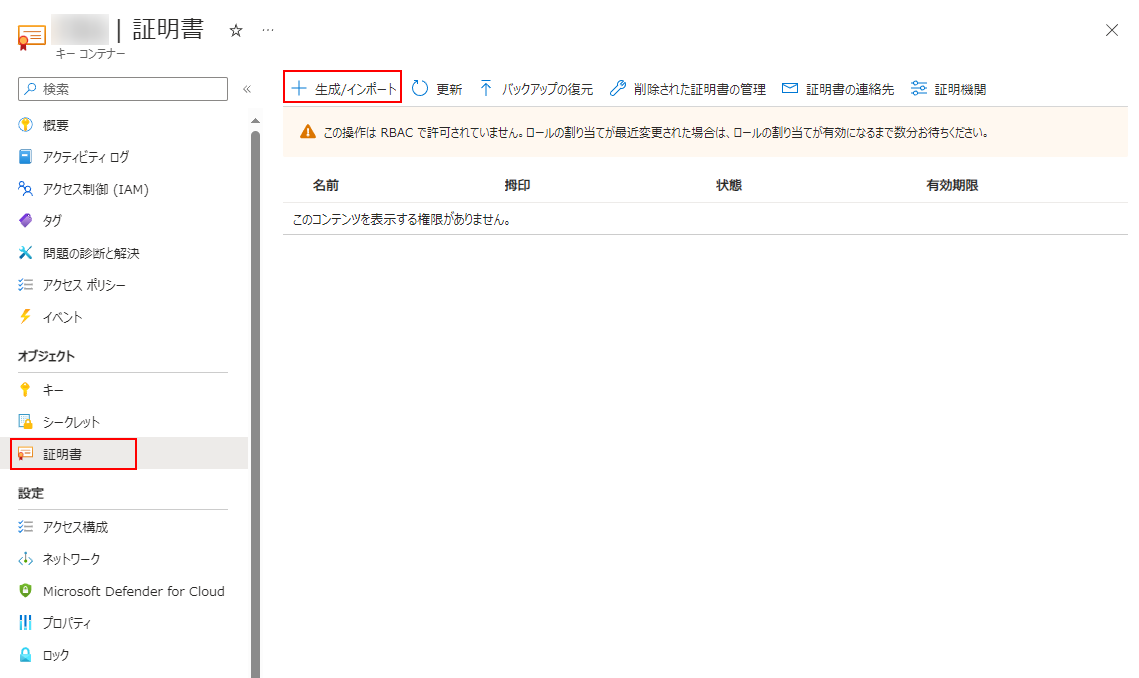
証明書 > 生成/インポート を選択します。
-
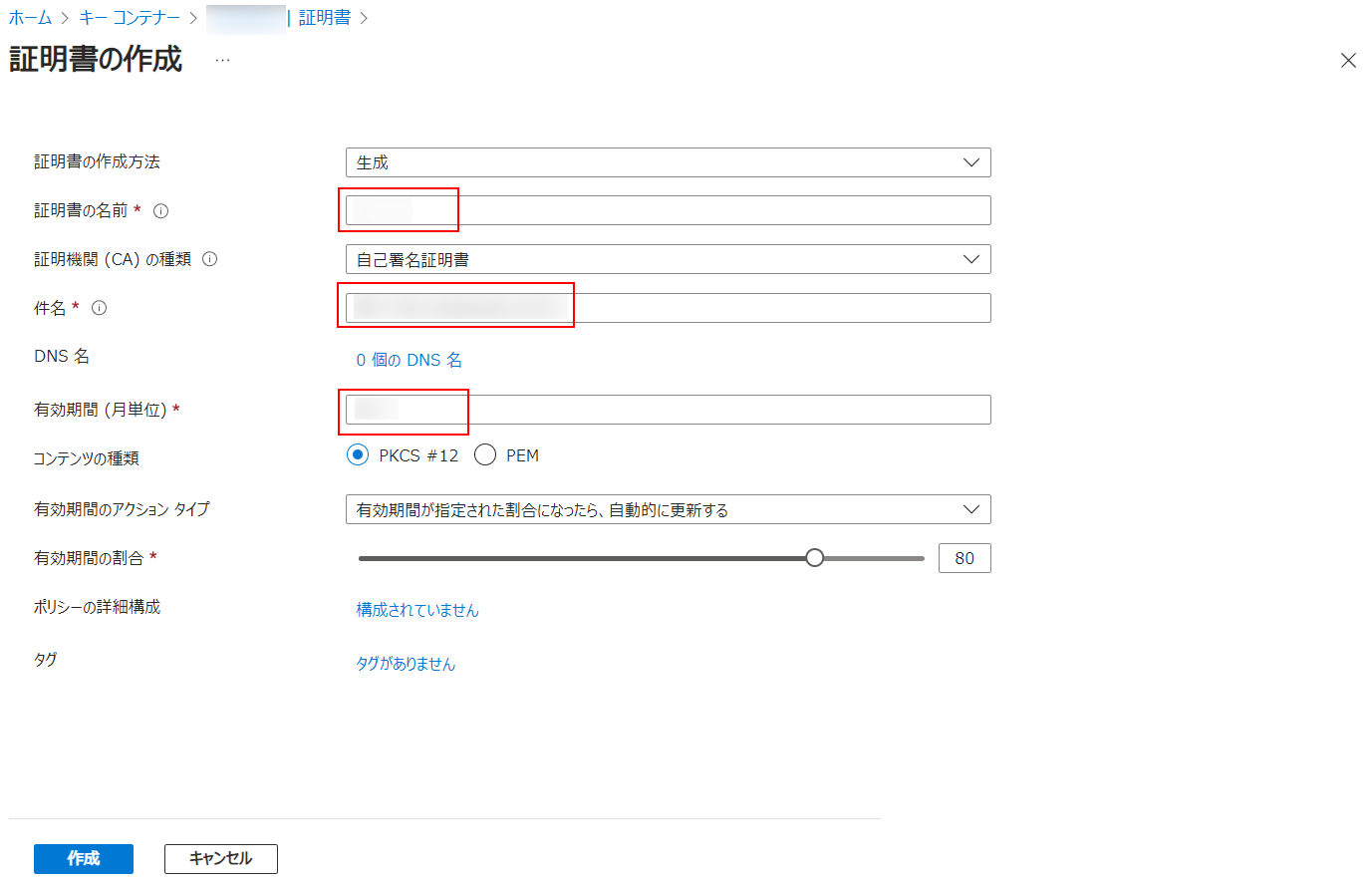
証明書の作成 ページで、必要な情報を入力して、[作成] をクリックして証明書を作成します。
-
証明書 一覧で、新規作成された証明書を選択します。
-
後で使用するシークレット ID をコピーします。
-
-
証明書の名前をクリックして、証明書の現在のバージョンを選択します。
-
[CER形式でダウンロード] と [PFX/PEM 形式でダウンロード] をクリックして、証明書ファイルをローカル マシンにダウンロードします。
-
証明書 (.pfxファイル) を持っている場合、証明書を保護するためのパスワードを設定する必要があります。
-
Windows PowerShell を開き、次のスクリプトを Windows PowerShell に貼り付けます。[Full Path of your pfx certificate file] をローカル マシンにある証明書 (.pfx ファイル) のフル パスに置き換えます。
-
Enter キーを押して、スクリプトを実行します。
-
-
証明書を、AvePoint Portal Manager と Microsoft 365 テナントとの接続に使用される Azure AD アプリにアップロードする必要があります。
IIS マネージャーでの証明書の準備
インターネット インフォメーション サービス (IIS) マネージャーで証明書を作成するには、以下の説明を参照してください。
-
管理ツール > インターネット インフォメーション サービス (IIS) マネージャー に移動します。
-
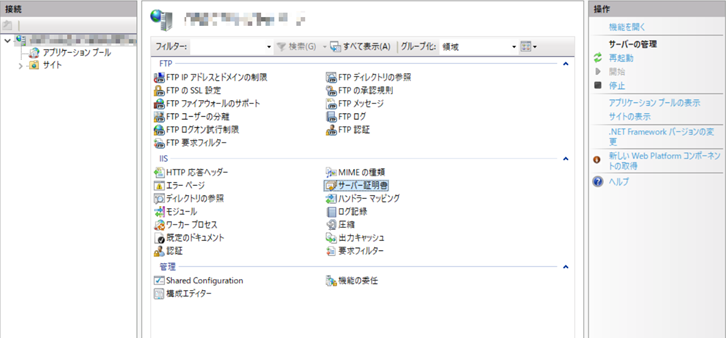
接続 画面でサーバー名をクリックし、画面右側の サーバー証明書 をダブルクリックします。
-
操作 画面で [自己署名入り証明書の作成] をクリックします。
-
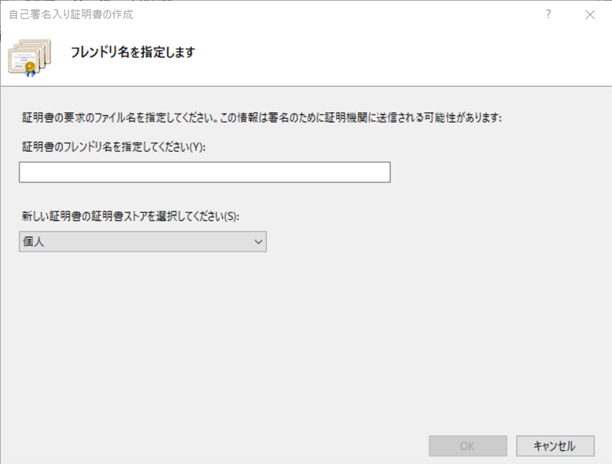
証明書の名前を入力し、[OK] をクリックします。証明書が サーバー証明書 画面に一覧表示されます。
-
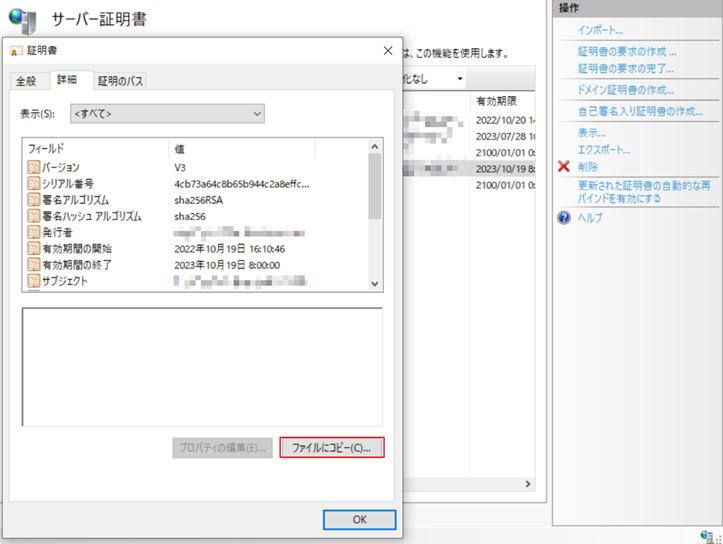
作成した証明書をダブルクリックし、詳細 タブをクリックします。[ファイルにコピー] をクリックして証明書をエクスポートします。
-
証明書のエクスポート ウィザード ウィンドウで、[次へ] をクリックします。
-
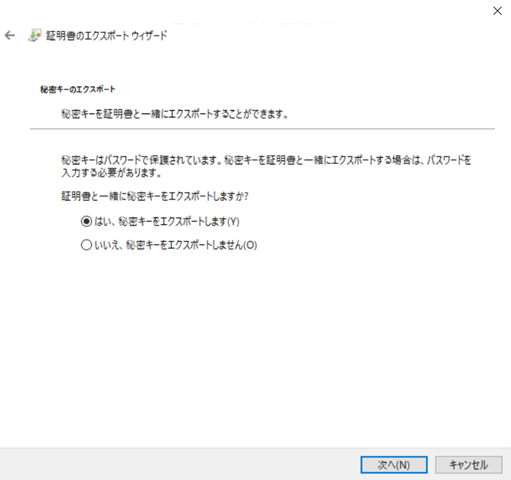
証明書タイプを選択します。
-
PFX 証明書と秘密キーを同時にエクスポートする場合は、はい、秘密キーをエクスポートします オプションを選択します。
-
CER 証明書をエクスポートする場合は、いいえ、秘密キーをエクスポートしません オプションを選択します。
-
-
[次へ] をクリックします。ページ上の既定のオプションを保持し、[次へ] をクリックします。
秘密キーのエクスポートを選択する場合、証明書のパスワードの入力および確認が必要です。このパスワードを記憶します。このパスワードは、アプリ プロファイルの作成時に使用されます。
-
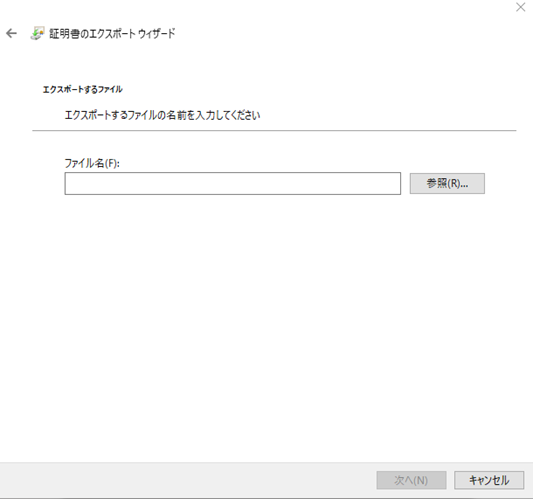
証明書ファイルの名前を入力します。[参照] をクリックして、証明書の保存場所を指定することもできます。
-
[次へ] をクリックします。証明書情報が表示されます。
-
[完了] をクリックします。証明書ファイルがエクスポートされます。
Windows PowerShell での証明書の準備
Windows PowerShell を使用して自己署名入り証明書を作成するには、以下の説明を参照してください。
以下の手順は、Windows 10 オペレーティング システムのマシンで Windows PowerShell を実行することに基づいています。
-
マシン上の Windows PowerShell を右クリックし、ドロップダウン リストから 管理者として実行 を選択します。
-
New-SelfSignedCertificate cmdlet を使用するには、以下の説明を参照してください。DnsName パラメーターをカスタマイズするには、文字列 www.contoso.com を DNS 名に置き換えます。
キーボードの Enter を押します。
-
PFX 証明書のパスワードをセキュア文字列に変換するには、以下の説明を参照してください。P@ssW0rD! をパスワードのテキスト文字列に置き換えます。カスタム Azure アプリを作成する際にこのパスワードを使用するため、パスワードを記憶する必要があります。
キーボードの Enter を押します。
-
次のコマンドを入力し、キーボードの Enter を押します。
-
次のコマンドを入力し、キーボードの Enter を押します。
-
以下のコマンドを入力し、c:\user.pfx を作成する PFX 証明書ファイルの完全パスに置き換えます。キーボードの Enter を押します。
-
以下のコマンドを入力し、c:\user.cer を作成する CER 証明書ファイルの完全パスに置き換えます。キーボードの Enter を押します。