
Home > 全般構成
この記事をダウンロード全般構成
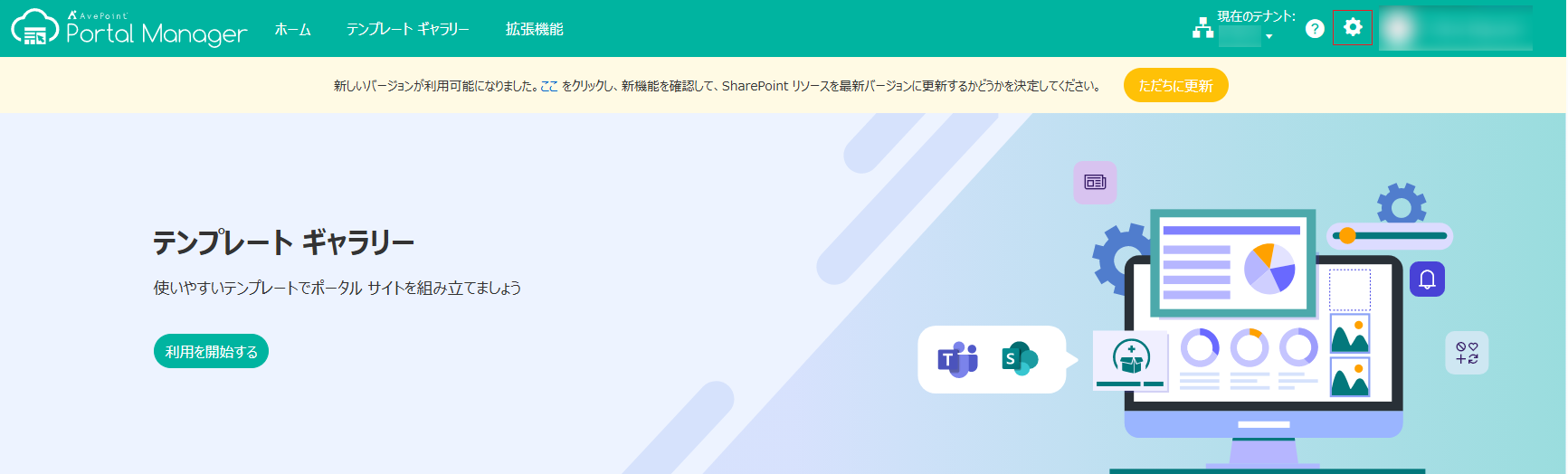
管理者 ロールを持つユーザーは、任意のページの右上にある 設定 ボタンをクリックして、AvePoint Portal Manager の全般設定を管理することができます。
上級ユーザー ロールを持つユーザーも、設定 ボタンを表示できますが、グループの管理 のみを実行できます。
AvePoint Portal Manager の全般構成の詳細については、以下のセクションを参照してください。
ユーザーの管理
AvePoint Portal Manager でユーザーをテナントに招待することができます。招待されたユーザーは AvePoint Portal Manager にサインインして、組織のイントラネット ポータル サイトで共同作業を行うことができます。
AvePoint Portal Manager のユーザーに、以下のいずれかのロールを割り当てることができます。AvePoint Portal Manager で異なるロールのユーザーが実行できる操作の詳細については、付録 G - 対応している要素の一覧 を参照してください。
-
標準ユーザー – 標準ユーザーは、テンプレートの作成および自分が作成したテンプレートの管理を実行できます。ただし、テンプレートの発行・展開・更新およびテンプレート所有者の変更を実行することはできません。
-
上級ユーザー – 上級ユーザーは、テンプレートの作成および自分が作成したテンプレートの管理を実行できます。
-
管理者 – 管理者は、AvePoint Portal Manager のすべての操作を実行できます。
AvePoint Online Services でユーザーを管理できます。詳細については、ユーザーの管理 を参照してください。AvePoint Portal Manager でユーザーをテナントに招待する方法については、以下の説明を参照してください。
-
設定 ページで、ユーザー管理 を選択します。
-
[ユーザーの招待] をクリックします。
-
ユーザーの招待 ウィンドウで、招待するユーザーのメール アドレスを入力し、キーボードの Enter キーを押します。
-
[招待メールの送信] をクリックします。メール通知は、招待したメール アドレスに送信されます。
招待メールの受信後、招待されたユーザーは、招待されたメール アドレスを使用して AvePoint Portal Manager にサインインすることができます。招待されたユーザーには、上級ユーザー ロールが自動的に割り当てられます。
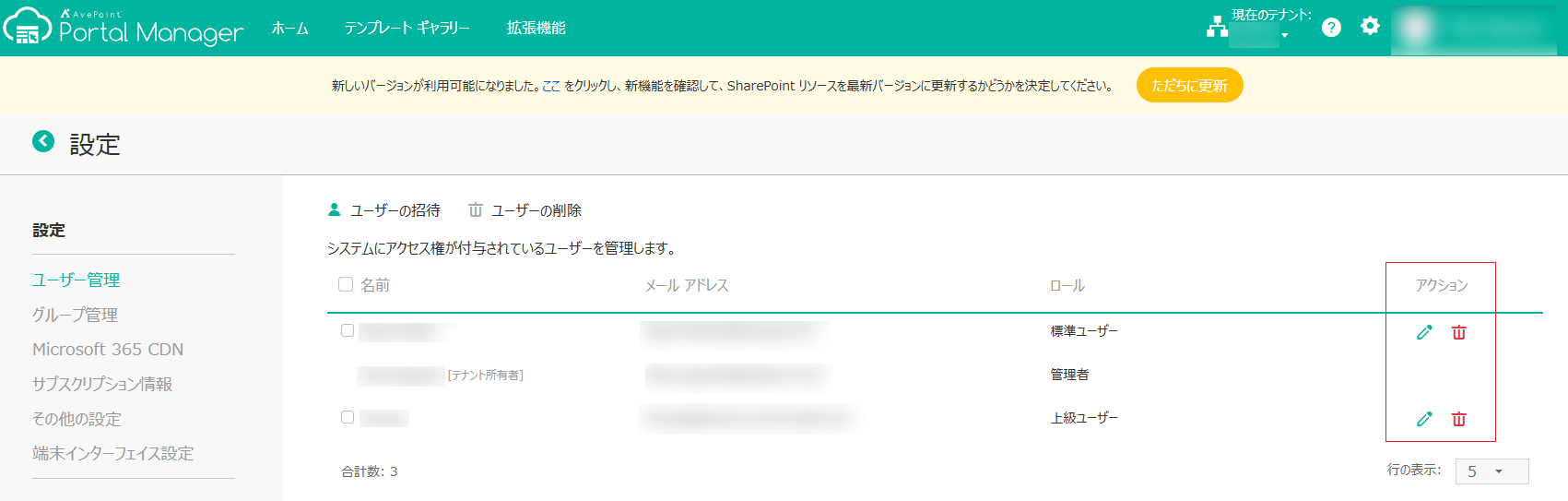
AvePoint Portal Manager でユーザーのロールを編集する場合は、編集するユーザーの横にある 編集 ボタンをクリックします。ユーザーの編集 ウィンドウで、新しいロールを選択し、[保存] をクリックして変更を保存します。新しく割り当てられたユーザー ロールは、ユーザーが次回 AvePoint Portal Manager にサインインする際に反映されます。
AvePoint Portal Manager でユーザーを削除する場合は、削除するユーザーの横にある 削除 ボタンをクリックします。削除するユーザーを複数選択して [ユーザーの削除] をクリックすると、ユーザーを一括削除することもできます。
グループの管理
AvePoint Portal Manager でローカル グループを作成する方法については、以下の説明を参照してください。
-
設定 ページで、グループ管理 を選択します。
-
[グループの作成] をクリックして、以下の情報を入力します。
-
名前 – グループの名前を入力します。
-
ロール – このグループのメンバーに割り当てるロールを選択します。
-
メンバー – このグループのメンバーとなるユーザーおよび Microsoft 365 グループを選択します。
-
テンプレート展開のサイト – グループ メンバーがテンプレートを展開できるサイトです。
既定では、グループ メンバーはテンプレート展開可能なテナント内のすべてのサイトにテンプレートを展開することができます。このグループのメンバーによるテンプレートの展開可能なるサイトの範囲を制限するには、展開可能なサイトを制限する を選択し、以下のいずれかの方法を使用して展開可能なサイトを追加します。
NOTE標準ユーザーがテンプレートをサイトに展開する権限を持っていないため、標準ユーザー ロールを含むグループの展開可能なサイトを制限することはできません。
-
サイトの手動追加 – サイト 配下にサイト URL を入力します。新しい行を追加するには、[追加] をクリックします。
-
サイトのインポート – [インポート] をクリックします。インポート ウィンドウで、[テンプレートをダウンロード] をクリックし、テンプレートを現在のブラウザーのダウンロード場所にダウンロードします。テンプレート ファイルに展開可能なサイトを追加し、サイト情報の追加後にファイルを保存します。そのファイルを インポート ウィンドウにドラッグ & ドロップするか、アップロードします。ファイル内のサイトは展開可能なサイトのテーブルにインポートされます。
追加されたサイトを削除するには、サイトの横にある 削除 ボタンをクリックします。または、1 件以上のサイトを選択してテーブルの上にある [削除] をクリックし、選択したサイトを削除することができます。
-
-
-
[保存] をクリックして構成を保存します。
AvePoint Portal Manager で、以下の説明に従って、Microsoft 365 グループをテナントに招待します。招待された Microsoft 365 グループのメンバーは、組織のイントラネット ポータル サイトで共同作業を行うことができます。
-
設定 ページで、グループ管理 を選択します。
-
[Microsoft 365 グループの招待] をクリックします。
-
Microsoft 365 グループの招待 ウィンドウで、招待する Microsoft 365 グループの名前を入力し、キーボードの Enter キーを押します。
-
ステップ 3 を繰り返して、複数の Microsoft 365 グループを招待します。
-
入力した Microsoft 365 グループのメンバーに招待メールを送信するかどうかを選択します。
-
[保存] をクリックします。
招待された Microsoft 365 グループのメンバーは、Microsoft 365 の資格情報を使用して AvePoint Portal Manager にサインインすることができます。これらのメンバーには、標準ユーザー ロールが自動的に割り当てられます。
グループを編集する場合は、編集するグループの横にある 編集 ボタンをクリックします。グループの編集 ウィンドウで、設定を変更し、[保存] をクリックして変更を保存します。ロールを変更した場合、新しく割り当てられたロールは、ユーザーが次回 AvePoint Portal Manager にサインインする際に反映されます。
AvePoint Portal Manager でグループを削除する場合は、削除するグループの横にある 削除 ボタンをクリックします。削除するグループを複数選択して [グループの削除] をクリックすると、グループを一括削除することもできます。
グループによるテンプレートの展開可能なサイトを表示するには、[展開可能なサイトの表示] をクリックします。展開可能なサイトの表示 ウィンドウで展開可能なサイトを表示し、必要に応じて [編集] をクリックしてサイトを編集することもできます。
サブスクリプション情報の表示
設定 ページで、[サブスクリプション情報] をクリックすると、右上にサブスクリプション情報の最終更新日時およびサブスクリプション タイプを表示することができます。
詳細なサブスクリプション情報はモジュールで分類されています。各モジュールに対して、以下の情報が表示されます。
-
モジュール – 組織が購読している機能モジュールを表示します。
-
状態 – モジュールのサブスクリプション状態を表示します。
-
使用済み / 購入済みユーザー シート
-
使用済みユーザー シート – 既に割り当てられているユーザー シートの数を表示します。
-
購入済みユーザー シート – 購入したユーザー シートの数を表示します。
NOTEユーザー シート データは週単位に更新されます。最新のデータを取得するには、[サブスクリプション情報の更新] をクリックしてデータを手動で更新することができます。
-
有効期限 – サブスクリプションの有効期限を表示します。
-
Microsoft 365 CDN の有効化
設定 ページで、[Microsoft 365 CDN] をクリックし、Microsoft 365 CDN 設定 ページを開きます。リソースのホスティングに Microsoft 365 コンテンツ配信ネットワーク (CND) を使用するかどうかを選択します。使用すると、イントラネット ポータル サイトのパフォーマンスが向上します。
追加の情報については、SharePoint Online での Office 365 コンテンツ配信ネットワーク (CDN) の使用 を参照してください。
Application Insights 設定の構成
AvePoint Portal Manager は、Application Insights リソースを使用して、利用状況トラッキング データを保存します。使用状況追跡データの保存に独自の Application Insights リソースを使用することができます。
Application Insights が存在する Azure テナントの地域は、Microsoft 365 テナントの地域と同じである必要があります。
独自の Application Insights リソースを使用して、利用状況トラッキング データを保存する場合、以下の説明を参照してください。
-
設定 ページで、[Application Insights 設定] をクリックします。
-
独自の Application Insights リソースを使用する オプションを選択し、Application Insights リソースの以下の必要情報を入力します。
-
アプリケーション ID – アプリケーション ID です。
-
API キー – API キーです。
NOTEApplication Insights リソースのデータを読み取るための API キーを作成する際に、利用統計情報の読み取り が選択されていることを確認してください。
-
インストルメンテーション キー – インストルメンテーション キーです。
-
-
[保存] をクリックして構成を保存します。
Application Insights リソースの情報を取得する方法については、次の Microsoft 記事を参照してください: Application Insights キー
その他の設定の管理
設定 > その他の設定 ページでは、以下の設定を有効化または無効化することができます。
-
新規サイトへのテンプレートの展開 – 新規サイト コレクションの作成および作成プロセス中のサイト コレクションへのテンプレートの展開を上級ユーザーに許可するかどうかを選択します。
-
Teams テンプレートの管理 – テンプレートの作成および Microsoft Teams のアプリ・タブとしての展開をユーザーに許可するかどうかを選択します。
NOTEテナントにカスタム Azure アプリのみが構成されており、かつテンプレートが Teams アプリとして展開されている場合、展開の進行状況が 100% に到達すると、構成パッケージをダウンロードして後続の展開プロセスを完了する必要があります。
-
SharePoint でのテンプレートの適用 – テンプレートの SharePoint サイト テンプレートへのプッシュをユーザーに許可するかどうかを選択します。許可すると、SharePoint でテンプレートを直接適用することができます。
NOTE-
この機能を有効化するには、カスタム Azure アプリが既に 認証方法 ページで構成されていることを確認してください。
-
この機能の有効化を選択した場合、Power Automate ソリューションをダウンロードして Microsoft 365 テナントにアップロードし、その後 HTTP POST URL を見つけてここに入力してください。
Power Automate ソリューションを Microsoft 365 テナントにアップロードする方法については、以下の説明を参照してください。
-
Microsoft 365 にサインインします。
-
Power Automate > ソリューション に移動します。
-
[ソリューションをインポート] をクリックし、ソリューション ファイルを参照します。
-
ソリューション ファイルが正常にインポートされた後、ソリューション ファイルを開き、フローを編集して HTTP POST URL を見つけます。
Power Automate ソリューションをアップロードして Microsoft 365 テナントの既存のソリューションを上書きする方法については、以下の説明を参照してください。
-
Microsoft 365 にサインインします。
-
Dynamics 365 を検索して、Dynamics 365 のホームページを開きます。
-
設定 > ソリューション に移動します。
-
[インポート] をクリックし、ソリューション ファイルを参照します。
NOTEソリューションを更新するには、カスタマイズの上書きを選択する必要があります。
-
ソリューション ファイルが正常にインポートされた後、[閉じる] をクリックします。
-
-
Workflow Common Service との統合 – Kaizen Kit テンプレート用のワークフローの構成をユーザーに許可するかどうかを制御します。
NOTEKaizen Kit テンプレート用のワークフローを使用または変更するには、先にユーザーを Workflow Common Service > ユーザー管理 に追加してください。[Workflow Common Service に移動] をクリックして、Workflow Common Service にアクセスすることができます。
端末インターフェイス設定の構成
テナントで会議室予約アプリが構成されている場合、端末インターフェイス設定を構成して、これらのアプリで管理されている会議室の端末インターフェイス ビューを有効にすることができます。この機能により、管理者が端末インターフェイスで管理されている会議室を物理的な会議室とリンクすることができ、エンド ユーザーが対応する端末インターフェイスで利用可能な会議室の確認・会議室の予約・入室と退室・スケジュールされた会議の延長を直接実行することができます。
端末インターフェイス設定は、AvePoint Online Services に登録または移行されているテナントにのみ利用可能です。
初めて 設定 > 端末インターフェイス設定 ページにアクセスする場合、端末インターフェイス設定をセットアップするには、端末インターフェイス設定のセットアップ の説明を参照してください。
端末インターフェイス設定のセットアップが完了した場合、端末インターフェイスに接続し、端末インターフェイス設定を管理するには、端末インターフェイス設定の管理 の説明を参照してください。
端末インターフェイス設定のセットアップ
端末インターフェイス ビューを有効化するには、以下の構成を完了してください。
ステップ 1: サービス アプリの構成
会議室の端末インターフェイス ビューを有効化するには、ビューが必要な権限に同意するために、会議室端末インターフェイス ビュー用の AvePoint Portal Manager サービス アプリ プロファイルが必要です。
このサービス アプリ プロファイルを作成するには、[AvePoint Online Services に移動してアプリを構成] をクリックします。AvePoint Online Services の アプリ管理 ページが新しいタブで表示されます。アプリ プロファイルの作成およびアプリへの同意については、モダン モードのアプリ プロファイルの作成 の説明を参照してください。
アプリを承認するには、同じテナントの Microsoft 365 グローバル管理者アカウントが必要です。
サービス アプリ プロファイルの作成後、アプリの同意に使用されるユーザー アカウントおよび承認日時は 承認済み ラベル付きで表示されます。アプリで管理されている会議室の読み込みに必要な権限を付与するため、同意ユーザーは会議室予約アプリのユーザーとして追加されていることを確認してください。
[次へ] をクリックして、次のステップに移動します。
ステップ 2: ユーザーの管理
端末インターフェイス ユーザーを追加するには、以下の説明を参照してください。追加されたユーザーのみは端末インターフェイス ビューにログインできます。
-
[ローカル ユーザーの追加] をクリックします。ローカル ユーザーの追加 ウィンドウが表示されます。
-
追加するユーザーのメール アドレスを入力します。このウィンドウに複数のユーザーを追加することができます。
-
[保存] をクリックします。追加したユーザーはテーブルに表示されます。
NOTE-
端末インターフェイス ユーザーはローカル ユーザーとして追加され、ローカル システム アカウントで端末インターフェイス ビューにログインすることができます。
-
既に AvePoint Online Services に存在する端末インターフェイス ユーザーの場合、ユーザーの状態は AvePoint Online Service > 管理 > ユーザー管理 から取得されます。新しいユーザーは自動的に AvePoint Online Services のローカル ユーザーとして追加され、アクティブ化メールを受信します。アクティブ化後、ユーザーの状態は アクティブ化メール送信済み から アクティブ に変更されます。
-
既存の端末インターフェイス ユーザーを削除するには、ユーザーをクリックしてテーブルの上にある [ユーザーの削除] をクリックするか、ユーザーの アクション 列内の 削除 ボタンをクリックします。
[次へ] をクリックして、次のステップに移動します。
ステップ 3: 一般設定の構成
以下の端末インターフェイス ビューの一般設定を構成します。
-
セッション タイムアウト – 端末インターフェイス ビューが自動的にログアウトされるまでの期間を構成します。
-
なし – 端末インターフェイス ビューが自動的にログアウトされません。
-
月単位の指定 – このオプションを選択する場合、テキスト ボックスに数値を入力します。端末インターフェイス ビューは、指定した期間後に自動的にログアウトされます。端末インターフェイス ビューを続いて使用する場合、ユーザーは再度ログインする必要があります。
-
-
端末インターフェイスの終了時にパスワードの入力を必須にする – はい または いいえ を選択して、端末インターフェイスの終了時にパスワードが必要であるかどうかを定義します。
はい を選択する場合、パスワードを入力します。端末インターフェイスを終了する際に、ユーザーはパスワードを入力する必要があります。
パスワード テキスト ボックスにある 表示 ボタンまたは 非表示 ボタンをクリックして、パスワードを表示または非表示にすることができます。
-
期限切れの会議を自動取り消す – はい または いいえ を選択して、会議開始後、構成した時間内にユーザーが入室しなかった場合、会議は自動的に取り消されるかどうかを定義します。
はい を選択する場合、テキスト ボックスに数値を入力してユーザーが入室できる期間を定義します。
-
アクションの実行時にユーザー ID の入力を必須にする – はい または いいえ を選択して、端末インターフェイス ビューで特定のアクションを実行する前にユーザーにユーザー ID の入力を要求するかどうかを定義します。
はい を選択する場合、ユーザー ID を要求するアクションを選択します。
-
会議に参加 – ユーザーが端末インターフェイス ビューで [参加] をクリックする際に、ユーザー ID の入力を要求します。
-
退室 – ユーザーが端末インターフェイス ビューで [退室] をクリックする際に、ユーザー ID の入力を要求します。
-
会議の延長 – ユーザーが端末インターフェイス ビューで [延長] をクリックする際に、ユーザー ID の入力を要求します。
-
-
ユーザーの検索方法 – 端末インターフェイス ビューでのユーザーの検索方法を定義します。
-
あいまい一致 – 検索キーワードに一致するテナント内のユーザーが推奨リストに表示され、選択可能になります。
-
完全一致 – 指定されたドメイン内の精確なユーザー ID を使用してユーザーを検索します。このオプションを選択する場合、許可されるドメインを入力します。複数のドメインを入力する場合、各ドメインをセミコロンで区切ります。
-
-
背景 – 端末インターフェイス ビューで使用される背景を定義します。
NOTE一般設定を保存または完了する前に背景を構成してください。
-
アップロード – カスタム背景を使用するには、[アップロード] をクリックします。開く ウィンドウで、画像を選択して、[開く] をクリックします。画像はこのフィールドに表示されます。
削除 ボタンをクリックして、アップロードした画像を削除することができます。
NOTEアップロードできる画像の最大サイズが 5 MB であり、推奨サイズが 1194*834 ピクセルです。
-
プレビュー – [プレビュー] をクリックして、この背景を表示する端末インターフェイス ビューを確認します。プレビュー画面の右上で、横向き表示と縦向き表示を選択することができます。画像の右上にある 終了 ボタンをクリックして、プレビュー パネルを終了します。
-
既定にリセット – [既定にリセット] をクリックして設定をリセットし、既定の画像を端末インターフェイスの背景として使用します。
-
一般設定の構成を完了する場合、ページの右下にある [完了] をクリックします。
[端末インターフェイス設定が保存されました。] メッセージが表示されます。[開始] をクリックして、会議室予約アプリで管理されている会議室の端末インターフェイスへの接続を開始します。詳細については、端末インターフェイス設定の管理 内の 接続用の会議室リンク セクションを参照してください。
端末インターフェイス設定の管理
組織の端末インターフェイス設定が構成されている場合、端末インターフェイス接続および端末インターフェイス設定管理用の以下のタブは表示されます。
組織の端末インターフェイス設定をクリアするには、[すべての端末インターフェイス設定のクリア] をクリックします。クリアすると、端末インターフェイス ビューは無効になり、このビューのために構成されたサービス アプリ プロファイルは削除されます。このビューを再度使用するには、端末インターフェイス設定のセットアップ 内の構成を最初から実行する必要があります。
一般設定
組織の端末インターフェイス設定のセットアップ後、端末インターフェイス ビューの組織全体の一般設定を引き続き管理することができます。詳細については、端末インターフェイス設定のセットアップ 内の ステップ 3: 一般設定の構成 セクションを参照してください。
一般設定を変更した場合、[保存] をクリックして更新を保存します。
接続用の会議室リンク
会議室リンクを管理するには、接続用の会議室リンク タブをクリックします。確認のポッポアップが表示され、テナントの会議室の数量に基づいて会議室リンクを読み込むには時間がかかる場合があることを示します。続行するには、[はい] をクリックします。会議リンクの読み込み後、組織のすべての会議室予約アプリの会議室リンクはテーブルに表示されます。
会議室リンクで端末インターフェイス ビューを開く 切り替えが既定でオンになっています。組織は会議室リンクで端末インターフェイス ビューを開くことを一時的に無効化する必要がある場合、会議室リンクで端末インターフェイス ビューを開く 切り替えをオフにすることができます。無効にすると、会議室リンクで開かれた端末インターフェイス ビューは切断されます。これらのビューを再表示するには、切り替えをオンにして、会議室リンクで端末インターフェイスに再接続する必要があります。
会議室の端末インターフェイス ビューを表示するには、会議室リンクをエクスポートまたはコピーして、対応する端末インターフェイス上のブラウザーで開きます。
会議室リンクのテーブルには、会議室名、リンク、会議室を管理しているアプリ、期限きれの会議を自動取り消す設定、アクションの実行時にユーザー ID の入力を必須にする設定が表示されています。
組織の期限切れの会議を自動取り消す設定およびアクションの実行時にユーザー ID の入力を必須にする設定は、一般設定 で有効になっている場合にのみ表示されます。これらの設定が無効になっている場合、対応する列は表示されません。
このタブで、以下のアクションを実行することができます。
-
共有用のリンクの取得 – 特定のアプリで管理されている会議室のリンクを取得するか、端末インターフェイスへの接続用の特定の会議室リンクを取得するには、以下の方法を使用することができます。
-
特定のアプリで管理されている会議室のリンクの取得 – 会議室予約アプリ フィルターをクリックしてアプリを選択することで、アプリで管理されている会議室をフィルターすることができます。リンクをエクスポートするには、テーブルの上にある [エクスポート] をクリックします。これにより、選択したアプリで管理されている会議室リンクは .csv ファイルとして現在のブラウザーのダウンロード場所にエクスポートされます。
-
特定の会議室リンクの取得 – テーブルの右上にある検索ボックスを使用して、会議室名で会議室を検索します。検索キーワードに一致する会議室はテーブルに表示されます。以下のアクションを実行することができます。
-
[エクスポート] をクリックして、検索キーワードに一致する会議室リンクをエクスポートします。これにより、リンクは .csv ファイルとして現在のブラウザーのダウンロード場所にエクスポートされます。
-
コピー ボタンをクリックし、特定の会議室リンクをコピーして端末インターフェイス ユーザーに送信します。
-
-
-
特定会議室設定の管理 – 組織の期限切れの会議を自動取り消す設定およびアクションの実行時にユーザー ID の入力を必須にする設定が有効になっている場合、テーブルに 期限切れの会議を自動取り消す および アクションの実行時にユーザー ID の入力を必須にする 列は表示されます。特定の会議室設定を管理するには、アプリ フィルターまたは検索ボックスを使用して会議室を迅速に特定し、切り替えをオンまたはオフにして、特定の会議室の設定を有効化または無効化します。
-
期限切れの会議を自動取り消す – 有効にすると、一般設定 で構成されている入室できる期間内にユーザーが入室しなかった会議は自動的に取り消されます。無効にする場合、ユーザーが入室するかどうかにかかわらず、会議および関連する会議室予約は有効な状態に保持されます。
-
アクションの実行時にユーザー ID の入力を必須にする – 有効にすると、一般設定 で構成されている特定のアクションを実行する前にユーザー ID の入力をユーザーに要求します。無効にする場合、ユーザーはアクションを直接実行することができます。
-
-
更新 – [更新] をクリックして、テーブルに表示される情報を更新します。
ユーザー
このタブには、端末インターフェイス ビューにアクセスできるユーザーが表示されています。
このページで、以下のアクションを実行することができます。
-
ユーザーの追加 – 端末インターフェイス ユーザーを追加するには、以下の説明を参照してください。
-
[ローカル ユーザーの追加] をクリックします。ローカル ユーザーの追加 ウィンドウが表示されます。
-
追加するユーザーのメール アドレスを入力します。このウィンドウに複数のユーザーを追加することができます。
-
[保存] をクリックします。追加したユーザーはテーブルに表示されます。
-
-
ユーザーの削除 – ユーザーを選択してテーブルの上にある [ユーザーの削除] をクリックするか、削除 ボタンをクリックして特定のユーザーを削除します。
-
端末インターフェイス ユーザーはローカル ユーザーとして追加され、ローカル システム アカウントで端末インターフェイス ビューにログインすることができます。
-
既に AvePoint Online Services に存在する端末インターフェイス ユーザーの場合、ユーザーの状態は AvePoint Online Service > 管理 > ユーザー管理 から取得されます。新しいユーザーは自動的に AvePoint Online Services のローカル ユーザーとして追加され、アクティブ化メールを受信します。アクティブ化後、ユーザーの状態は アクティブ化メール送信済み から アクティブ に変更されます。
サービス アプリの詳細
このタブには、端末インターフェイス ビューが必要なサービス アプリへの同意に使用されるユーザー アカウントおよびサービス アプリの現在の状態が表示されています。
アプリの異なる状態については、以下の説明を参照してください。
-
承認済み – 端末インターフェイス ビューに必要なサービス アプリ プロファイルは作成されており、かつ必要な権限が付与されています。
-
再承認待ち – サービス アプリ プロフィアルを再承認する必要があります。サービス アプリ プロファイルを再承認するには、[AvePoint Online Services に移動してアプリを構成] をクリックします。詳細については、アプリ プロファイルの再承認 の説明を参照してください。
-
非アクティブ – サービス アプリに同意を付与したユーザーの状態は、AvePoint Online Service で無効になっています。ユーザーの状態をアクティブに変更するには、[AvePoint Online Services に移動してアプリを構成] をクリックして AvePoint Online Services にアクセスし、管理 > ユーザー管理 に移動してください。詳細については、ユーザー権限の編集 の説明を参照してください。