Home > App Suite > Vehicle Reservation > Vehicle Reservation Process
Download this articleTo submit a vehicle reservation request, refer to the Submit Vehicle Reservation Requests section below. Once your reservation is accepted, refer to Vehicle Usage Stages for guidance on using and returning the vehicle.
Reviewers can refer to the Review Vehicle Reservation Requests section below to review reservation requests.
App users can use one of the following methods to submit a vehicle reservation. Once a reservation is accepted, the reservation will be displayed in the Outlook calendar of the ‘Reserve For’ user, driver, and passengers.
Create reservation requests using the Book button:
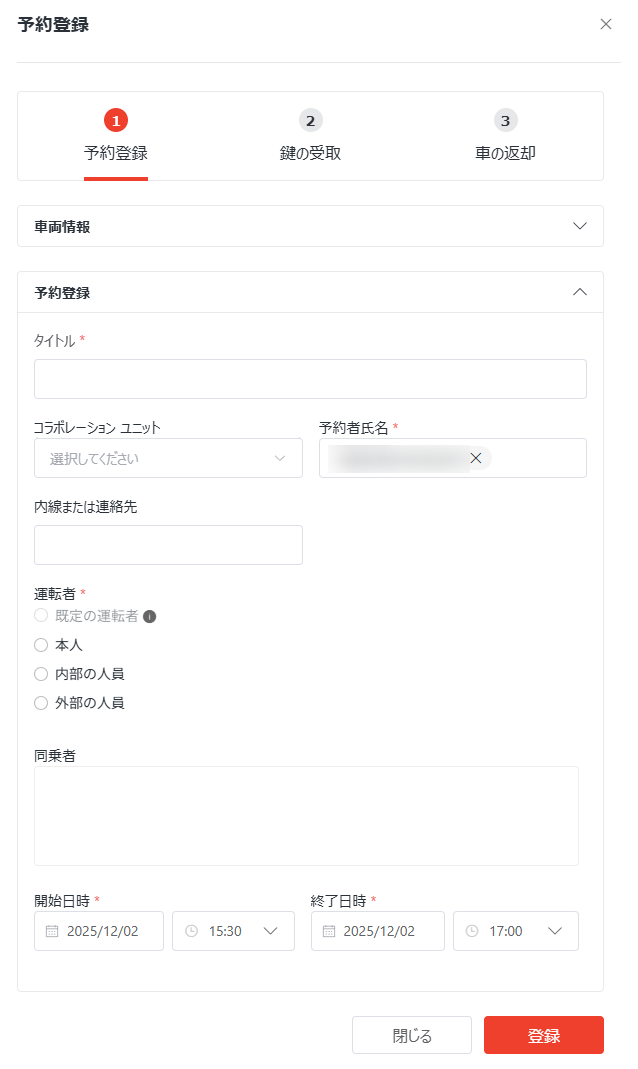
On the homepage of the app, click Book in the upper-right corner.

Fill in the fields in the Registration window and click Register.

Create reservation requests in the Day view:
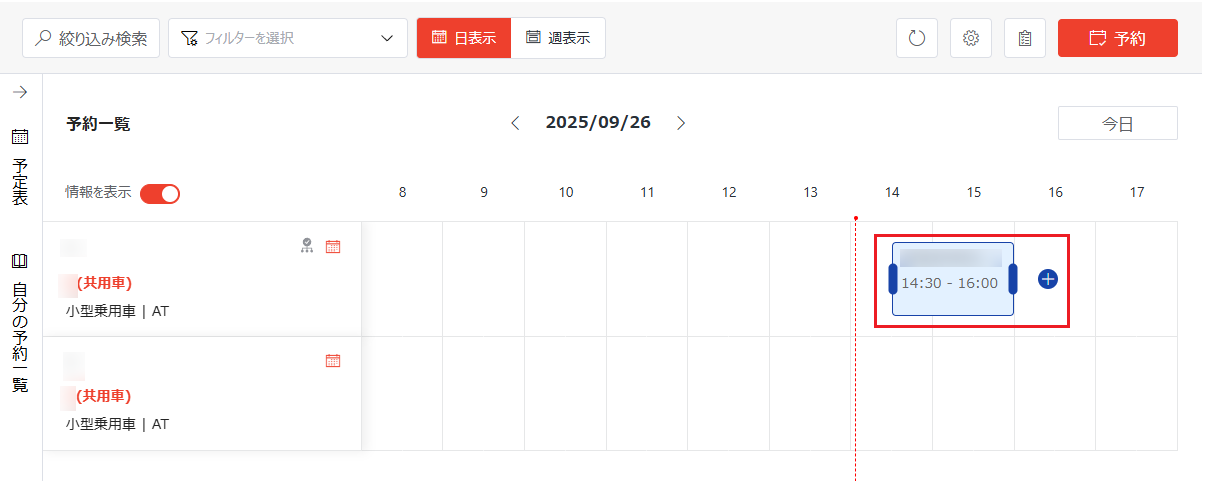
Drag your mouse across the time slot during which you want to reserve the vehicle next to the desired vehicle. The reservation request box appears. The current user name and time slot are displayed by default.
You can adjust the time slot by dragging the bars on the left and right of the reservation request box. You can also change the reservation request to another vehicle by dragging the reservation request box to the desired time slot next to the desired vehicle. The time slot displayed in the reservation request box will be adjusted accordingly.

Click the create request button next to or in the reservation request box. The Registration window appears on the right pane.
The Collaboration Unit field in the registration panel is only available when this function is enabled by your administrator. When a collaboration unit is selected, you can reserve vehicles on behalf of principals of the unit.
Fill in the fields in the Registration stage and click Register.
Create reservation requests in the Week view:
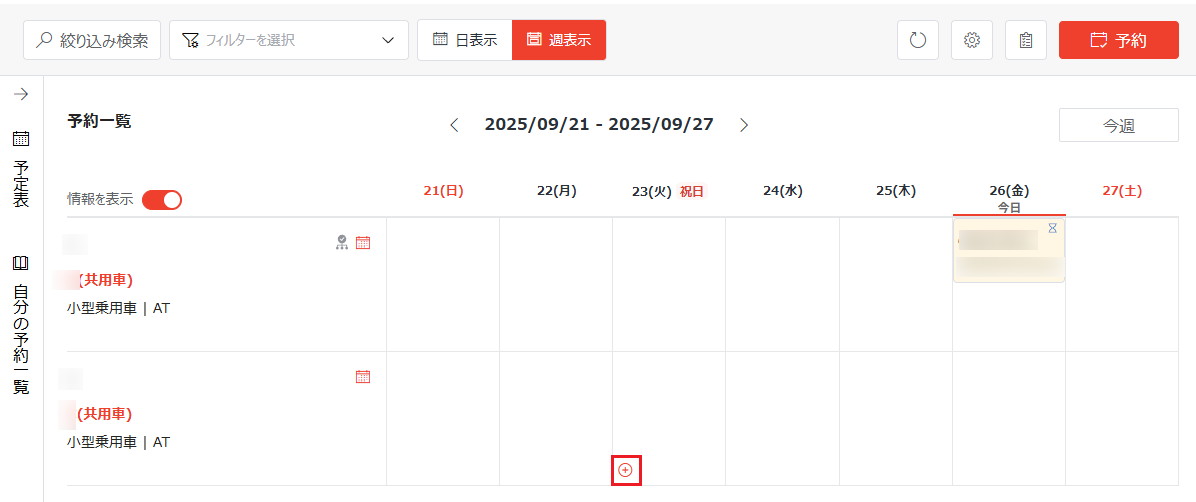
Click or hover your mouse over the date next to the desired vehicle on which you want to create a reservation request, and the create request button appears in the lower-left corner of the date.

Click the create request button. The Registration window appears on the right pane.
Fill in the fields in the Registration stage and click Register.
Create reservation requests in the Month view:
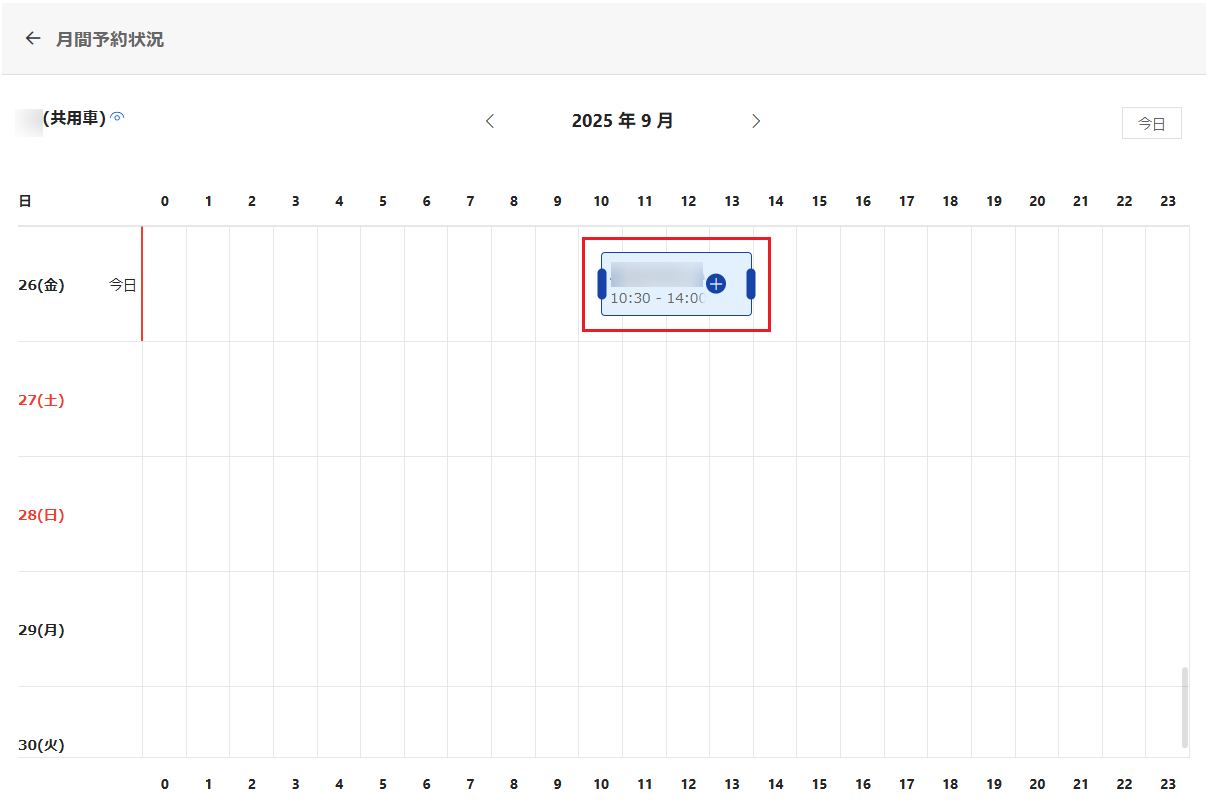
Click the Month button in the upper-right corner of the desired vehicle in the vehicle information field, and the Monthly Reservations page appears.
Drag your mouse across the time slot during which you want to reserve the vehicle next to the desired date. The reservation request box appears. The current user name and time slot are displayed by default.
You can adjust the time slot by dragging the bars on the left and right of the reservation request box. You can also change the reservation request to another date by dragging the reservation request box to the desired time next to the desired date. The time slot displayed in the reservation request will be adjusted accordingly.

Click the create request button next to or in the reservation request box. The Registration window appears on the right pane.
Fill in the fields in the Registration stage and click Register.
If you are a reviewer, you will receive email notifications when approval tasks are assigned to you. You can view the reservation information in the emails and complete the steps below to approve or reject reservation requests.
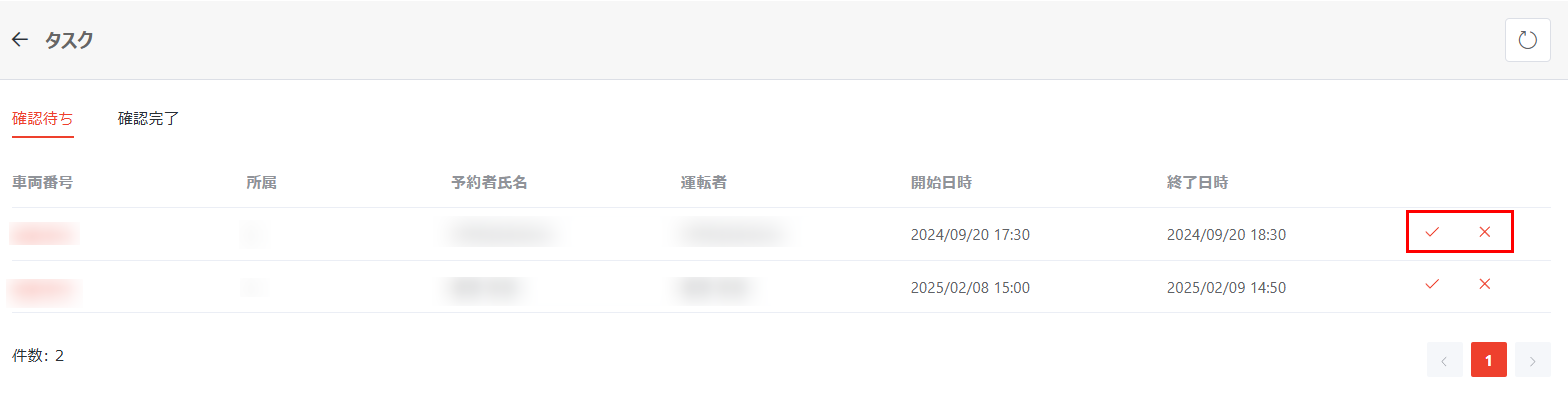
On the app homepage, click the tasks button to access the Tasks page, where all reservation requests that are pending your review are listed in the Pending Review tab.
When there are vehicle reservation requests that are pending review, a dot will be displayed on the tasks button.

Click the Approve button to the right of a request to approve it. Otherwise, you can click the Reject button to reject a request.

In the Confirm window, enter the review comment and click OK.
You can click the refresh button in the upper-right corner of the page to refresh the reservation requests displayed in the table.