
Home > テンプレート ギャラリー > テンプレートの展開
この記事をダウンロードテンプレートの展開
このセクションでは、AvePoint Portal Manager で作成されたテンプレートを、SharePoint サイトや Microsoft Teams などの対象ワークスペースに展開する方法について説明します。テンプレートを展開することで、事前に定義されたデザイン、構造、コンポーネントをサイトやチーム全体で一貫して適用し、統一されたユーザー エクスペリエンスを確保することができます。このセクションでは、SharePoint サイトや Microsoft Teams へのテンプレートの展開方法について説明します。これにより、テンプレートを効果的に適用し、エンド ユーザーが利用できるようになります。
SharePoint サイトへのテンプレートの展開
SharePoint 用のテンプレートが発行された後、テンプレートをクリックしてテンプレートの詳細ページを開きます。テンプレートの詳細ページで、テンプレートを既存のサイト コレクションに展開するか、テンプレートを使用して新しいサイト コレクションを作成するかを選択します。
-
テンプレートを既存のサイト コレクションに展開するには、[既存のサイト コレクション] リンクを選択します。未展開 タブにリダイレクトされます。テンプレートの展開先となるサイト コレクションを選択し、[展開] をクリックします。選択した各サイト コレクションへの展開が開始します。一度に最大 5 件のサイト コレクションに展開できます。
-
テンプレートを使用して新しいサイト コレクションを作成するには、[新規サイト コレクション] リンクを選択します。サイト コレクションの基本情報を入力し、[別のサイト コレクションの追加] をクリックして別のサイト コレクションの情報を入力し、[作成して展開] をクリックします。展開が開始します。
サービス アカウントが唯一の認証方法であり、権限を持っていないサイトにテンプレートを展開する場合、展開の完了後、サービス アカウントはサイト コレクション管理者グループに自動的に追加されます。
Microsoft Teams へのテンプレートの展開
Microsoft Teams 用のテンプレートが発行された後、テンプレートをクリックしてテンプレートの詳細ページを開きます。テンプレートの詳細ページで、テンプレートをアプリまたは選択したチームの 一般 チャネル配下のタブとして Microsoft Teams に展開することができます。
-
Microsoft 同期の遅延により、展開されたテンプレート / アプリが Microsoft Teams クライアントに表示されるまでに時間がかかる場合があります。
-
サービス アカウントが唯一の認証方法であり、対応するチーム サイトへの権限を持っていないチームにテンプレート展開する場合、展開の完了後、サービス アカウントはサイト コレクション管理者グループに自動的に追加されます。
テンプレートは Teams アプリとして 1 回のみ展開できます。必要に応じて、テンプレートの展開を取り消すことで以前に作成された Teams アプリを削除してから、テンプレートを再展開することができます。
テンプレートを Teams アプリとして展開することを選択し、以下の情報を入力します。
-
Teams アプリの作成 ステップで、以下の情報を入力します。
-
アプリ名 – アプリの名前を入力します。
NOTEAPI の制限により、アプリが展開されると、アプリ名を変更できなくなります。
-
アプリ管理者 – ユーザー名を入力し、推奨リストからユーザーを選択します。複数のユーザーをアプリ管理者として追加することができます。
-
簡単な説明 – チームの簡単な説明を入力します(必須ではありません)。
-
詳しい説明 – チームの詳しい説明を入力します(必須ではありません)。
NOTE簡単な説明と詳しい説明は、Kaizen Kit によって作成されたアプリを展開する際にのみ利用できます。
-
-
[保存して次へ] をクリックして次のステップに進みます。
-
データ ストレージ ステップで、アプリのデータを保存するサイトを作成するか、既存のサイトを選択することができます。
-
サイトを作成する – このオプションを選択して、作成するサイトの URL を入力します。サイト言語として 英語 または 日本語 を選択します。
-
既存のサイトを選択する – このオプションを選択して、サイト コレクション テーブルからサイトを選択します。
-
-
[展開] をクリックして、テンプレートを Teams アプリとして展開します。
テナントにカスタム Azure アプリのみが構成されている場合、Teams アプリとしてのテンプレートの展開・更新・展開取り消しを実行する際に、追加のプロセスが必要です。詳細については、付録 H – Microsoft Teams でのアプリの作成・更新・削除 を参照してください。
テンプレートを 一般 チャネル配下のタブとして展開することを選択し、以下の情報を入力します。
-
チームの選択 ステップで、テンプレートをタブとして展開するチームを作成するか、既存のチームを選択します。
-
既存のチームを選択する – このオプションを選択して、チーム テーブルからチームを選択します。
-
チームを作成する – このオプションを選択して、以下の情報を入力します。
-
チーム名 – チームの名前を入力します。
-
チームの所有者 – ユーザー名を入力し、推奨リストからユーザーを選択します。複数のユーザーをチームの所有者として追加することができます。
-
チームのメンバー – ユーザー名を入力し、推奨リストからユーザーを選択します。複数のユーザーをチーム メンバーとして追加することができます。
-
-
-
既存のチームを選択する場合は、[次へ] をクリックして次のステップに進み、チームを作成する場合は、[保存して次へ] をクリックして次のステップに進みます。
-
データ ストレージ ステップで、選択したチーム サイトを使用するか、既存のサイトを選択してタブのデータを保存します。
-
選択したチーム サイトを使用する – 上の手順で既存のチームを選択した場合、このオプションを選択して選択したチーム サイトを使用してタブのデータを保存します。上の手順でチームを作成した場合、このオプションを選択して、チームとともに自動的に作成されたチーム サイトを使用してタブのデータを保存します。新しいサイトを作成する場合、サイト言語として 英語 または 日本語 を選択します。
Kaizen Kit によって構築されたアプリを展開する場合、以下の説明を参照してください。
-
言語 – サイト言語として 英語 または 日本語 を選択します。
-
展開オプション – 以下いずれかの展開オプションを選択します。
-
自動作成されたページに展開する – アプリ名をページ タイトルとして、アプリ展開用のページが自動的に作成されます。同じページ タイトルが既に存在する場合、競合を回避するため、新しいページのタイトルにサフィックスがされます。
-
特定のページに展開する – このオプションを選択して、ページ タイトルを入力することで、アプリを特定のページに展開します。
-
-
-
既存のサイトを選択する – このオプションを選択して、サイト コレクション テーブルからサイト コレクションを選択します。
Kaizen Kit によって構築されたアプリを展開する際に、以下の説明を参照してください。
-
[サイトの選択] をクリックします。サイトの選択 ウィンドウが表示されます。
-
サイトを選択して [保存] をクリックします。
-
展開オプションを選択します。
-
自動作成されたページに展開する – アプリ名をページ タイトルとして、アプリ展開用のページが自動的に作成されます。同じページ タイトルが既に存在する場合、競合を回避するため、新しいページのタイトルにサフィックスがされます。
-
特定のページに展開する – このオプションを選択して、ページ タイトルを入力することで、アプリを特定のページに展開します。
-
-
-
-
[展開] クリックして、テンプレートをタブとして展開します。
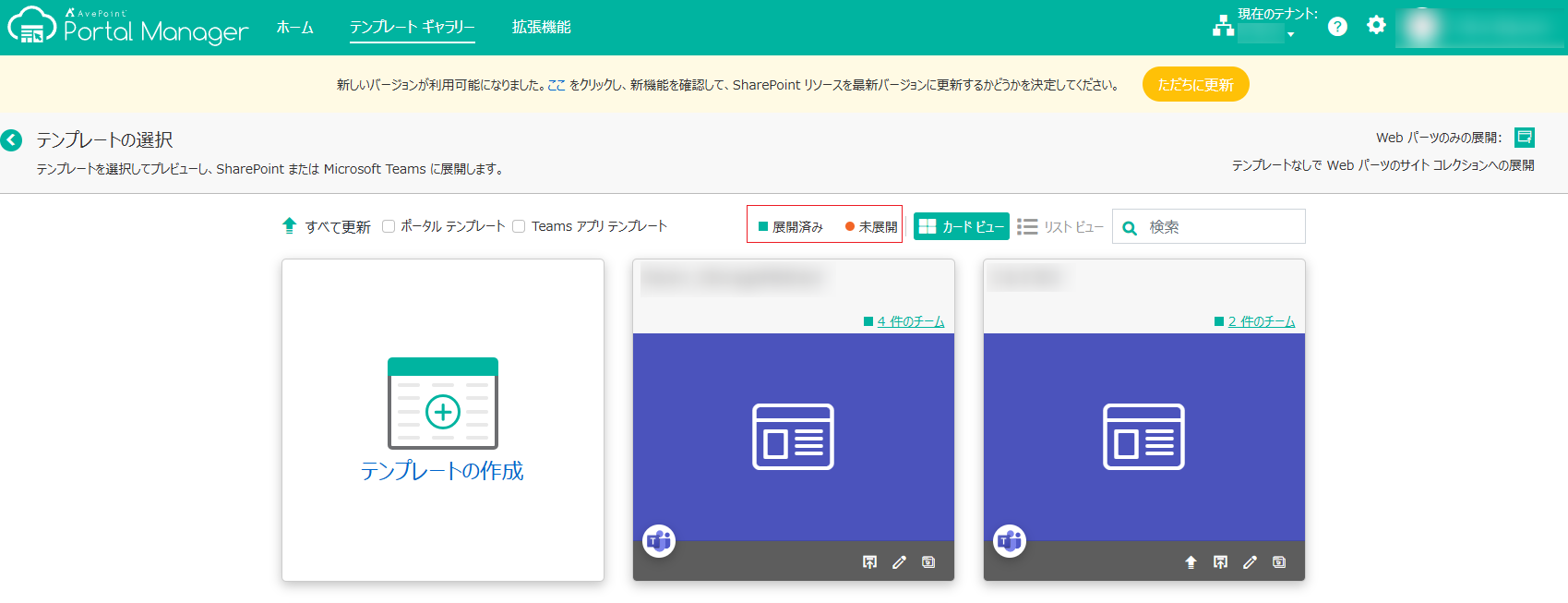
テンプレート ギャラリー ページの各テンプレート上に 展開済み アイコンまたは 未展開 アイコンが表示されます。これらの 2 つのアイコンは、テンプレートが Microsoft Teams または SharePoint サイトに展開されているかどうかを示します。
テンプレートが既に展開されている場合、テンプレート上に 展開済み アイコンが表示されます。テンプレートを使用しているチームまたはサイト コレクションの数がクリック可能な形式で表示されます。リンクをクリックして、テンプレートを使用しているチームまたはサイト コレクションを表示します。
テンプレートの展開状態を示すタブが 4 つあります。
-
未展開 – テナント内の AvePoint Portal Manager テンプレートを使用していないサイト コレクションを表示します。複数のサイト コレクションを検索して選択し、[展開] をクリックして現在のテンプレートを選択したサイト コレクションに展開することができます。
-
展開中 – 選択したテンプレートが現在展開されているチームまたはサイト コレクションを表示します。進行状況バーは、展開がどの程度完了したかを示します。展開に失敗した場合、[詳細の表示] をクリックして失敗の理由を表示し、[再試行] をクリックしてテンプレートを再展開します。
-
展開済み – 選択したテンプレートが既に展開されているチームまたはサイト コレクションを表示します。サイト コレクションの URL をクリックして SharePoint サイト コレクションに移動し、SharePoint で直接にイントラネット ポータル サイトを管理します。SharePoint でイントラネット ポータル サイトを構成する方法については、SharePoint でのイントラネット ポータル サイトの構成 を参照してください。
テンプレートおよびテンプレート上の Web パーツの展開を同時に取り消すには、サイト コレクションを選択し、[展開取り消し] をクリックします。
NOTE-
管理者のみはテンプレートの展開を取り消すことができます。
-
テンプレートの展開が取り消された後でも、テンプレート上の Web パーツの既定のデータ ソースはサイト コレクションに残されます。
-
-
展開取り消し中 – テンプレートの展開が取り消されているチームまたはサイト コレクションを表示します。