Home > App Suite > Conference Room Reservation > Get Familiar with the Conference Room Reservation App

Download this article
お知らせ: このページは現在英語のみで提供されています。日本語版は準備中です。ご不便をおかけして申し訳ございません。

Get Familiar with the Conference Room Reservation App

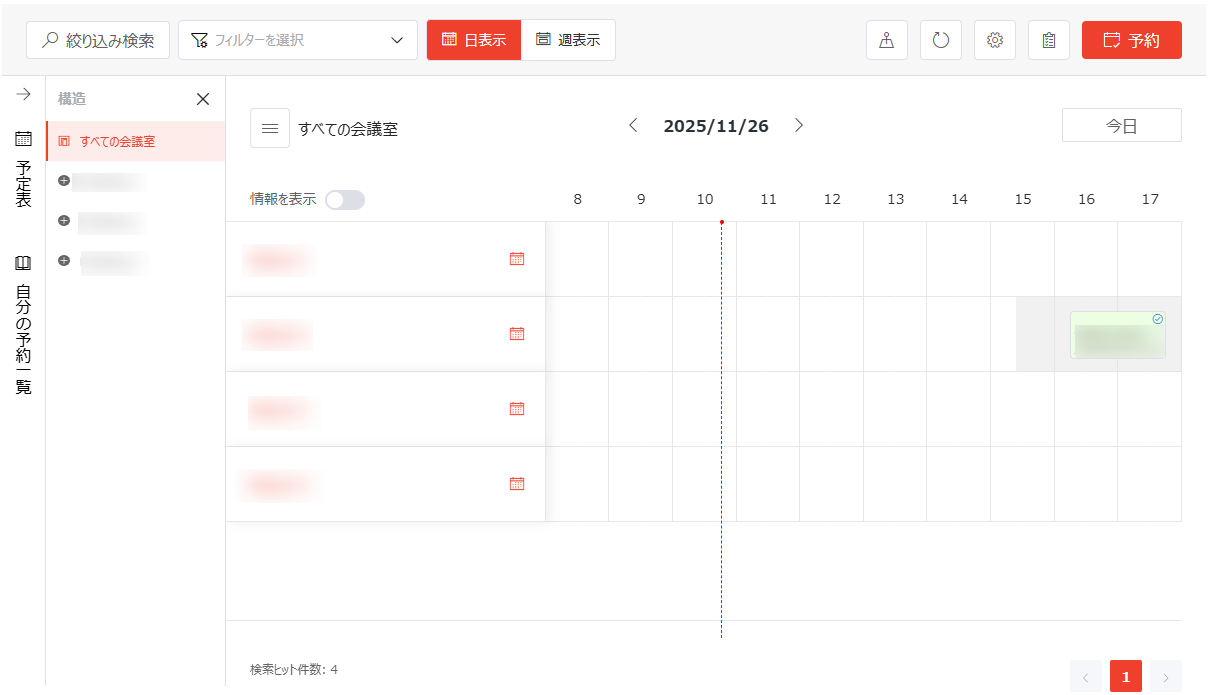
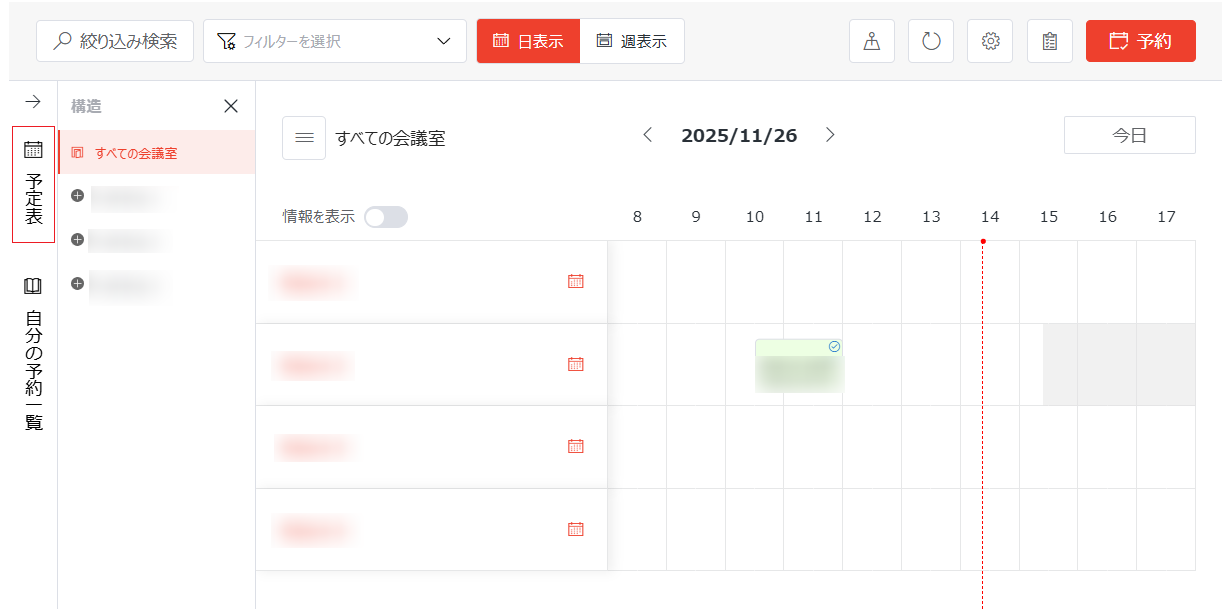
Below is a homepage overview of the conference room app:

App homepage.

The Working Environment

On the top of the homepage, the following actions are available:

Available actions.

  • Filter Conference Rooms – Click Filtered Search and the Filter window appears. Configure the filters based on your own requirements and click Search to apply the filter. Authorized users can manage the room properties that can be used to filter conference rooms in the window. For details, refer to the Room Filter Management section in Settings for Conference Room Reservation App.

  • Save as New Filter – After applying a new filter, you can complete the following step to save the filter as a new filter:

    1. Click the filter drop-down list.

    2. Hover your mouse over the draft filter and click the action (…) button > Save as New Filter.

      Save as New Filter.

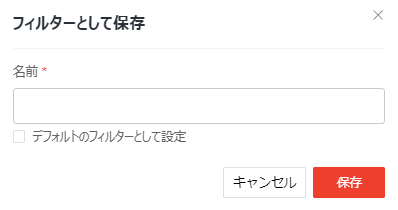
    3. In the Save as New Filter window, enter the filter name. If you want to set the filter as the default filter, select the Set as Default Filter checkbox.

      The Save as New Filter window.

    4. Click Save.

  • Manage Filter – Click the filter drop-down list, and all filters are displayed. To manage a filter, hover your mouse over the filter and click the action (…) button. The following actions are available in the action menu:

    • Edit Filter – Click this link, and the Edit Filter window appears. Edit the filter based on your requirements and click Save and Apply to save and apply the filter.

    • Set as Default Filter – Click this link to set the current filter as the default filter. The filter will be marked with (Default).

      NOTE

      This action is available for the filters that have been saved.

    • Save as New Filter – Click this link, and the Save as New Filter window appears. Enter a name for the new filter in the text box. You can also select the Set as Default Filter checkbox to set this filter as the default filter. Click Save.

    • Delete Filter – Click this link to delete the current filter.

  • Clear Filter – Click the clear filter button to the right of the filter drop-down list to clear the current filter.

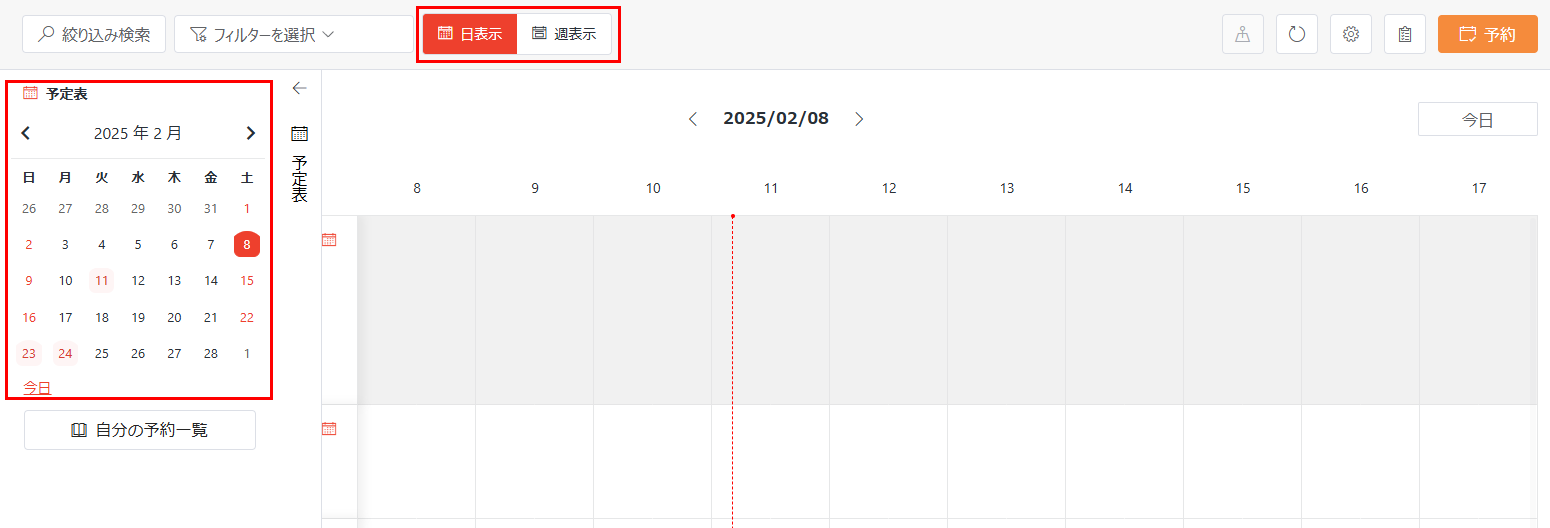
  • Switch Views – Click Day to view the conference room reservations in the Day view. Click Week to view the conference room reservations in the Week view.

  • View Floor Plans – Click the plans button to view the floor plans of each building.

  • Refresh – Click the refresh button to refresh the conference room reservations that are displayed in the viewing pane.

  • Settings – Click the settings button, and the Settings page appears. Authorized users can click the desired tiles to configure the corresponding settings. For details, refer to Settings for Conference Room Reservation App.

    NOTE

    This button is only visible for authorized users.

  • Review Conference Room Reservation Requests – Reviewers of conference room reservation requests can click the tasks button to access the Tasks page to view the tasks. When there are conference room reservation requests that are pending review, a dot will be displayed on the tasks button. Reviewers can access the Tasks page and approve or reject the requests on the page. For details, refer to Conference Room Reservation Process.

    NOTE

    This button is only visible for reviewers.

  • Reserve Conference Room – Click Book to access the Registration window where you can submit your reservation request for a conference room. For details, refer to Conference Room Reservation Process.

Conference Room Reservations

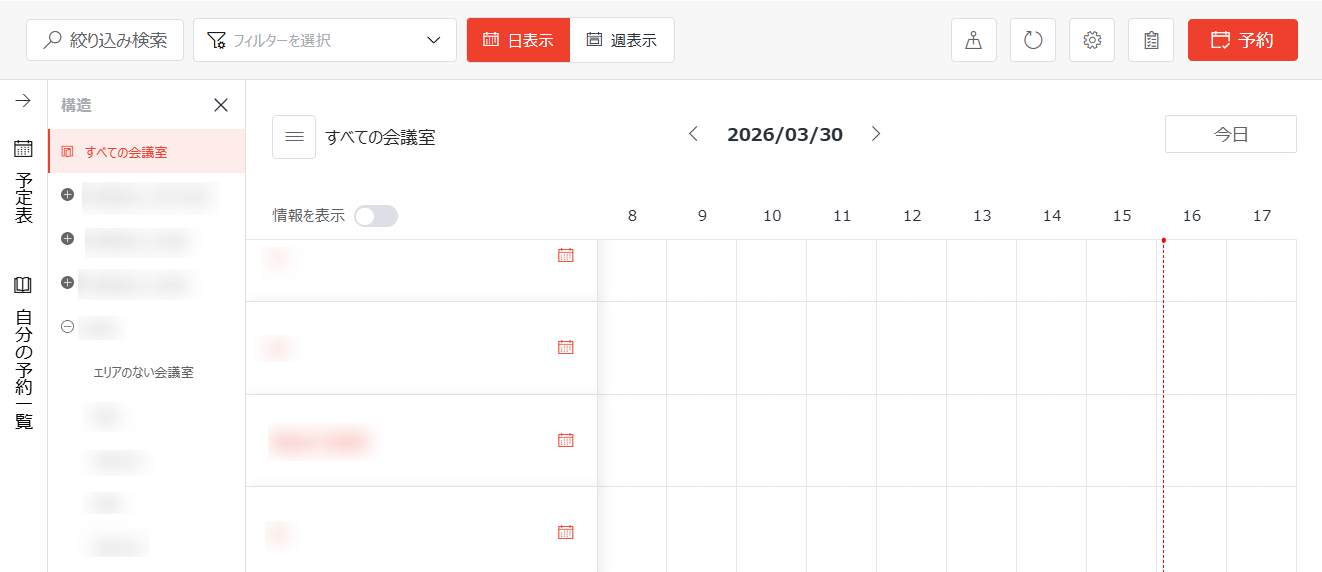
In the Conference Room Reservations section, available conference rooms and their reservations are displayed by default. If the Area management level is enabled, the Structure section is available, and you can click a building name to display areas and direct rooms within that building. Direct rooms are those that do not belong to any area within the building. You can drill down to conference rooms and their reservations within an area by clicking the area name.

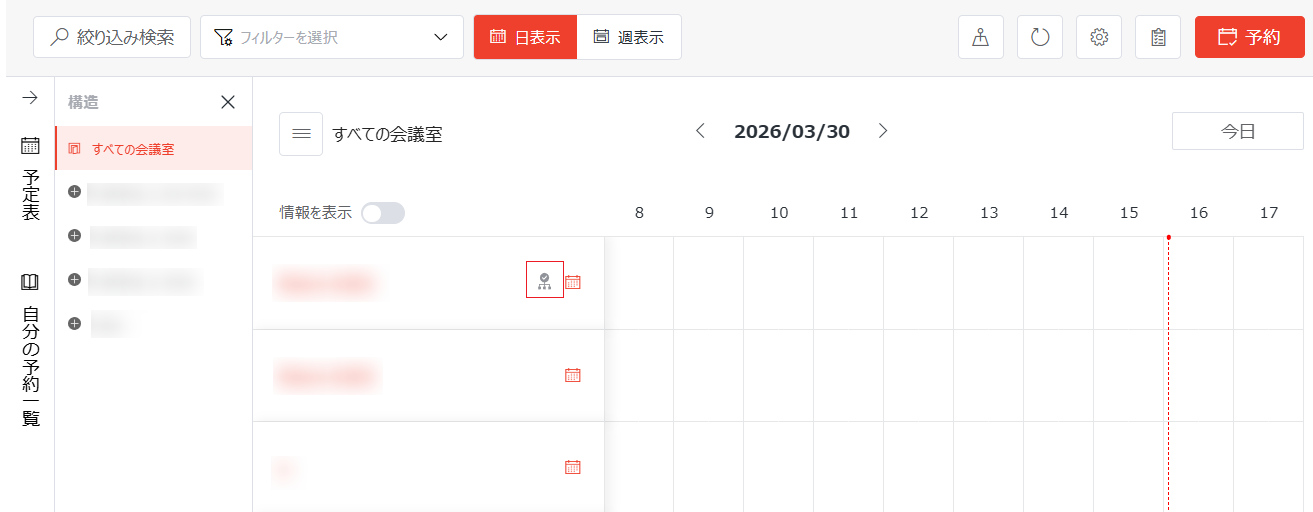
In the reservation pane, you can turn on or off the Show Info toggle to determine how room information is displayed. When the toggle is on, detailed conference room information is displayed. Turning off this toggle will hide the details to display conference room name only, enabling more conference rooms to be listed. Conference rooms whose reservation requests require administrator’s approval are marked with an approval required icon on the right side.

Approval required.

The reservations for the conference rooms are displayed to the right of the corresponding conference rooms with the reserved time slot. The following action are available in the section:

  • View and Manage Reservations – You can view the reservations to which you have permissions to the right of the corresponding conference rooms, including the meeting titles, the users by whom the conference rooms are reserved and the time slots of the reservations. The yellow reservations are reservations that are pending approval and the green reservations are successful reservations. You can edit or only view the reservations by clicking the desired reservations and editing or only viewing the information in the Edit Reservation window. You can also create reservation requests. For details, refer to Conference Room Reservation Process.

    Manage conference room reservations.

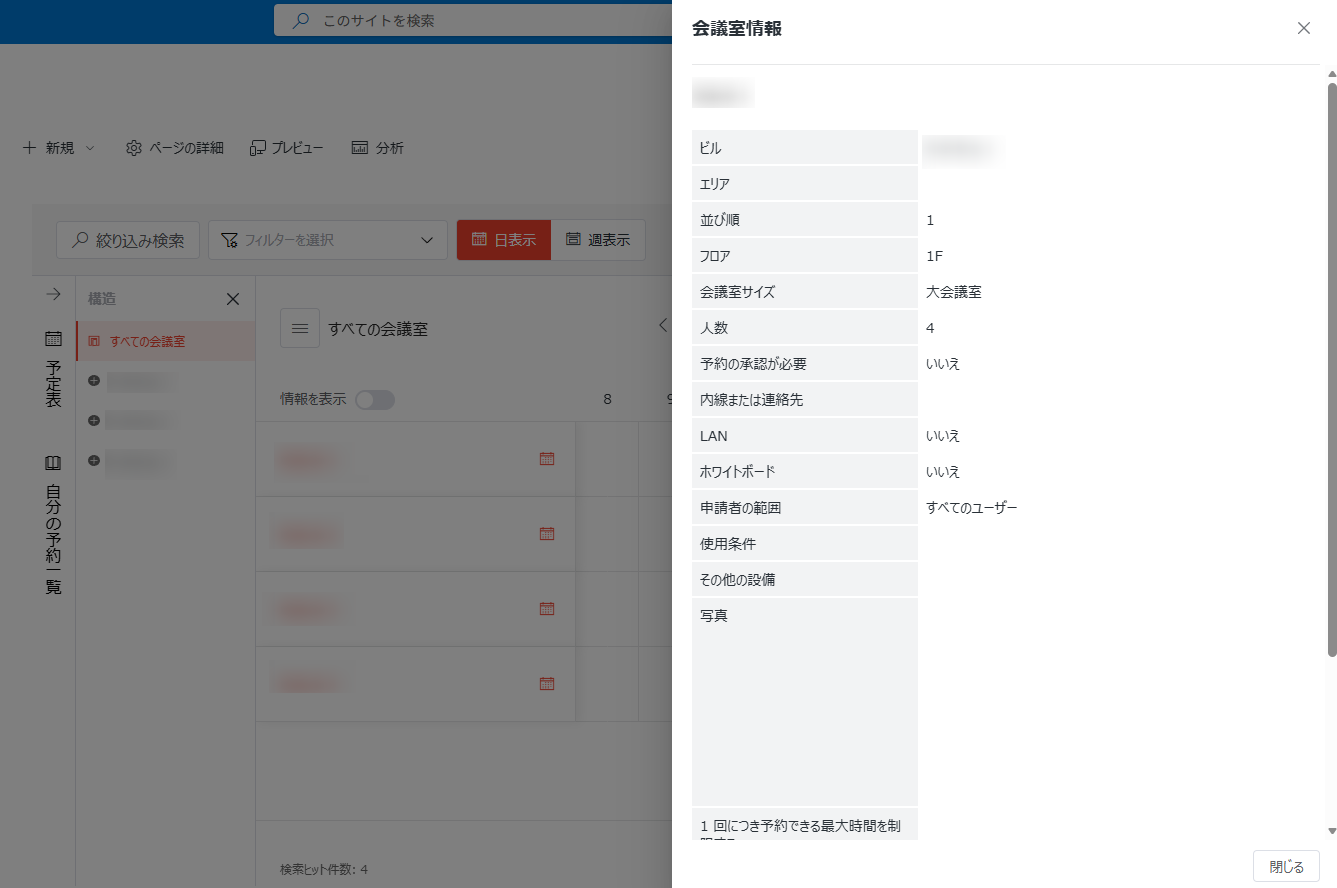
  • View Conference Room Information – Click the desired conference room name in the Conference Room Information field. The Conference Room Information window appears. You can view the conference room information in the window. Click Close or the close button to close the window.

    View conference room information.

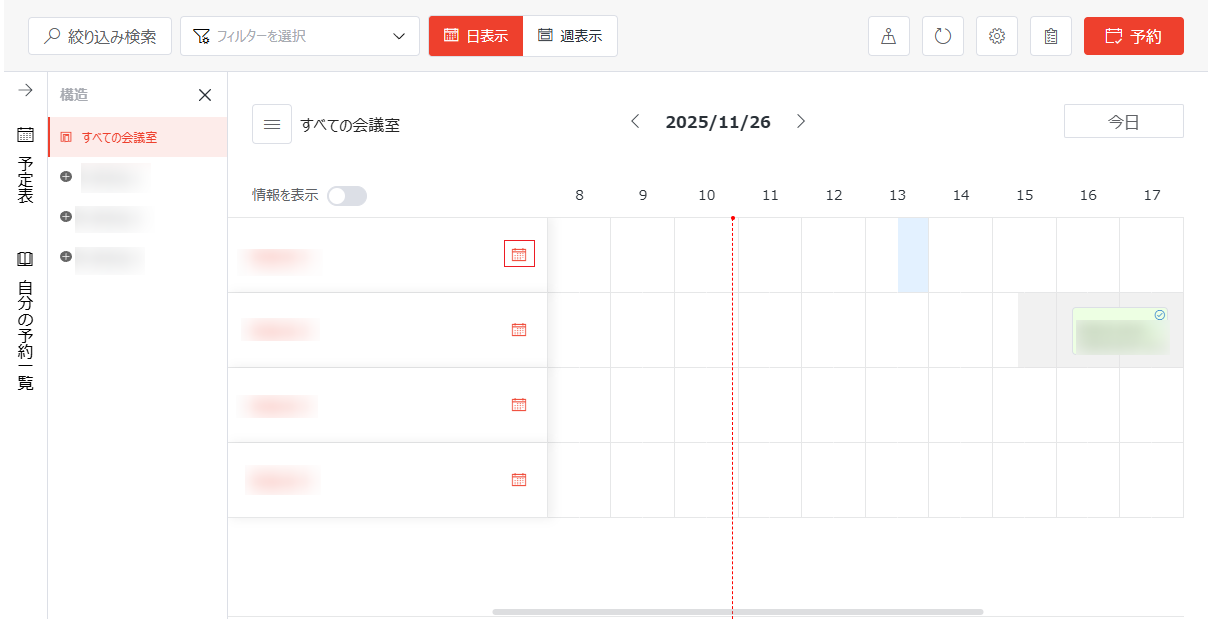
  • View Monthly Reservations – Click the Month button in the upper-right corner of the desired conference room in the Conference Room Information field. The Monthly Reservations page appears. The current date is displayed on the top by default. You can drag the scrollbar to the right of the calendar to view the reservations for the conference room in the current month. You can manage conference room reservations on this page. For details, refer to Conference Room Reservation Process. You can click the go back button on the left of Monthly Reservations to go back to the homepage.

    Monthly view.

My Reservations

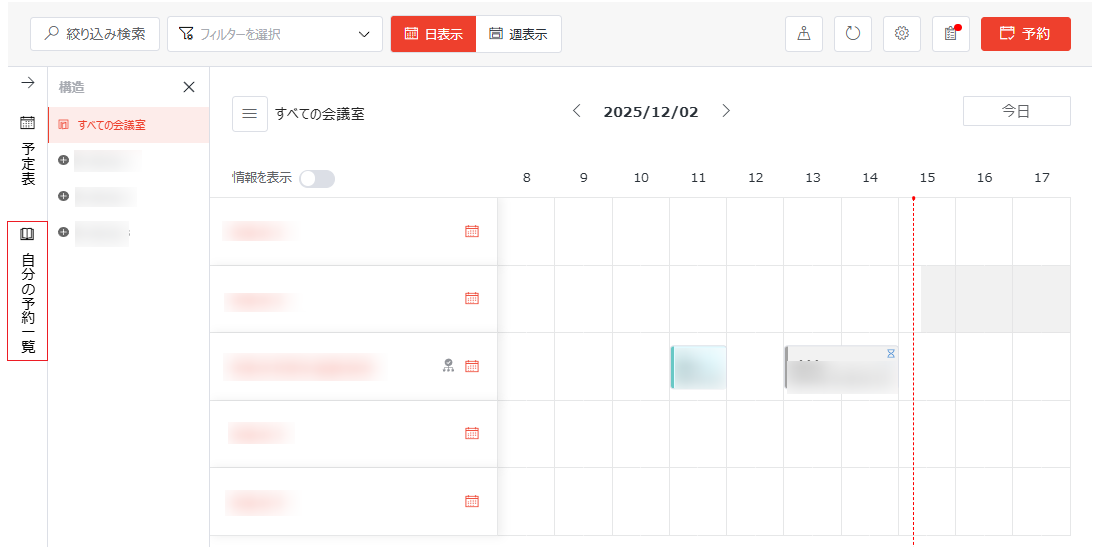
Click My Reservations to access the My Reservations page. The Personal Reservations tab is displayed by default on this page, where you can view and manage your submitted conference room reservations. If you are an assigned assistant for collaboration units and other assistants have submitted reservations within these units, you can see an additional Collaborative Reservations tab, allowing you to view and manage conference room reservations submitted by other assistants.

My Reservations.

To go back to the app homepage, click the go back button in front of My Reservations.

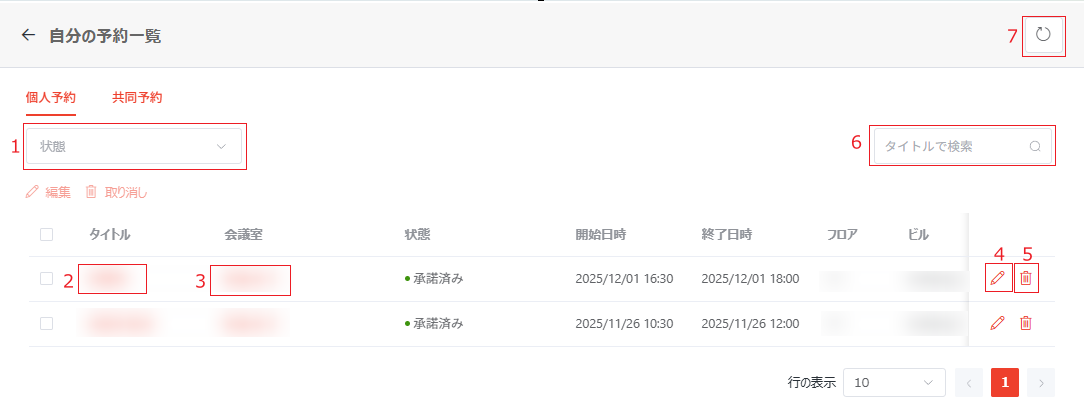
In both tabs, you can view the information about conference room reservations, including the title, reserved room, reservation status, start and end time for reservations, and the room basic information.

My Reservations.

The following actions are available:

  1. Filter Reservations – Use the filters in the upper-left corner of the table to filter the reservations displayed on the table. The following filters are available in each tab:

    • Personal Reservations – Status.

    • Collaborative Reservations – Status, Reserve For.

  2. View Reservation Details – Click the title link to access the reservation registration panel, where the reservation details are displayed. If necessary, you can update the reservation details or cancel this reservation in the panel.

  3. View Conference Room Information – Click the conference room link to view the detailed information of the reserved conference room.

  4. Edit Reservation Details – To edit the reservation details, complete the following steps:

    1. Select the reservation and click Edit above the table or click the edit button on the right of the reservation.

    2. In the Edit Reservation panel, update the reservation details based on your requirements

    3. Click Update Reservation to save your updates.

    NOTE

    When a collaboration unit is selected in the registration panel, you can specify a principal of the unit in the Reserve For field to make reservations on behalf of the principal.

  5. Cancel Reservation – Select one or more reservations and click Cancel above the table. To cancel a specific reservation, you can also click the cancel button on the right of the reservation.

  6. Search Reservations – Use the search box in the upper-right corner of the table to search reservations by title.

  7. Refresh – Click the refresh button in the upper-right corner of the page to refresh reservations displayed on the table.

Calendar

Click Calendar to expand the Calendar section.

Calendar.

In this section, the calendar of the current month is displayed. The current date or week is highlighted. A dot is displayed under the dates with the conference room reservations of the current user. You can click the desired date to view and manage conference room reservations on the date in the Day view or click the date to view and manage conference room reservations for the week in which the date resides in the Week view. Click Today below the calendar to go back to the current date or click This Week to go back to the current week.

View calendar.