お知らせ: このページは現在英語のみで提供されています。日本語版は準備中です。ご不便をおかけして申し訳ございません。

Vehicle Usage Stages

A Vehicle usage process includes four stages: registration, key pick up, vehicle in use, and vehicle returned. App users can follow the steps below to use a vehicle:

Vehicle usage stages.

  1. Registration: Submit a reservation request for your desired vehicle.

  2. (Optional) Wait for the reviewer to approve your reservation request. If the approval is required, the message: ‘The reservation request needs to be approved before the vehicle can be used.’ will appear on the top of the Registration panel.

    You can check the review status in My Reservations. Once the reservation request is approved, the stage of the reservation will be updated to Waiting for Key Pick Up automatically.

  3. Pick up the key: Register the time and person to pick up the key and the driver’s alcohol value in the Registration panel and click Save. Then, the specified person can pick up the key at the specified time to use the vehicle.

  4. Return the vehicle: Return the vehicle after you finish using it. You need to register the key return time, driving log details, and other required information. Then, click Save.

  5. Summary: Once the vehicle is returned, the reservation will reach the Summary stage with all the recorded details displayed.

The following actions are available for each stage in the Registration panel:

Registration

Complete your reservation information and click Register to submit the vehicle reservation request.

Key Pick Up

The following actions are available in the Key Pick Up stage:

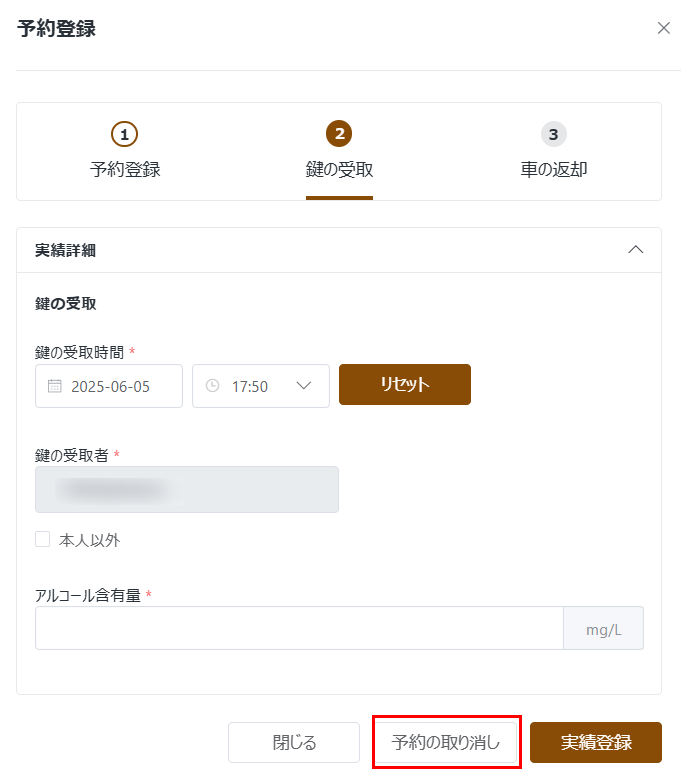
  • Cancel Reservation – Click Cancel Reservation at the bottom of the Key Pick Up or Registration stage to cancel the vehicle reservation.

    Cancel Reservation.

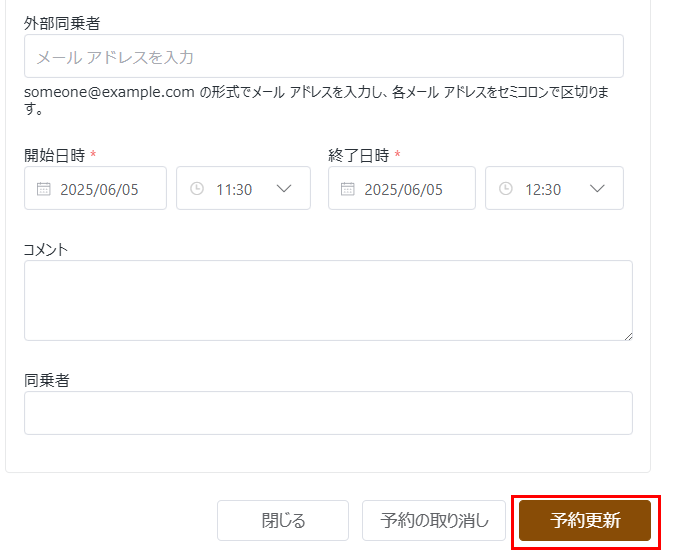
  • Update Reservation – Click Registration on the top of the window and edit the fields in the Registration stage. Click Update Reservation at the bottom of the page.

    Update Reservation.

Vehicle Return

The following actions are available in the Vehicle Return stage:

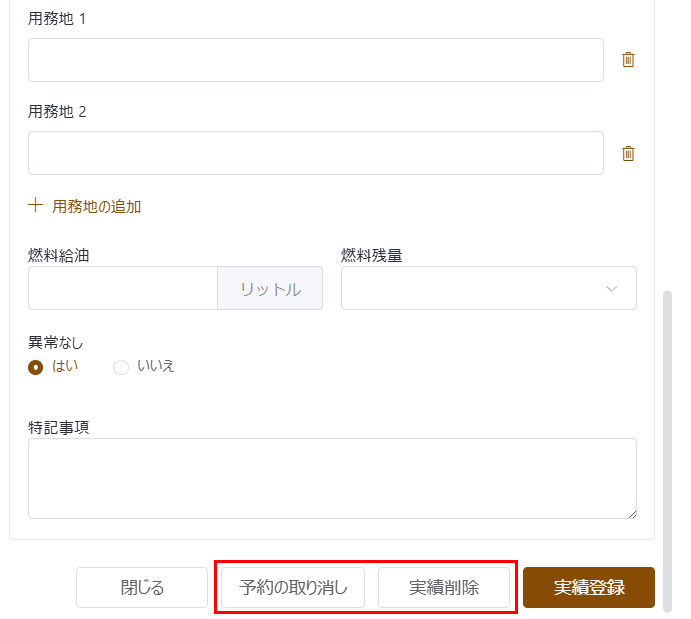
  • Cancel Reservation – Click Cancel Reservation at the bottom of the Vehicle Return, Key Pick Up, or Registration stage to cancel the vehicle reservation.

  • Delete Details – Click Delete Details at the bottom of the Vehicle Return or Key Pick Up stage to delete details in the corresponding stage, and the reservation will be retracted to the Key Pick Up stage.

    Cancel Reservation and Delete Details.

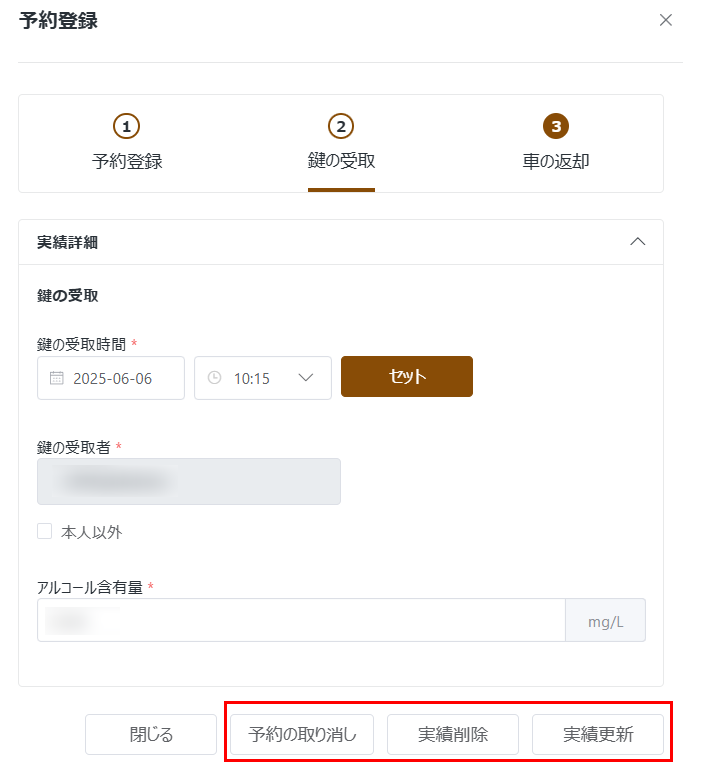
  • Update Reservation – Click Update at the bottom of the Key Pick Up panel to update information of the stage.

    Manage Key Pick Up stage information during Vehicle Return.

Summary

The following actions are available in the Summary stage:

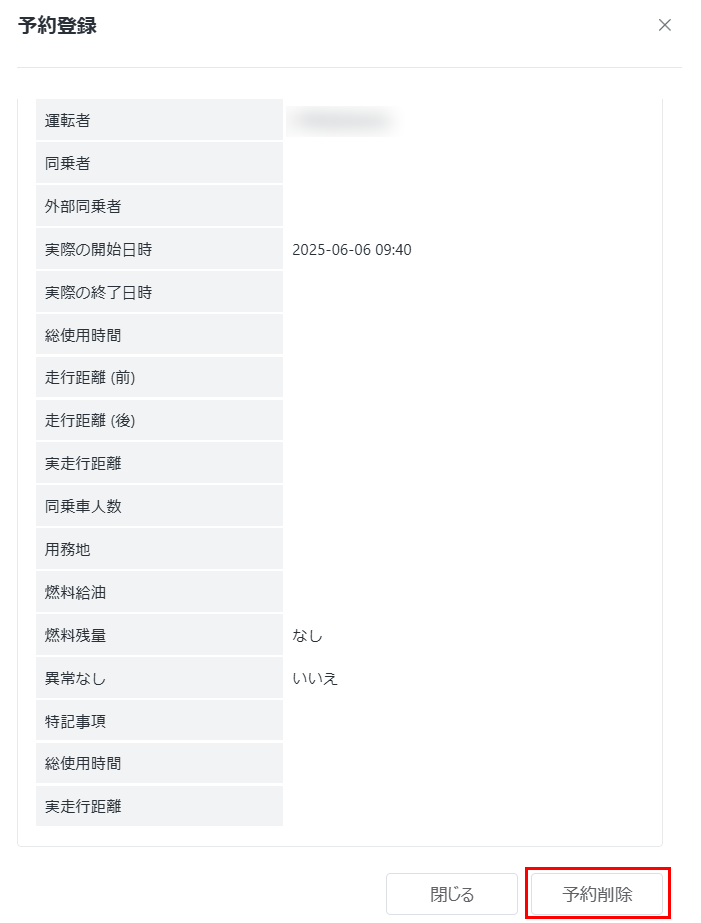
  • Delete Reservation – Click Delete Reservation to delete this reservation.

    Delete reservation.

  • Delete Details – Click Delete Details at the bottom of the Vehicle Return stage to delete details in the stage, and the reservation will be retracted to the Key Pick Up stage.

  • Update Reservation – Click Update at the bottom of the Vehicle Return or Key Pick Up stage to update information of the corresponding stage.