Home > App Suite > Office Equipment Management > Equipment Overview and Request Management

Download this article
お知らせ: このページは現在英語のみで提供されています。日本語版は準備中です。ご不便をおかけして申し訳ございません。

Equipment Overview and Request Management

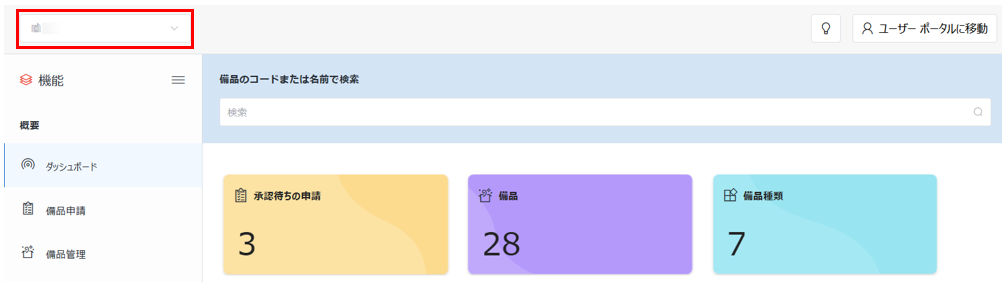
When app administrators and equipment administrators access the app, the dashboard page of the current office is displayed by default. You can switch to another office by selecting the desired office from the office drop-down list in the upper-left corner of the page.

Switch office.

NOTE

App administrators can manage all offices and equipment. Equipment administrators can only manage the equipment of the offices where they serve as the equipment administrators.

Administrators can click Start Request in the upper-right corner of the page to access the equipment request page.

The following sections detail the management that can be performed for each office.

View Dashboard

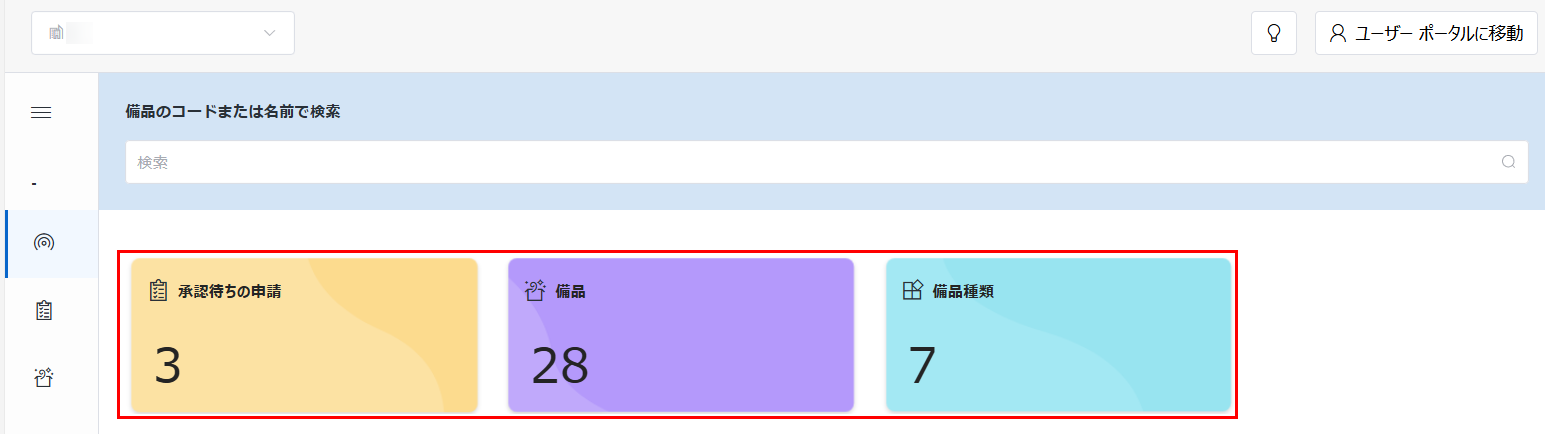
On the dashboard page, you can view the number of pending requests, equipment, and equipment types of the current office in the corresponding tiles. You can click the tiles to access the Equipment Requests, Equipment Management, and Equipment Type Management pages respectively.

Information cards.

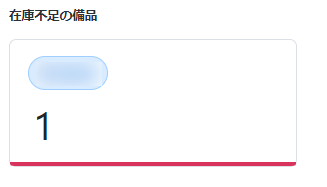
In the Attention Required section, the equipment types of which the quantity of available equipment is lower than the warning quantity are displayed. When there are no equipment types in the section, the section will be hidden.

Attention Required.

In the My Dashboard section, you can customize the charts you want to view in the dashboard with the following steps:

  1. Click the settings button in the upper-right corner of the My Dashboard section. The Dashboard Settings window appears.

    Manage my dashboard.

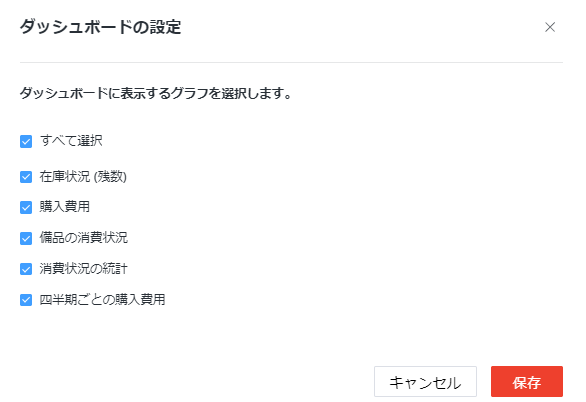
  2. In the window, select the charts you want to view in the dashboard. You can click Select All to choose all listed charts.

    Dashboard settings.

  3. Click Save to save your settings and the selected charts will be displayed in the dashboard.

Below are the introductions of each chart. You can click the action (…) button in the upper-right corner of each chart and click Hide Chart to hide the chart from the dashboard.

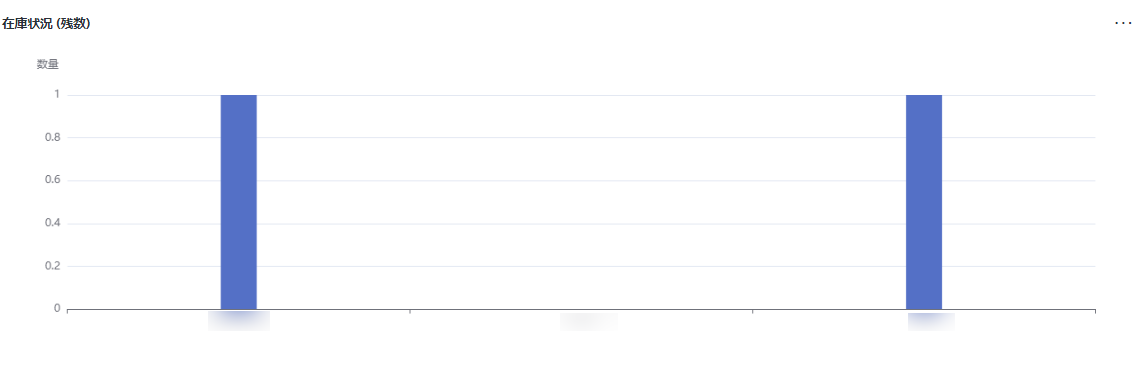
  • Inventory – This chart displays the current inventory of each equipment type of the current office.

    Inventory.

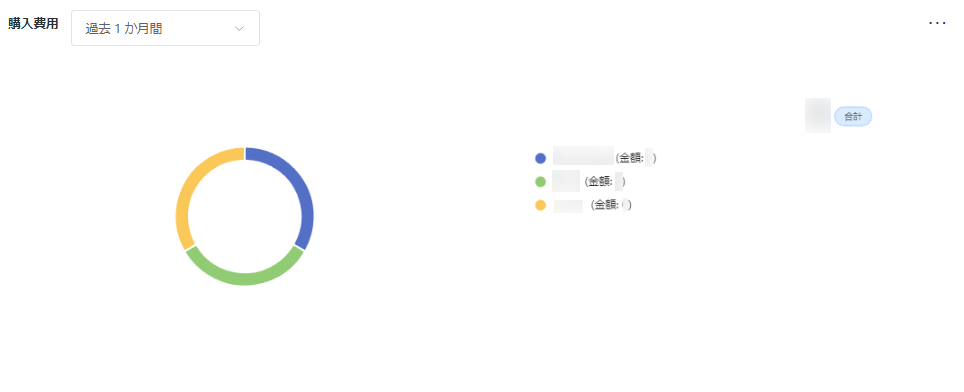
  • Purchase Expense – This chart displays the total equipment purchase expense and purchase expenses of each equipment types of the current office within the last 1 month by default. You can view the data in another time range by selecting the desired time range from the time range drop-down list on the top of the chart.

    Purchase expenses.

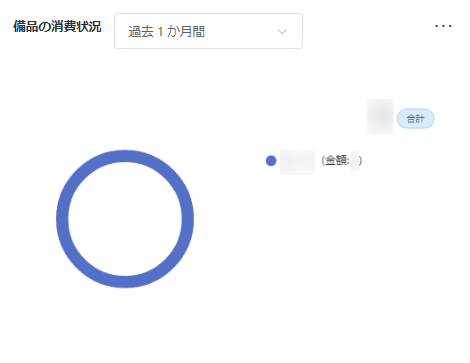
  • Equipment Consumption – This chart displays the total equipment expense of the current office that retired within the last 1 month, and equipment expenses that retired within the last 1 month of each equipment type by default. You can view the data in another time range by selecting the desired time range from the time range drop-down list on the top of the chart.

    Equipment Consumption.

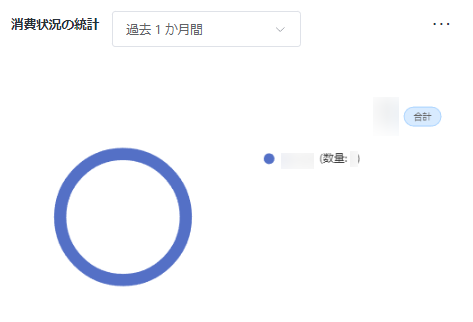
  • Consumption Statistics – This chart displays the total quantity of the equipment of the current office that retired within the last 1 month, and the quantities and values of the retired equipment of each equipment type by default. You can view the data in another time range by selecting the desired time range from the time range drop-down list on the top of the chart.

    Consumption Statistics.

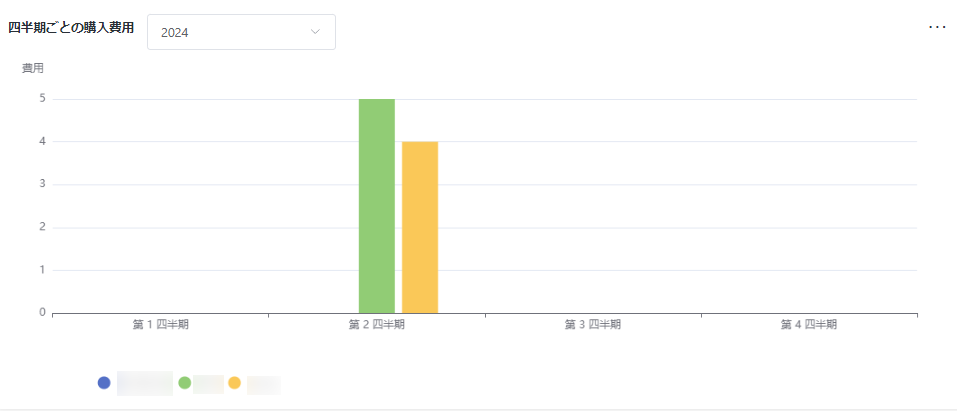
  • Quarterly Purchase Expenses – This chart displays the equipment purchase expenses of each equipment type of the current office in each quarter of the current year by default. You can view the data of another year by selecting the desired year from the year drop-down list on the top of the chart.

    Quarterly Purchase Expenses.

If you want to view the information of specific equipment, you can utilize the search section on the top of the dashboard page. Enter the name or code of the desired equipment and click the search button.

Search equipment.

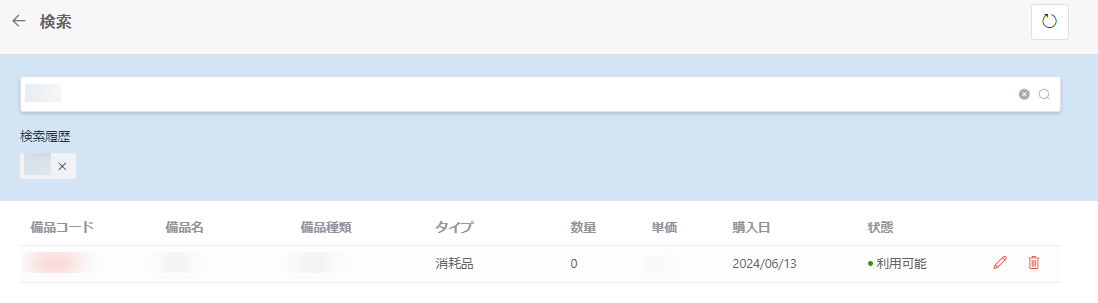
The Search page appears, and the search results are displayed in the viewing pane. You can search for another equipment by entering the desired equipment name or code in the search box and clicking the search button to start the search. Your search histories will be displayed under Search History. Click the delete button to the right of a search history to delete it.

Search results.

Click the go back button next to Search on the top of the page to go back to the dashboard page.

Manage Equipment Requests

Click Equipment Requests in the left navigation to access the requests management page. On this page, you can manage borrow requests and return requests separately under the Borrow Requests and Return Request cards. The Pending Review and Reviewed tabs are available for each card:

  • Pending Review – The borrow and return requests that are pending your review in the current office.

  • Reviewed – The reviewed borrow and return requests to which you are assigned as an approver in the current office.

To view equipment requests of another office, you can select the office from the office drop-down list in the upper-left corner of the page to switch to the office.

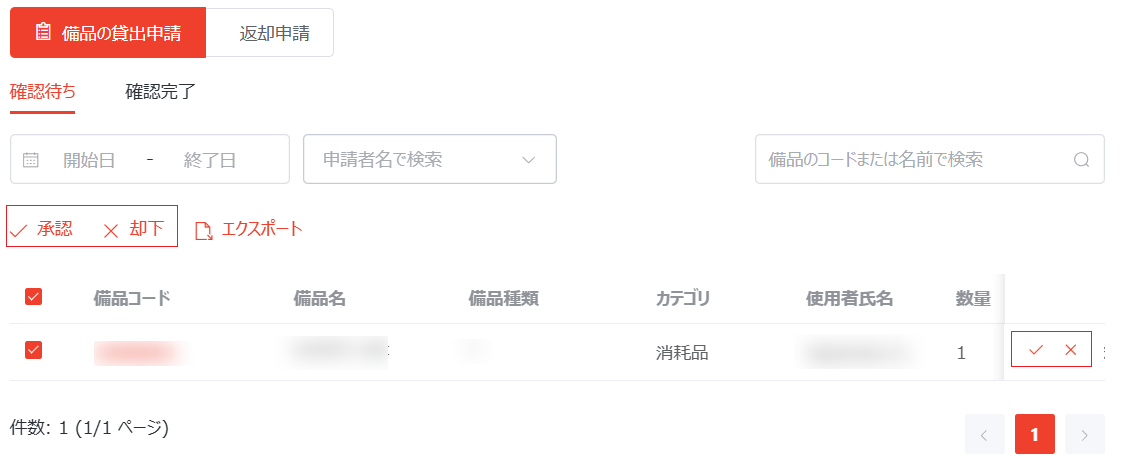
To review pending requests, in the Pending Review tab of the corresponding request card, select one or more requests and click Approve or Reject to approve or reject requests in bulk. Or, you can approve or reject a specific request by clicking the Approve button or the Reject button to the right of it.

Review requests.

In the Reviewed tab of each request card, you can view the information and review results of the corresponding requests.

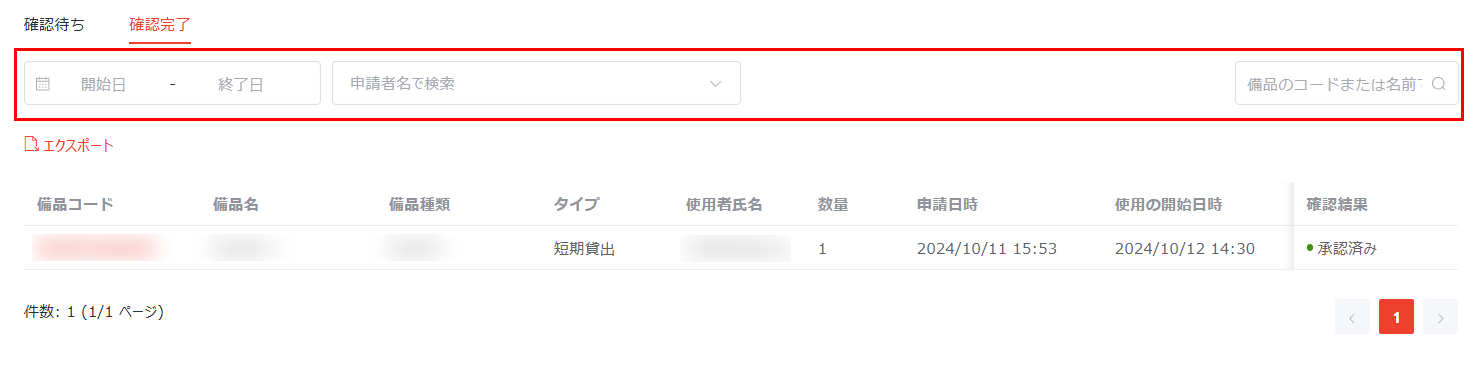
3 filters are offered in each tab:

Filters.

  • Filter requests in custom date range – Click the Start Date – End Date box on the top of the page, and the calendars appear. Select the start date from the left calendar and then select the end date from the right calendar. The calendars are closed automatically, and you can view requests that are submitted within the custom date range in the viewing pane.

  • Filter requests by requester name – Click Search by requester name and select the desired requester from the drop-down list. The requests that are submitted by the selected requester will be displayed in the viewing pane.

  • Filter requests by equipment code or name – Enter the desired equipment code or name in the Search by equipment code or name search box and click the search button. The request with the entered name or code will be displayed in the viewing pane.

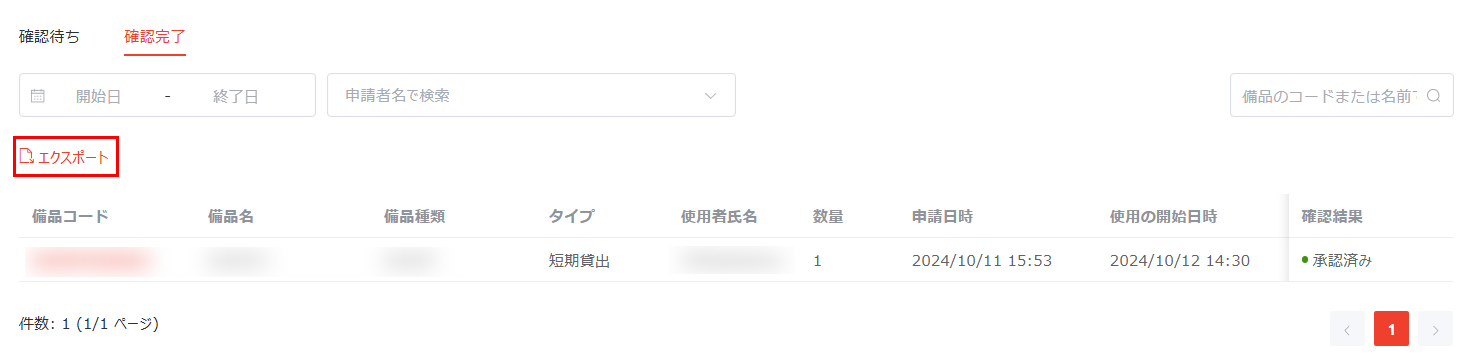
You can click Export above the table to export all requests that are displayed on this page, or you can apply filters and then click Export to export the filtered requests. The requests will be exported as a .csv file to the download location of the current browser.

Export requests.

Click the refresh button to refresh the requests displayed on this page.