
Home > アプリ スイート > アドレス帳 > アドレス帳アプリの設定
この記事をダウンロードアドレス帳アプリの設定
設定 ページで、管理者はアドレス帳アプリの以下の設定を構成することができます。
組織構造の構成
設定 ページの [組織構造の構成] タイルをクリックして、組織構造の構成 ページにアクセスします。
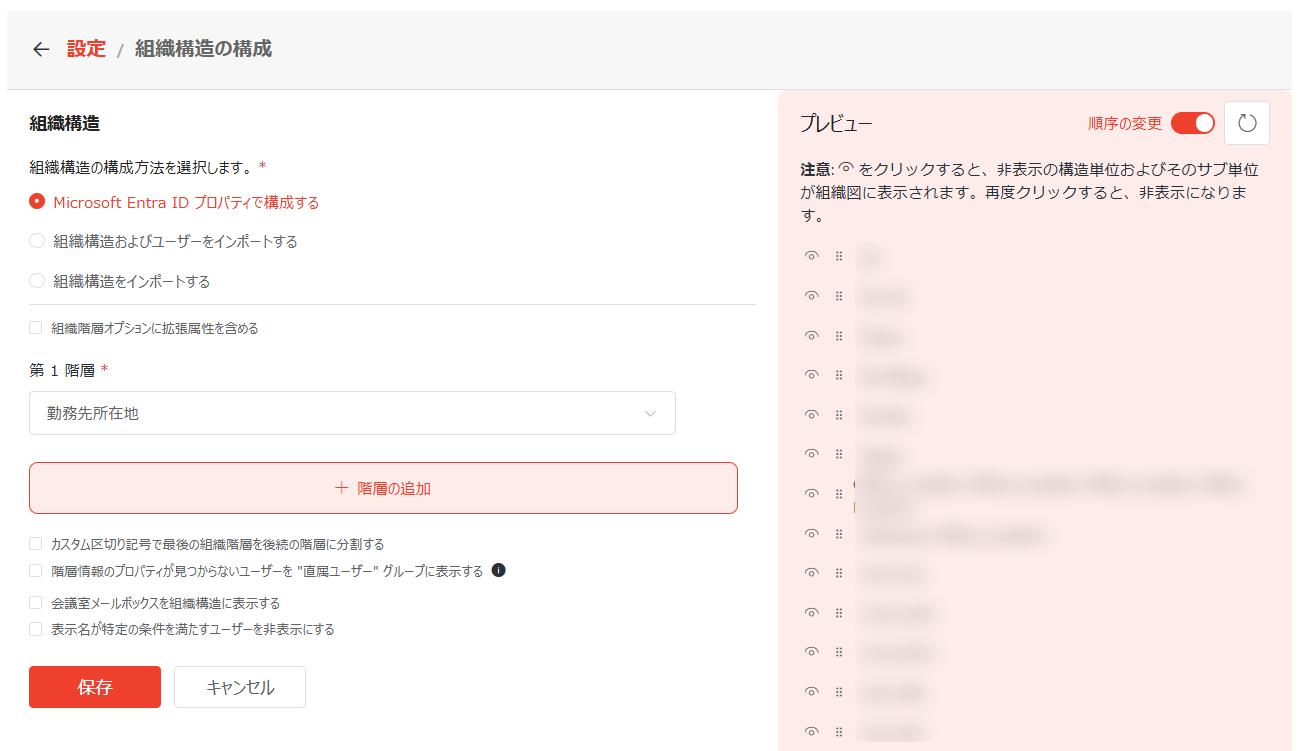
この設定の構成に関する詳細については、アドレス帳 を参照してください。
会社情報は、3 時間毎に Microsoft Entra ID から自動的に取得されます。Microsoft Entra ID で新しく追加された組織階層は正しい構造でアプリに反映されるまで、最大 3 時間かかる可能性があります。更新ボタンをクリックすることで、会社の最新情報を手動で取得することもできます。
ユーザー プロパティの管理
設定 ページの [ユーザー プロパティ管理] タイルをクリックして、ユーザー プロパティ管理 ページにアクセスします。
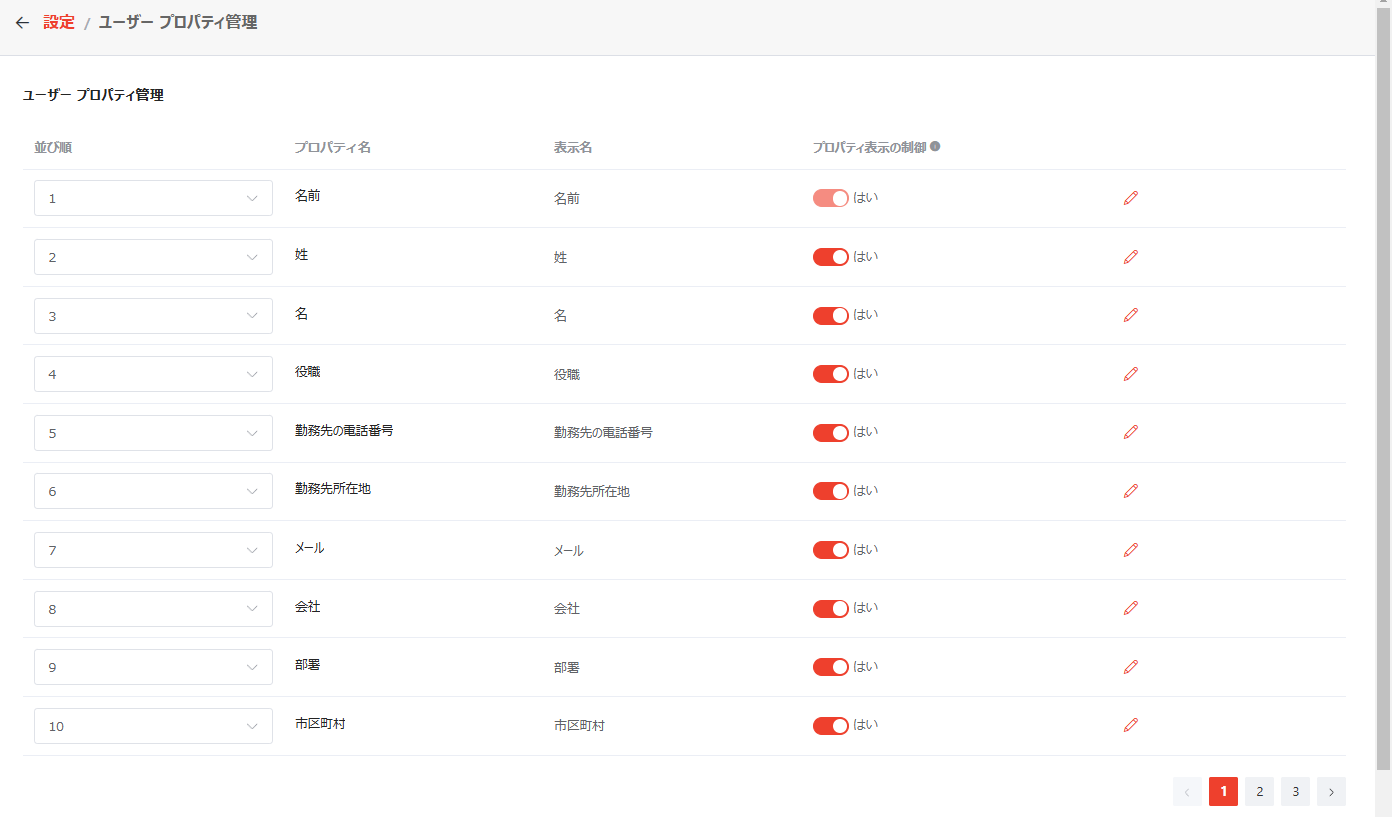
このページで、このアプリで表示できるすべてのユーザー プロパティが表示されています。並び順 列から目的の順序を選択して表示順序を調整すること、プロパティ表示の制御 列のスイッチをオン / オフにしてプロパティをアプリ ページに表示するかどうかを定義することができます。プロパティを表示する特定のページまたは場所を制御するには、編集 ボタンをクリックして構成します。
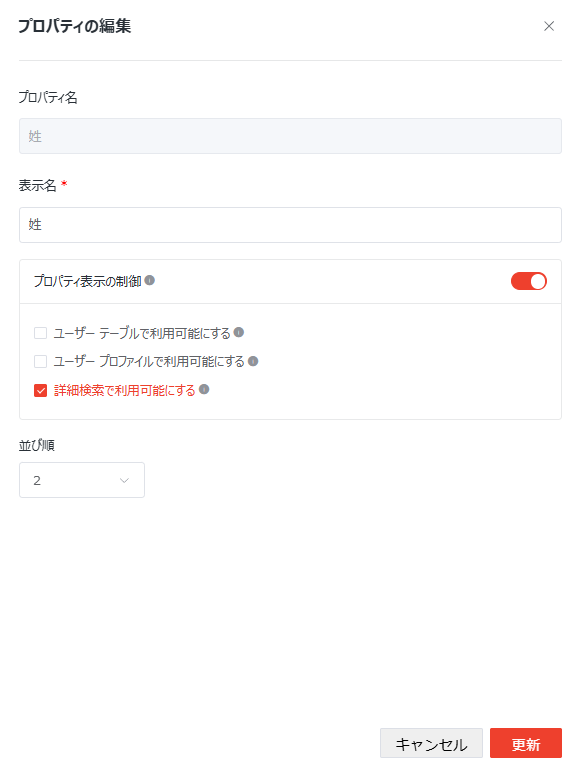
編集 ボタンをクリックすることで、プロパティの以下の設定を構成できます。構成の完了後、[更新] をクリックします。
-
表示名 – アプリ ページのプロパティの表示名です。
-
プロパティ表示の制御 – この設定を有効にすると、以下のオプションを構成し、プロパティがエンド ユーザーに表示されるページまたは場所を指定することができます。有効化しないと、このプロパティはエンド ユーザーに表示されません。
-
ユーザー テーブルで利用可能にする – このオプションを選択すると、プロパティはユーザー テーブルで利用可能になり、アプリ内のテーブルの列として表示されます。テーブルでそのプロパティが見つからない場合、テーブルの右上にある 列の管理 ボタンをクリックし、リストからそのプロパティを選択して [適用] をクリックします。適用後、そのプロパティはテーブルに表示されます。
-
ユーザー プロファイルで利用可能にする – このオプションを選択すると、プロパティはユーザー プロファイルで利用可能になり、各ユーザーの関連情報を表示します。
-
詳細検索で利用可能にする – このオプションを選択すると、プロパティは詳細検索パネルの検索条件として使用されます。
-
-
並び順 – ドロップダウン リストから並び順を選択します。プロパティの表示順序は、選択したプロパティの並び順に従います。
一般設定
設定 ページの [一般設定] タイルをクリックして、一般設定 ページにアクセスします。
このページで、コミュニケーションの制御、既定ビューの設定、ユーザーの並べ替え、兼務、会議室予約アプリの接続 などの設定を構成できます。
設定を変更した後、ページの下部にある [保存] をクリックして設定を保存してください。
コミュニケーションの制御 – コミュニケーション オプションを有効化または無効化して、組織のコミュニケーション設定をカスタマイズします。有効化されたコミュニケーション オプションのみは、アプリ内のユーザーに対して使用可能です。

-
各チャットで許可されている最大ユーザー数が 250 です。
-
音声通話、ビデオ通話、会議で許可されている最大ユーザー数が 1000 です。
既定ビューの設定 – 構造単位のナビゲーションおよび構造単位の既定ビューを選択します。構造単位のナビゲーションは左側の画面に配置されており、ユーザーは組織の構造ツールまたはこのアプリで作成したお気に入りグループを介して構造単位にアクセスすることができます。構造単位の既定ビューは、構造単位にメンバー リストや予定表を既定で表示するかどうかを決定します。
このアプリでユーザー予定表を表示するには、Microsoft 365 グローバル管理者は SharePoint 管理センターで Calendars.ReadBasic.All、Calendars.ReadBasic、Calendars.Read.Shared 権限要求を承認したことを確認してください。詳細については、付録 A – SharePoint 管理センターでのアクセス許可要求の承認 を参照してください。

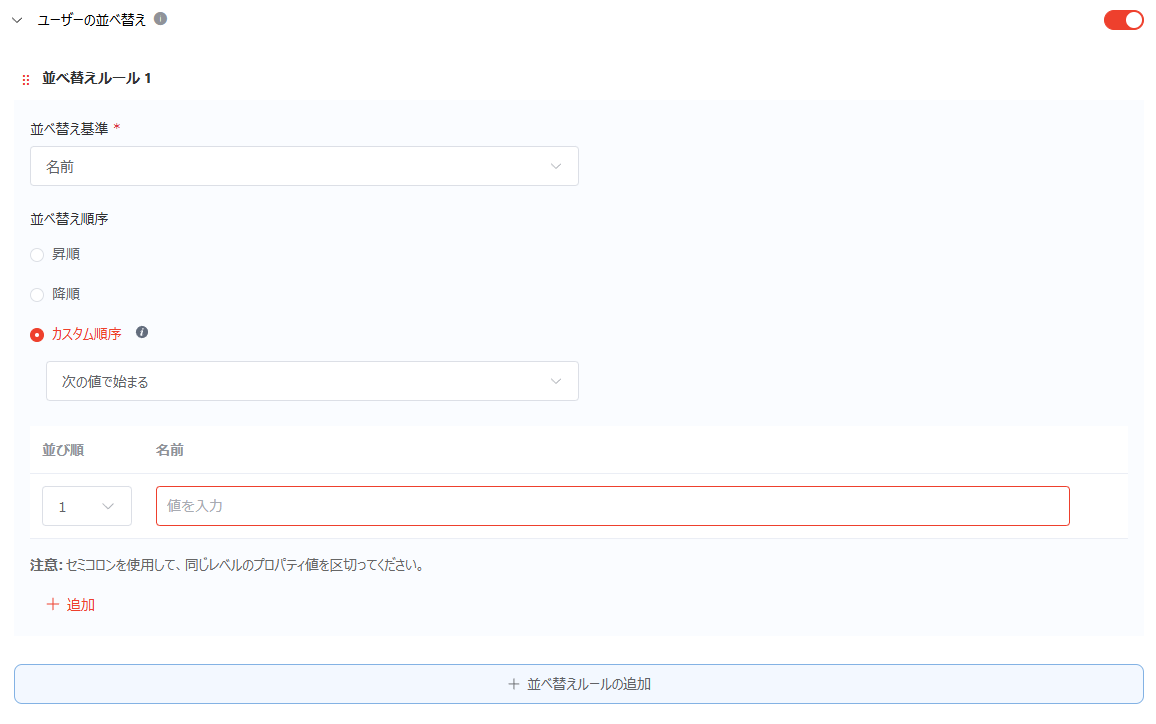
ユーザーの並べ替え – 既定では、このアプリに表示されているユーザーは名前 (昇順) で並べ替えられています。この設定を有効にすると、1 件以上の並べ替えルールを構成して、希望のユーザー プロパティでユーザーを並べ替えることができます。この並べ替えは、グループ メンバー ビュー、予定表ビュー、お気に入りグループ ビューのユーザー リストに適用されます。並べ替えルールを構成するには、以下の説明を参照してください。
最大 2 件の並べ替えルールを追加できます。既に 2 件のルールが追加されている場合、並べ替えルールの追加 ボタンがグレーで表示され、クリックすることはできなくなります。
-
並べ替え基準 – ドロップダウン リストから並べ替え基準となるユーザー プロパティを選択します。
-
並べ替え順序 – 並べ替え順序を選択します。
カスタム順序 を選択する場合、ドロップダウン リストから並べ替え条件を選択し、並び順とプロパティ値を構成します。
NOTEプロパティ値は大文字と小文字を区別しません。例えば、Microsoft Entra で "Manager" と入力すると、 "manager"・"MANAGER"・および大文字小文字を問わずあらゆる表記が一致します。
[追加] をクリックして行を追加するか、行の右側にある 削除 ボタンをクリックして行を削除します。
並べ替えルールの順序の調整 – 並べ替えルールの前にある順序の調整ボタンをドラッグして、並べ替えルールを上または下に移動することができます。
兼務 – 組織の従業員が Microsoft Entra ID に保存されていない他のロールを持っている場合、この設定を有効化し、それらのロールをユーザーの兼務として構成することができます。
このページで、以下のアクションを実行することができます。
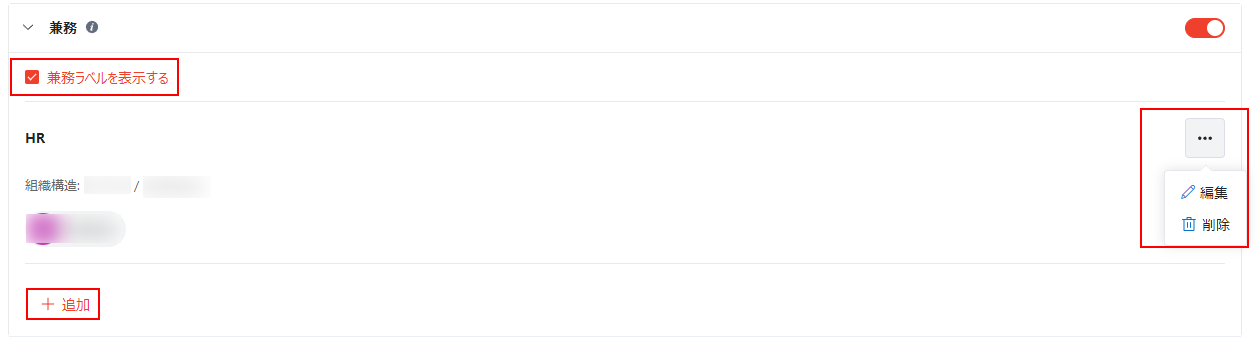
-
兼務ラベルを表示する – このチェックボックスを選択すると、兼務が割り当てられているユーザーに 兼務 ラベルが表示されます。
-
兼務の追加 – 兼務を追加するには、以下の説明を参照してください。
-
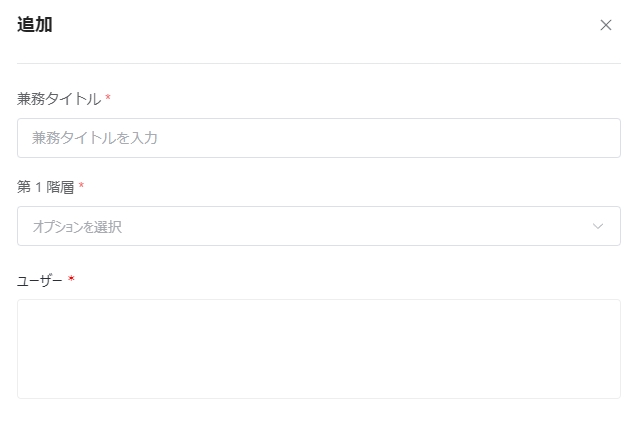
[追加] をクリックして、追加 ウィンドウを開きます。
-
このウィンドウで以下の情報を入力します。
-
兼務タイトル – 兼務タイトルを入力します。
-
組織構造 – 兼務が所属する組織階層を選択します。
-
ユーザー名 – この兼務を担当するユーザーの名前を入力し、推奨リストから目的のユーザーを選択します。
-
-
[保存] をクリックして、構成を保存します。
-
-
兼務の編集 – 兼務を編集するには、以下の説明を参照してください。
-
兼務の右上にあるその他のアクション ボタンをクリックし、ドロップダウン リストから 編集 を選択します。編集 ウィンドウが表示されます。
-
必要に応じて情報を編集します。
-
[保存] をクリックして編集内容を保存します。
-
-
兼務の削除 – 兼務の右上にある他のアクション ボタンをクリックし、ドロップダウン リストから 削除 を選択してその兼務を削除します。
会議室予約アプリの接続 – この設定を有効にして、会議室予約アプリのサイト URL を入力します。これにより、ユーザーが会議をスケジュールする際に、接続されている会議室予約アプリによって管理されている会議室を予約することができます。
ユーザーはアドレス帳アプリを介してアプリによって管理されている会議室を予約できるように、会議室予約アプリのユーザーまたは管理者として追加されていることを確認してください。

ユーザー管理
設定 ページの [ユーザー管理] をクリックして、ユーザー管理 ページにアクセスします。
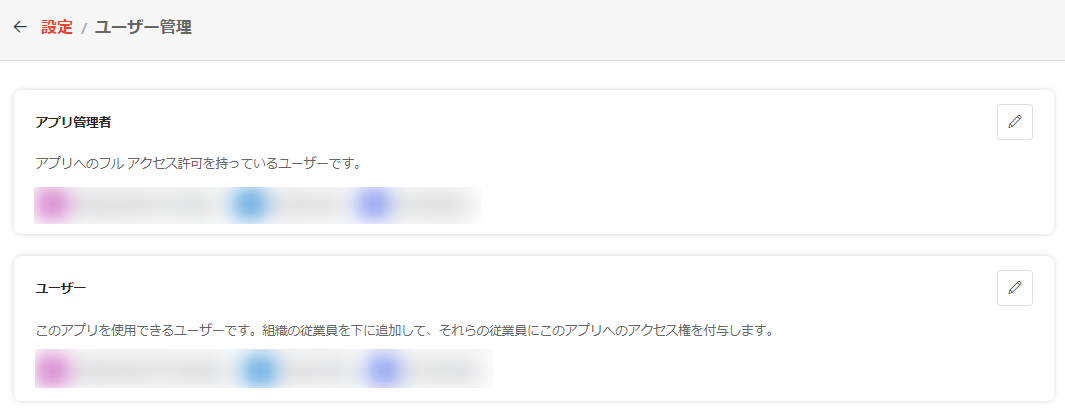
アプリ管理者 セクションに、アプリへのフル アクセス許可を持っているユーザーが表示されます。
ユーザー セクションに、アプリを使用できるユーザーが表示されます。
アプリ管理者またはユーザーを管理する方法については、以下の説明を参照してください。
Microsoft 365 へのサインインがブロックされているユーザーは、アプリの管理者またはユーザーとして追加することができません。
-
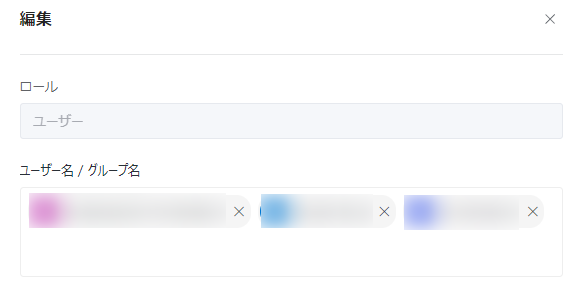
セクションの右上にある 編集 ボタンをクリックすると 編集 ウィンドウが表示されます。
-
ロール フィールドで、編集しているロールが表示されます。ユーザー名 / グループ名 フィールドで、このロールを持つユーザーおよびグループを管理できます。
-
ユーザーおよびグループの追加 – ロールの割当先となるユーザーおよびグループの名前を入力し、推奨リストから目的のユーザーおよびグループを選択します。
-
ユーザーまたはグループの削除 – ロールを削除するユーザーまたはグループの右側にある 削除 ボタンをクリックします。
-
-
編集の完了後、[保存] をクリックして編集を保存します。
両ロールに “すべてのユーザー” グループおよび “外部ユーザー以外のすべてのユーザー” グループを追加することができます。ただし、アプリがプライベート サイトに存在し、組織のポリシーでプライベート サイトに “外部ユーザー以外のすべてのユーザー” グループを追加することが禁止されている場合、このグループを追加すると、エラーが発生します。この場合、SharePoint 管理者またはグローバル管理者を連絡してください。