Home > App Suite > Vehicle Reservation > Get Familiar with the Vehicle Reservation App
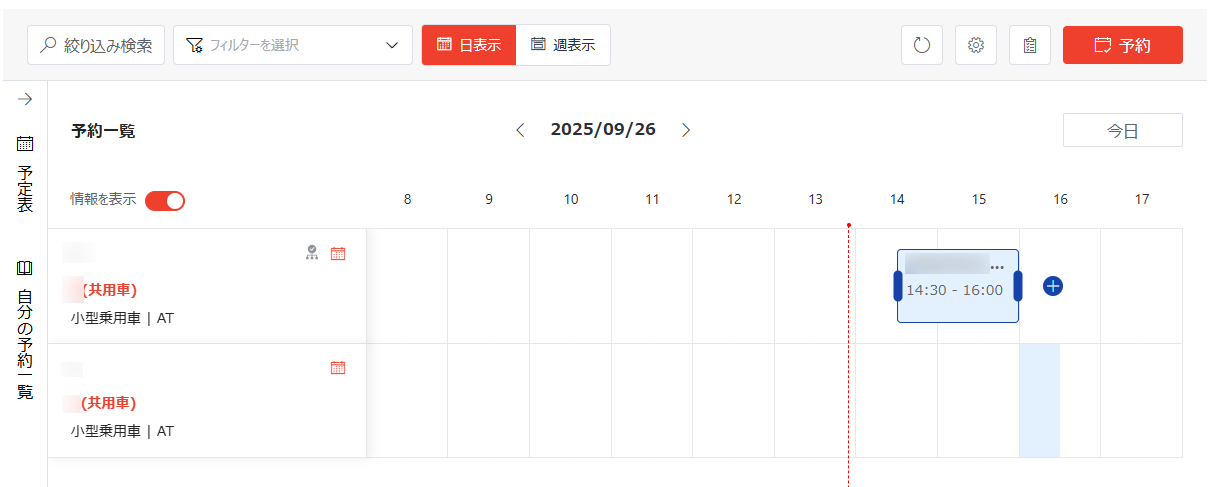
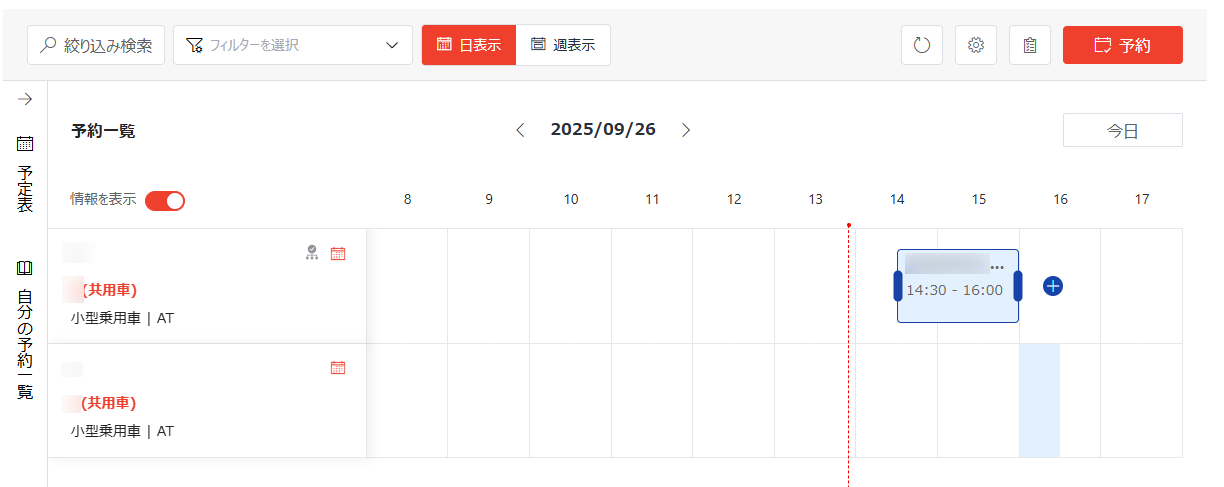
Download this articleBelow is a homepage overview of the vehicle reservation app:

On the top of the homepage of the vehicle reservation app, the following actions are available:
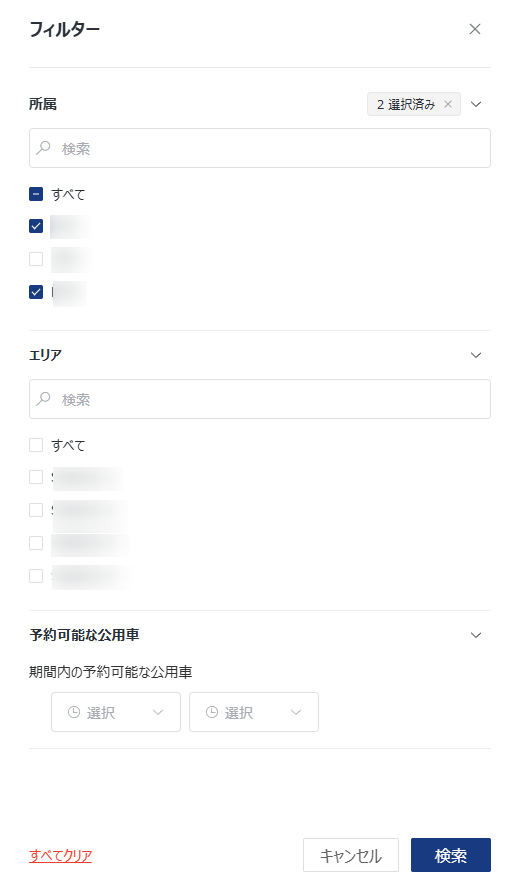
Search for Vehicle – Click Filtered Search and the Filter window appears on the right pane. Configure the filters based on your own requirements. Click Search to apply the filters.
App administrators can manage the vehicle properties that can be used to filter vehicles in the window. For details, refer to the Vehicle Filter Management section in Settings for Vehicle Reservation App.

Save as New Filter – After applying a new filter, you can complete the following step to save the filter as a new filter:
Click the filter drop-down list.
Hover your mouse over the draft filter and click the action (…) button > Save as New Filter.

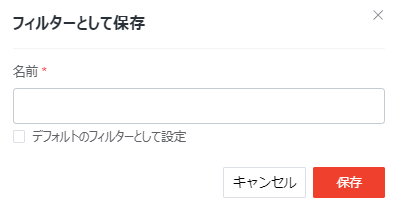
In the Save as New Filter window, enter the filter name. If you want to set the filter as the default filter, select the Set as Default Filter checkbox.

Click Save.
Manage Filter – Click the filter drop-down list, and all filters are displayed. To manage a filter, hover your mouse over the filter and click the action (…) button. The following actions are available in the action menu:
Edit Filter – Click this link, and the Edit Filter window appears. Edit the filter based on your requirements and click Save and Apply to save and apply the filter.
Set as Default Filter – Click this link to set the current filter as the default filter. The filter will be marked with (Default).
This action is available for the filters that have been saved.
Save as New Filter – Click this link, and the Save as New Filter window appears. Enter a name for the new filter in the text box. You can also select the Set as Default Filter checkbox to set this filter as the default filter. Click Save.
Delete Filter – Click this link to delete the current filter.
Clear Filter – Click the clear filter button to the right of the filter drop-down list to clear the current filter.
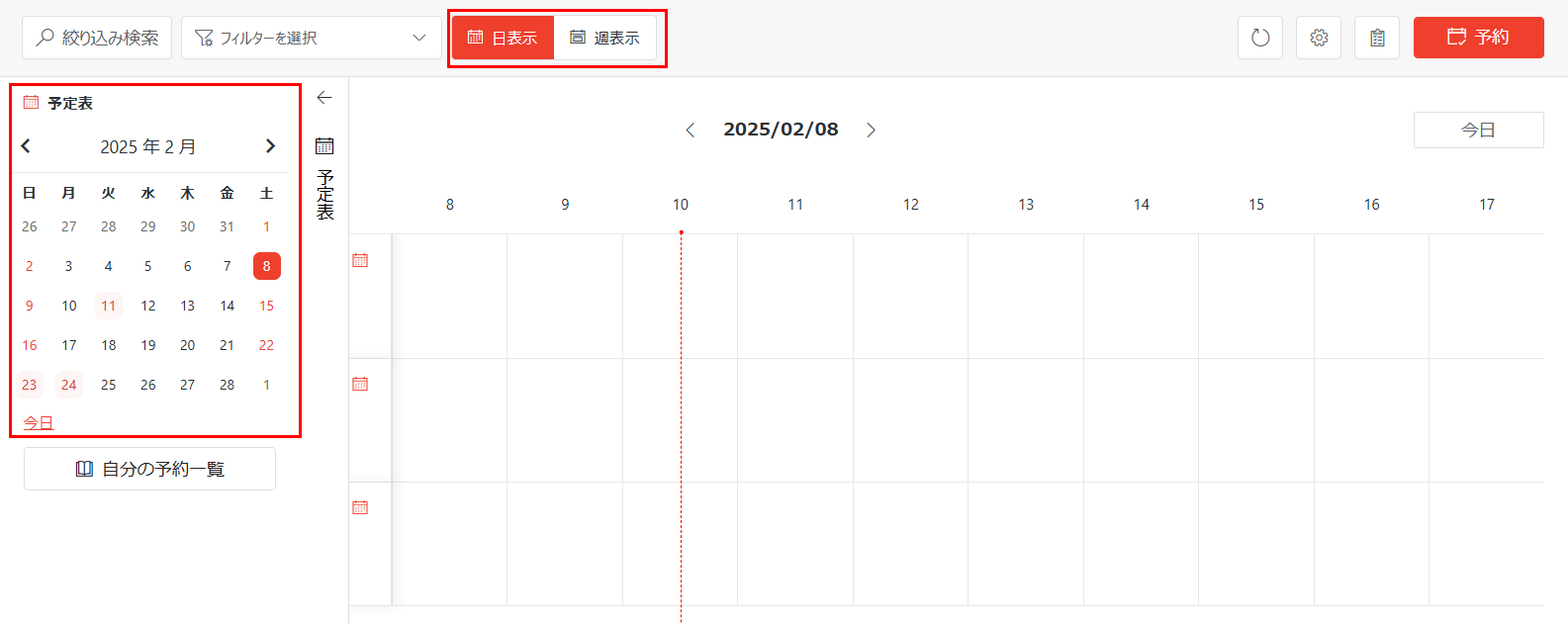
Switch Views – Click Day to view vehicle reservations in the Day view. Click Week to view vehicle reservations in the Week view.
Refresh – Click the refresh button to refresh the vehicle reservations.
Settings – Click the settings button, and the Settings page appears. Authorized users can click the desired tiles to configure the corresponding settings. For details, refer to Settings for Vehicle Reservation App.
This button is only visible to authorized users.
Review Vehicle Reservation Requests – Reviewers of vehicle reservation requests can click the tasks button to access the Tasks page to view the tasks. When there are vehicle reservation requests that are pending review, a dot will be displayed on the tasks button. Reviewers can access the Tasks page and approve or reject the requests on the page. For details, refer to the Vehicle Reservation Process section below.

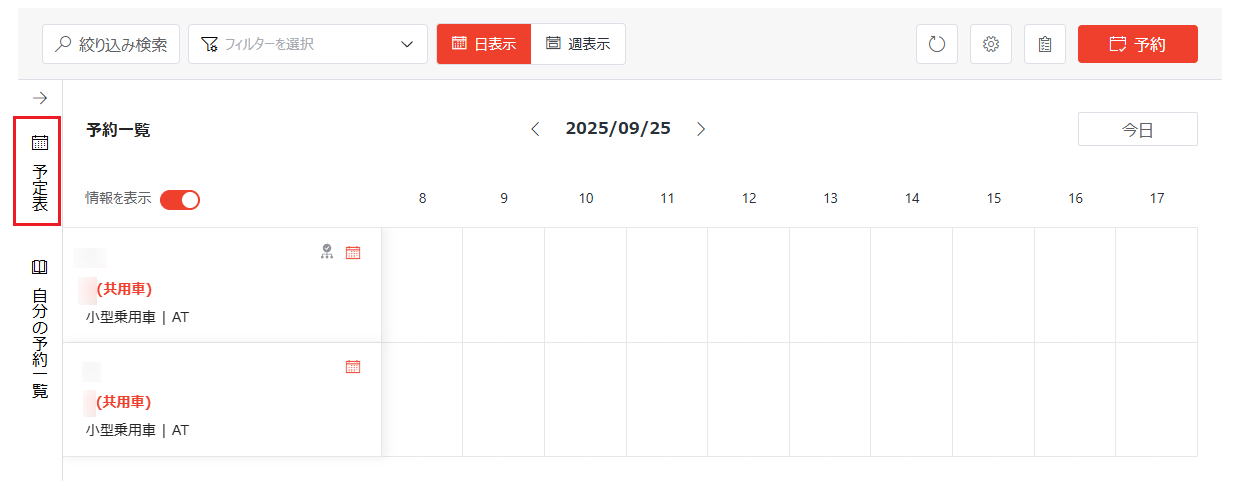
In the Vehicle Reservations section, available vehicles and their reservations are displayed by default. If the Area management level is enabled, the Structure section is available, and you can click a department name to display areas and direct vehicles within that department.
Direct vehicles are those that belong to the department but are not assigned to any specific area.
By clicking an area, vehicles within that area and their reservations are displayed in the right pane.
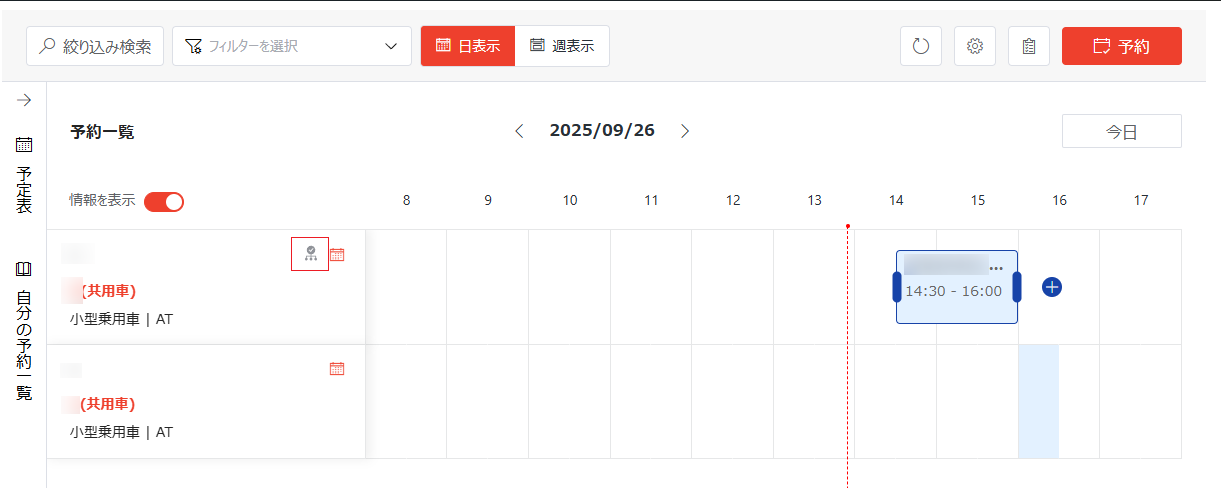
When the Show Info toggle is turned on, detailed information is displayed below the vehicle name. Turning off this toggle will hide the information to display more vehicles in the list. Vehicles whose reservation requests require administrator’s approval are marked with an approval required icon on the right side.

Reservations for vehicles are displayed to the right of the corresponding vehicles with the reserved time slot. The following actions are available in the section:

View and Manage Reservations – You can view the reservation information to the right of the corresponding vehicles, including the title, user for whom the vehicle is reserved, and the time slot of the reservation. You can edit the reservations by clicking the desired reservations and editing the information in the Registration window that appears on the right pane. You can also create reservation requests. For details, refer to the Vehicle Reservation Process section below.
View Vehicle Information – Click the desired vehicle number in the Vehicle Information field. The Vehicle Information window appears on the right pane. You can view the vehicle information in this window. Click Close or the close button to close the window.
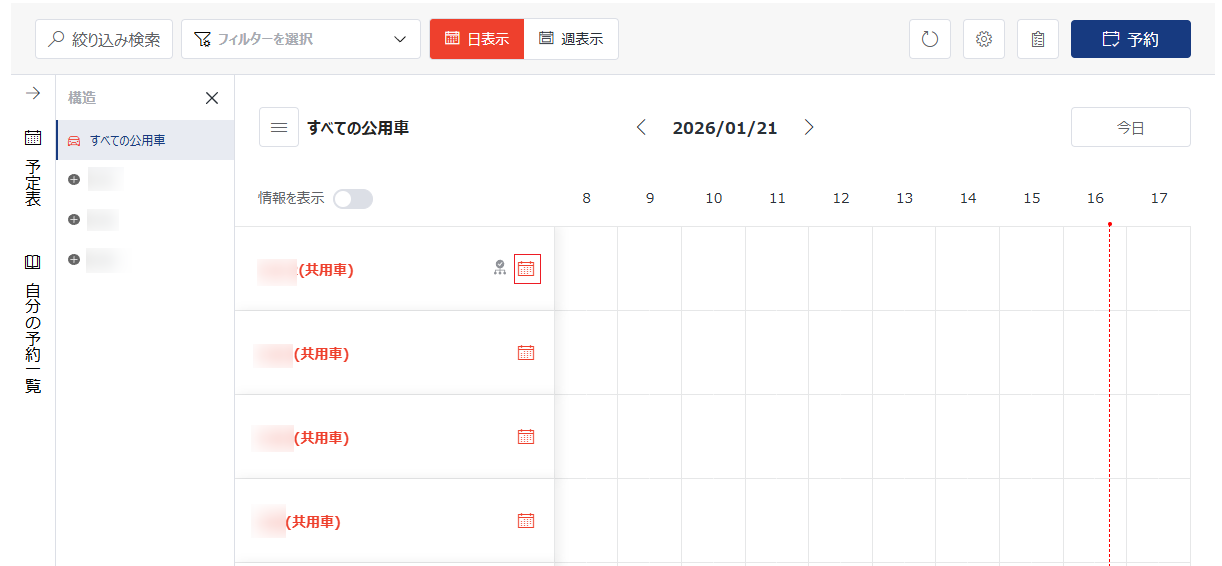
View Monthly Reservations – Click the Month button in the upper-right corner of the desired vehicle in the Vehicle Information field, and the Monthly Reservations page appears. The current date is displayed on the top by default. You can drag the scrollbar to the right of the calendar to view the reservations for other dates in the current month. You can also manage vehicle reservations on this page. For details, refer to Vehicle Reservation Process.

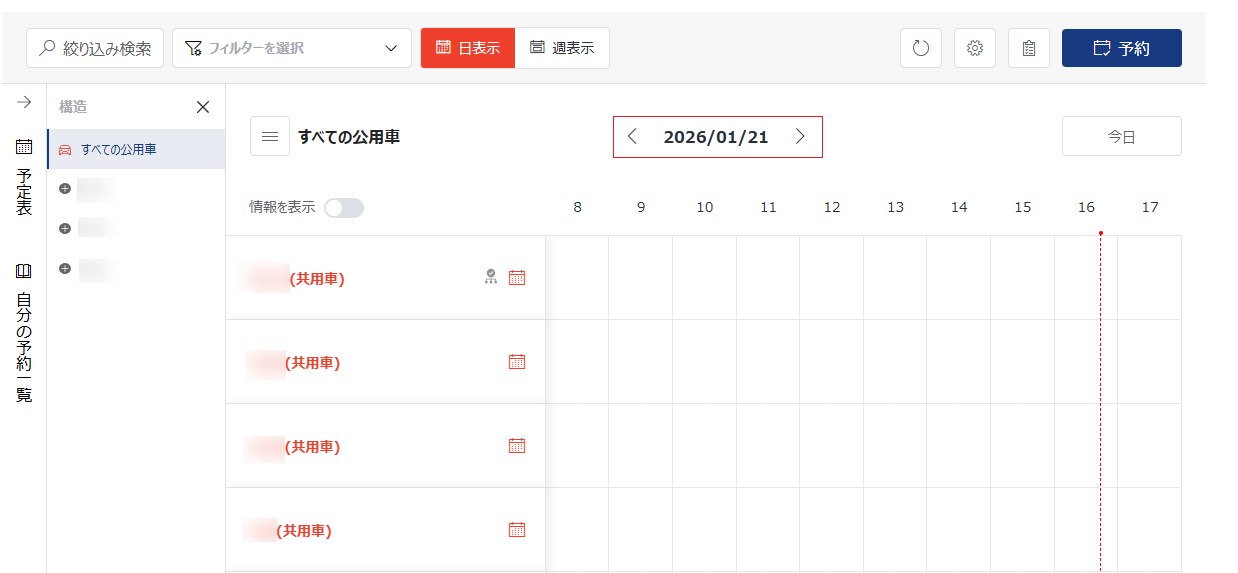
Change Display Time – Click the left arrow button to the left of the current date, week, or month to switch to previous dates, weeks, or months. Click the right arrow button to the right of the current date, week, or month to switch to later dates, weeks, or months.

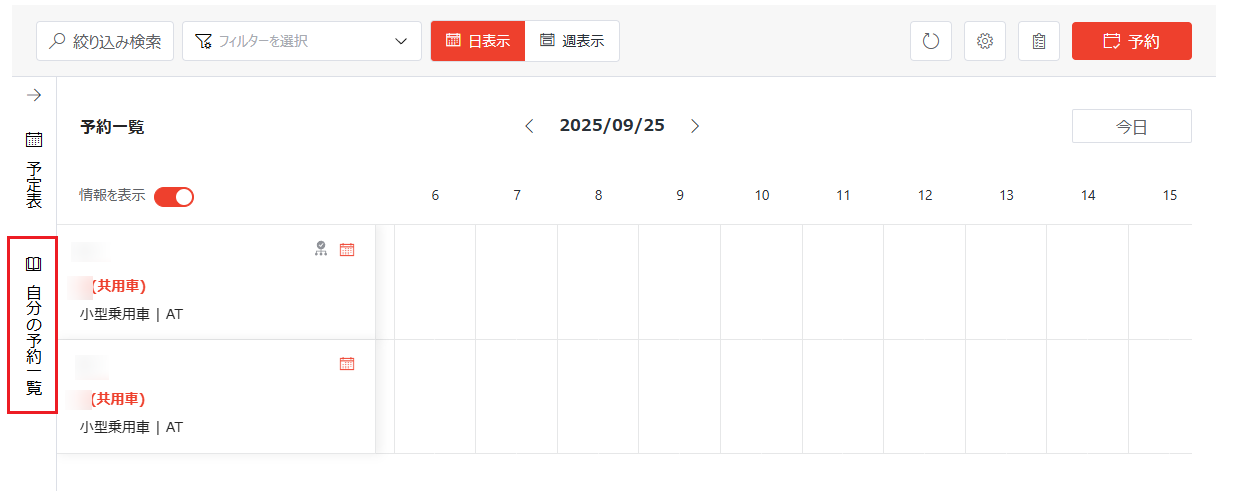
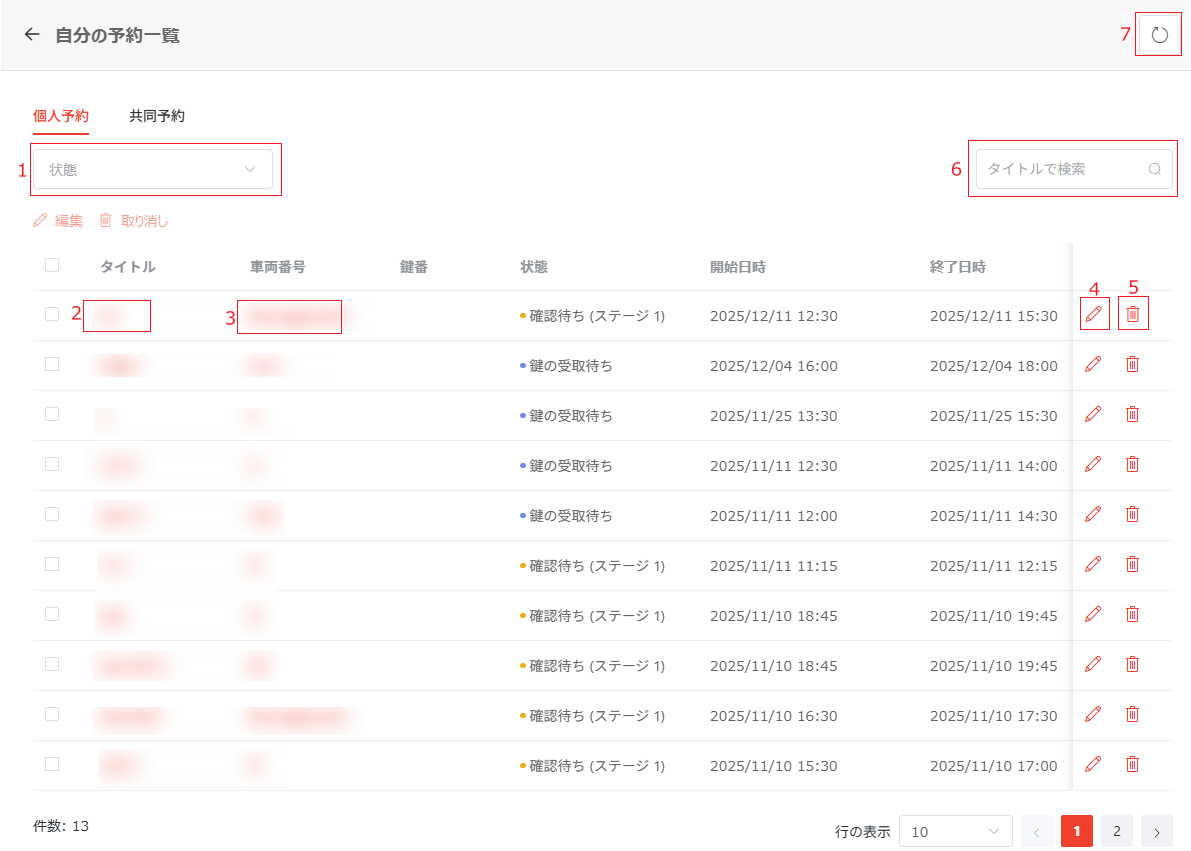
Click My Reservations to access the My Reservations page. The Personal Reservations tab is displayed by default on this page, where you can view and manage your submitted vehicle reservations. If you are an assigned assistant for collaboration units and other assistants have submitted reservations within these units, you can see an additional Collaborative Reservations tab, allowing you to view and manage vehicle reservations submitted by other assistants.

To go back to the app homepage, click the go back button in front of My Reservations.
In both tabs, you can view the information about vehicle reservations, including the title, vehicle number, key ID, reservation status, start and end time for reservations, and the departments holding the vehicles.

The following actions are available:
Filter Reservations – Use the filters in the upper-left corner of the table to filter reservations displayed on the table. The following filters are available in each tab:
Personal Reservations – Status.
Collaborative Reservations – Status, Reserve For.
View Reservation Details – Click the title link to access the reservation registration panel, where the reservation details are displayed. If necessary, you can update the reservation details or cancel this reservation in the panel.
View Vehicle Information – Click the vehicle number link to view the detailed information of the reserved vehicle.
Edit Reservation Details – To edit the reservation details, complete the following steps:
Select the reservation and click Edit above the table or click the edit button on the right of the reservation.
In the registration panel, update the reservation details based on your requirements
Click Update Reservation or Save to save your updates.
The reservation stage displayed in the registration panel varies with the reservation status. You can switch among stages to update the corresponding details.
When a collaboration unit is selected in the registration panel, you can specify a principal of the unit in the Reserve For field to make reservations on behalf of the principal.
Cancel Reservation – Select one or more reservations and click Cancel above the table. To cancel a specific reservation, you can also click the cancel button on the right of it.
Search Reservations – Use the search box in the upper-right corner of the table to search reservations by title.
Refresh – Click the refresh button in the upper-right corner of the page to refresh reservations displayed on the table.
Click Calendar to expand the Calendar section.

In this section, the calendar of the current month is displayed. The current date or week is highlighted. A dot is displayed under the dates with the vehicle reservations of the current user. You can click the desired date to view and manage vehicle reservations on the date in the Day view or click the date to view and manage vehicle reservations for the week in which the date resides in the Week view. Click Today below the calendar to go back to the current date or click This Week to go back to the current week.