
Home > アプリ スイート > アドレス帳 > アドレス帳アプリの概要
この記事をダウンロードアドレス帳アプリの概要
このアプリを使用してユーザーまたはグループとつながる方法については、以下のセクションを参照してください。
アプリ管理者はアプリ ホームページの右上にある 設定 ボタンをクリックして、設定 ページで管理を実行することができます。アプリ設定の詳細については、アドレス帳アプリの設定 を参照してください。
ユーザーの検索
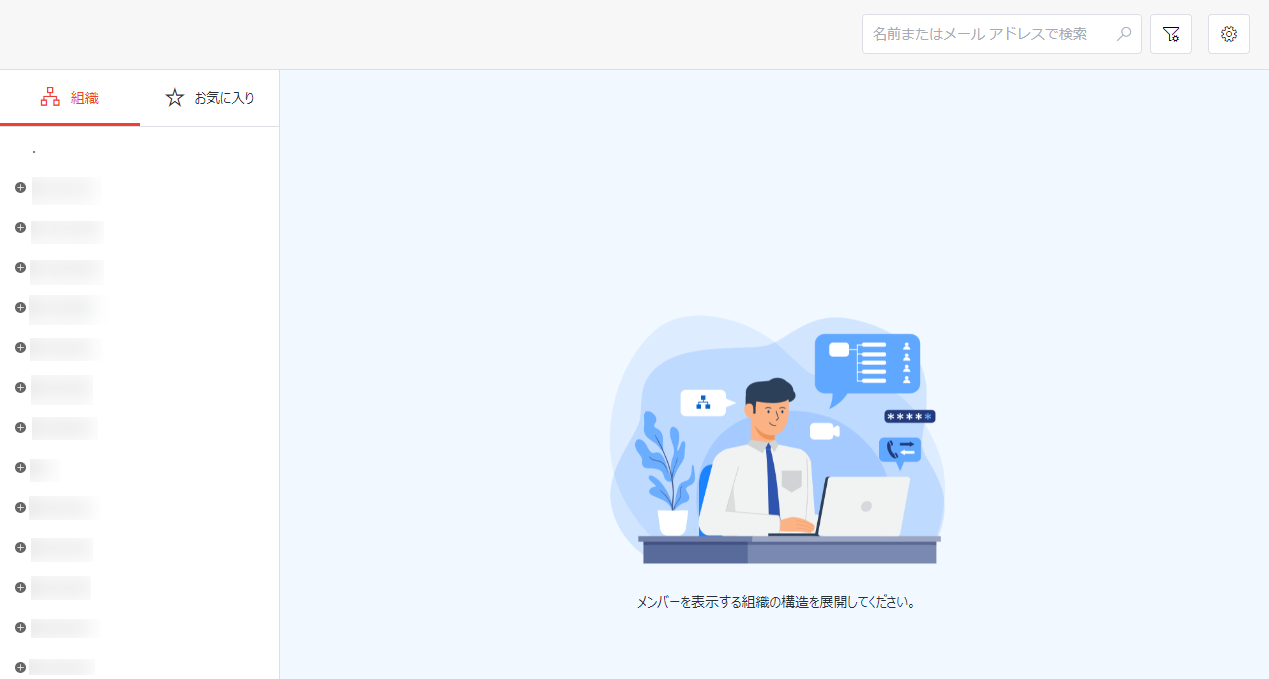
ホームページの上部で、以下のいずれかの方法で会社の従業員を検索することができます。

-
クイック検索 – 検索ボックスにユーザーの名前またはメール アドレスを入力し、検索 ボタンをクリックしてユーザーを検索します。
-
詳細検索 – 詳細検索 ボタンをクリックして、詳細検索 ウィンドウにアクセスします。このウィンドウで、1 件以上のフィールドにユーザーの情報を入力し、[検索] をクリックして検索条件を満たすユーザーをすべて検索します。[すべてクリア] をクリックして、入力した情報をすべてクリアすることができます。
検索結果は 検索 ページに表示されます。組織図を表示する チェックボックスを選択することで会社の構造を表示し、右ペインで構造ツリーを展開して該当する検索条件に一致する結果を表示することができます。
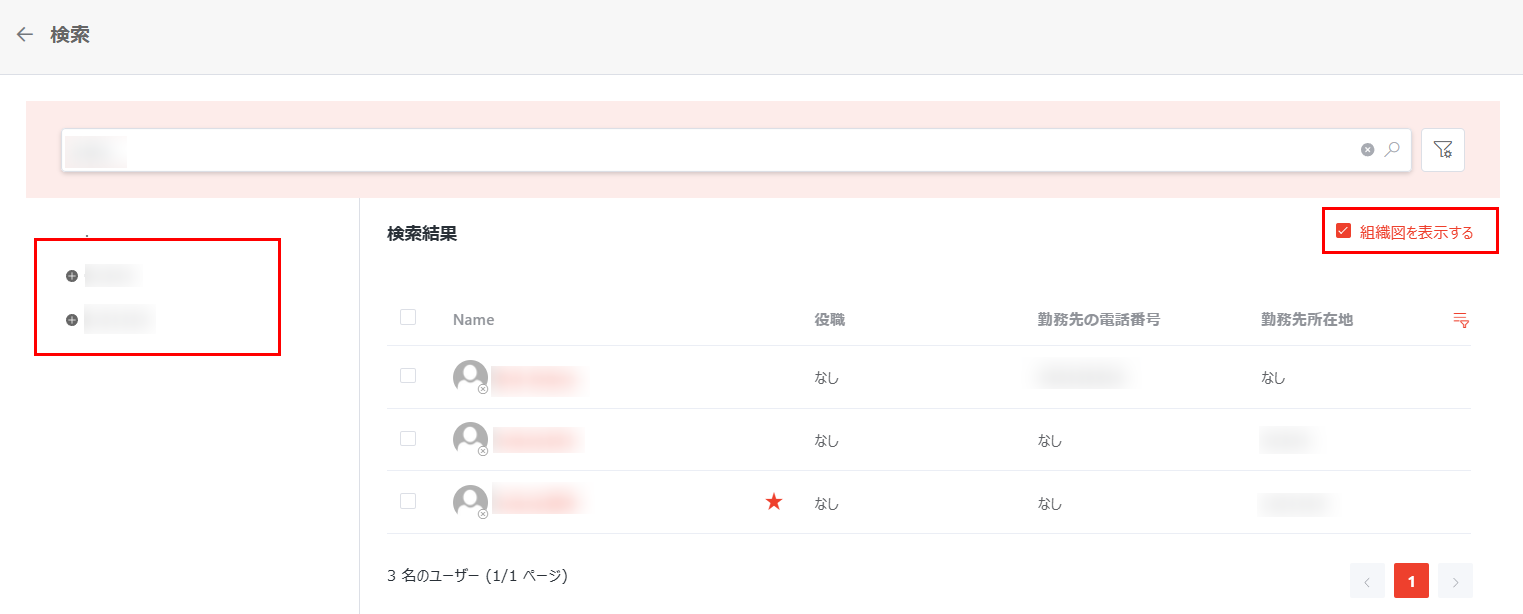
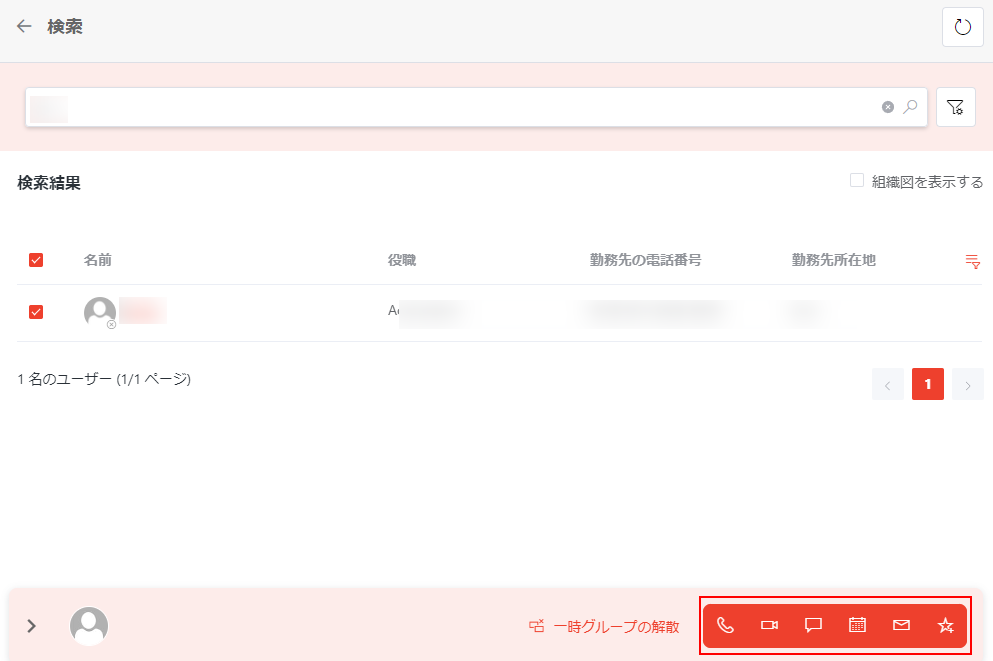
検索 ページで、ユーザーの状態およびプロファイルを表示したり、ユーザーを選択することで (複数選択可能)、音声通話・ビデオ通話・チャット・メールの開始、ユーザー予定表の表示、お気に入りグループへのユーザーの追加などのクイック アクションを実行したりすることができます。
-
ここに表示されているコミュニケーション方法はアプリ管理者によって制御されているため、アプリでサポートされているが、すべてのアプリがユーザーによって使用できるわけではありません。
-
アプリが Microsoft Teams に展開されている場合、以下のコミュニケーション方法で許可されているユーザー数は Microsoft Teams によって制限されます。
-
チャットの場合、許可されているユーザー数が 250 です。
-
音声通話・ビデオ通話・会議の場合、許可されているユーザー数が 1,000 です。
-
お気に入りグループの場合、許可されているメンバー数が 1,000 です。
-
ユーザーの情報および予定表の表示
左ペインに、組織 および お気に入り 2 つのタブが表示されています。

組織 タブで、構造ツリーを展開し、メンバーを表示するグループをクリックします。すべてのグループ メンバーおよびメンバーの基本情報は右ペインに表示されます。
お気に入り タブで、すべてのお気に入りグループが左ペインに一覧表示されています。グループをクリックすると、すべてのグループ メンバーが右ペインに表示されます。
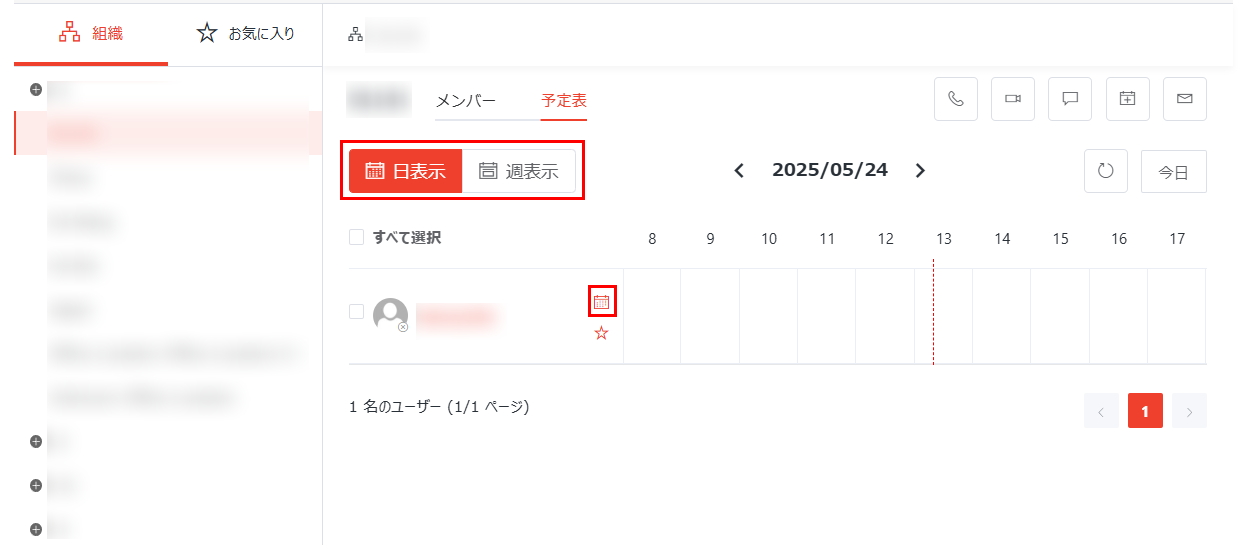
各グループで、グループ メンバーおよびメンバーの基本情報は メンバー タブに表示され、グループ メンバーの予定表が 予定表 タブに表示されます。予定表 タブで、以下 3 つのビューが利用できます。
アプリ管理者が予定表機能を有効にした場合にのみ、予定表タブは表示されます。
-
日表示 – 既定では、日表示ビューが表示されます。予定表の上にある [日表示] をクリックして、他のビューから日表示ビューに切り替えます。
-
週表示 – 予定表の上にある [週表示] をクリックして週表示ビューに切り替えます。
-
月表示 – ユーザーの右側にある月表示ビュー ボタンをクリックして、そのユーザーの月間予定表を表示します。
日表示ビューでユーザーの右側に時間帯をドラッグして 会議のスケジュール ボタンをクリックするか、週表示または月表示ビューで 会議のスケジュール ボタンをクリックして、ユーザーとの会議をスケジュールすることができます。
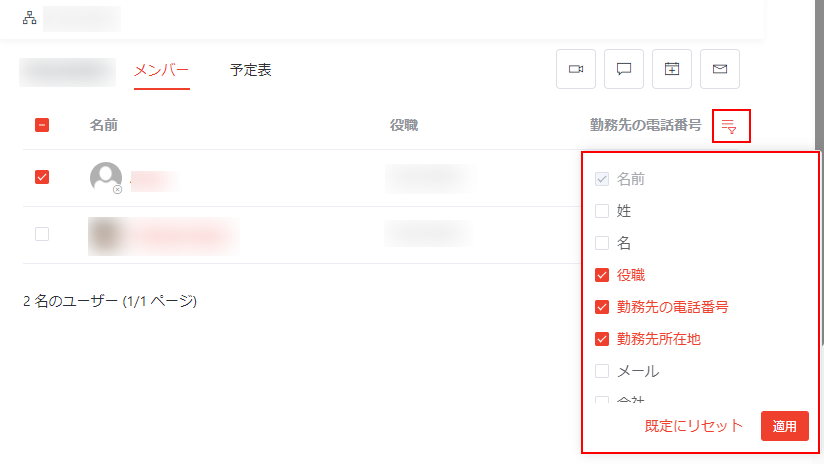
ユーザー テーブルに表示するユーザー情報をカスタマイズするには、以下の説明を参照してください。
-
テーブルの右上にある 列の管理 ボタンをクリックして、列の管理ウィンドウを表示します。
-
ユーザー テーブルに表示する列を選択し、表示しない列を選択解除します。
-
[適用] をクリックして構成を適用します。[既定にリセット] をクリックして、既定の構成にリセットします。
グループとのつながり
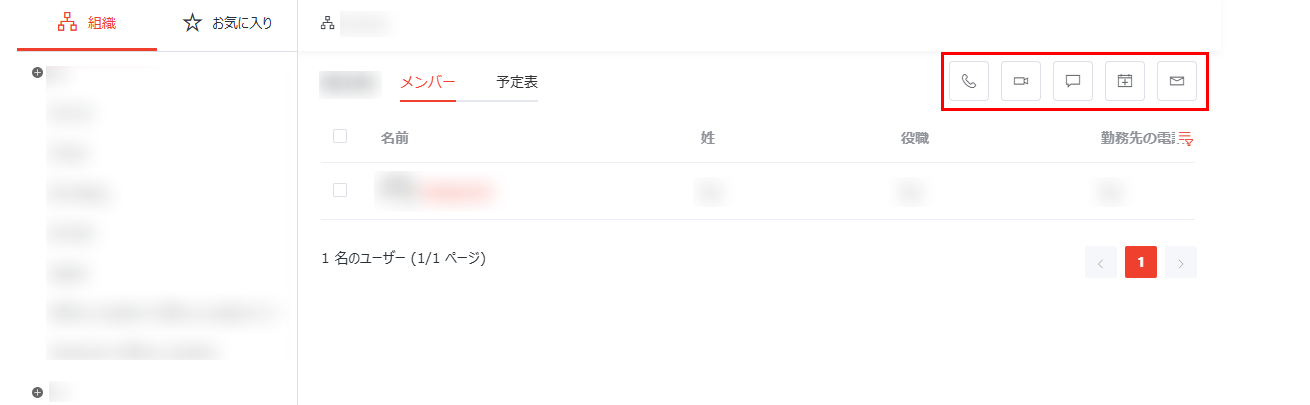
各グループに対して、以下のグループ アクションを実行することができます。
-
グループの音声通話 – メンバー全員との音声通話を開始 ボタンをクリックすることですべてのグループ メンバーとの音声通話を開始すると、Microsoft Teams のグループ会議に移動されます。
-
グループ会議 – メンバー全員とのビデオ通話を開始 ボタンをクリックすることですべてのグループ メンバーとのビデオ通話を開始すると、Microsoft Teams のグループ会議に移動されます。
-
グループ チャット – メンバー全員とチャット ボタンをクリックすることで、すべてのグループ メンバーとチャットすることができます。チャットの開始 ウィンドウで [OK] をクリックすると、Microsoft Teams のグループ チャット ページに移動されます。
-
グループ会議のスケジュール – メンバー全員との会議をスケジュール ボタンをクリックすることですべてのグループ メンバーとの会議をスケジュールすると、Microsoft Teams の会議をスケジュール ページに移動されます。
NOTE-
アプリ管理者による会議室予約アプリが接続されており、アプリのユーザーとして追加されている場合、予約登録 パネルが表示され、アプリによって管理されている会議室を予約することができます。
-
予約登録 パネルで、指定した期間が会議室予約アプリで許可されている期間を超過している場合、アプリによって管理されている会議室を選択することはできません。許可されている予約期間に変更するか、[登録] をクリックして Teams で指定した期間の会議の作成を続行することができます。
-
予約登録 パネルで、会議室を選択せずに [登録] をクリックすると、Teams の新しい会議ページが表示されます。既に入力した情報は自動的に同期されています。ただし、イベント を選択する場合、会議室を選択せずに [登録] をクリックすると、エラー メッセージが表示されます。
-
予約登録 パネルの 参加者 セクションにグループ メンバーの全員が自動入力されています。会議の参加者が制限されている会議室アプリに接続されている場合、これらの参加者はチェックされ、範囲外のユーザーは赤枠で表示されます。範囲外のユーザー・グループは会議の参加者・予約者として追加できないため、[無効な参加者を削除] をクリックし、無効な参加者を削除してから予約を続行してください。
Microsoft の遅延により、新しく作成された会議が予定表に表示されるまでにしばらく時間がかかる場合があります。最新の会議スケジュールを表示するには、更新 ボタンをクリックしてください。
-
-
メールの送信 – メンバー全員にメールを送信 ボタンをクリックすることで、すべてのグループ メンバーにメールを送信することができます。クリックすると、メールを送信するアプリを選択するページに移動されます。
NOTE-
既定アプリがブラウザーに設定されている場合、ブラウザーの制限により、メールを正常に送信できない場合があります。既定アプリをローカル メール アプリに設定することを推奨します。
-
旧バージョンの Outlook を使用しているユーザーの場合、メールを送信する際にエラーが発生します。メールを正常に送信できるようにするには、最新バージョンの Outlook を使用するか、旧バージョンの Outlook > ファイル > オプション > メール に移動して、メッセージの送信 セクションの 宛先の区切り文字にコンマも使用できる オプションを選択してください。
-
-
ここに表示されているコミュニケーション方法はアプリ管理者によって制御されているため、アプリでサポートされているが、すべてのアプリがユーザーによって使用できるわけではありません。
-
アプリが Microsoft Teams に展開されている場合、以下のコミュニケーション方法で許可されているユーザー数は Microsoft Teams によって制限されます。
-
チャットの場合、許可されているユーザー数が 250 です。
-
音声通話・ビデオ通話・会議の場合、許可されているユーザー数が 1,000 です。
-
ユーザーとのつながり
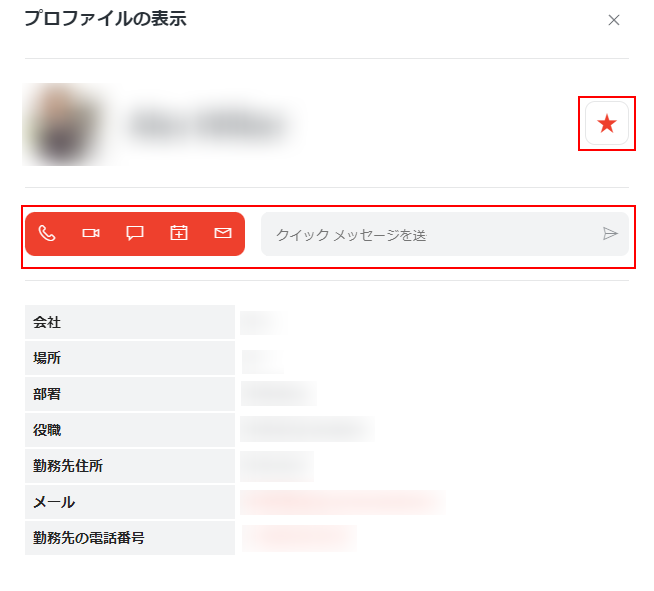
各ユーザーに対して、ユーザー写真の右下にあるアイコンで、ユーザーの状態を確認することができます。ユーザー写真にマウス カーソルを移動させ、表示されるユーザー プロファイル カードでユーザーのプロファイルを表示することができます。ユーザー プロファイル カードの下部にある [その他の連絡先情報を表示] をクリックして、プロファイルの表示 ウィンドウでその他の連絡先情報を表示することができます。名前のリンクをクリックして、直接 プロファイルの表示 にアクセスすることもできます。ユーザー プロファイルで、以下のアクションを実行することができます。
-
音声通話の開始 – 音声通話 ボタンをクリックし、Microsoft Teams の音声通話ページに移動します。
-
ビデオ通話の開始 – ビデオ通話 ボタンをクリックし、Microsoft Teams のビデオ通話ページに移動します。
-
チャットの開始 – チャット ボタンをクリックし、ユーザーとチャットする Microsoft Teams ページに移動します。
-
会議のスケジュール設定 – 会議のスケジュール設定 ボタンをクリックし、Microsoft Teams の会議をスケジュールするページに移動します。
NOTE-
会議の開始 ボタンをクリックすると、Teams で新しい会議ページが表示されます。アプリ管理者による会議室予約アプリが接続されており、アプリのユーザーとして追加されている場合、予約登録 パネルが表示され、アプリによって管理されている会議室を予約することができます。
-
予約登録 パネルで、指定した期間が会議室予約アプリで許可されている期間を超過している場合、アプリによって管理されている会議室を選択することはできません。許可されている予約期間に変更するか、[登録] をクリックして Teams で指定した期間の会議の作成を続行することができます。
-
予約登録 パネルで、会議室を選択せずに [登録] をクリックすると、Teams の新しい会議ページが表示されます。既に入力した情報は自動的に同期されています。ただし、イベント を選択する場合、会議室を選択せずに [登録] をクリックすると、エラー メッセージが表示されます。
Microsoft の遅延により、新しく作成された会議が予定表に表示されるまでにしばらく時間がかかる場合があります。最新の会議スケジュールを表示するには、更新 ボタンをクリックしてください。
-
-
メールの送信 – メールを送信 ボタンをクリックし、メールを送信するアプリを選択するページに移動します。
NOTE-
既定アプリがブラウザーに設定されている場合、ブラウザーの制限により、メールを正常に送信できない場合があります。既定アプリをローカル メール アプリに設定することを推奨します。
-
旧バージョンの Outlook を使用しているユーザーの場合、メールを送信する際にエラーが発生します。メールを正常に送信できるようにするには、最新バージョンの Outlook を使用するか、旧バージョンの Outlook > ファイル > オプション > メール に移動して、メッセージの送信 セクションの 宛先の区切り文字にコンマも使用できる オプションを選択してください。
-
-
クイック メッセージの送信 – クイック メッセージを送信 テキスト ボックスにクイック メッセージを入力し、送信 ボタンをクリックしてメッセージを送信します。
-
お気に入りに追加 – ユーザーをお気に入りグループに追加するには、以下の説明を参照してください。
-
お気に入りに追加 ボタンをクリックして、お気に入りへの追加 ウィンドウを表示します。
-
メンバーを追加するお気に入りグループを選択します。
NOTEお気に入りグループが存在しない場合、グループ名入力して [追加] をクリックします。これにより、お気に入りグループが作成され、ユーザーがそのグループに追加されます。
-
既存のお気に入りグループを選択する – ドロップダウン リストから既存のお気に入りグループを選択します。
-
新しいお気に入りグループを作成する – テキスト ボックスにグループ名を入力します。
-
-
[追加] をクリックして、ユーザーをお気に入りグループに追加します。
NOTE組織 タブの目的のユーザーにマウス カーソルを移動させ、お気に入りに追加 ボタンをクリックすることで、ユーザーをお気に入りグループに追加することもできます。
-
-
お気に入りから削除 – お気に入りから削除 ボタンをクリックします。
-
ユーザーが 1 件のお気に入りグループに追加されている場合、リマインダー ウィンドウで [OK] をクリックしてユーザーをお気に入りグループから削除します。
-
ユーザーが複数のお気に入りグループに追加されている場合、お気に入りからの削除 ウィンドウが表示されます。ドロップダウン リストから希望のお気に入りグループを選択し、[保存] をクリックしてユーザーを選択したグループから削除します。
NOTEユーザー テーブルの お気に入りから削除 ボタンをクリックして、ユーザーをお気に入りグループから直接削除することもできます。
-
-
ここに表示されているコミュニケーション方法はアプリ管理者によって制御されているため、アプリでサポートされているが、すべてのアプリがユーザーによって使用できるわけではありません。
-
アプリが Microsoft Teams に展開されている場合、以下のコミュニケーション方法で許可されているユーザー数は Microsoft Teams によって制限されます。
-
チャットの場合、許可されているユーザー数が 250 です。
-
音声通話・ビデオ通話・会議の場合、許可されているユーザー数が 1,000 です。
-
お気に入りグループの場合、許可されているメンバー数が 1,000 です。
グループ内 / グループ間のメンバーとのつながり
1 件のグループ内の 1 名以上のユーザーまたは異なるグループ内の複数のユーザーとの会議のスケジュール、音声通話・ビデオ通話・メール・チャットの開始、ユーザー予定表の表示、お気に入りグループへのユーザーの追加を実行するには、以下の説明を参照してください。
-
ここに表示されているコミュニケーション方法はアプリ管理者によって制御されているため、アプリでサポートされているが、すべてのアプリがユーザーによって使用できるわけではありません。
-
アプリが Microsoft Teams に展開されている場合、以下のコミュニケーション方法で許可されているユーザー数は Microsoft Teams によって制限されます。
-
チャットの場合、許可されているユーザー数が 250 です。
-
音声通話・ビデオ通話・会議の場合、許可されているユーザー数が 1,000 です。
-
お気に入りグループの場合、許可されているメンバー数が 1,000 です。
-
-
目的のユーザーが存在するグループを選択します。すべてのグループ メンバーが右ペインに表示されます。
-
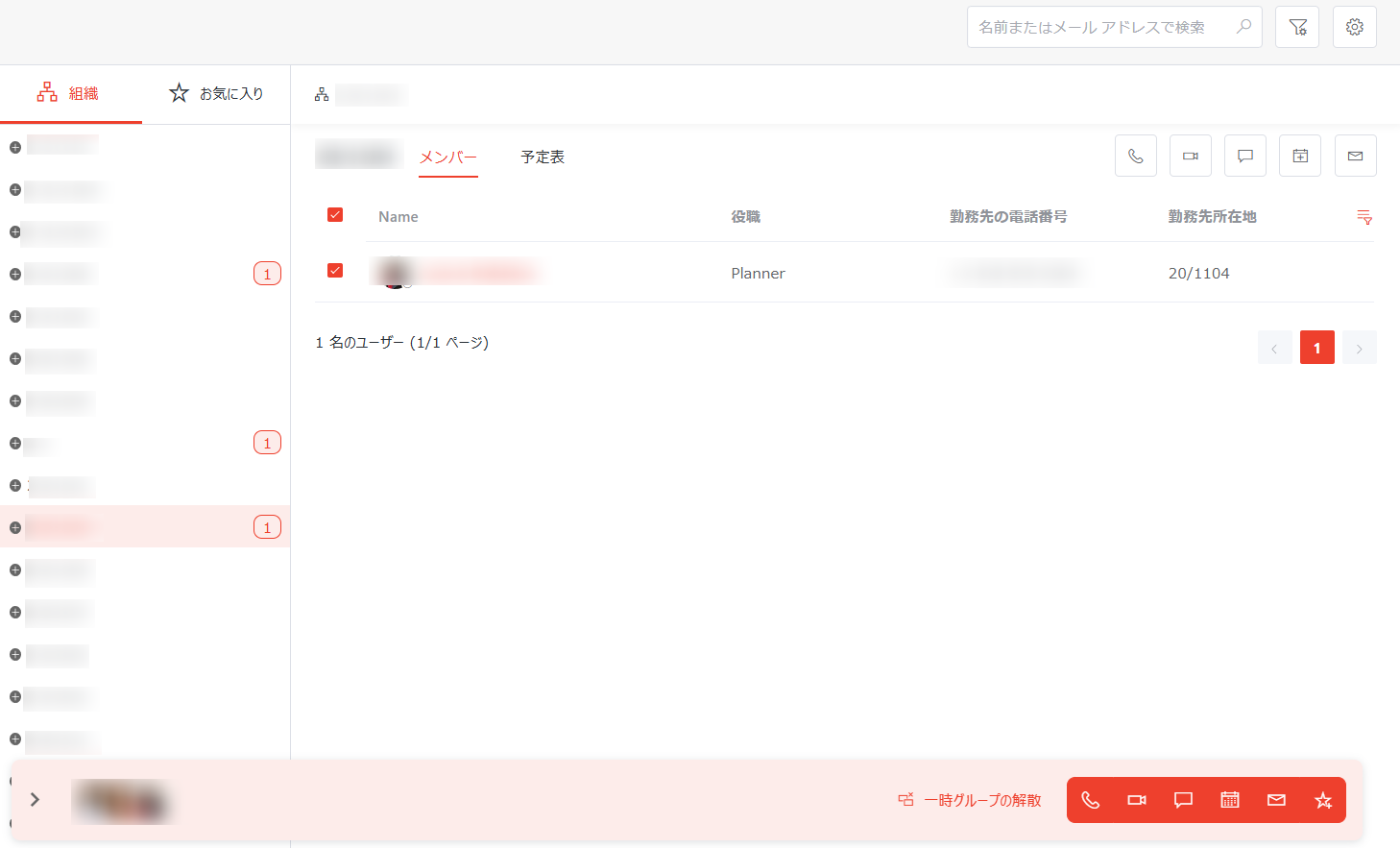
目的のユーザーを選択します。選択したユーザーはページの下部に表示されます。
-
別のグループのメンバーを追加する場合、上記の手順を繰り返して、追加するすべてのユーザーを選択します。
-
ユーザーの追加後、以下のアクションを実行することができます。

アクション バー
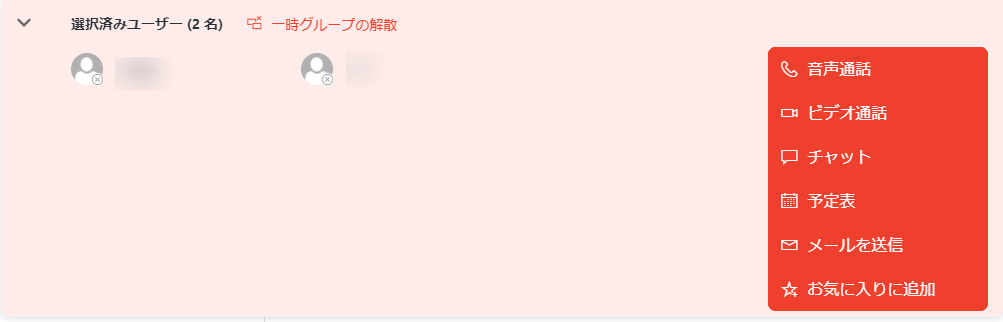
アクション パネル
-
音声通話の開始 – ページの右下にある 音声通話 ボタンをクリックするか、選択したユーザーの前にある 展開 ボタンをクリックして [音声通話] をクリックします。Microsoft Teams の音声通話ページに移動されます。
-
ビデオ通話の開始 – ページの右下にある ビデオ通話 ボタンをクリックするか、選択したユーザーの前にある 展開 ボタンをクリックして [ビデオ通話] をクリックします。Microsoft Teams のビデオ通話ページに移動されます。
-
チャットの開始 – ページの右下にある チャット ボタンをクリックするか、選択したユーザーの前にある 展開 ボタンをクリックして [チャット] をクリックします。チャットの開始 ウィンドウで [OK] をクリックすると、ユーザーとチャットする Microsoft Teams ページに移動されます。
-
予定表の表示 – ページの右下にある 予定表 ボタンをクリックするか、選択したユーザーの前にある 展開 ボタンをクリックして [予定表] をクリックします。選択したユーザーの予定表を表示する 予定表の表示 ページに移動されます。このページで、時間帯をドラッグし、会議のスケジュール ボタンをクリックして、選択したユーザーとの会議をスケジュールします。その後、Microsoft Teams の会議をスケジュールするページに移動されます。会議の詳細を表示するには、カレンダーで会議カードをクリックします。
カレンダーからアプリのホームページに戻るには、ページの右上にある [ホームページに移動] をクリックします。
NOTE-
会議の開始 ボタンをクリックすると、Teams で新しい会議ページが表示されます。アプリ管理者による会議室予約アプリが接続されており、アプリのユーザーとして追加されている場合、予約登録 パネルが表示され、アプリによって管理されている会議室を予約することができます。
-
予約登録 パネルで、指定した期間が会議室予約アプリで許可されている期間を超過している場合、アプリによって管理されている会議室を選択することはできません。許可されている予約期間に変更するか、[登録] をクリックして Teams で指定した期間の会議の作成を続行することができます。
-
予約登録 パネルで、会議室を選択せずに [登録] をクリックすると、Teams の新しい会議ページが表示されます。既に入力した情報は自動的に同期されています。ただし、イベント を選択する場合、会議室を選択せずに [登録] をクリックすると、エラー メッセージが表示されます。
-
予約登録 パネルの 参加者 セクションに会議の参加者が自動入力されています。会議の参加者が制限されている会議室アプリに接続されている場合、これらの参加者はチェックされ、範囲外のユーザーは赤枠で表示されます。範囲外のユーザー・グループは会議の参加者・予約者として追加できないため、[無効な参加者を削除] をクリックし、無効な参加者を削除してから予約を続行してください。
Microsoft の遅延により、新しく作成された会議が予定表に表示されるまでにしばらく時間がかかる場合があります。最新の会議スケジュールを表示するには、更新 ボタンをクリックしてください。
-
-
メールの送信 – ページの右下にある メールを送信 ボタンをクリックするか、選択したユーザーの前にある 展開 ボタンをクリックして [メールを送信] をクリックします。選択したユーザーにメールを送信するアプリを選択するページに移動されます。
NOTE-
既定アプリがブラウザーに設定されている場合、ブラウザーの制限により、メールを正常に送信できない場合があります。既定アプリをローカル メール アプリに設定することを推奨します。
-
旧バージョンの Outlook を使用しているユーザーの場合、メールを送信する際にエラーが発生します。メールを正常に送信できるようにするには、最新バージョンの Outlook を使用するか、旧バージョンの Outlook > ファイル > オプション > メール に移動して、メッセージの送信 セクションの 宛先の区切り文字にコンマも使用できる オプションを選択してください。
-
-
お気に入りに追加 – ページの右下にある お気に入りに追加 ボタンをクリックするか、選択したユーザーの前にある 展開 ボタンをクリックして [お気に入りに追加] をクリックします。お気に入りへの追加 ウィンドウが表示されます。メンバーを追加するお気に入りグループを選択します。
NOTEお気に入りグループが存在しない場合、グループ名入力して [追加] をクリックします。これにより、お気に入りグループが作成され、ユーザーがそのグループに追加されます。
-
既存のお気に入りグループを選択する – ドロップダウン リストから既存のお気に入りグループを選択します。
-
新しいお気に入りグループを作成する – テキスト ボックスにグループ名を入力します。
[追加] をクリックして、選択したユーザーをお気に入りグループに追加します。
-
-
一時グループの解散 – アクション ボタンの左にある [一時グループの解散] をクリックするか、選択したユーザーの前にある 展開 ボタンをクリックして [一時グループの解散] をクリックします。一時グループの解散 ウィンドウで [OK] をクリックして、一時グループを解散します。
-
お気に入りの管理
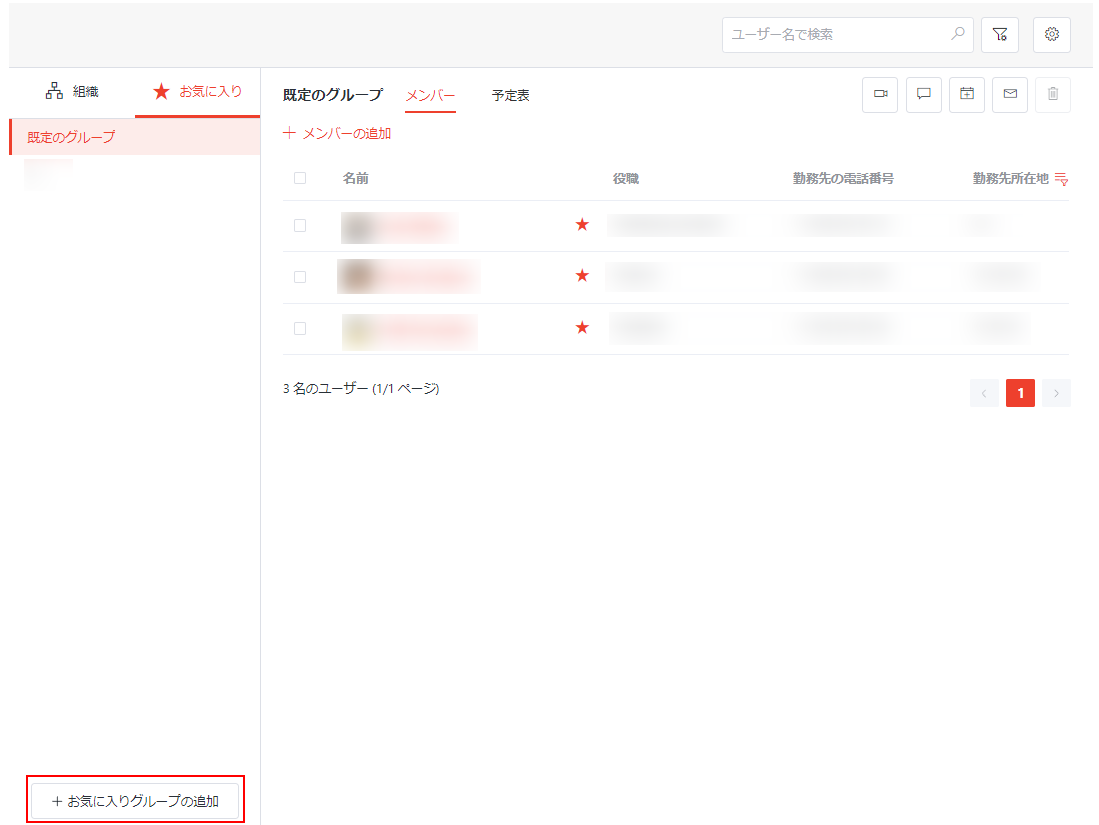
お気に入り タブで、すべてのお気に入りグループが左ペインに一覧表示されています。お気に入りグループを追加するには、以下の説明を参照してください。
-
[お気に入りグループの追加] をクリックします。お気に入りグループの追加 ウィンドウが表示されます。
-
テキスト ボックスにグループ名を入力します。
-
[追加] をクリックしてお気に入りグループを追加します。
特定のお気に入りグループの場合、以下のステップを参照して、グループ メンバーの管理、グループ名の編集、グループの削除を実行することができます。
-
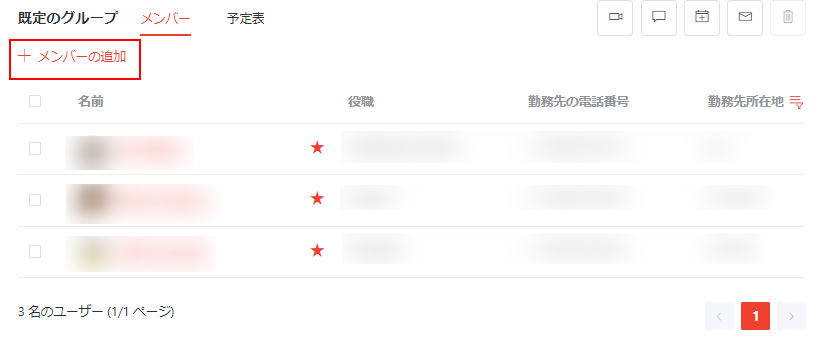
メンバーの追加 – 現在のお気に入りグループにメンバーを追加するには、以下の説明を参照してください。
-
グループ リストから目的のグループをクリックし、グループ メンバー リストにアクセスします。
-
リボン上の [メンバーの追加] をクリックして、ユーザーの選択 ウィンドウを表示します。
-
構造ツリーを展開してグループに追加するユーザーを選択するか、左上にある検索ボックスを使用して名前で特定のユーザーを検索します。
-
追加するすべてのユーザーを選択した後、[保存] をクリックして選択を保存します。選択したユーザーは現在のグループに追加されます。
-
-
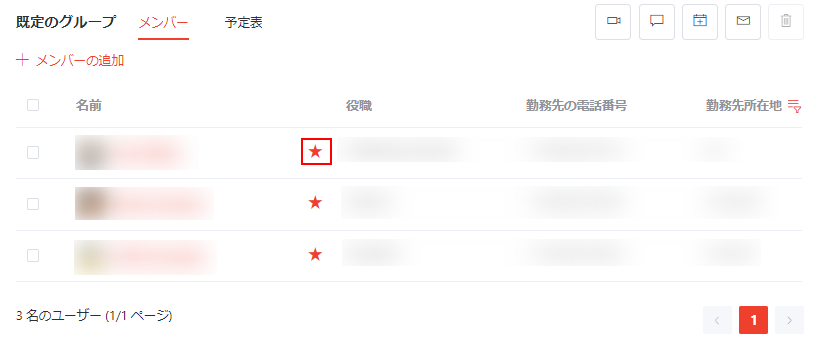
メンバーの削除 – ユーザーの横にある お気に入りから削除 ボタンをクリックして、ユーザーを現在のお気に入りグループから削除します。
-
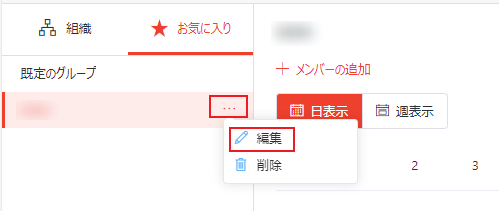
グループ名の編集 – お気に入りグループの名前を編集するには、以下の説明を参照してください。
-
その他のアクション ボタン > 編集 をクリックします。
-
編集 ウィンドウで、新しいグループ名を入力し、[編集] をクリックしてグループ名を更新します。
-
-
お気に入りグループの削除 – その他のアクション ボタン > 削除 をクリックして、お気に入りグループを削除します。
会議情報の表示
会議がスケジュールされた後、ユーザーが会議の詳細情報を表示したり、添付ファイルをダウンロードしたり、各出席者の会議に対する応答状態を表示したりすることができます。プライベート会議の場合、予約者氏名および会議の出席者のみは会議の詳細の表示・添付ファイルのダウンロード・出席者の応答状態の表示を実行できます。
ユーザーが会議の詳細情報を表示できるかどうかは、Outlook で付与された権限に従います。対応する権限が付与されていない場合、正常な会議の詳細情報もプライベート会議の詳細情報も表示できません。
会議の出席者である場合、会議情報を表示するには、予定表 タブに移動します。会議をクリックすると、会議情報を表示するポップアップが表示されます。このポップアップで、会議の件名、場所、タイプ、出席者の会議に対する応答状態、予約者氏名を表示することができます。以下のアクションを実行することができます。
-
[参加] ボタンをクリックして、Microsoft Teams に移動し、会議に参加します。
-
添付ファイルがある場合、ファイルをクリックしてダウンロードします。
-
[イベントの表示] をクリックして、イベントの詳細情報を表示します。
-
マウス カーソルをユーザーに合わせると、ユーザーの詳細情報を表示するポップアップが表示され、ユーザーとつながることができます。ユーザーとのつながりの詳細については、上記の ユーザーとのつながり を参照してください。
会議をダブルクリックするか、会議情報を表示するポップアップで [イベントの表示] をクリックすると、イベントの詳細 パネルが表示されます。このパネルで、会議の件名・場所・タイプ・予約者氏名・開催者・すべての出席者の会議に対する応答状態を表示することができます。以下のアクションを実行することができます。
プライベート会議の場合、予約者および出席者以外のユーザーに、会議件名に [プライベート会議] が表示され、イベントの表示 ボタンが表示されません。
-
添付ファイルがある場合、ファイルをクリックしてダウンロードします。
-
マウス カーソルをユーザーに合わせると、ユーザーの詳細情報を表示するポップアップが表示され、ユーザーとつながることができます。ユーザーとのつながりの詳細については、上記の ユーザーとのつながり を参照してください。