お知らせ: このページは現在英語のみで提供されています。日本語版は準備中です。ご不便をおかけして申し訳ございません。

Address Book

Address Book enables users to go through employees in your organization within an open-and-shut organization structure. It serves as a self-service tool for employees to connect with others and arrange business communication quickly. Administrators can configure the organization structure that conforms with the organization requirements. Employees can create favorite groups and manage group members flexibly based on the needs of their daily work.

Before app users can use this app for business communication, app administrators must follow the steps below to complete the necessary configurations:

NOTE

To display user calendars in this app, make sure that your Microsoft 365 Global Administrator approves the Calendars.ReadBasic.All, Calendars.ReadBasic, and Calendars.Read.Shared permissions requests in the SharePoint admin center.

  1. Click the Settings button in the upper-right corner of the app homepage to access the Settings page.

    Settings.

  2. Click User Management to access the User Management page. On the page, make sure to add all intended administrators and users here since access to this app is restricted to the specified app members here. For details, refer to the User Management section on the Settings for Address Book App page.

  3. After all app administrators and users are added, click the go back button next to Settings or click Settings to go back to the Settings page.

  4. Click Organization Structure Configuration to access the Organization Structure Configuration page.

  5. Choose one of the following options under How you want to configure the organization structure and complete the corresponding configurations. When you finish the configurations, click Save.

Configure with Microsoft Entra ID Properties

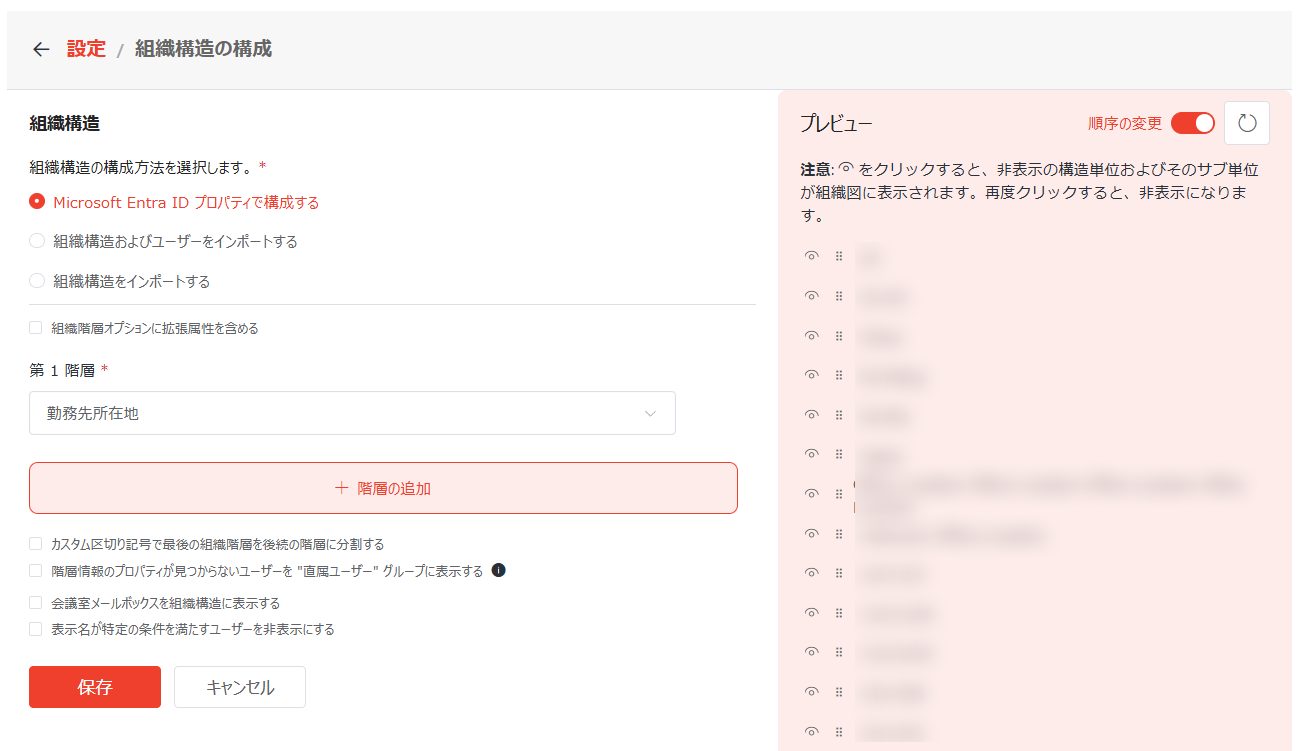
With this option selected, you can choose whether to Include Extension Attributes in organization level options. 2 organization levels are displayed with Office Location and Department selected by default. You can select a different option from the drop-down list to define the desired organization level.

Configure with Microsoft Entra ID Properties.

You can add an organization level by clicking Add Level and then selecting an option for the level from the drop-down list. At most 10 organization levels can be configured. You can delete an organization level by clicking the delete button to the right of the level.

Choose whether to Split the last organization level to subsequent levels by the custom separator. With this checkbox selected, enter a separator in the text box. For example, the last organization level is configured as Department and the department information of employees in your company is composed of ‘department-division’ in the Microsoft Entra ID. You can use “-” as the separator and the division will be used as a new organization level that follows the department.

Choose whether to Display users with empty property values under the “Direct Users” group. With this option selected, the users for whom values of the user property used as an organization level cannot be found will be displayed under the “Direct Users” group of the parent organization level. Otherwise, the users can only be displayed when the parent organization level is expanded.

Choose whether to Display room mailboxes in organization structure. With this option selected, room mailboxes in your organization will be shown the organization charts. Otherwise, the room mailboxes will be hidden.

Choose whether to Hide users whose display names contain or start with specific texts. With this option selected, configure the condition. You can add a condition by clicking Add Condition or delete a condition by clicking the delete button. Users that meet the configured conditions will be hidden from organization charts, favorites, and search results.

NOTE
  • If users that meet the configured conditions have concurrent duties, they will be hidden from all associated departments.

  • Departments that have all users hidden will be hidden from this app.

  • If the address book app is connected with a conference room reservation app, the hidden users can still be searched and specified as meeting participants when reserving a conference room using the connected app.

You can view the organization structure in the Preview section. The company information is retrieved from Microsoft Entra ID based on your configurations. The following actions are available in the section:

  • Change Order – The organization unit layout in the Preview section determines how organization units are displayed on organization charts in this app. To change the display order, turn on the Change Order switch and drag the organization units to your desired locations.

  • Hide Organization Unit – Click the hide button to hide a structure unit together with its sub-units from organization charts.

  • Show Organization Unit – Click the show button to show a hidden structure unit together with its sub-units on organization charts.

  • Refresh Organization Structure – Click the refresh button to Synchronize the latest organization structure from Microsoft Entra ID based on your configurations.

Import Organization Structure and Users

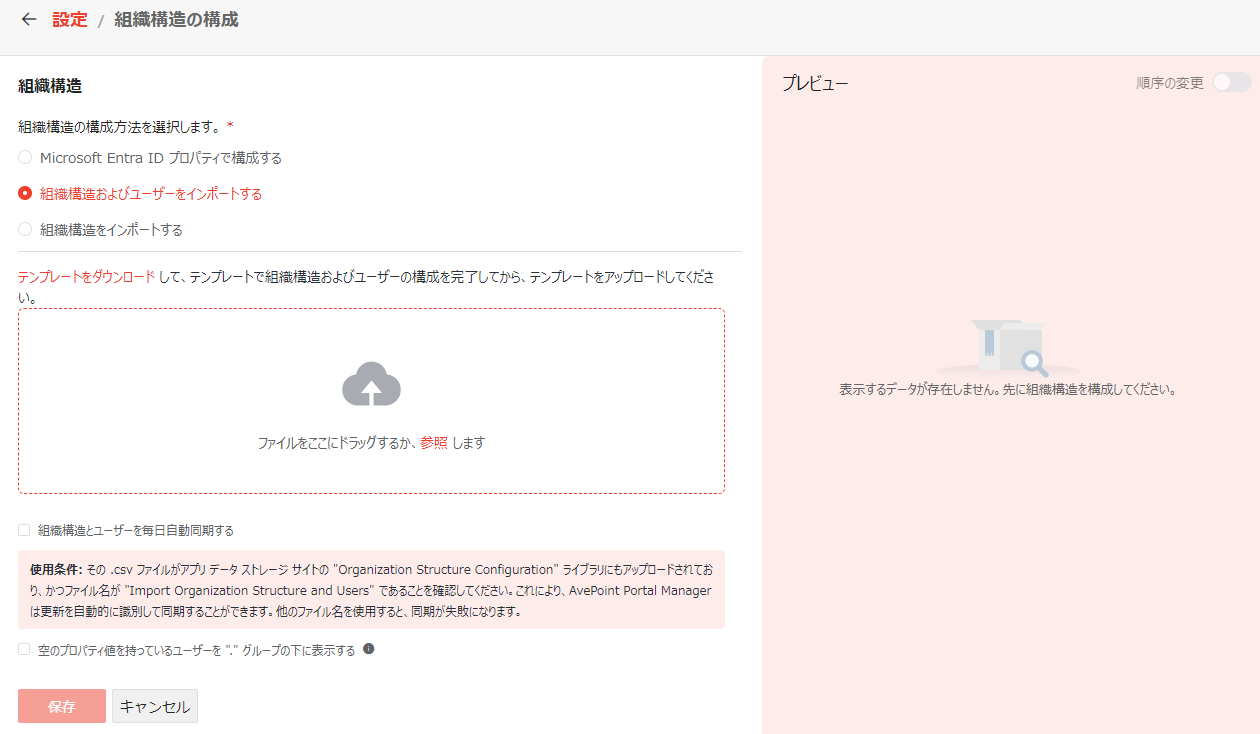
With this option selected, you can complete the steps below to configure the organization structure and users:

Import Organization Structure and Users.

  1. Click download the template and a CSV file is downloaded to the download location of the current browser.

  2. Add your company structure and users to the CSV file and save the file.

    NOTE

    When configuring concurrent duties in the CSV file, you must enter a title in the Concurrent Duty Title column for the user's concurrent organization rows. This app will display a Concurrent Duty label in the corresponding organization hierarchy for any user with this value specified.

  3. Drag the CSV file to the upload box or click the browse link to browse and select the file and click Open to insert the file. The organization levels you configured in the CSV file will be displayed below the box and the corresponding company information will be displayed in the Preview section.

Choose whether to Automatically synchronize organization structure and users on a daily basis. With this option enabled, make sure the .csv file is also uploaded to the “Organization Structure Configuration” library of the app data storage site. The file name must be “Import Organization Structure and Users”. Using any other file name will result in synchronization failures. AvePoint Portal Manager will automatically identify and synchronize the updates to the .csv file. Please wait up to 3 hours for the updates to be automatically synchronized with the app.

Choose whether to Display users with empty property values under the “Direct Users” group. With this option selected, the users for whom values of the user property used as an organization level cannot be found will be displayed under the “Direct Users” group of the parent organization level. Otherwise, the users can only be displayed when the parent organization level is expanded.

Import Organization Structure

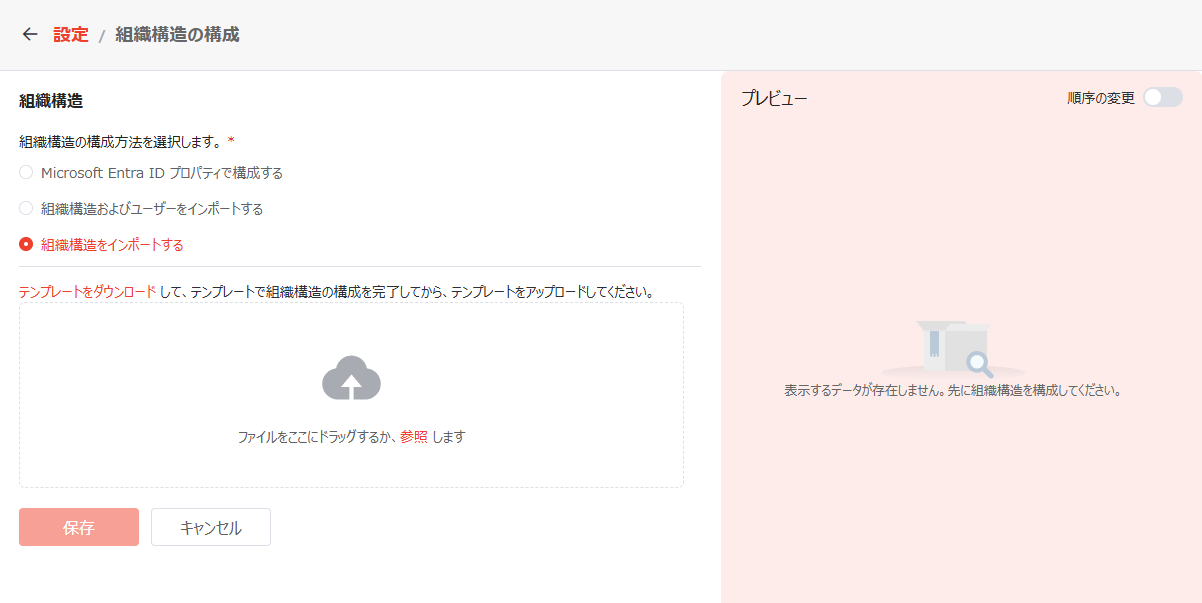
With this option selected, you can complete the steps below to configure the organization structure:

Import Organization Structure.

  1. Click download the template and a CSV file is downloaded to the download location of the current browser.

  2. Add your company structure and corresponding information to the CSV file and save the file.

  3. Drag the CSV file to the upload box or click the browse link to browse and select the file and click Open to insert the file. The organization levels you configured in the CSV file will be displayed below the box and the corresponding company information will be displayed in the Preview section.

  4. You can turn on the Change Order switch and then change the structure order if necessary.