Home > App Suite > Conference Room Reservation > Conference Room Reservation Process

Download this article
お知らせ: このページは現在英語のみで提供されています。日本語版は準備中です。ご不便をおかけして申し訳ございません。

Conference Room Reservation Process

Users can follow the steps below to use a conference room:

  1. Submit a reservation request for your desired conference room. For details, refer to the Submit Conference Room Reservation Requests section below.

    NOTE

    If meeting participants are limited by your administrator and you are outside the allowed scope, you’ll be unable to reserve conference rooms.

  2. (Optional) Wait for the reviewers to approve your reservation request. If approval is required, the message: ‘The reservation request needs to be approved before the conference room can be used.’ will appear on the top of the Registration panel.

  3. Use the conference room at the specified time slot that you registered.

Reviewers can refer to the Review Conference Room Reservation Requests section below to review reservation requests.

Submit Conference Room Reservation Requests

  1. Users can use one of the following methods to register a reservation request or reservation. Once a reservation request is accepted, the reservation will be displayed on the Outlook calendar of the ‘Reserve For’ user, participants, and guests:

    • Create reservation requests using the Book button:

      1. On the homepage of the app, click Book in the upper-right corner.

        Start request with Book button.

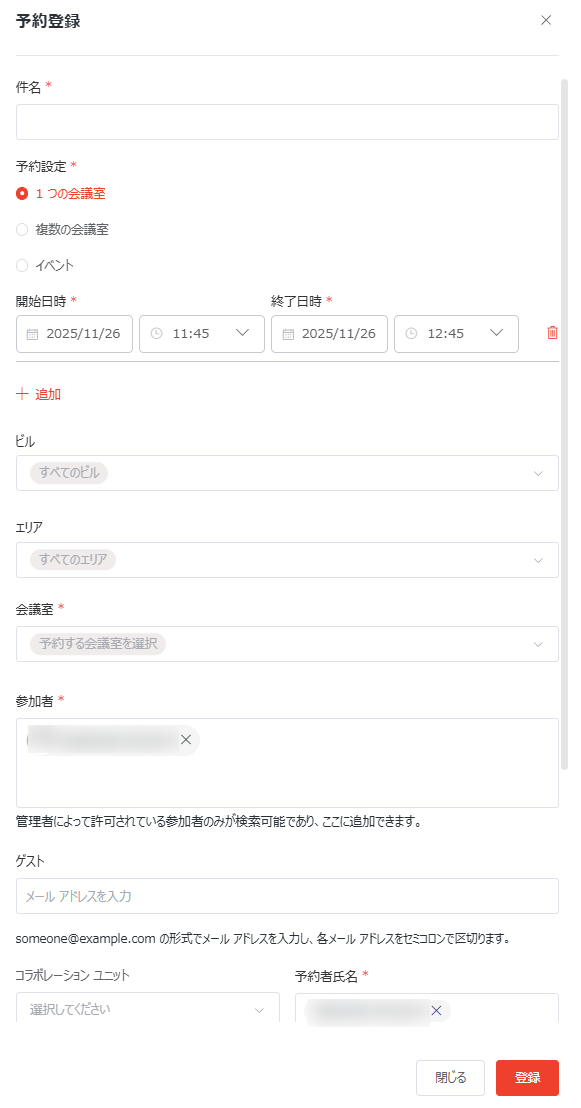
      2. Fill in the fields in the Registration window and click Register.

        The Registration window.

        NOTE
        • If meeting participants are limited by your administrators, users and groups outside the allowed scope cannot be specified as participants or the “Reserve For” user.
        • The Area and Collaboration Unit fields are only available when the corresponding settings are enabled by your administrator. When a collaboration unit is selected, you can reserve conference rooms on behalf of principals of the unit.
    • Create reservation requests in the Day view:

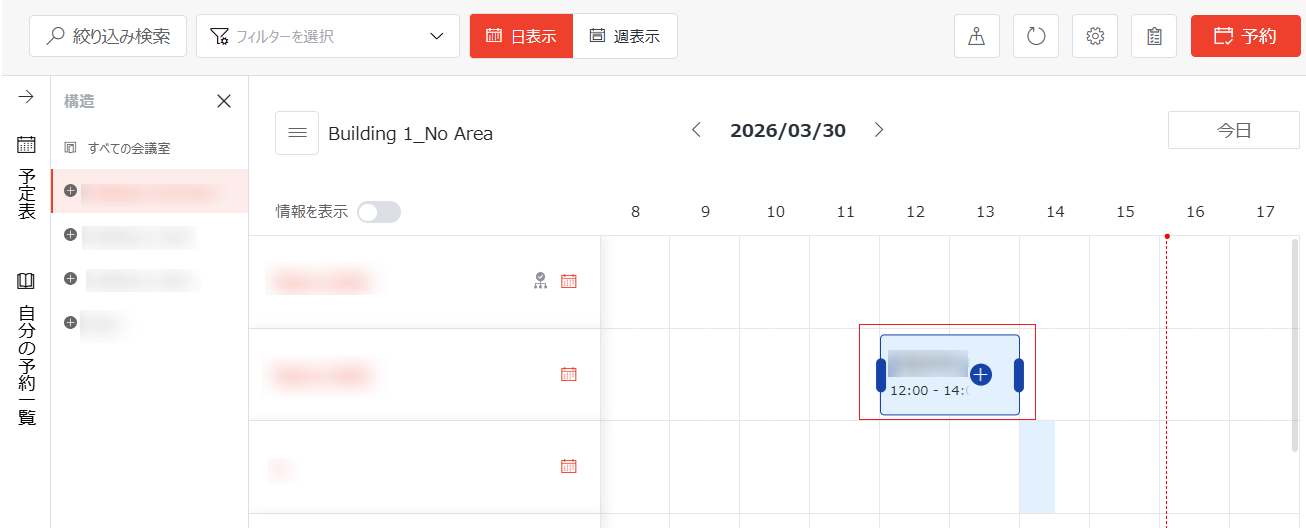
      1. Drag your mouse across the time slot during which you want to reserve the conference room next to the desired conference room. The registration box appears. The current user name and time slot are displayed in the box by default.

        Drag a time slot.

        NOTE

        You can adjust the time slot by dragging the bars on the left and right of the registration box. You can also change the reservation request or reservation to another conference room by dragging the registration box to the desired time slot next to the desired conference room. The time slot displayed in the registration box will be adjusted accordingly.

      2. Click the create request button next to or in the registration box.

      3. Fill in the fields in the Registration window and click Register.

    • Create reservation requests in the Week view:

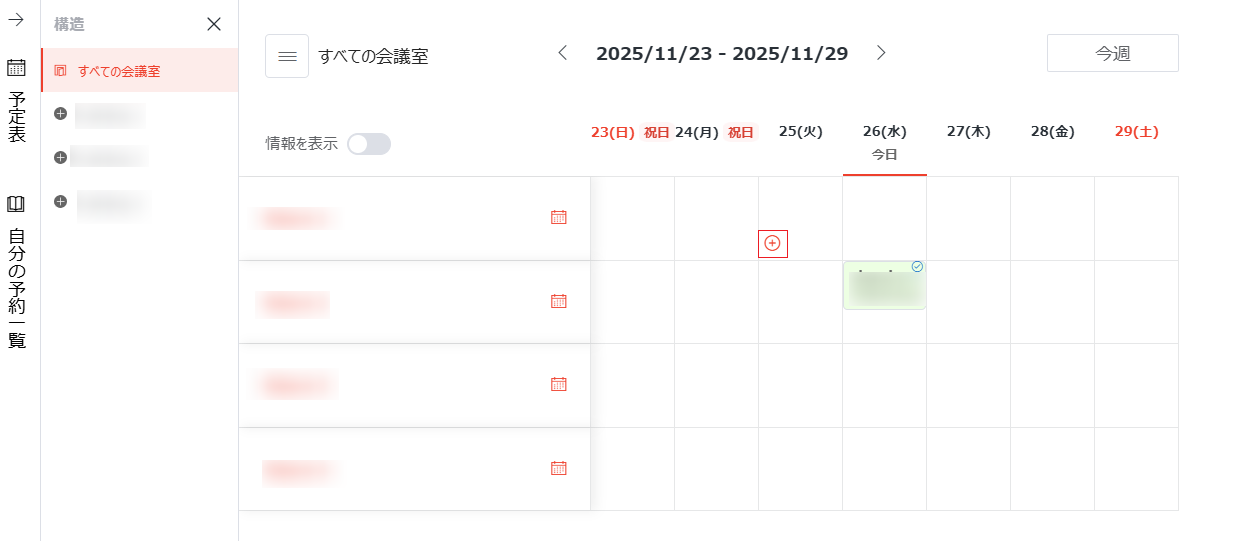
      1. Hover your mouse over the date next to the desired conference room on which you want to create a reservation request and click the create request button in the lower-left corner of the date.

        Start a request on the weekly calendar.

      2. Fill in the fields in the Registration window and click Register.

    • Create reservation requests in the Month view:

      1. Click the Month button in the upper-right corner of the desired conference room in the Conference Room Information field. The Monthly Reservations page of the conference room appears.

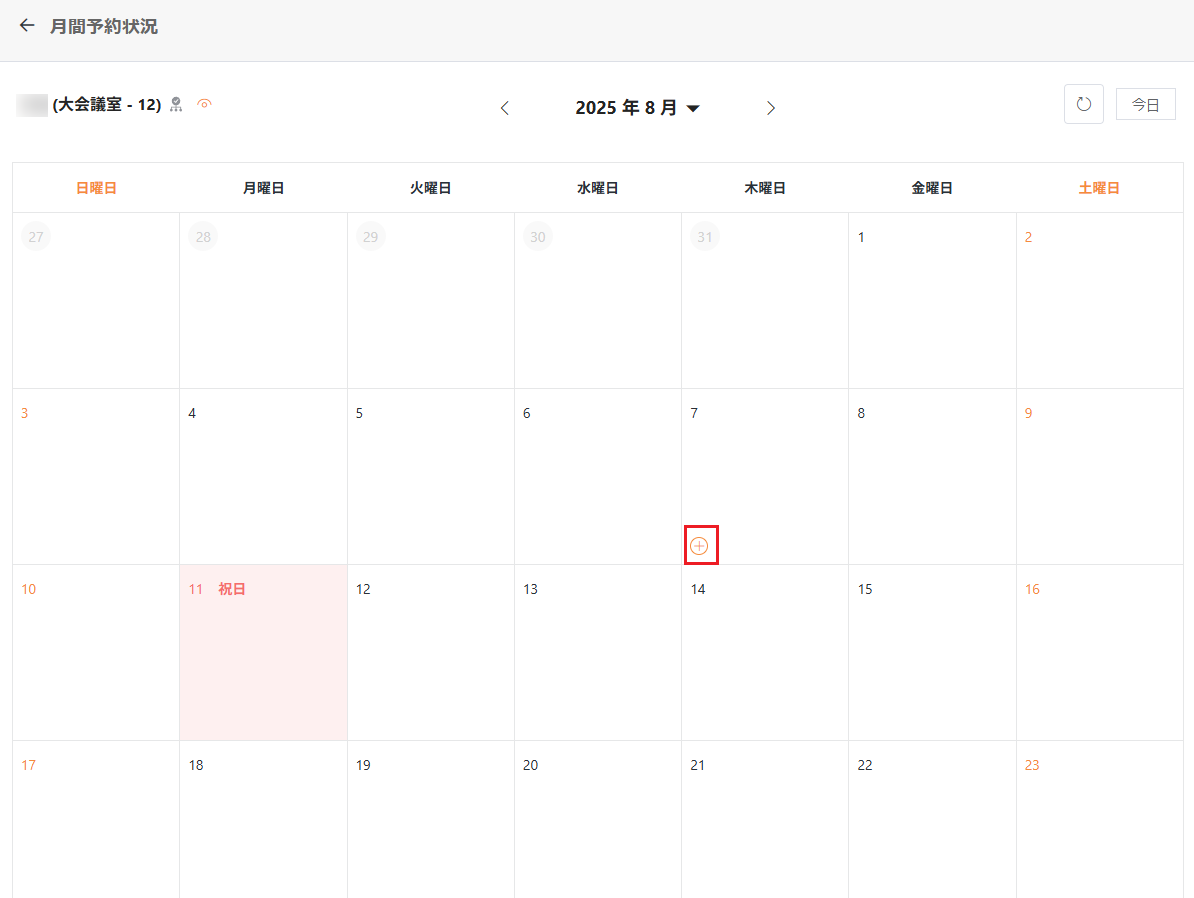
      2. Hover your mouse over the date on which you want to create a reservation request and click the create request button in the lower-left corner of the date.

        Start a request on the monthly calendar.

        NOTE

        Changing the start or end time for reservation after selecting a conference room will trigger a reconfirmation to the room's availability for the new time slot, which you can also check anytime via the Conference Room drop-down list.

      3. Fill in the fields in the Registration window and click Register.

The following users can still update submitted conference room reservations:

  • App users can update their own submitted reservation requests or reservations.

  • Authorized users can update a reservation request or reservation to which they have permissions.

  • Assistants within a collaboration unit can manage reservations made by other assistants in the same unit.

To update a reservation, complete the following steps:

  1. Click the desired reservation.

  2. Update the desired information in the Registration window.

  3. After all necessary updates are made, click Update Reservation to save your changes.

    NOTE

    If approval is required for the request, the reviewer will be able to review the updated request.

Review Conference Room Reservation Requests

If you are a reviewer, you will receive email notifications when approval tasks are assigned to you. You can view the reservation information in the emails and complete the steps below to approve or reject reservation requests.

  1. Access the app in the deployed location.

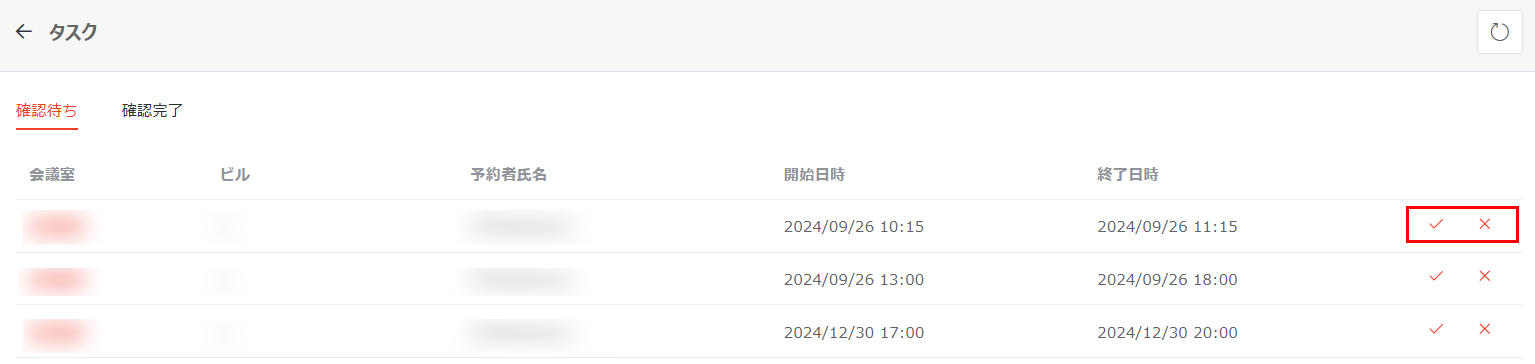
  2. On the homepage of the app, click the tasks button to access the Tasks page, where all reservation requests that are pending your review are listed in the Pending Review tab.

    Review requests.

    NOTE

    When there are conference room reservation requests that are pending review, a dot will be displayed on the tasks button.

  3. Click the Approve button to the right of a request to approve it. Otherwise, you can click the Reject button to reject a request.

    Review requests.

  4. In the Confirm window, enter the review comment and click OK.

  5. You can click the refresh button in the upper-right corner of the page to refresh the reservation requests displayed in the table.