Home > App Suite > Conference Room Reservation
Download this articleConference Room Reservation supports flexible uses of conference rooms in your organization. It serves as a self-service tool for employees to reserve proper conference rooms. Administrators can manage the conference room information and oversee all reservations.
The global administrator must complete Initial Configurations to set up the necessary buildings and conference rooms before users can reserve conference rooms using this app, and can further manage Settings for Conference Room Reservation App based on the requirements.
Users can refer to the following steps to get started:
Access the conference room reservation app in the deployed location.
To get familiar with the app, you can refer to Get Familiar with the Conference Room Reservation App.
Now, you can reserve conference rooms using the app based on your requirements. For more information, refer to Conference Room Reservation Process.
Before app users can reserve conference rooms using the app, the global administrators must follow the steps below to complete the necessary configurations:
Click the settings button in the upper-right corner of the reservation pane to access the Settings page.

Click User Management on the Setting page. The User Management page appears. On the page, make sure to add all intended administrators and users since access to this app is restricted to the app members specified here. For details, refer to the User Management section on the Settings for Conference Room Reservation App page.
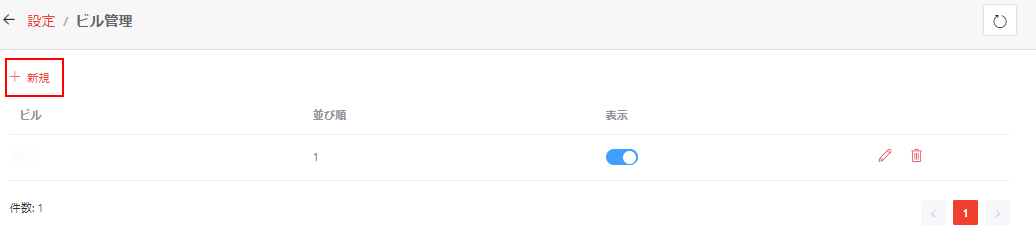
Click Building Management on the Settings page. The Building Management page appears.
The global administrators and building administrators of the app can also refer to Settings for Conference Room Reservation App for further management.
Click Add Building.

In the Add Building window, complete the following information:
Building ID – Enter the building ID.
Building – Enter the name of the building.
Floor – Configure the top floor and the bottom floor of the building.
Plan – You can complete the following steps to insert plans for each floor of the building:
Click Add Floor, and a floor row will be displayed in the Plan table.
Select the floor that you want to insert a plan from the Floor drop-down list and click the upload button to browse and select the desired plan.
Click Open to insert the plan.
You can click the delete button to the right of a floor row to delete the floor plan.
Building Administrator/Conference Room Administrator/Reservation Administrator – You can assign the roles to Microsoft 365 users, Microsoft 365 Groups, security groups, and mail-enabled groups with access to the app by entering the desired names in the corresponding fields.
Visible for End Users – The building and conference rooms in the building are visible for end users by default. If you do not want the conference rooms in the building to be visible and booked by end users, select No in this field.
Display Order – Enter the display order of the building.
Photo – Click Browse and browse to the photo of the building. Select the photo and click Open to insert the photo. The photo will be displayed in the building information.
Click Save to create the building.
You can create multiple buildings with the steps above.
After all necessary buildings are created, click Settings or the return button next to Settings in the upper-left corner of the page to go back to the Settings page.
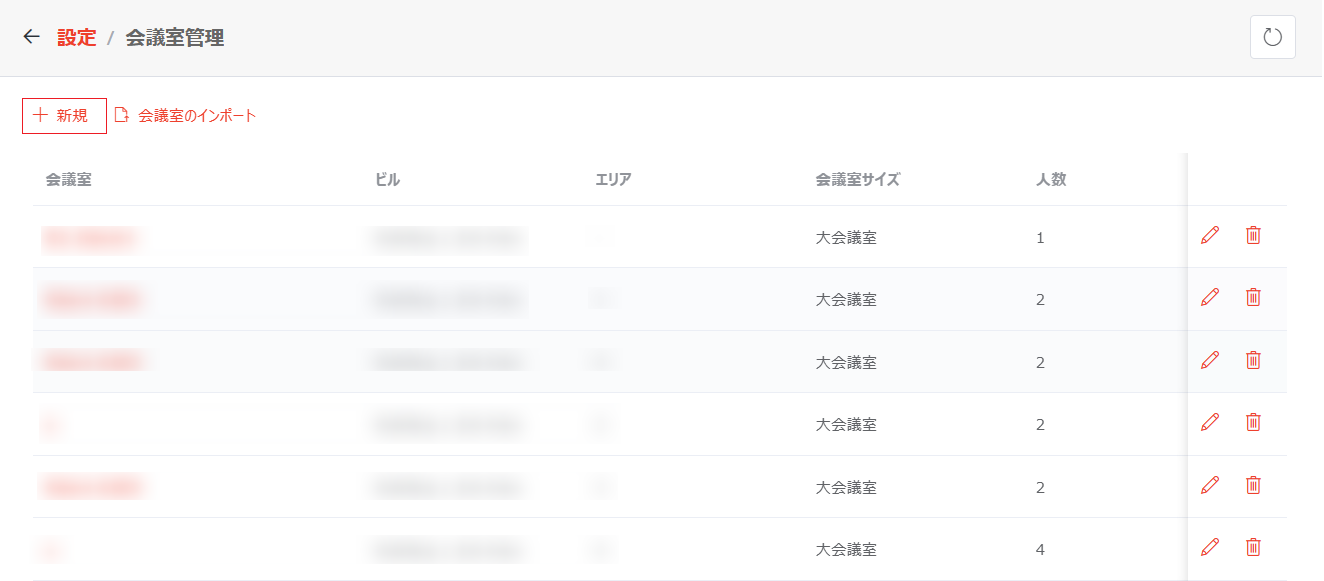
On the Settings page, click Conference Room Management to access the Conference Room Management page.
The global administrators, building administrators, and conference room administrators of the app can also refer to Settings for Conference Room Reservation App for further management.
On this page, you can use the following instructions on adding conference rooms individually or importing multiple rooms.
To add an individual conference room, click Add Conference Room above the table. In the Add Conference Room window, complete the following information and click Save to add the room:

Building – Select a building from the drop-down list.
Make sure that a building has been added to this app before it can be selected here.
Area – Select an area from the drop-down list.
This field is only available when the area level is enabled in General Settings.
Room – Enter the name of the conference room.
Approval Required for Reservation – If approvals are required while reserving the conference room, select Yes. You can configure up to 3 stages of approvals by selecting the Add Stage 2 Reviewers and Add Stage 3 Reviewers checkboxes and entering the name of reviewers for each stage. The conference room can only be used by “Reserve For” users once all stages of approvals are received.
The reviewers can be Microsoft 365 users, Microsoft 365 Groups, security groups, and mail-enabled groups with access to the app.
Floor – Select the floor of the building on which the conference room is located.
Room Size – Select a room size from the drop-down list.
Capacity – Enter the maximum number of people that the conference room holds.
Contact Number – Enter the contact number of the person who is responsible for the conference room issues.
LAN Available/Whiteboard Available – Select Yes in the corresponding field if the equipment is available. Otherwise, select No.
Other Equipment – Enter other equipment available in the conference room.
Requester Scope – Select All Users if all app administrators and users can reserve the conference room. If you want the conference room to be reserved by specific users only, select Specific Users. Then, you can enter the email address or name of the desired user or group and select the user or group from the suggestion list. You can add multiple users and groups here.
Note – Enter additional remarks for the conference room.
Visible for End Users – Select Yes if the conference room is visible end users. Otherwise, select No.
If a building is not visible for end users, conference rooms in the building are not visible for end users, regardless of this setting for the conference room.
Display Order – Enter the display order of the conference room.
Photo - Click Browse and browse to the photo of the conference room. Select the photo and click Open to insert the photo. The photo will be displayed in the conference room information.
Conference Room Reservation Rules – Configure the following rules for conference room reservations:
The Conference Room Reservation Rules section is only available if any following property is visible for end users in Settings > Room Property Management: Allowed Reservation Duration, Reservable Period, and Open Period for Reservation. Otherwise, this section will be hidden.
Limit allowed reservation duration – Limit the duration allowed in a reservation for this conference room. With the checkbox selected, specify a number and select a unit as the allowed duration.
Limit room reservable period – Limit the reservable period for the conference room. With the checkbox selected, select the start time and end time for the reservable period. When users reserve this conference room, their reservation start and end time will be required to fall within the specified period.
Limit open period for room reservation – Limit the open period to submit reservations for this conference room. With the checkbox selected, select the start time and end time for the open period. Users can only submit reservations for this conference room within the specified period.
Associate with a room mailbox in Outlook – With this setting enabled, select a room mailbox from the drop-down list. You can also enter the room mailbox name to search for the mailbox and select it from the search results. The associated room mailbox will be automatically added as a conference attendee and displayed in Outlook Calendar across the reserved timeslots when this conference room is reserved in the app.
Note the following:
This setting is only available if the Associate with a room mailbox in Outlook property is visible for end users in Settings > Room Property Management.
To use this function, make sure that your Microsoft 365 Global Administrator approves the Place.Read.All permission request in the SharePoint admin center.
Associate with specific contacts – With this setting enabled, specify the email addresses of the contacts.
Note the following:
This setting is only available if the Associate with Specific Contacts property is visible for end users in Settings > Room Property Management.
The setting only applies when this conference room is reserved under the “Events” reservation option.
Choose whether to send event invitations automatically to these associated contacts when the current room is reserved for Preparation, Meeting, or Post-meeting Tidy-up events. Then, choose the invitation option for each type of events:
Allow requesters to configure this field – Your choice will be displayed to users by default and users can update this setting.
Show this field as read-only to requesters – Your choice will be displayed as read-only and not editable by users.
Hide this field from requesters – Both this field and your choice will be hidden from users.
To add multiple conference rooms through an import, complete the steps below:
Click Import Conference Rooms above the table.
In the Import Conference Rooms window, click the download the template link to download the template file to the download location of your current browser.
Complete the conference room information in the template file and save it.
Drag the template file to the upload field, or click browse, select the updated template file, and click Open. The file is displayed below the upload field.
Click Save. After importing, the imported conference rooms will be displayed on the table.