
Home > Command Centers > AgentPulse > Get Started > Access AgentPulse
Download this articleAccess AgentPulse
This section details how to access AgentPulse via the Command Center.
I’m new to AOS
If you haven’t registered an account in AvePoint Online Services, click the onboarding link and complete the following steps:
-
Click Get started.
-
In the Get started with AgentPulse window, enter your Work email and Country or region. Then, click Demonstration Software Subscription Agreement to check the subscription agreement details and select the check box to consent. You can also select whether to receive updates, tips, and product news from us.
-
Click Continue. You will receive a confirmation link via email. Click the link to complete the setup.
-
On the AgentPulse onboarding page, click Start connection process.
NOTEYou can click Requested permissions to view the required permissions. For details, refer to AgentPulse App Profile.
-
In the Before you connect your account window, select the platform and data center you want to use to connect your tenant:
-
Microsoft – Select to connect your Microsoft tenant and view Microsoft agent data in AgentPulse.
By clicking Connect and signing in with your Microsoft account, the platform will automatically configure the required service-based apps and permissions.
If you need to manually create and contain custom apps with limited permissions, click advanced configuration and complete the following steps to grant consent for the custom app:
-
If necessary, first Prepare a Certificate for the Custom Azure App.
-
Then, create custom apps by referring to Create a Custom Azure App.
-
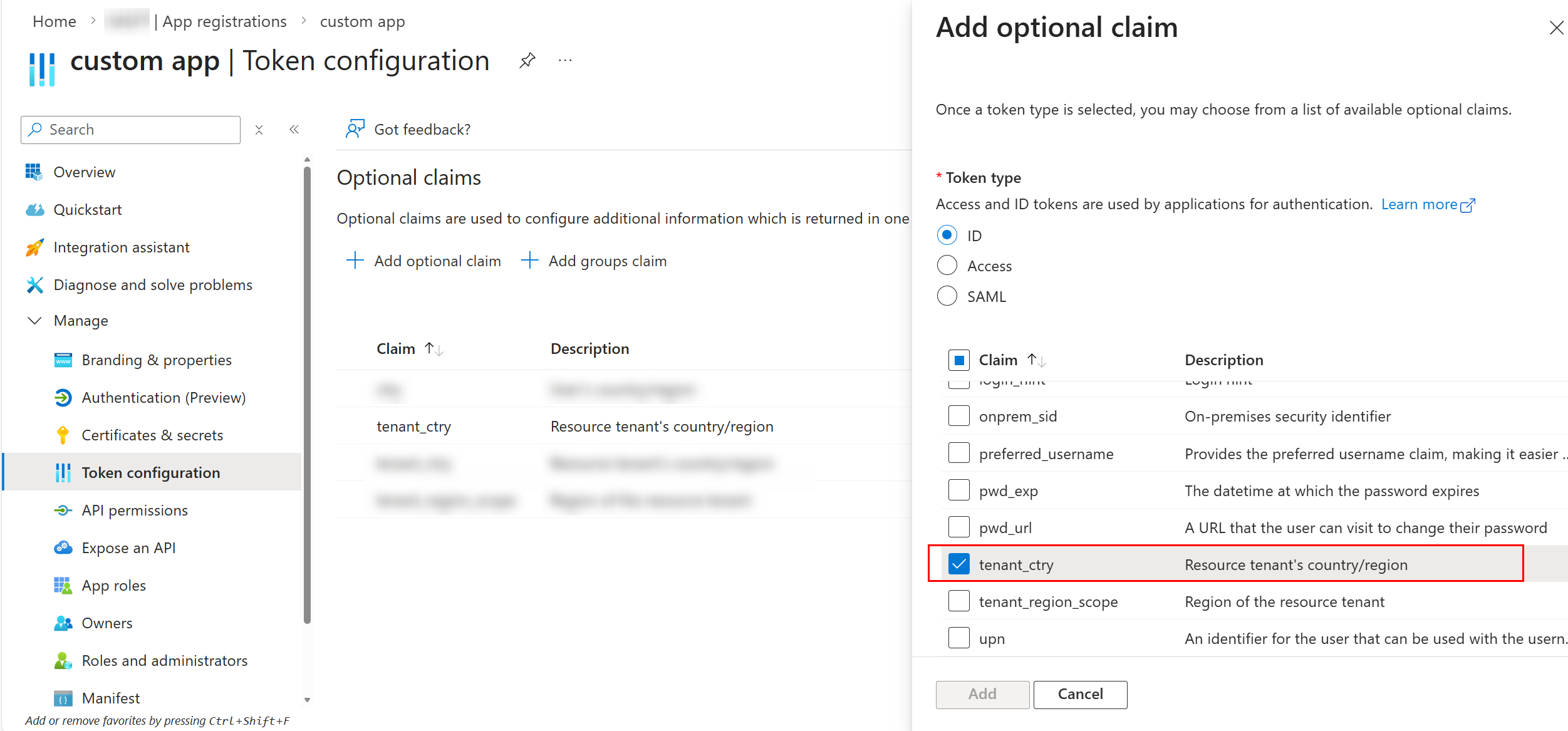
After the custom app is created, navigate to Microsoft Entra admin center > Entra ID > App registrations and complete the following configurations:
-
Select the custom app you created.
-
Under Manage, select Token configuration.
-
Click Add optional claim. In the Add optional claim pane, select Token type as ID.
-
Select tenant_ctry claim, then click Add.
-
-
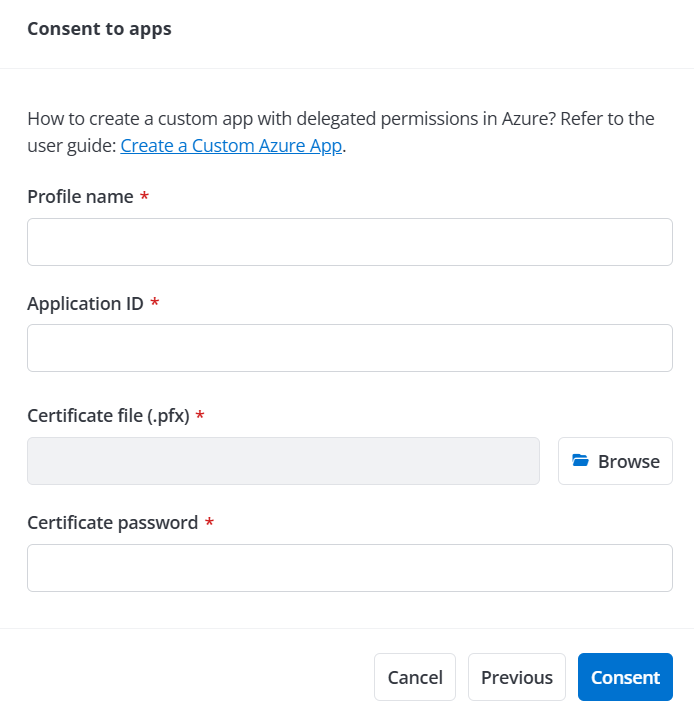
Next, configure app profiles for custom apps in the Consent to apps window by referring to Consent to Custom Azure Apps.
-
Once you’ve completed these steps, click Consent to connect your tenant to the custom app. A scan job will then be triggered automatically to discover your agent data from Copilot Studio and SharePoint.
-
-
Google – Select and complete the following configurations to connect your Google tenant and view Google agent data in AgentPulse. Ensure you have installed the apps related to your services from the Google Workspace Marketplace.
-
Click Connect.
-
Sign in with a Super Admin account that has the following privileges: Users > Read, Groups > Read, and License Management > License Read.
-
In the Register your custom app window, complete the required configurations to grant consent for the custom app. For detailed instructions on how to create a custom app with delegated permissions in Google, refer to Configure Custom Google App Profiles.
-
Once you’ve completed these steps, click Consent.
-
-
Salesforce – Select to connect your Salesforce tenant and view Salesforce agent data in AgentPulse.
NOTE- Salesforce sandbox tenant is not supported.
- You need to set up Salesforce app authentication before connecting your Salesforce tenant. For detailed instructions, refer to Set up Salesforce App Authentication.
By clicking Connect and signing in with an administrator account, the platform will automatically configure the required service-based apps and permissions.
-
-
(Optional) You can add users/groups as Service Administrators or Tenant Users in AOS to enable report sharing in AgentPulse. To manage users, go to Management > User management and refer to Manage Users for additional details.
I have an existing AOS account
If you already have an AOS account, complete the following steps to get started:
-
Navigate to Command centers > AgentPulse.
-
All tenant users can click View demo data to preview AgentPulse function with demo data. You can also preview data from upcoming Google agents in demo mode.
Service administrators can click Get started today! to start the onboarding process by referring to the steps below.

-
The onboarding page appears after you click Get started today! On the onboarding page, click Get started.
-
The Get started with AgentPulse pop-up window appears. Click Demonstration Software Subscription Agreement to check the subscription agreement details. Then, select the check box and click Continue.
-
On the AgentPulse onboarding page, click Start connection process.
NOTEYou can click Requested permissions to view the required permissions. For details, refer to AgentPulse App Profile.
-
In the Before you connect your account window, select one of the following platforms and your data center to connect your tenant:
-
Microsoft – Select to connect your Microsoft tenant and view Microsoft agent data in AgentPulse.
By clicking Connect and signing in with a Microsoft 365 Global Administrator account, the platform will automatically configure the required service-based apps and permissions.
If you need to manually create and contain custom apps with limited permissions, click advanced configuration and complete the following steps to grant consent for the custom app:
-
If necessary, first Prepare a Certificate for the Custom Azure App.
-
Then, create custom apps by referring to Create a Custom Azure App.
-
After the custom app is created, navigate to Microsoft Entra admin center > Entra ID > App registrations and complete the following configurations:
-
Select the custom app you created.
-
Under Manage, select Token configuration.
-
Click Add optional claim. In the Add optional claim pane, select Token type as ID.
-
Select tenant_ctry claim, then click Add.
-
-
Next, configure app profiles for custom apps in the Consent to apps window by referring to Consent to Custom Azure Apps.
-
Once you’ve completed these steps, click Consent to connect your tenant to the custom app. A scan job will then be triggered automatically to discover your agent data from Copilot Studio and SharePoint.
-
-
Google – Select and complete the following configurations to connect your Google tenant and view Google agent data in AgentPulse. Ensure you have installed the apps related to your services from the Google Workspace Marketplace.
-
Click Connect.
-
Sign in with a Super Admin account that has the following privileges: Users > Read, Groups > Read, and License Management > License Read.
-
In the Register your custom app window, complete the following steps to grant consent for the custom app. For detailed instructions on how to create a custom app with delegated permissions in Google, refer to Configure Custom Google App Profiles.
-
-
Salesforce – Select to connect your Salesforce tenant and view Salesforce agent data in AgentPulse.
NOTE- Salesforce sandbox tenant is not supported.
- You need to set up Salesforce app authentication before connecting your Salesforce tenant. For detailed instructions, refer to Set up Salesforce App Authentication.
By clicking Connect and signing in with an administrator account, the platform will automatically configure the required service-based apps and permissions.
-
-
(Optional) You can add users/groups as Service Administrators or Tenant Users in AOS to enable report sharing in AgentPulse. To manage users, navigate to Management > User management and refer to Manage Users for additional details.