
Home > Command Centers > AgentPulse > Dashboard
Download this articleDashboard
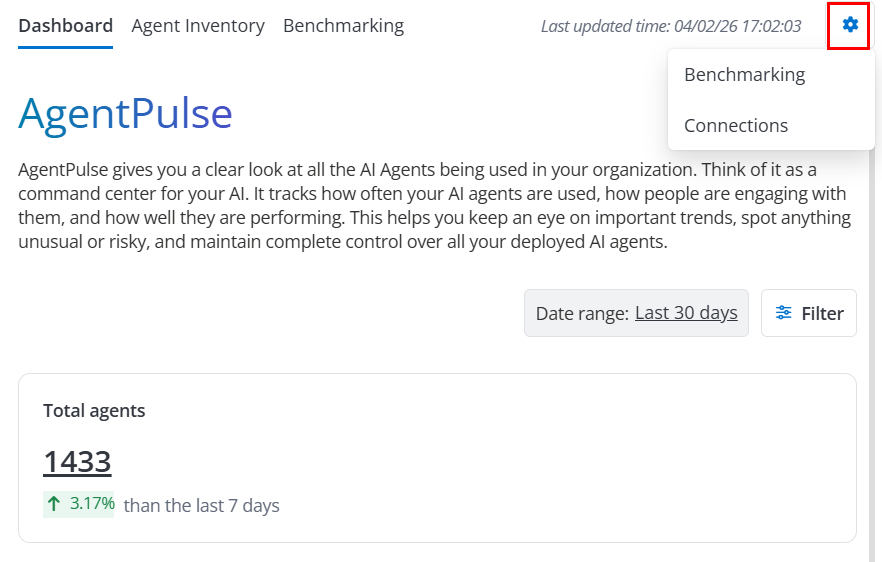
Under the Dashboard tab, AgentPulse provides the following reports. The dashboard covers all tenants that you have connected.
Refer to the following sections for details of each report.
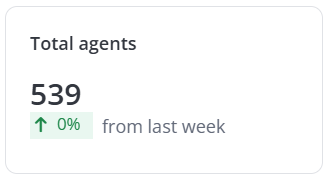
Total agents
Displays the current number of AI agents in the specified tenant and the change compared to last 7 days’ data.
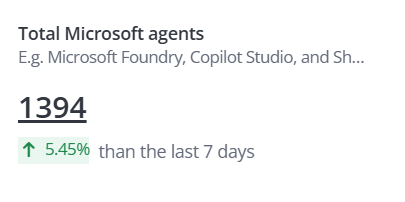
Total Microsoft agents
Displays the current number of Microsoft agents (Microsoft Foundry, Copilot Studio, and SharePoint) in the specified tenant and the change compared to last 7 days’ data.
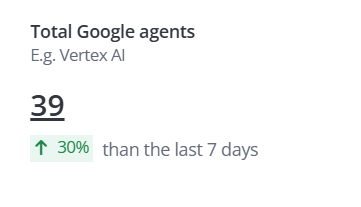
Total Google agents
Displays the current number of Google agents (Agent Platform) in the specified tenant and the change compared to last 7 days’ data.
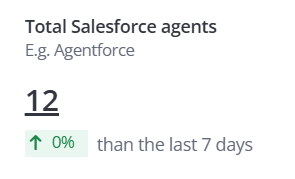
Total Salesforce agents
Displays the current number of Salesforce agents (Agentforce) in the specified tenant and the change compared to last 7 days’ data.
Microsoft 365
Displays the number of Microsoft 365 agents in the specified tenant. Click View agent types to view the detailed number of agents of each type. You can click the number to see the corresponding list of agents.
Copilot Studio
Displays the number of Copilot Studio agents in the specified tenant. You can click the number to see the corresponding list of agents.
SharePoint
Displays the number of SharePoint agents in the specified tenant. You can click the number to see the corresponding list of agents.
Microsoft Foundry
Displays the number of Microsoft Foundry agents in the specified tenant. You can click the number to see the corresponding list of agents.
Agent Platform
Displays the number of Agent Platform agents in the specified tenant. You can click the number to see the corresponding list of agents.
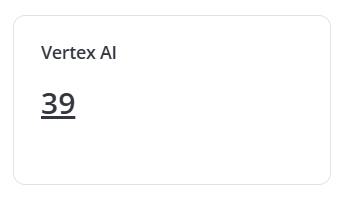
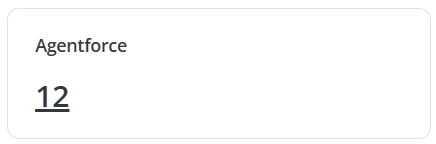
Agentforce
Displays the number of Agentforce agents in the specified tenant. You can click the number to see the corresponding list of agents.
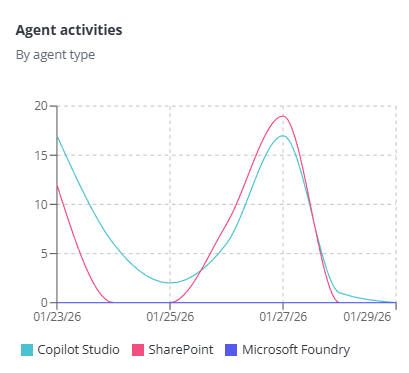
Agent activities
Displays the number of daily activities over the custom date range. The agents included are:
-
Microsoft Foundry
-
SharePoint
-
Copilot Studio
-
Agent Platform
-
Agentforce
The X-axis depicts the time range for the report, and the Y-axis depicts the number of daily activities. You can hover your mouse over the line to view the detailed count for each day.
Most active agents
Displays the top agents with the highest activity counts.
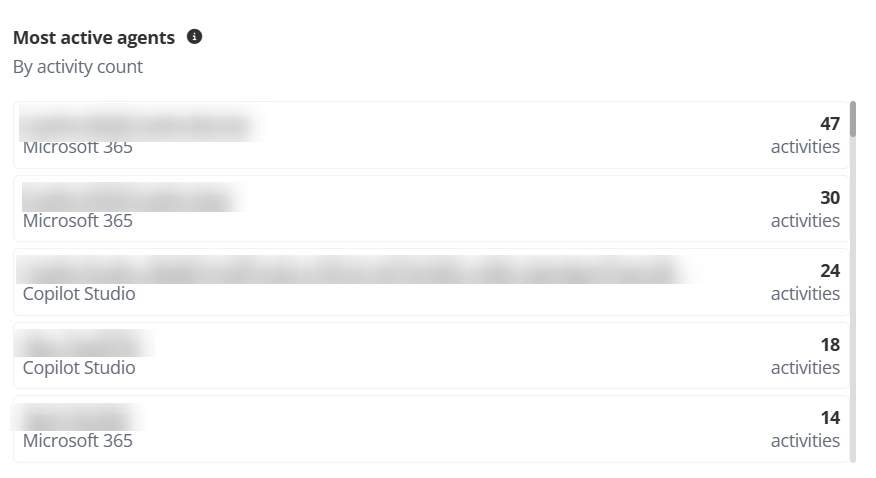
You can click the name of the agent to view agent details. Agent details are displayed in the following two tabs:
-
Activity & users – Displays the changes of agent activities and users over the custom date range.
-
Details – Displays the basic information of the agent, including agent creator, agent ID, location, users, and last modification information.
NOTEThe Details tab is only available for the following types of agents that are scanned in your containers:
-
Microsoft Foundry agents
-
SharePoint
-
Copilot Studio agents
-
Agent Platform
-
Agentforce
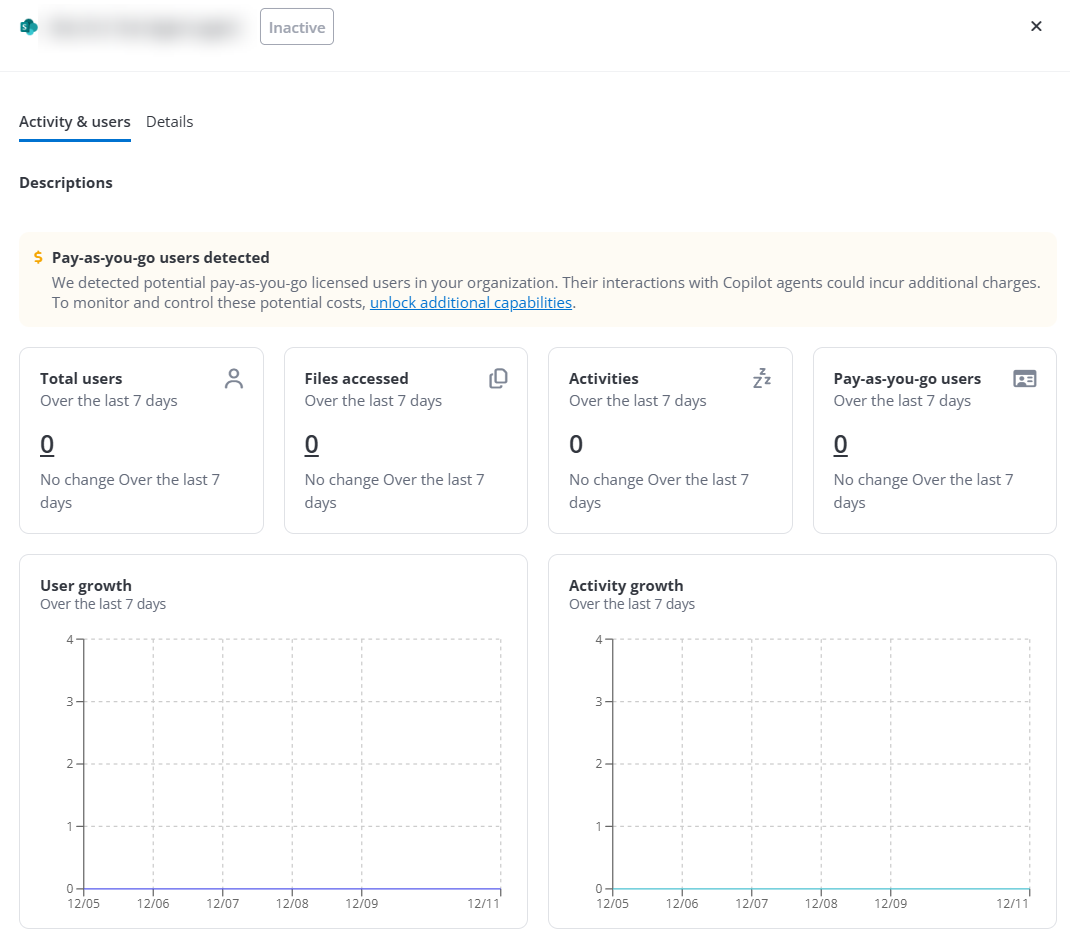
You can also click Manage in EnPower to view and manage the agent in EnPower. For detailed information, refer to Agent Inventory.
-
Most inactive agents
Displays the agents with the lowest activity counts.
Inactive refers to agents with fewer than 600 activities.
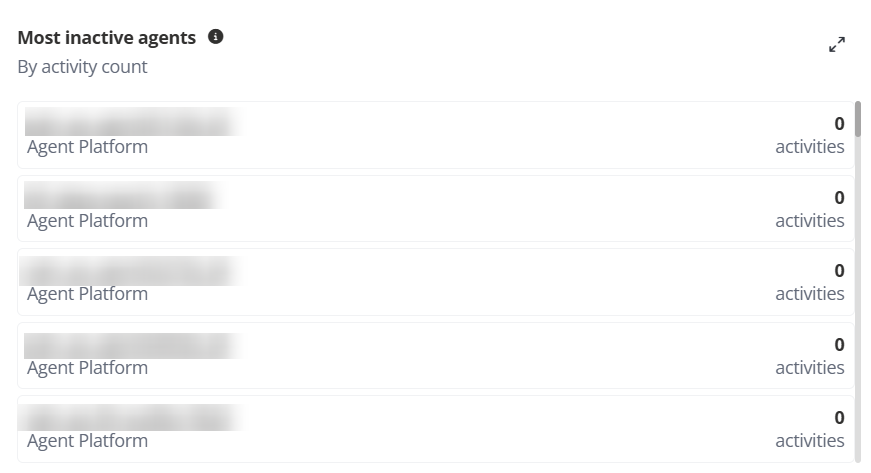
You can click the name of the agent to view agent details. Agent details are displayed in the following two tabs:
-
Activity & users – Displays the changes of agent activities and users over the custom date range.
-
Details – Displays the basic information of the agent, including agent creator, agent ID, location, users, and last modification information.
NOTEThe Details tab is only available for the following types of agents that are scanned in your containers:
-
Microsoft Foundry agents
-
SharePoint
-
Copilot Studio agents
-
Agent Platform
-
Agentforce
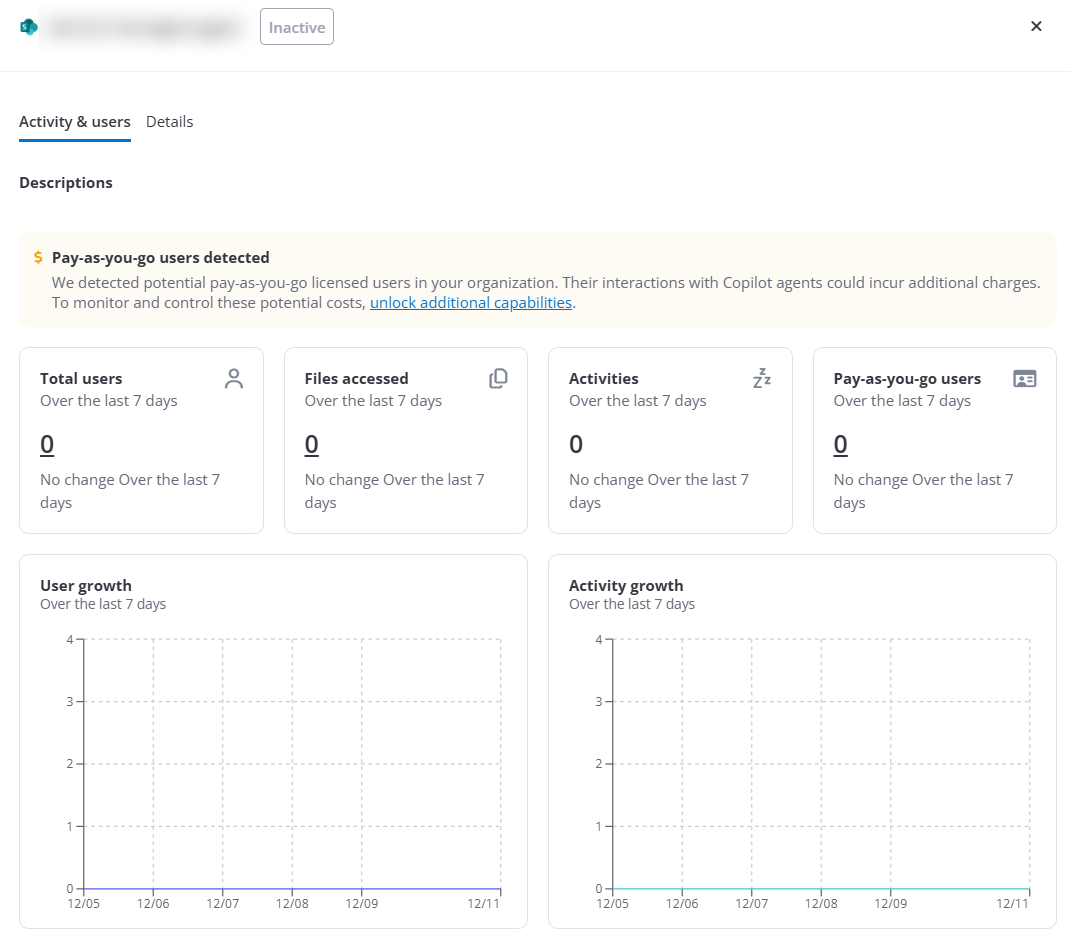
You can also click Manage in EnPower to view and manage the agent in EnPower. For detailed information, refer to Agent Inventory.
-
Agents that may be incurring costs
Displays agents with the highest potential cost in dollars, calculated based on activities. Accordingly, only agents with activity data are displayed.
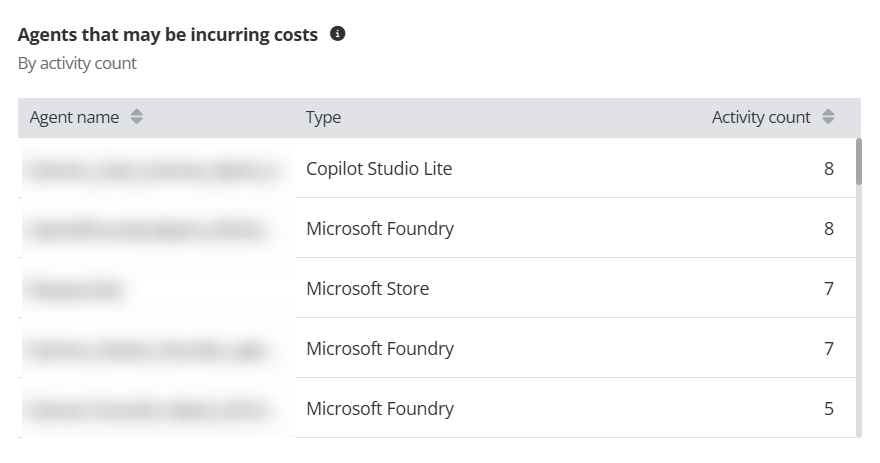
You can click the name of the agent to view agent details. Agent details are displayed in the following two tabs:
-
Activity & users – Displays the changes of agent activities and users over the custom date range.
-
Details – Displays the basic information of the agent, including agent creator, agent ID, location, users, and last modification information.
NOTEThe Details tab is only available for the following types of agents that are scanned in your containers:
-
Microsoft Foundry agents
-
SharePoint
-
Copilot Studio agents
-
Agent Platform
-
Agentforce
You can also click Manage in EnPower to view and manage the agent in EnPower. For detailed information, refer to Agent Inventory.
-
Most active users
Displays the top users with the highest activity counts with agents.
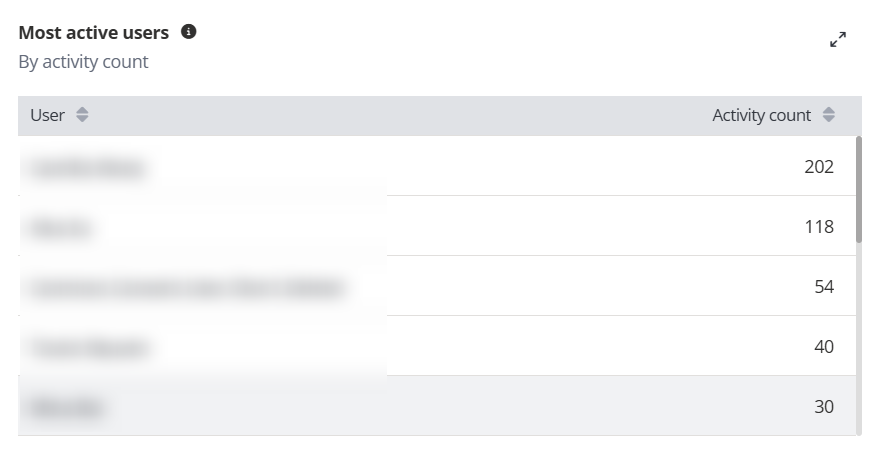
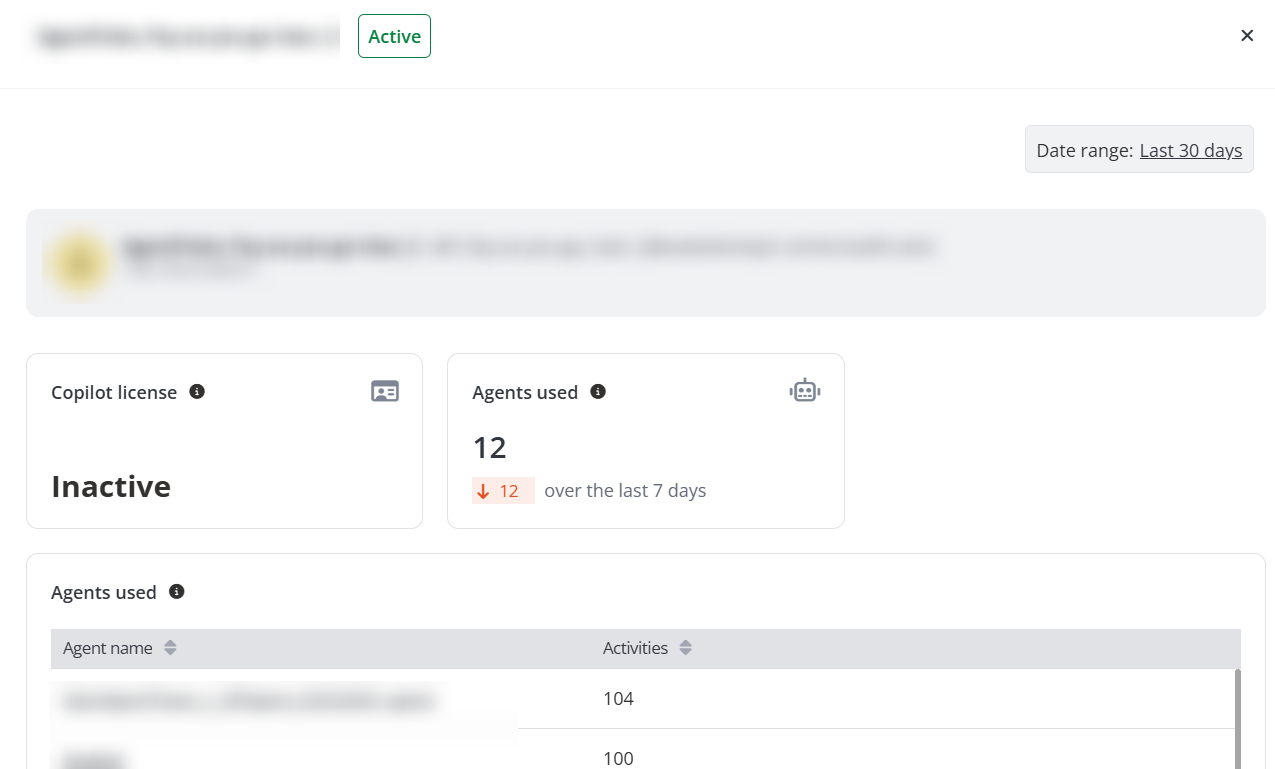
You can click the user name to view details, including the total number of AI agents the user has interacted with, activity counts for each agent, agent usage, and the license assignment.
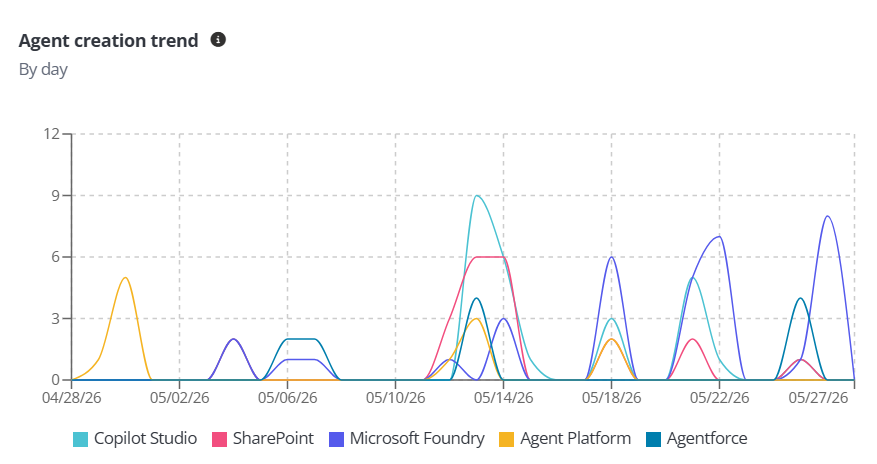
Agent creation trend
Displays agent creation trends over the selected time range. The agents included are:
-
Microsoft Foundry
-
SharePoint
-
Copilot Studio
-
Agent Platform
-
Agentforce
Top agent creators
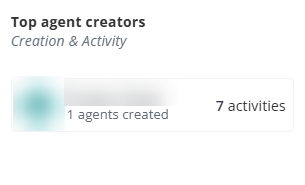
Displays the top users by their agent creation count, including total activities from those agents. Currently this only includes creators of Copilot Studio agents, SharePoint, Microsoft Foundry agents, Agent Platform, and Agentforce.
You can click the name of users from Microsoft tenants to view details, including the total number of AI agents the user has interacted with, activity counts for each agent, agent usage, and the license assignment.
Agents accessing the most files
Displays the top agents based on files access count.
Salesforce agents are not supported.
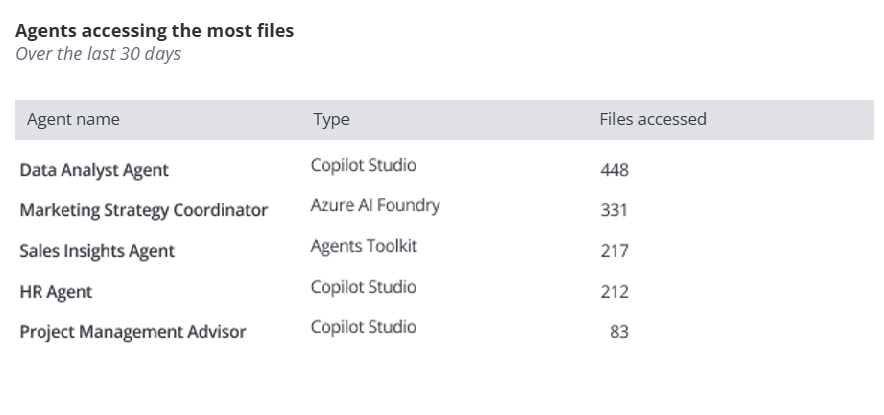
You can click the name of the agent to view agent details. Agent details are displayed in the following two tabs:
-
Activity & users – Displays the changes of agent activities and users over the custom date range.
-
Details – Displays the basic information of the agent, including agent creator, agent ID, location, users, and last modification information.
NOTEThe Details tab is only available for the following types of agents that are scanned in your containers:
-
Microsoft Foundry agents
-
SharePoint
-
Copilot Studio agents
-
Agent Platform
-
Agentforce
You can also click Manage in EnPower to view and manage the agent in EnPower. For detailed information, refer to Agent Inventory.
-
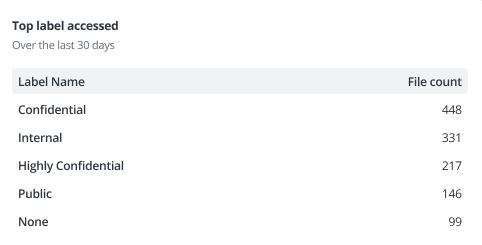
Top labels accessed
Displays the sensitivity labels with most file access.
Salesforce agents are not supported.
Pay-as-you-go users
Displays top agent users without a Microsoft 365 Copilot license.
- To view data in this chart, ensure that you have enabled pay-as-you-go user detection.
- Salesforce agents are not supported.
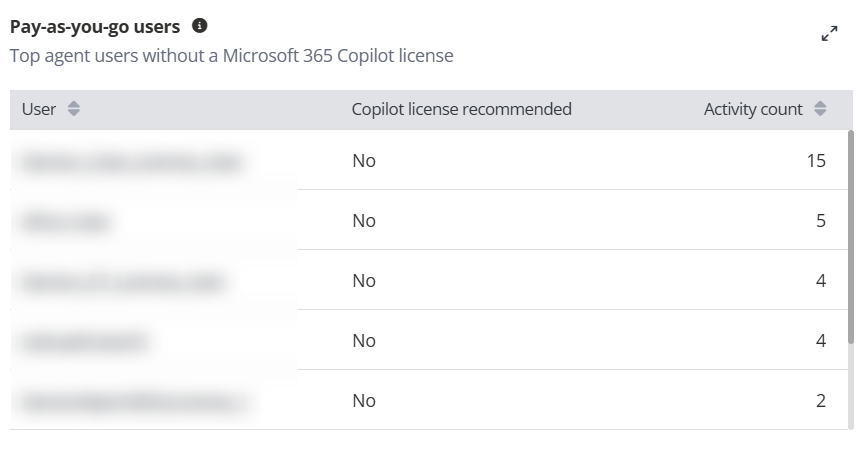
You can click the user name to view details, including the total number of AI agents the user has interacted with, activity counts for each agent, and the license assignment.
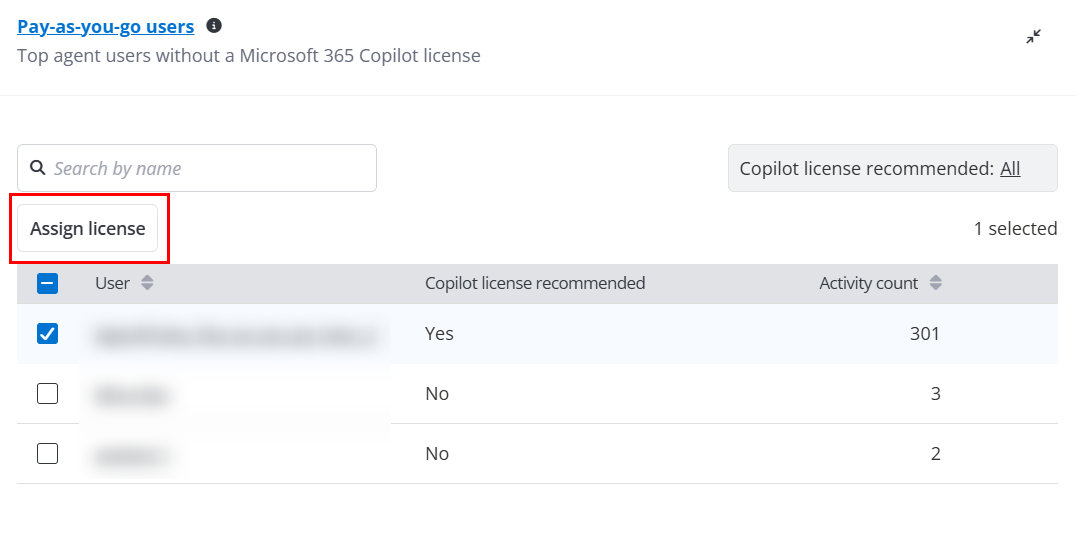
To assign Microsoft 365 Copilot licenses to users, click the Expand button on the upper-right corner of the chart. In the Pay-as-you-go users window, select the required user and click Assign license to assign license in Cense. For detailed information, refer to Manage Subscriptions and User Licenses.
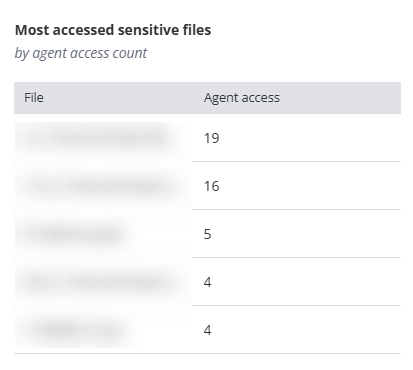
Most accessed sensitive files
Displays the top sensitive files with the most agent access.
Agents accessing sensitive files
Displays the top agents with the most sensitive file access.
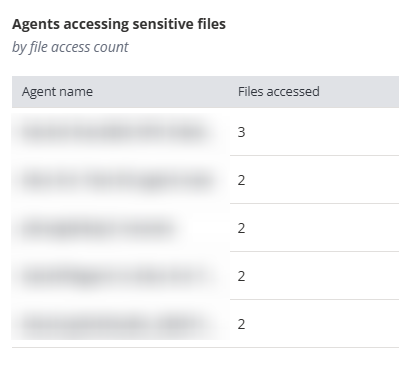
You can click the name of the agent to view agent details. The changes of agent activities and users over the selected time range are displayed under the Activity & users tab.
You can also click Manage in EnPower to view and manage the agent in EnPower. For detailed information, refer to Agent Inventory.
Most accessed app registrations
Displays the app registrations accessed the most by agents.
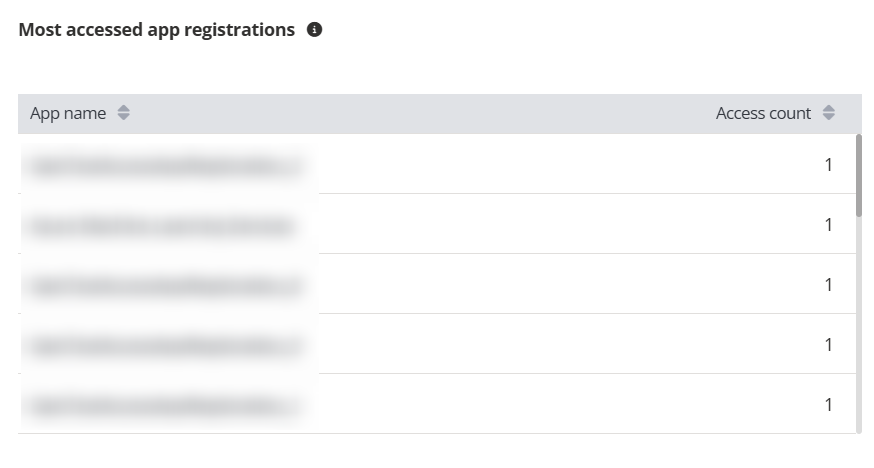
You can click the name of the app registration to view details in EnPower.
Agent 365 users not using agents
Displays users with an Agent 365 license who are not using any agents.
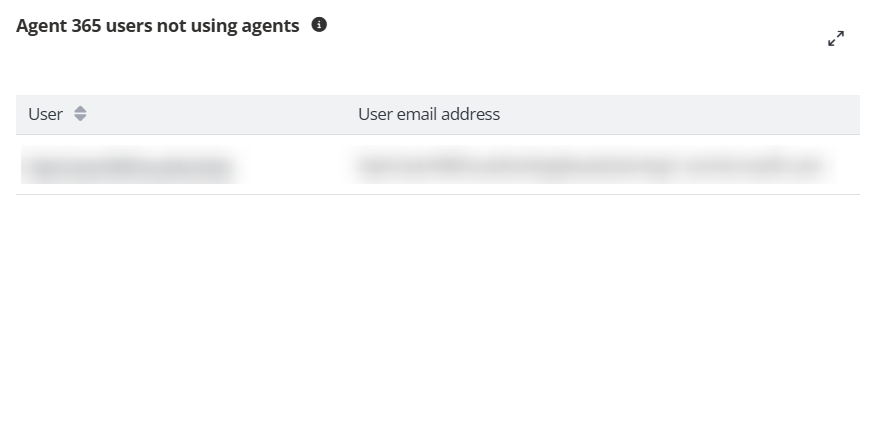
You can click the user name to view details, including the total number of AI agents the user has interacted with, activity counts for each agent, agent usage, and the license assignment.
Microsoft 365 E7 users not using agents
Displays users with a Microsoft 365 E7 license who are not using any agents.
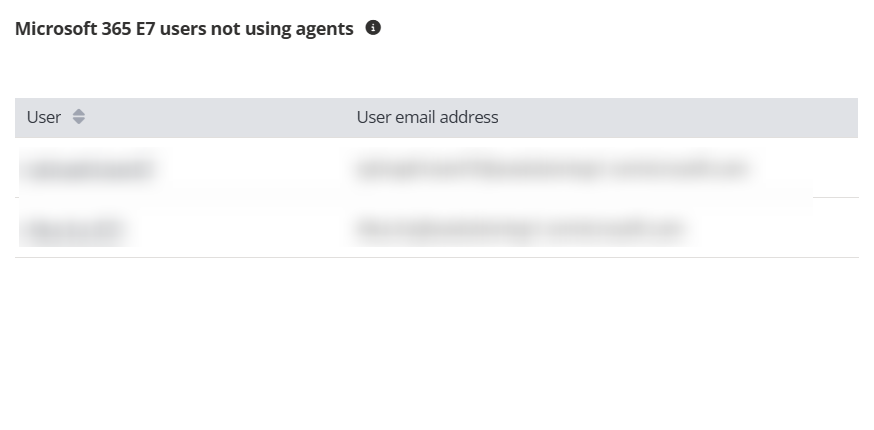
You can click the user name to view details, including the total number of AI agents the user has interacted with, activity counts for each agent, agent usage, and the license assignment.
Other Actions
You can also perform the following actions:
-
Date range – Click Date range on the upper-right corner of the page to select a date range for the reports.
-
Filter – Click Filter to select the tenants and refine the data displayed in the reports.
-
Settings – Click the gear icon in the upper-right corner of the page for additional actions:
-
Benchmarking – Configure benchmarking to compare your organization with others on metrics on agentic AI adoption. For detailed information, refer to Configure Benchmarking.
-
Clear mode – Enable clear mode to see unobfuscated user details.
-
Connection – Configure connections to all supported AI agent providers. For detailed information, refer to Configure AgentPulse Connections.
-