
Home > Command Centers > Custom Dashboards > Overview
Download this articleCustom Dashboards
If your organization has subscriptions to any of the services providing reports in Command Centers, you can go to the My dashboards section to manage custom dashboards. Managing custom dashboards can meet the diverse demands from organizations who want to tailor the dashboards based on their needs.
Refer to the following instructions to manage custom dashboards.
-
Ensure your organization has valid subscriptions to any of the following services:
-
Cloud Governance
-
Insights
-
Policies for Microsoft 365
-
EnPower
-
MyHub
-
Cense
-
tyGraph
-
Opus
-
Cloud Backup for Microsoft 365
-
Cloud Backup for Dynamics 365
-
Cloud Backup for Google Workspace
-
Cloud Backup for Salesforce®
-
Cloud Backup for IaaS + PaaS
-
Cloud Backup for SaaS Applications
-
-
Go to the My dashboards section and manage custom dashboards via the following operations:
-
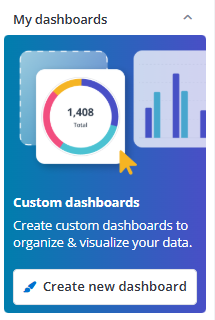
Click Create new dashboard to create one. For more information, refer to Create New Dashboard. Note that the My dashboards section will be shown as below when there are no custom dashboards created.
-
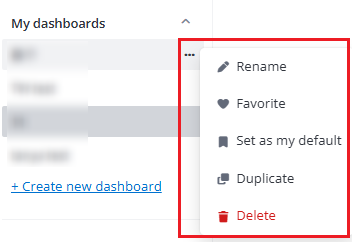
The created dashboards are listed in the My dashboards section. When you hover on an existing dashboard and click More actions button, the drop-down menu appears, and you can perform the following actions: Rename, Favorite, Set as my default, Duplicate, and Delete.
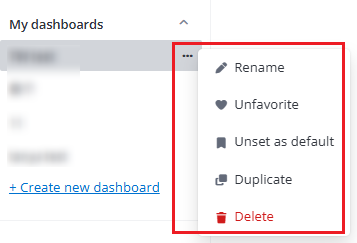
For a favorite/default dashboard, you can also perform the Unfavorite / Unset as default action.
-
-
On the interface of a dashboard, you can perform the following actions:
-
You can drag and drop each widget to a different position.
-
You can rename a dashboard.
-
You can click the More actions button on the upper-right corner of the dashboard, and perform the following actions: Manage widgets, Duplicate, and Delete.

-
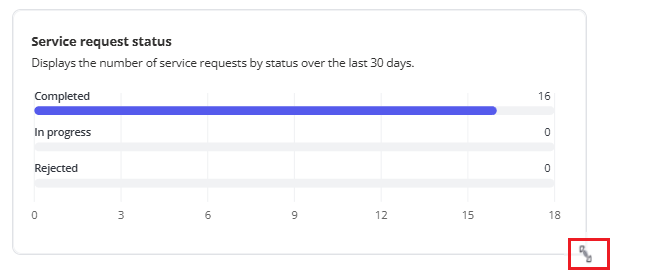
You can resize a widget when hovering at its bottom-right corner.
-
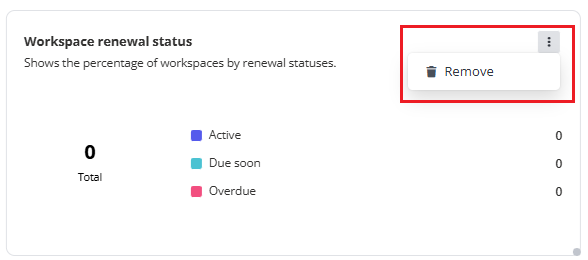
To remove a widget from a dashboard, click the More actions on the upper-right corner of the widget, and click Remove.
-