
Home > Ava (Your AI Assistant)
Download this articleAva (Your AI Assistant)
Ava is an AI-powered assistant integrated into AvePoint Online Services to help admins and business users streamline tasks, answer questions, and provide guidance.
Administrators can manage Ava's accessibility, enabling it for all users, disabling it, or allowing access for specific users or groups. For details, refer to Control Ava Access.
Ava supports multiple languages and offers both panel and portal modes for interaction, making it easier for users to find information and resolve issues efficiently. For details, refer to Ask Ava.
Ask Ava
Ava is AvePoint’s AI-powered assistant, integrated with most products in AvePoint Online Services to help users simplify tasks and save time. It supports English, Japanese, German, French, Korean, Italian, Chinese, Spanish, Dutch, and Portuguese.
Ava provides information about AvePoint Online Services products and features, and also includes advanced capabilities such as AvePoint Insights prompts with data-driven capabilities. These prompts let you access data related to risk analysis, sharing links, external users, orphaned users, and ghost guest users. Ava also offers personalized prompt recommendations based on your role and responsibilities, helping you quickly access the most relevant actions.
Currently, Ava is in beta, with prompts focused on information access. Management and remediation actions are coming soon.
By default, Ava is enabled for all users in your tenant. Administrators can control who can access Ava by referring to Control Ava Access.
Ava has panel mode and portal mode. In the panel mode, you can ask Ava to get answers about the products/features which you are interested in. For more details, refer to Access Ava Panel Mode. In the portal mode, apart from asking Ava to get answers, you can also configure settings, view notifications, search chats, etc. For more details, refer to Access Ava Portal Mode.
For additional technical information on the new functionality in this release, see the Release Notes.
Access Ava Panel Mode
To enter the Ava panel mode, select the Ava icon located in the upper-right corner of your service page. If this is your first time using Ava, click Meet Ava! The Ava panel will then be displayed.
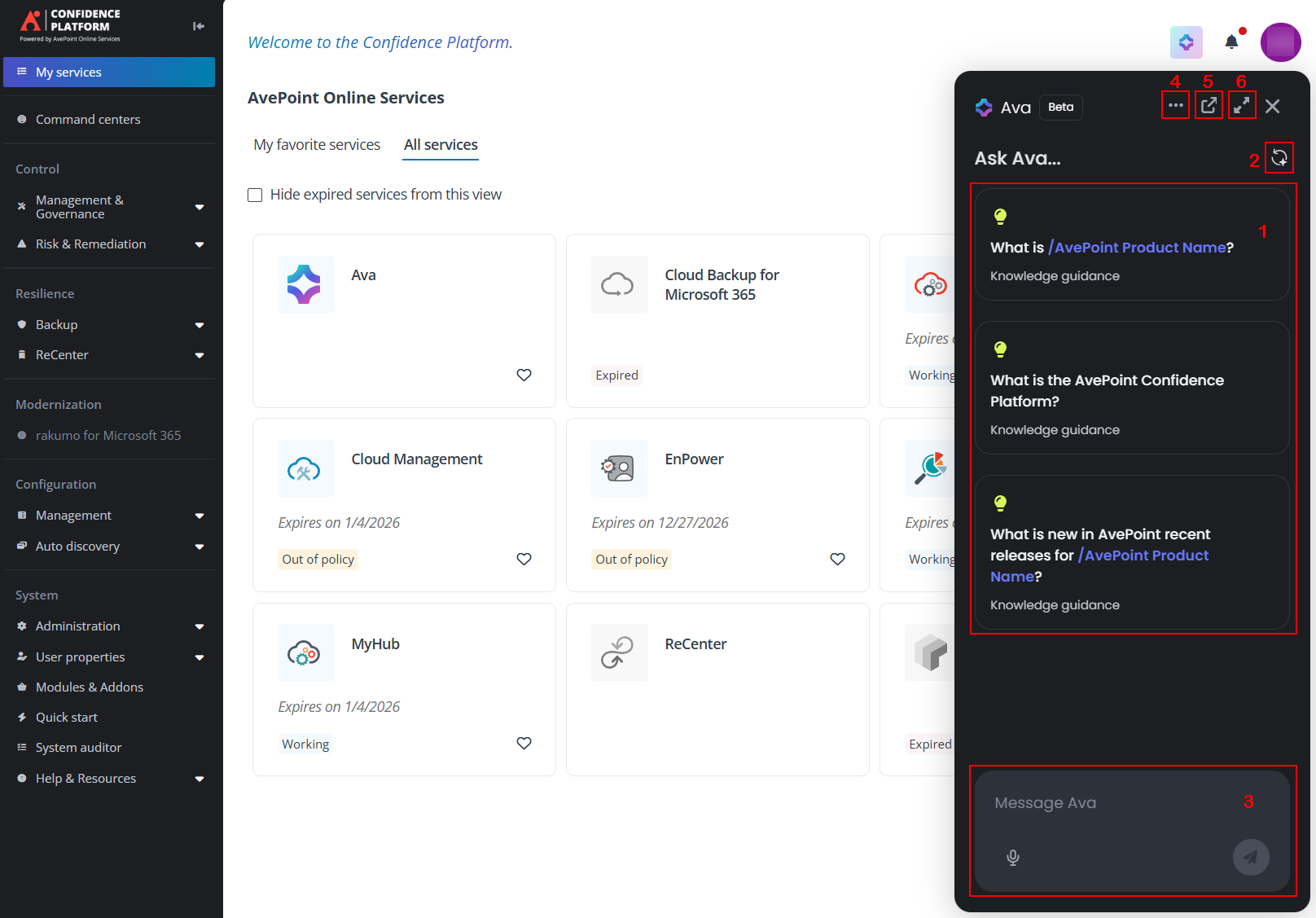
The Ava panel includes the following features:
-
Quick prompts – Ava provides quick prompts personalized based on your role and responsibilities to help you get started. Clicking a prompt will automatically populate your message box, where you can send it to Ava directly or modify it as needed. These recommendations are tailored to help you quickly access the most relevant actions.
-
Refresh – Click the refresh icon to see additional quick prompts available for the service.
-
Message box – Enter your questions in the message box and send them to Ava. You can also use the Dictate icon to activate audio message dictation.
-
Action list – The action list offers the following options:
-
Start a new chat – Click New chat to begin a new conversation.
-
View chat history – Click Chat history to see past chats. Then select a chat history card to view its details.
-
View prompt gallery – Click Prompt gallery to access all available quick prompts. Use the drop-down menu at the top to choose the prompt category you want to explore.
-
Change Ava settings – Click Settings to change the following settings:
-
General – Including the language displayed and leveraged in the Ava panel:
-
Language – Controls the display language.
-
Spoken language – Choose the language for dictation. You may pick a particular language from the dropdown list or select Auto-detect to allow Ava to identify your spoken language automatically.
-
Voice – Choose Ava's voice for audio responses. Click the Play button to listen to the sample voice.
-
-
Data controls – Turn on/off sharing your personal conversation history when providing thumbs up/down feedback.
-
-
-
Ava portal – Clicking this icon takes you to the Ava portal, where you can see prompts for all subscribed services and adjust more Ava settings. For more information about the Ava portal, see Access Ava Portal Mode.
-
Expand – Click this icon to enlarge the panel size.
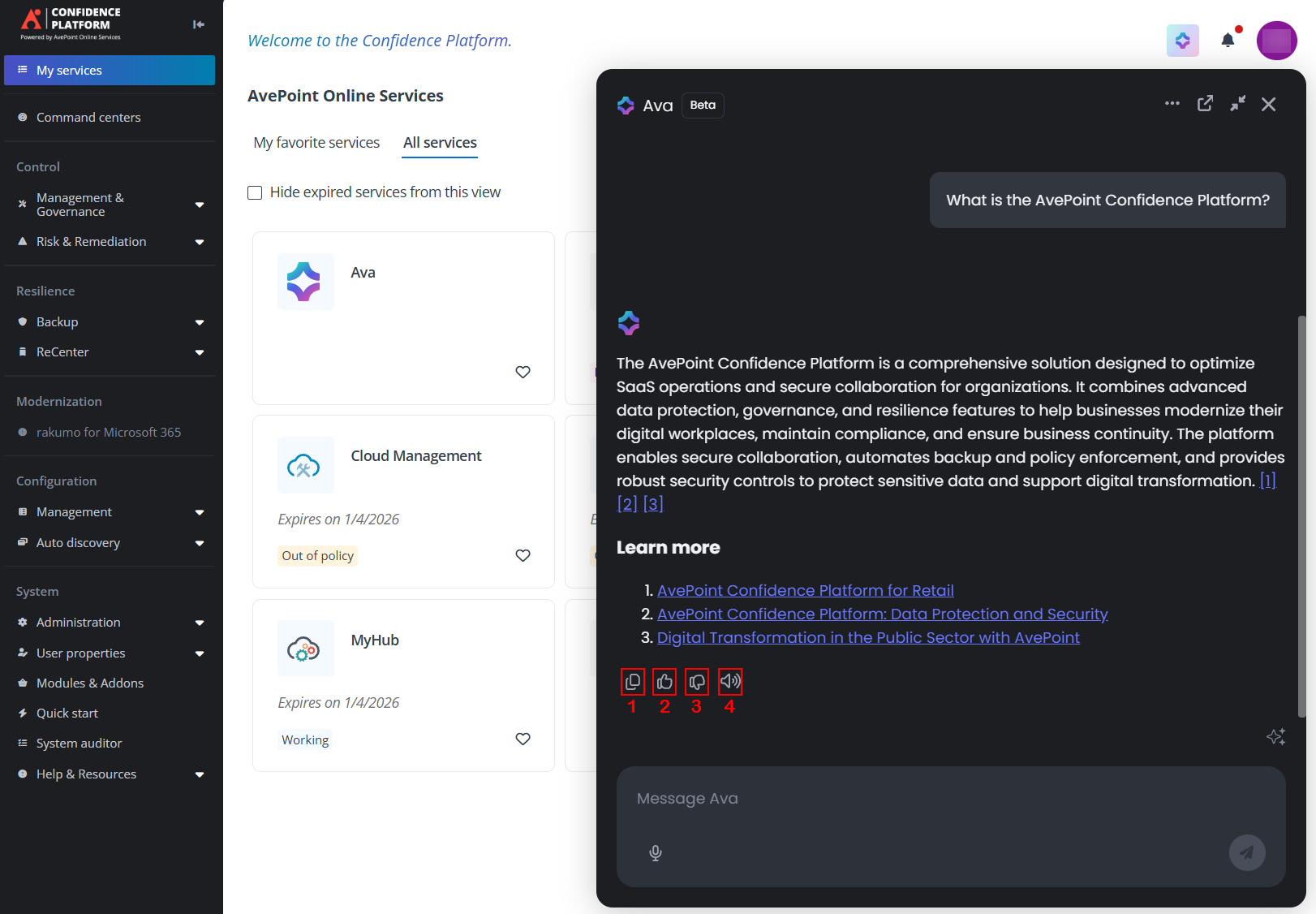
Once you receive the answer to your question or prompt, you have the following choices:
-
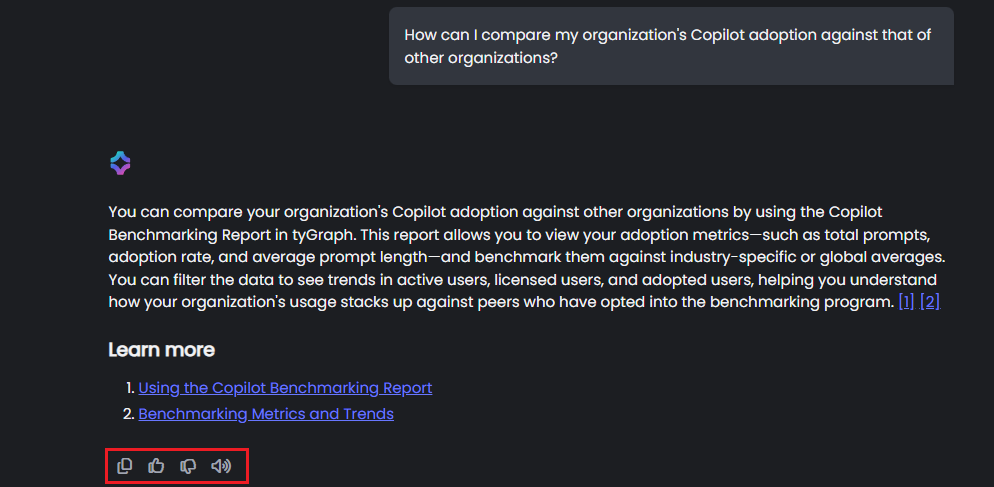
Copy – Click to copy the response to your clipboard.
-
Thumb up – Click to show that the response is helpful.
After clicking this icon, you can decide whether to share this conversation or all future conversations with AvePoint to help improve Ava. You can turn off feedback sharing in Ava portal > Settings > Data controls.
-
Thumb down – Click to indicate that the response is not helpful.
After clicking this icon, you can choose the reasons why you found the response unhelpful and then decide whether to share this conversation or all future conversations with AvePoint to help improve Ava.
Feedback sharing can be disabled in Settings > Data controls. When disabled, all related options will no longer appear after clicking the thumb up or down.
-
Read – Click to have Ava read the response aloud.
Access Ava Portal Mode
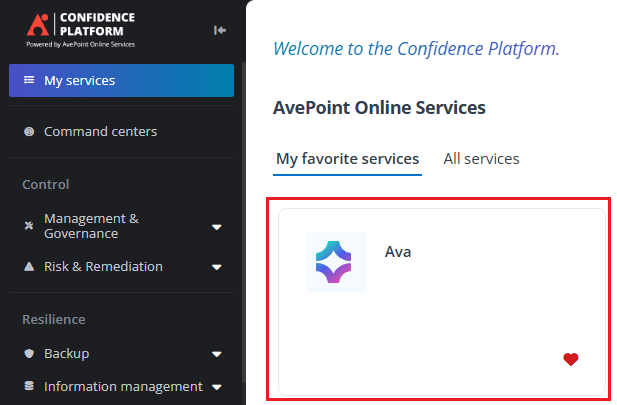
In the AvePoint Online Services platform, navigate to My services and click the Ava service tile to access the Ava portal.
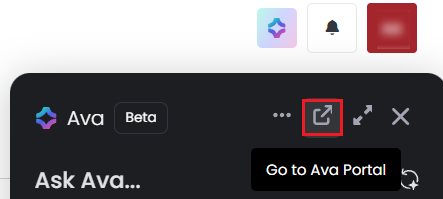
In other product interfaces, you can access the Ava panel first, and then click the Go to Ava portal button to access the Ava portal.
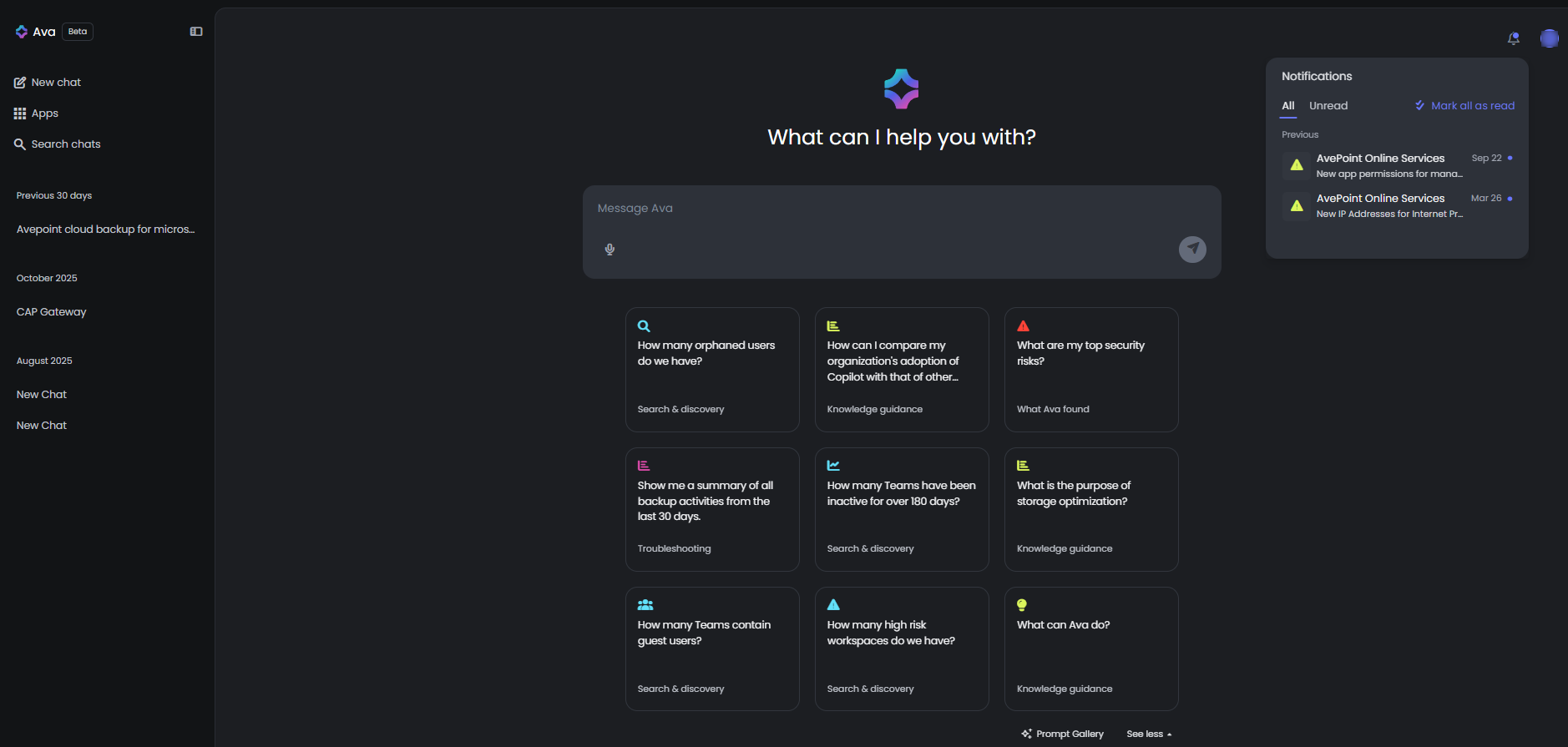
Below is an overview of the Ava portal interface. The display language of Ava follows your selection in Settings > General > Language.
-
On the upper-right corner of the interface, you can view notifications, view user profile, configure settings, and access the Help panel.
-
On the left navigation menu, you can click an option to access features like Apps and Search chats, as well as view your history chats.
-
The central area is the main workspace in Ava portal, where users can chat with Ava or launch their apps in AvePoint Online Services.
For detailed introductions, refer to the following sections.
Settings
To open the settings panel, click the user profile icon on the upper-right corner, and then click Settings from the drop-down menu.
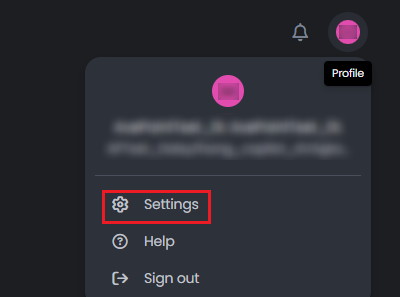
In the settings panel, you can configure the following:
-
Account – To view more details or edit the profile information, click View more details & edit.
-
Data controls > Feedback sharing – Turn on/off sharing your personal conversation history when providing thumbs up/down feedback.

-
General > Language – Choose the language in which the Ava interface will be displayed, set the preferred spoken language for voice input, and select Ava’s voice for audio responses. This allows you to personalize your experience by matching the interface language and voice settings to your preferences for both visual and audio interactions.
NOTEIf you haven’t manually set the language for Ava interface, Ava detects and follows the preferred language set on your browser, and adds the Auto-detect label to that language. The default option is English (Auto-detect) if your browser language hasn’t been supported by Ava.
Help
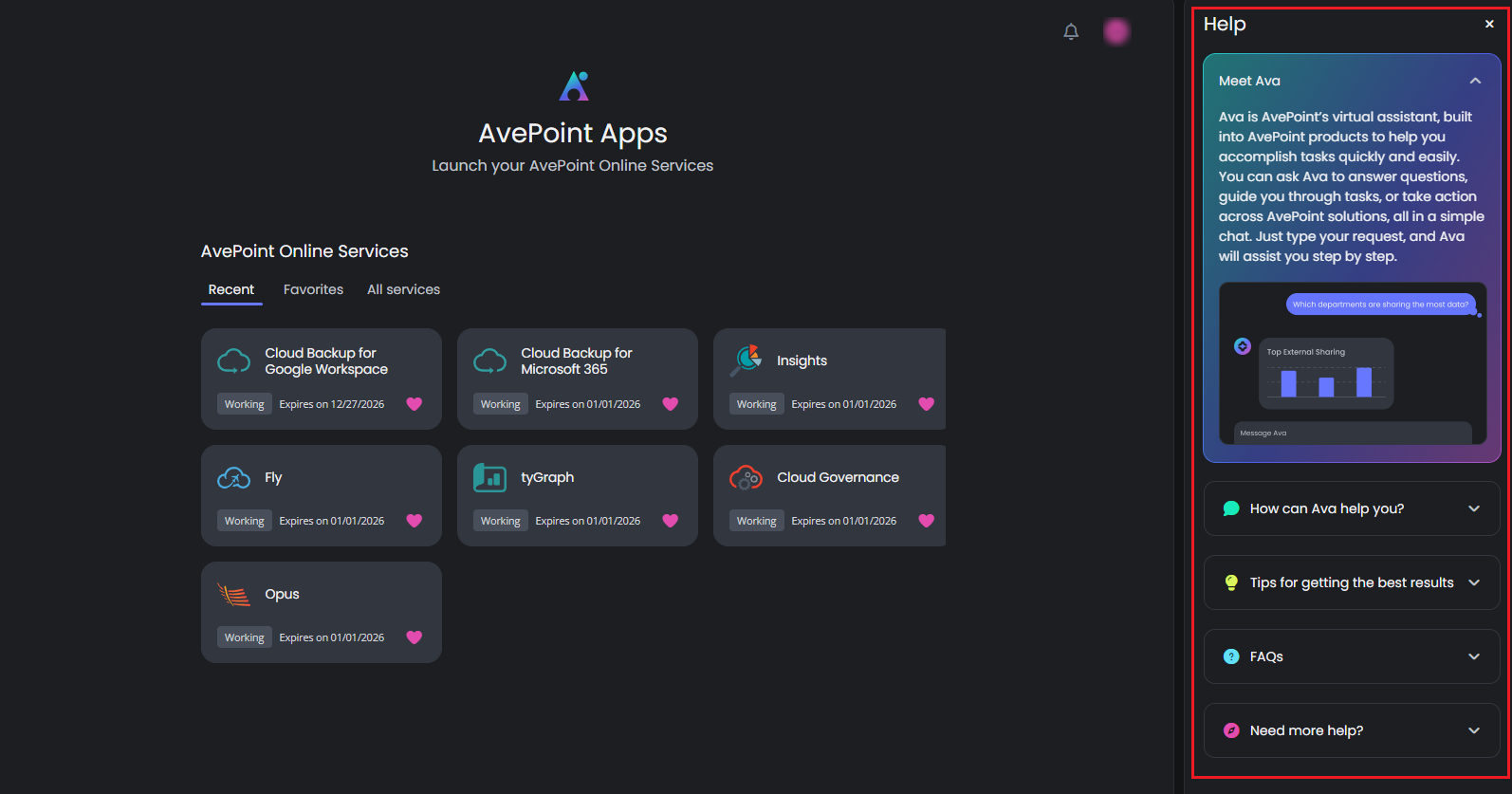
In Ava portal, you can access the Help panel to get familiar with Ava’s functionalities and explore tips for getting the best results.
To open the Help panel, click the user profile icon on the upper-right corner, and then click Help from the drop-down menu. The Help panel appears on the right of the interface.
Chats
Refer to the following instructions to use Ava chats:
-
Start a new chat. Click New chat, and you can start chatting with Ava via the message box. When entering questions, Ava can provide smart autosuggestions:
-
History – Displays suggestions relevant to your recent chat history.
-
Recommendations – Displays suggestions featuring prompts from AvePoint products.
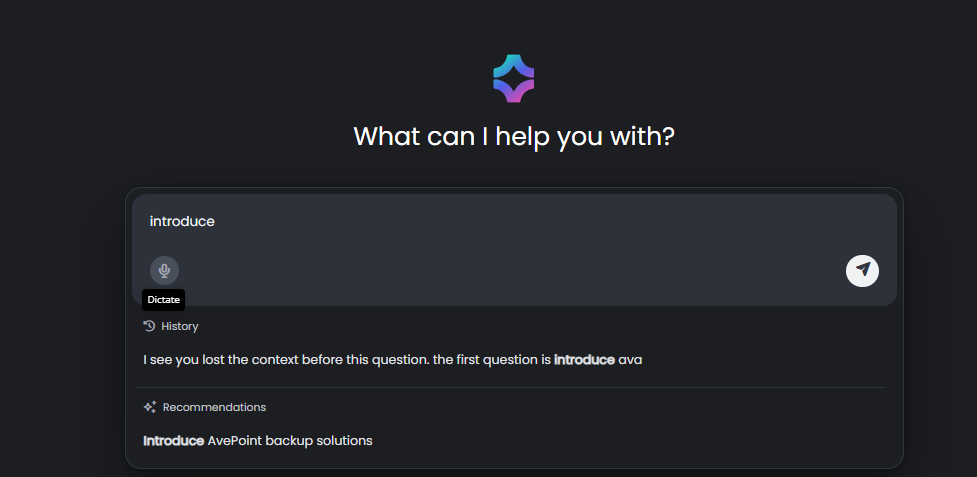
You can also dictate your message to Ava. Click the Dictate icon to activate and start dictation.
-
-
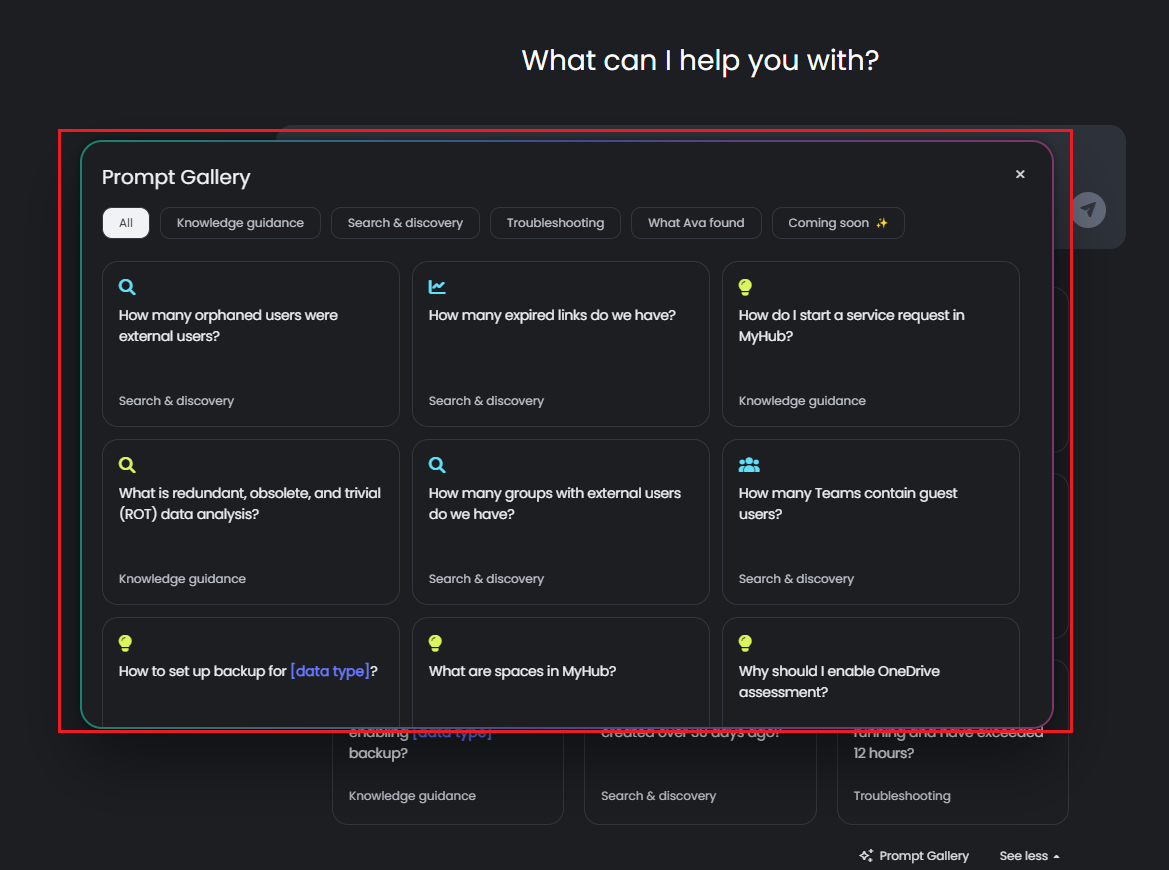
Use the Prompt Gallery. Click Prompt Gallery to open the Prompt Gallery panel, which provides prompts integrated with AvePoint products. You can click a prompt to add it to the message box, and click the Send button to send it to your chat with Ava.
With an AvePoint Insights subscription, you can use prompts to access data related to risk analysis, sharing links, external users, orphaned users, and ghost guest users.
NOTECurrently, the prompts focus on data access and viewing, with management and remediation capabilities coming soon.
-
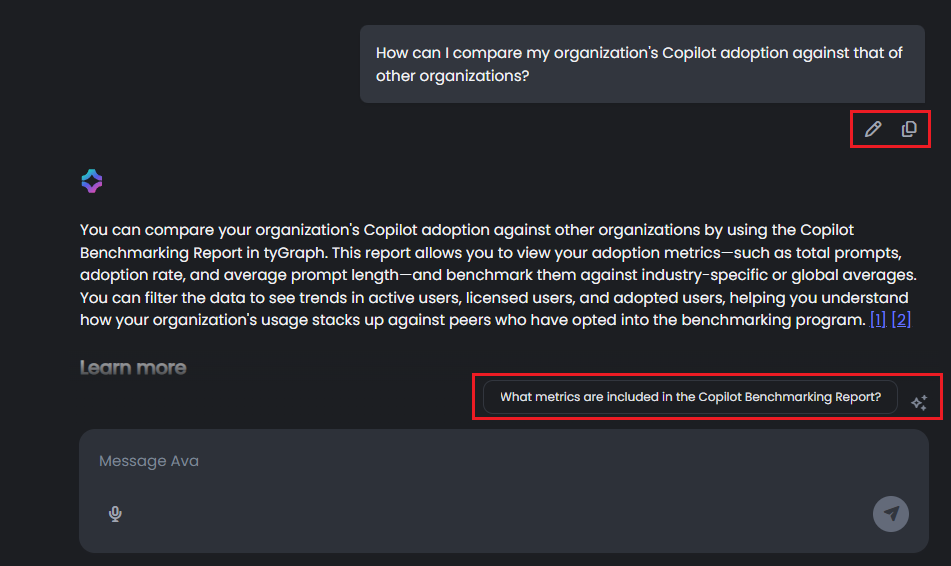
Edit/copy messages and follow up questions. When hovering on your message, you can click the relevant button to edit or copy the message.
Ava can also provide suggested prompts to follow up your questions, and you can use the prompts to get answers.
-
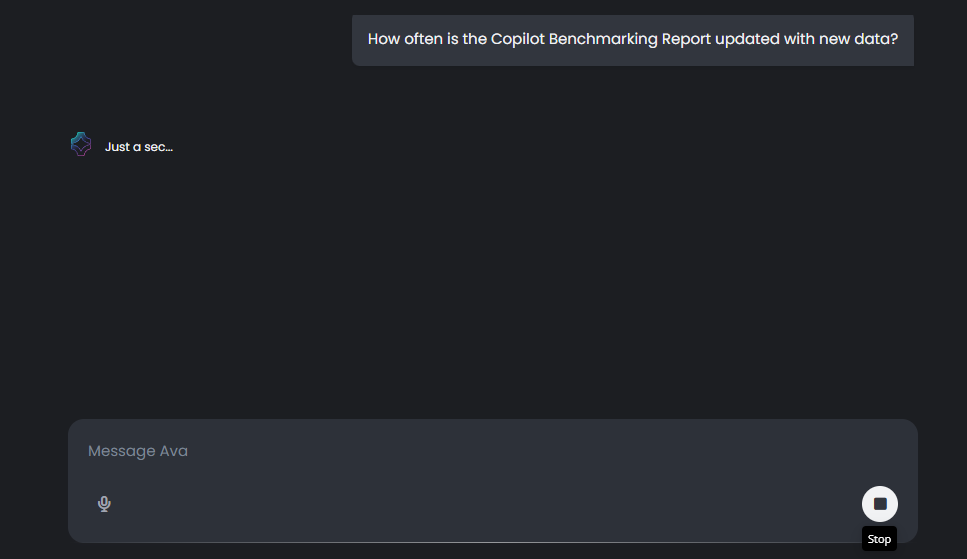
When necessary, you can click the Stop button to pause generating response.
-
Perform actions to Ava’s response, including Copy, Like, Dislike, and Read.
-
Ava can keep your chat history for up to 18 months. You can view chat history listed on the left navigation. For each item in the chat history, you can rename its title, reopen it to continue with the chat, or delete the record.
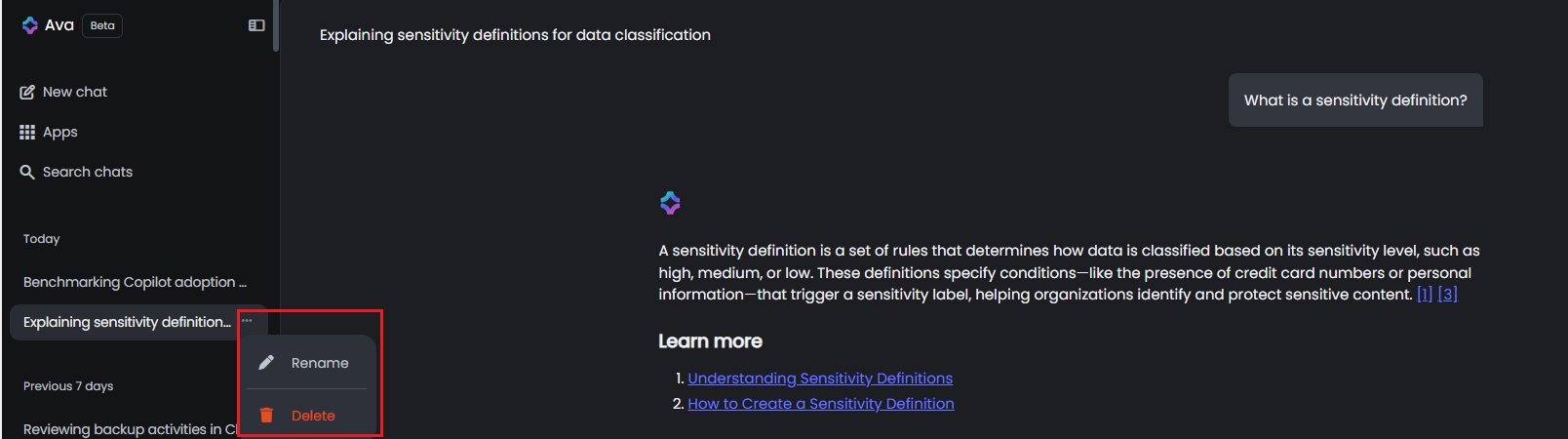
If you want to search for chats from your chat history, click Search chats on the left navigation. The pop-up window appears, and you can enter keywords to search for chats.
Apps
To launch your apps in AvePoint Online Services, click Apps on the left navigation menu. The AvePoint Apps interface appears, and you can access apps under the Recent, Favorites, and All services tabs.
The Recent tab is selected by default, displaying services the current user has accessed within the past 30 days.
Note that administrators can select the Hide expired services from this view checkbox to not show expired services to users in your tenant.