
Navigate AvePoint Online Services
This section provides an overview for the platform home page:
-
The left navigation pane is designed as a menu to access features in AvePoint Online Services.
-
On the My services page, you can view My favorite services and All services that your tenant has purchased or for which it has started the trial.
-
On the Command centers page, you can select your tenant to gain data-analysis powered by the services that your organization has purchased in AvePoint Online Services. For additional details, refer to Command Centers.
-
In the Control, Resilience, and Modernization categories, the services your tenant has a subscription for will be listed, and clicking on a service will open its interface in the current tab. When you are on a service interface, you can click AvePoint Online Services icon on the left navigation pane to go back to the AOS interface.
-
For the main features including Management, Auto discovery, and Administration, refer to the Configuration and Deployment section to view the general instructions.
-
The Modules & Add-ons section displays all services within the platform. You can start a trial for services that were not selected when your tenant signed up for AvePoint Online Services. For details, refer to Start Trial of Modules & Add-ons.
-
Click Quick start on the left navigation pane to open the Quick start wizard. For more details on the wizard, refer to the Use the Quick Start Wizard section.
-
Click System auditor on the left navigation pane to export the user activity report. For details, refer to System Auditor.
-
Click Help & Resources on the left navigation pane, and then select an option from the drop-down list:
-
Invite support – Invite the support team to help you with issues in your services. For additional details, refer to the Invite Support section.
-
Submit feedback – Submit your feedback on any services. For additional details, refer to the Submit Feedback section.
-
User guide – View AvePoint Online Services user guide.
-
What’s new – View AvePoint Online Services release notes, which include information on the new functionality and known issues in each release.
-
AvePoint – Navigate to the AvePoint website.
-
-
-
If you have any questions related to services operated by AvePoint Online Services, click the Ask Ava button on the upper-right corner of a page to chat with Ava (AvePoint’s virtual assistant). For more information, refer to Ava (Your AI Assistant).
-
Click the Notification center button to view announcements. For additional details, refer to the View Announcements section.
-
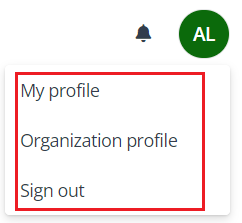
Click your account and select an option from the drop-down list:
-
My profile – Change the information in your profile. For additional details, refer to Manage Your Profile Information.
-
Organization profile – View your Tenant ID value and change the information in your organization profile. For additional details, refer to Manage Organization Profile Information.
-
Sign out – Sign out your current account.
-