
Home > Command Centers > AgentPulse > Get Started > Manage Sources of AgentPulse
Export to PDFManage Sources of AgentPulse
You can configure connections to all supported AI agent providers by navigating to AgentPulse connections on the left navigation pane.
For detailed instructions on how to add resources, refer to the Configure AgentPulse Connections section.
Configure AgentPulse Connections
If your organization wants to configure connections to all supported AI agent providers after the onboarding process for AgentPulse completed, service administrators can navigate to Configuration > AgentPulse connections to add sources.
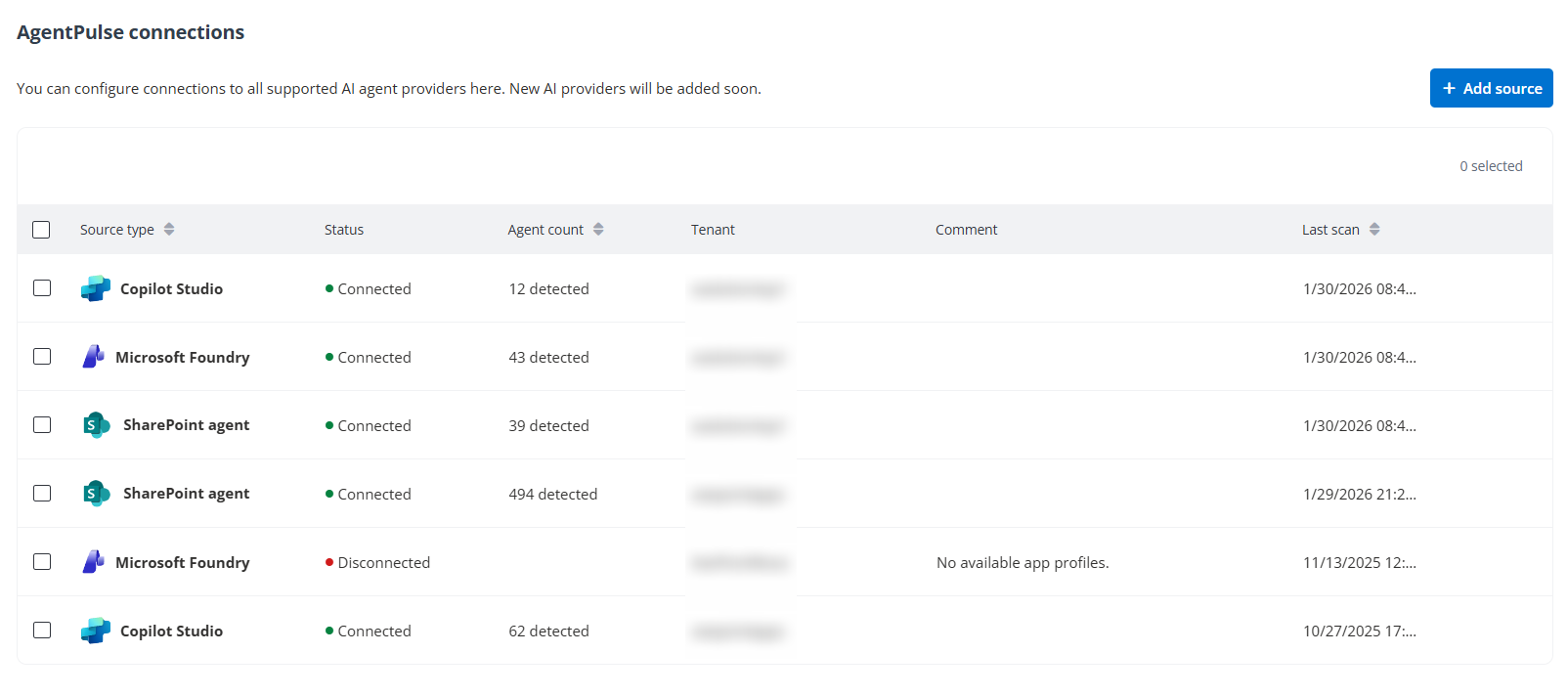
To add a source, refer to the instructions below:
-
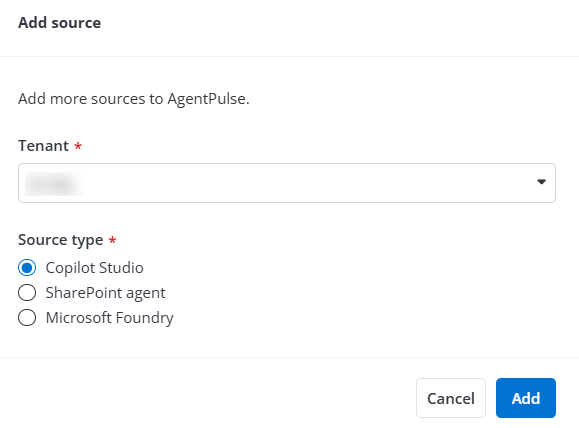
Click Add source.
-
Select a tenant for which you want to add a source, select a source type, and click Add.
Refer to the table below for the app profiles required by each source type.
| Source type | Required app profile |
|---|---|
| Copilot Studio | AgentPulse |
| SharePoint agent | AgentPulse |
| Microsoft Foundry | AgentPulse Microsoft Foundry |
For the API permissions needed by these app profiles, refer to AgentPulse App Profiles.
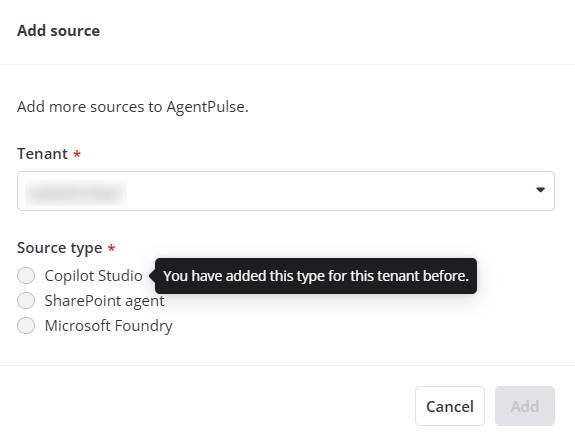
If the selected tenant has connected to a source type, the existing source type cannot be selected.
-
After clicking Add, sign in with a Microsoft 365 Global Administrator account to consent to the app and trigger a scan job for the selected source type.
-
Once you finish the consent, a new connection will be added to the table. Refer to the following information for details of a connection.
-
While a scan job is in progress to scan a source type, the Status column displays Connecting.
-
After a scan job for a source type is completed, the Status column displays Connected, the Agent count column displays the number of objects detected in the job, and the Last scan column displays the time when the scan job is completed.
-
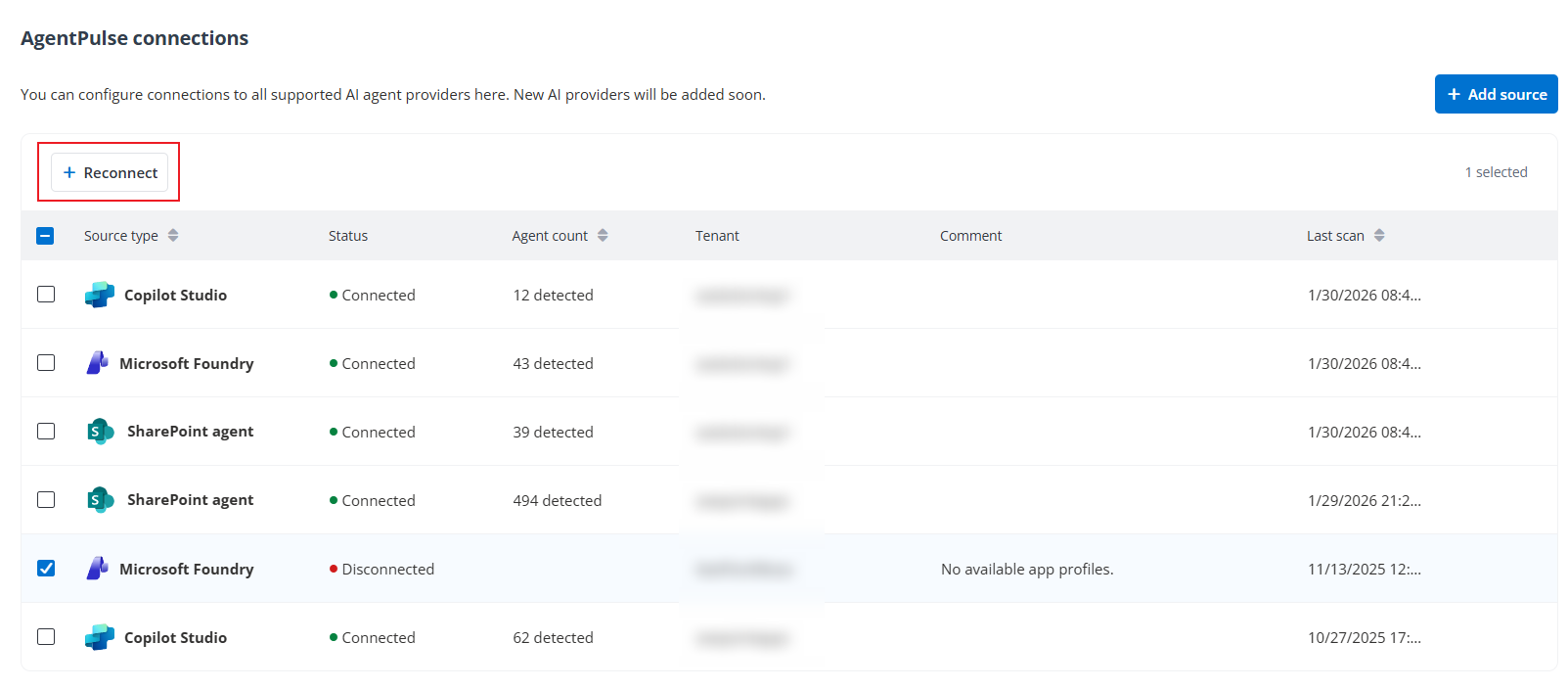
If a scan job is failed, the Status column displays Disconnected, and the Comment column displays the error details. You can select a Disconnected source type and click Reconnect above the table to re-authorize the app profile and run another scan job.
-
Once you finish the consent, you can also view the newly created app profile in Management > App management, and view the newly created scan profile in Auto discovery > Scan profiles.