
Home > Invite Support > Use Customer Portal
Download this articleUse Customer Portal
AvePoint provides a dedicated Customer Portal where you can view and manage your support tickets. Follow the instructions below to check your support tickets in Customer Portal.
-
To access Customer Portal, go to https://account.avepoint.com/ and sign in using your organization’s account.
-
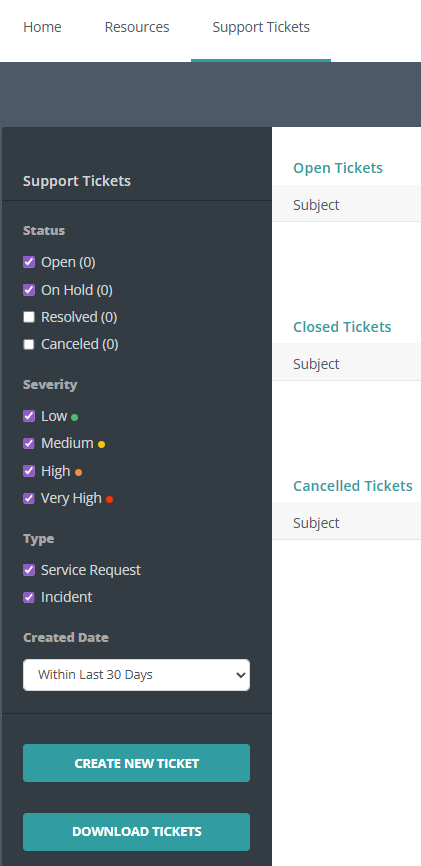
After you have signed into the portal, select the Support Tickets tab on the top navigation. Then, you can view open/closed support tickets, search and filter current/historical support tickets, as well as download a list of support tickets.
-
If you cannot view expected support tickets, check the following account information:
-
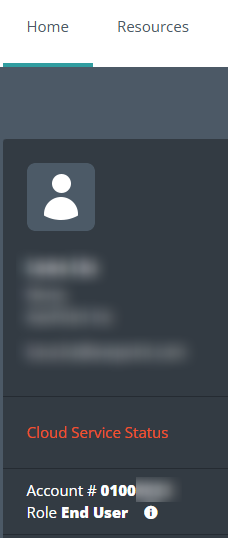
Account – Check if the account number is correct.
If you don’t see the correct account number after signing in, you may be viewing another account. Contact support or your account manager if the correct account is not available.
-
Role – Check if your account has sufficient permissions to view support tickets.
If you cannot see your tickets or tickets created by others in your organization, you may not have the correct permission level in the portal. In this case, submit a support ticket to increase your permission level.
-