
Home > Command Centers > AgentPulse > Get Started > Set Up Salesforce App Authentication
Download this articleSet up Salesforce App Authentication
To view Salesforce agent data in AgentPulse, you need to set up Salesforce app authentication before connecting your Salesforce tenant.
Complete the following steps to set up the Salesforce app authentication:
-
Install the Salesforce app package. For details, refer to Install the App Package
-
Configure the required permissions for the user who will provide consent for the AgentPulse app profile. For details, refer to Configure Required Permissions.
Install the App Package
Complete the following steps to install the Salesforce app package:
-
To install the app package, access the package installation details page and sign in with Salesforce credentials.
NOTEThe signed-in user must have the Download AppExchange Packages permission assigned to install the app package. To verify this permission, navigate to Setup > Users > Profiles, select the user profile, and check under the permission.
-
Select Install for All Users.
-
Click Install.
Configure Required Permissions
Complete the following steps to configure the required permissions for the user who will provide consent for the AgentPulse app profile:
-
Sign in to Salesforce with the user account that will provide consent for the AgentPulse app profile.
-
In Salesforce, click the gear icon on the upper-right corner and select Setup.
-
In the left navigation pane, click Users > Profiles.
-
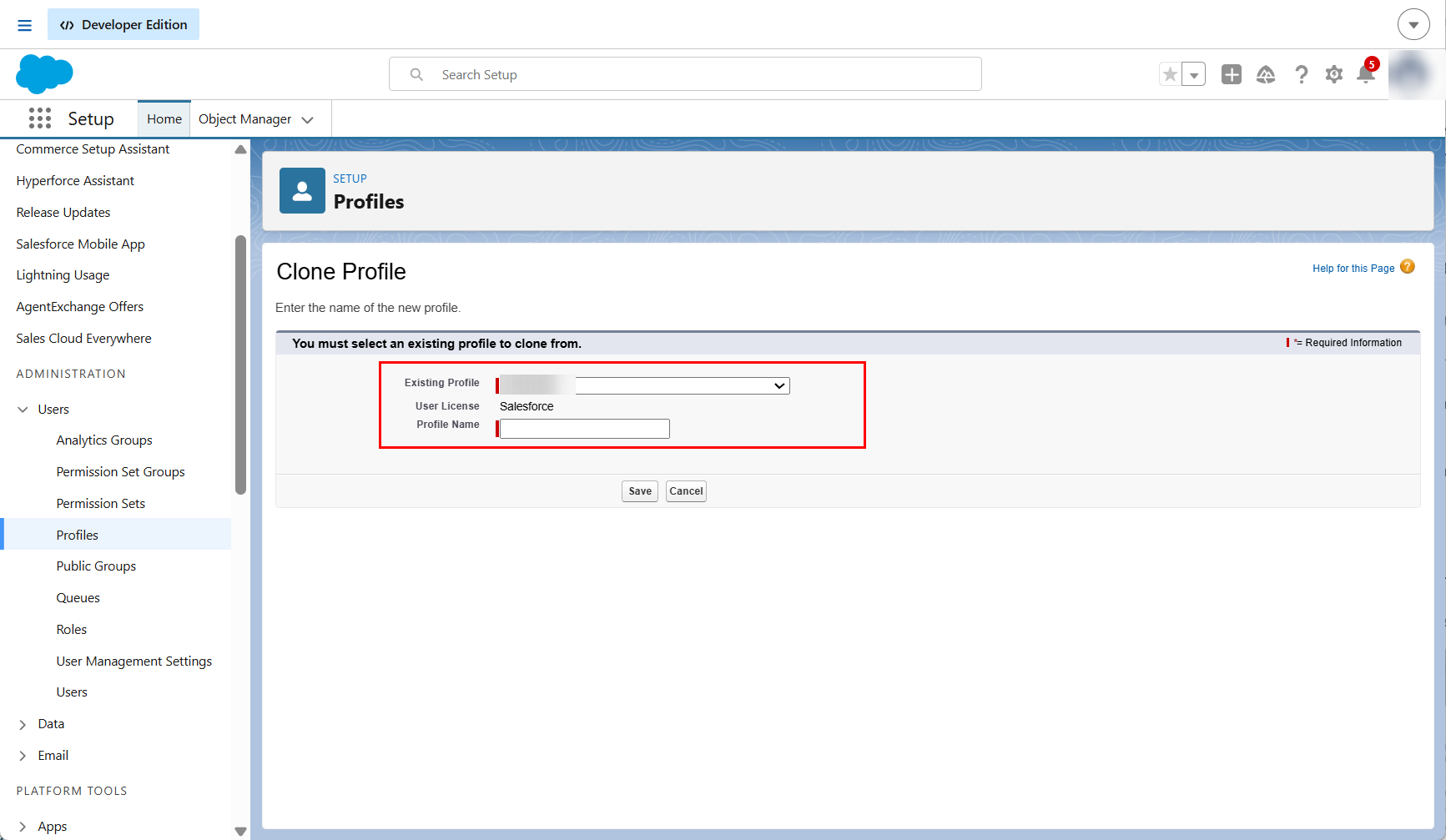
Click New Profile and complete the following fields:
-
Existing Profile - Select an existing profile to clone.
-
User License - Ensure the user license is Salesforce.
-
Profile Name - Enter a name for the new profile.
-
-
Click Save.
-
On the profile details page, click Edit.
-
Under the Administrative Permissions section, select the following permissions:
-
API Enabled
-
Manage Bots
-
-
Click Save.