
Home > Restore and Recover Your Data > Restore Record Data
Download this articleRestore Record Data
To restore record data, follow the steps below:
-
Click Restore on the left pane.
-
Select the organization/environment you want to recover.
-
You can choose one of the following methods to find the data to restore in the Select mode step:
-
Search across backup data with specific criteria for the records that you want to restore.
-
Select Record from the Level drop-down list.
-
Select the entity from the Entity list where the records you want to restore belong.
-
Enter the Primary name or Primary ID if needed.
-
The backup time range is automatically populated with the last backup cycle. You can click the Calendar button to customize the backup time range. Click OK to save your customization.
-
You can also use the following specific properties to search for the records: Owner, Create On, Created By, Modified On, or Modified By.
-
Click Next. The Select data to restore page appears. The search results are displayed. The search results table will display a maximum of 500 records.
-
Find and select the records you want to restore from the search results. In the drop-down list under the Recovery Point column, select a backup job that backed up this record at the status that you want to restore.
-
-
If you want to select items based on backup jobs, click Drill down a recovery point for the data to restore and follow the steps below:
-
Select a recovery point from the Backup recovery point calendar. You can also use the Primary name, Primary ID, Owner, Created on, Modified on, Created by, or Modified by to search for the records.
-
In the Select data to restore page, find the entity where the records you want to restore belong. You can enter the keywords of the entity name into the search box in the Entities list to search for the entities.
-
-
If you want to locate recovery points by date in a calendar view, click Locate recovery points in a calendar view and follow the steps below:
-
In the calendar view, you can locate the recovery points by date and view its backup details. Select the recovery point as needed and click Next.
-
In the Select data to restore page, find the entity where the records you want to restore belong. You can enter the keywords of the entity name into the search box to search for the entities. The number of records within an entity is displayed in the Number of records column.
-
You can select all of the records backed up in this backup job for this entity to restore or select specific records to restore. By default, all the records are selected. Click All selected in the Record selection column to view the records that have been backed up in the selected backup job. You can use Field value keyword, Owner, Created on, Created by, Modified by, or Modified on to search for the records.
-
-
-
For the selected records, their Field selection column will display the All fields link by default. You can click the All fields link to select the fields that you want to restore with the record. In the Field comparison tab, you can compare the backup data of this record with the data in Dynamics 365 to help you determine if you want to restore the record. The comparison for this record will be displayed in the right pane, and the differences will be highlighted. You can select the Only show differences option to only display the properties that have different Backup value and Current value.
NOTEFor Dynamics Customer Engagement, the Audit Logs tab displays the full change history, not only the changes backed up at the recovery point, to help you read through the change history for rollback. You can select any event to revert the changes. The Old value in the selected audit log item will be restored to Dynamics organizations. Additionally, please note that if you select several audit logs to restore, the audit ID will be displayed in the Record ID column in the restore job report details.
-
After you finish selecting the records, click Next.
-
In the Configure restore settings step, you can run a real restore job, or you can start a dry run job at first as a rehearsal for the future restore. With a dry run job report, we will do our best to help you know what to expect when you actually restore your data.
-
Select if you want to Restore related records or Do not restore related records. This is used when restoring records that may be missing references in Dynamics. For entities that can be restored as related records, refer to Supported Entities List.
-
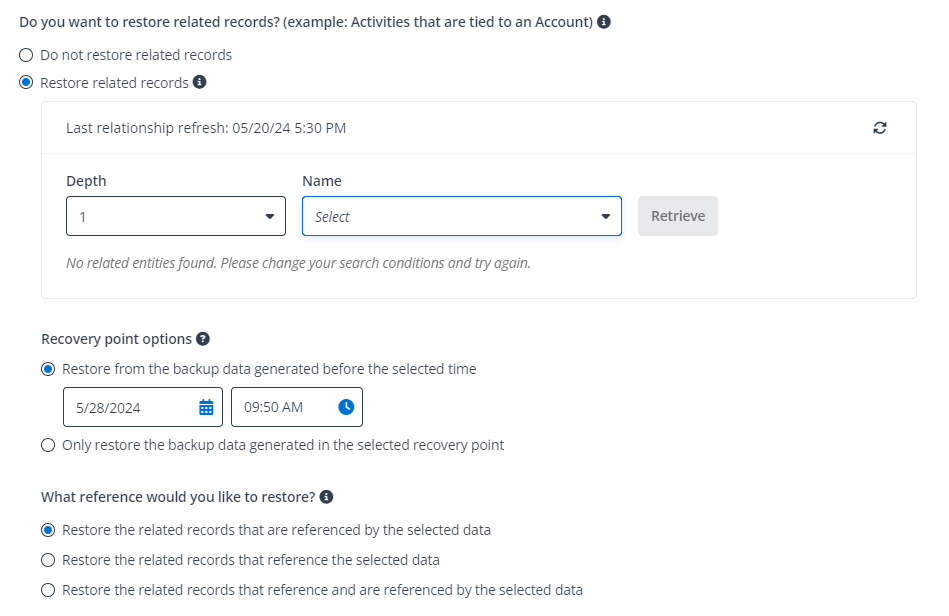
If you select Restore related records to restore the related records for the selected records, you can specify a limitation for the depth of restoring related records, decide the recovery points scope for the related records to be restored, and you can also choose what references to restore, such as the related records that are referenced by the selected data or reference the selected data, or both. The Last relationship refreshed is displayed under this option to inform the users of the last time of retrieving the record relationships. You can click the Refresh button next to the time to refresh the relationships immediately.
-
You can select a depth of up to 3 and then search and select the entities that you want to restore from the Name list. Click Retrieve to show the relationship between the selected entities and the data you selected to restore.
The depth value you select and the entities you select from the Name list to restore will impact the number of records that will be restored and the amount of time the restore job will take — the more entities selected, the more records to restore, which will increase the job time.
-
In the Recovery point options field, you can choose to restore the backup data of the related records that are generated before a specific time or only restore the backup data generated in the selected recovery point.
-
Restore from the backup data generated before the selected time – With this option selected, you must define the specific time for the restore job to retrieve the backup data before that for the related records that need to be restored.
-
Only restore the backup data generated in the selected recovery point – With this option selected, you only need to ensure the audit settings of the entities have been enabled before the selected recovery point.
-
-
In the What reference would you like to restore field, you can select to restore the related records that are referenced by the selected data, that reference the selected data, or both. You are recommended to restore the records that are referenced by the selected data only. The restore will be slower if both referencing and referenced records are selected to restore.
NOTEIf you have records in the following relationship: record A has a lookup field referencing to record B; B has a lookup field referencing to record C. We assume you select B to perform restore. Then, if you only want to restore C, select the Restore the related records that are referenced by the selected data option. If you only want to restore A, select the Restore the related records that reference the selected data option.
-
-
Select where you would like to restore the data. The restore job of Cloud Backup for Dynamics 365 Customer Engagement service supports restoring to its original location (the Restore the data to its original location option) or to another location (the Restore the data to another location option).
If you want to restore the backup data to another location, ensure the mapping settings are ready to be applied for the source and destination. For details, refer to Configure Mapping Settings.
With the Restore the data to another location option selected, only the organizations/environments that have mappings configured and ready to be applied can be selected as the restore destination.
-
In the How would you like to restore the records that do not exist in the destination field, you can select the Create or Skip option for restoring the records that do not exist in the destination.
-
In the How would you like to restore the records when conflict occurs field, you can select the Update or Skip option for restoring the records that exist in the destination.
-
Click Next.
-
Review the restore settings in the Overview step and then click Restore to start the restore process. You can check job status and job report through Job monitor.