
Home > Manage Your Storage > Use Your Own Storage Location
Download this articleUse Your Own Storage Location
To change the storage location from the AvePoint-hosted default storage to your own Azure storage, contact AvePoint to update your subscription and then complete the steps below:
-
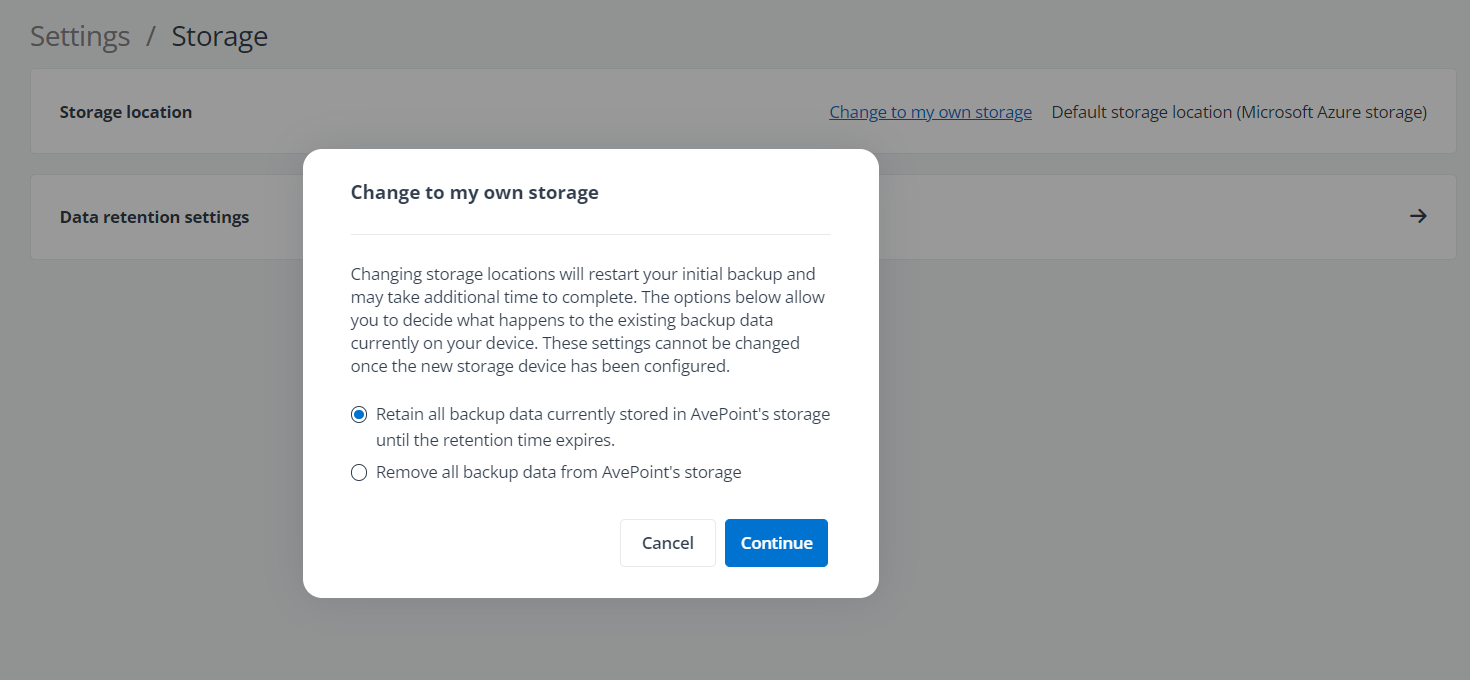
On the Storage page, the Change to my own storage link is available. Click Change to my own storage. A pop-up window appears.
-
Choose how to handle the existing backup data stored in the default storage location.
-
Retain all backup data currently stored in AvePoint’s storage until the retention time expires – The backup data in the default storage location will be retained until the retention time expires.
-
Remove all backup data from AvePoint’s storage – The backup data will be removed from the default storage location, and you cannot use the previous backup data for restore.
-
-
Click Continue to save the settings and configure the custom storage location. The next backup job for the organization/environment that has the backup service enabled will store the backup data in the configured custom storage location. You can manually run the backup for the organizations and environments or wait for the scheduled jobs to start.
NOTEThe changes from the default storage location to a custom storage location cannot be reverted.
Refer to the sections below for detailed instructions:
Microsoft Azure Storage
Follow the steps below to configure Microsoft Azure storage information:
Cloud Backup for Dynamics 365 no longer stores backup data to File Share. If you are an existing customer with Azure File Storage configured, your Microsoft Azure File Storage information will be disabled and unchangeable.
-
Storage type – Select Microsoft Azure Storage from the drop-down list.
-
Microsoft Azure Blob Storage – Configure the storage information of your own Microsoft Azure Blob Storage.
-
Access point – Enter the URL for the Blob Storage Service. The default URL is https://blob.core.windows.net.
-
Container name – Enter the container name that you want to use.
NOTEIf the entered name doesn’t match an existing container, a new container will be automatically created.
-
Account name – Enter the corresponding account name to access the specified container.
-
Account key – Enter the corresponding account key to access the specified container.
Amazon S3 Storage
AvePoint will store your backup data to the S3 Standard storage class automatically. You can move the backup data from S3 Standard to S3 Standard-IA, S3 One Zone-IA, or S3 Intelligent-Tiering, and Cloud Backup for Dynamics 365 can restore the backup data of those storage classes. However, it is not recommended to activate the archive access tier if you are using S3 Intelligent-Tiering. Activating the archive access tier will cause data object files that have not yet been accessed for 90 days to be archived, and Cloud Backup cannot access the archived data in your Amazon S3 storage.
Follow the instructions below:
-
Storage Type – Select Amazon S3 from the drop-down list.
-
Bucket name – Enter the bucket name you wish to access.
*Note: The entered name must match an existing bucket. If no bucket is available, refer to Creating a bucket to create one.
NOTEEnsure that the bucket policy in Amazon S3 storage applied to your account contains the following required permissions:
-
Read: GetObject
-
List: ListBucket
-
Write: DeleteObject; PutObject; DeleteObjectVersion
-
-
Access key ID – Enter the corresponding access key ID to access the specified bucket. You can view the Access key ID from your AWS account.
NOTEYour AWS account must have the AmazonS3FullAccess policy assigned.
-
Secret access key – Enter the corresponding secret key ID to access the specified bucket. You can view the Secret access key from your AWS account.
-
Region – Select the region of this bucket from the drop-down menu. The available regions are
US East (N. Virginia) US East (Ohio) US West (Northern California) US West (Oregon) Canada (Central) EU (Ireland) EU (Frankfurt) EU (London) Asia Pacific (Singapore) Asia Pacific (Tokyo) Asia Pacific (Sydney) Asia Pacific (Seoul) Asia Pacific (Mumbai) South America (Sao Paulo). -
Extended Parameters – Configure the customized region of the physical device using
CustomizedRegion. For example, enterCustomizedRegion=s3.us-gov-west-1.amazonaws.comto configure the GovCloud account. To use other extended parameters, contact AvePoint Support.
Amazon S3-Compatible Storage
Follow the instructions below:
-
Storage type – Select Amazon S3-Compatible Storage from the drop-down list.
-
Bucket name – Enter the bucket name you wish to access.
*Note: The entered name must match an existing bucket. If no bucket is available, refer to Creating a bucket to create one. Note that it’s a general guidance, the exact steps may vary depending on the specific product, refer to your specific product documentation for any additional configurations required.
NOTEEnsure the bucket policy in Amazon S3-compatible storage applied to your account contains the following required permissions:
-
Read: GetObject
-
List: ListBucket
-
Write: DeleteObject; PutObject; DeleteObjectVersion
-
-
Access key ID – Enter the corresponding access key ID to access the specified bucket.
-
Secret access key – Enter the corresponding secret key ID to access the specified bucket.
-
Endpoint – Enter the URL used to connect to the place where you want to store the data.
NOTEThe URL must begin with “http://” or “https://”.
SFTP
Follow the instructions below:
-
Storage Type – Select SFTP from the drop-down list.
-
Host – Enter the IP address of the SFTP server.
-
Port – Enter the port to use to connect to this SFTP server. The default port is 21.
-
Folder – Enter the root folder where you wish to access.
NOTEIf the entered name doesn’t match an existing folder, a new folder will be automatically created.
-
Username – Enter the username used to access the root folder.
-
Password – Enter the corresponding password of the user used to access the root folder.
IBM Storage Protect - S3
Follow the instructions below:
-
Storage type – Select IBM Storage Protect -S3 from the drop-down list.
-
Bucket name – Enter the bucket name you wish to access.
NOTEThe entered name must match an existing bucket.
-
Access key ID – Enter the corresponding access key ID to access the specified bucket.
-
Secret access key – Enter the corresponding secret key ID to access the specified bucket.
-
Endpoint – Enter the URL used to connect to the place where you want to store the data.
NOTEThe URL must begin with “http://” or “https://”.
-
Extended parameter – A self-signed certificate on the storage server side can pass the certificate validation by default. If you only want to pass the validation with a specific thumbprint, use the “cert_thumbprint=” parameter and enter the thumbprint string as the value of this parameter.
IBM Cloud Object Storage
Follow the instructions below:
-
Storage type – Select IBM Cloud Object Storage from the drop-down list.
-
Bucket name – Enter the bucket name you wish to access.
NOTEThe entered name must match an existing bucket. If no bucket is available, refer to Create some buckets to store your data to create one.
-
Access key ID – Enter the corresponding access key ID to access the specified bucket.
-
Secret access key – Enter the corresponding secret key ID to access the specified bucket.
-
Endpoint – Enter the URL used to connect to the place where you want to store the data.
NOTEThe URL must begin with “http://” or “https://”.