
Home > Get Started > User Management
Download this articleUser Management
User management provides centralized management of groups and security settings. Administrators can add and manage groups for security control of what users can perform backup, restore, compare, or scheduled data export, configure monitor alerts, and whether the users can configure settings in AvePoint Cloud Backup for Dynamics 365.
Security groups allow you to organize users in AvePoint Cloud Backup for Dynamics 365 more efficiently. You can add users to a security group, and then all users in that group will have the action permissions that have been assigned to this group for the corresponding organizations.
Administrators group is the built-in group that has all permissions in AvePoint Cloud Backup for Dynamics 365. You cannot remove this group or update its permissions.
The users and groups who have been designated as application administrators of AvePoint Cloud Backup for Dynamics 365 from AvePoint Online Services > User management interface will be automatically synchronized to the Administrators group. If the user is demoted from the Application administrator to a Standard user, Cloud Backup will automatically remove this user from the Administrators group as well.
Create a Security Group
To manage user permissions more efficiently, you can create a security group for a set of users and configure the group permissions. The users within this group will have the same permission as the group is granted.
-
Go to Settings > User management page.
-
Click Create security group.
-
In the right pane for creating a new security group, enter the group name and an optional description.
-
Enter the users that you want to add to this group into the Invite users box. The users you grant permissions to must exist in your tenant and have access to AvePoint Cloud Backup for Dynamics 365.
-
Then, you can select the organization scope for this group. You can enter the keyword in the Search box under the Select organization scope field to search and select any organizations that you want the invited users of this group to have access to.
-
In the Select permissions scope field, turn on the switch for the major features, such as Backup, Restore, Compare, Activity, and Settings, and select the specific operations that this group allows.
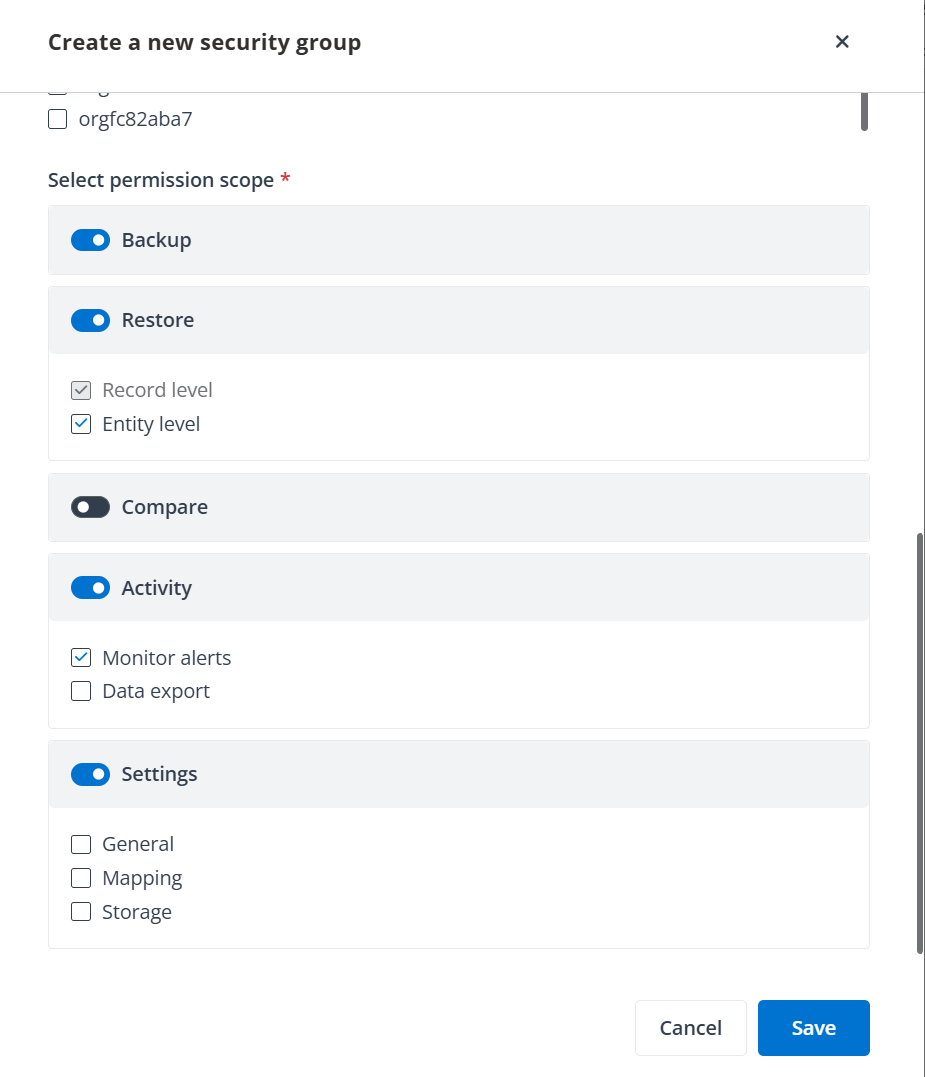
-
Click Save to save your configurations; click Cancel to exit the creation.