
Home > Get Started > Enable End User Restore in Dynamics 365 Organization
Download this articleEnable End User Restore in Dynamics 365 Organization
The Cloud Backup End User Restore solution for Dynamics 365 embeds the restore option into Dynamics 365, which allows record owners to leverage IT-managed backups and the audit logs to roll back the changes on records and fields directly.
To enable End User Restore in Dynamics 365, click here to download the plug-in package and then follow the steps below to complete the configuration:
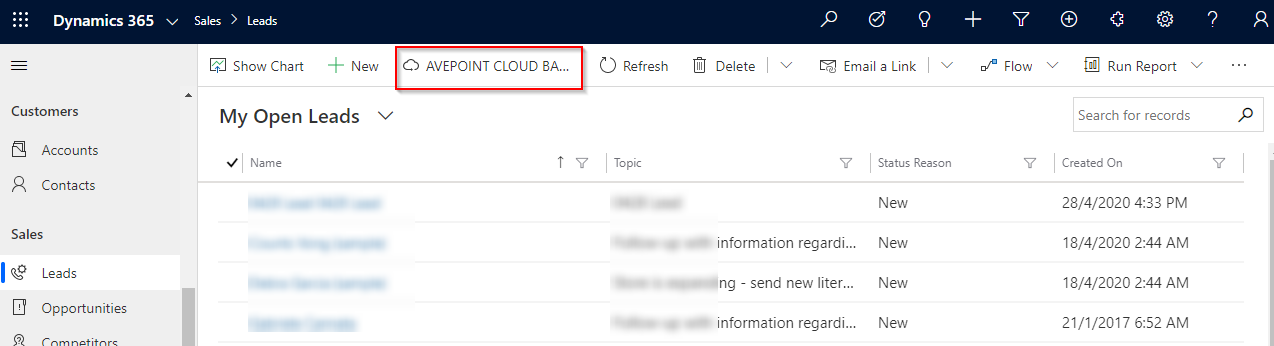
After you complete the configurations, the AVEPOINT CLOUD BACKUP button will be available on the command bar to record owners. For details on using this add-in, refer to Use the End User Restore Add-in.
Generate a Connection Key
The connection key must be generated for organizations that enable the End User Restore app for secure data transmissions.
Follow the steps below to generate the connection key in AvePoint Cloud Backup for Dynamics 365 interface:
-
Navigate to Settings > General.
-
Click the Connection key row.
-
Find the organization where you want to enable the End User Restore and turn on the switch ahead of the organization name.
-
A connection key is automatically generated and displayed in the box. Click Copy to copy this key to your clipboard. You can also save it in a safe place.
You can regenerate the key at any time. Once the key is regenerated, you must also update the key in Dynamics 365; otherwise, the End User Restore will not work. If you disable the connection key, the End User Restore in Dynamics 365 will also be disabled.
Import the Solution Package and Apply Connection Key in Dynamics 365
Follow the steps below to import the solution package to Dynamics 365 and apply the connection key:
-
Log into Dynamics 365 using an administrator account.
-
Click the Settings (
 ) button and then select Advanced Settings from the drop-down list. The Business Management page appears.
 -
Click the down arrow (
 ) next to Settings on the top bar. The Settings menu appears.
 -
Go to the Customization category, and then click Solutions.
-
On the Solutions page, click the Import (
 ) button on the action bar. The Import Solution page appears.
 -
Click the Choose File button, and then select the solution file that AvePoint provided.
-
Click Next and then click Import to import the solution.
-
After the solution is successfully imported, click the link on the Display Name of this solution. The Information page for the AvePoint Cloud Backup for Dynamics 365 – End User Restore solution appears.
-
Enter the connection key that you saved for this organization, and then click Save.
-
Click Close to exit the page.