
Home > Restore and Recover Your Data > Overview
Download this articleRestore and Recover Your Data
AvePoint Cloud Backup for Dynamics 365 helps you quickly restore and recover the records, entities, or records’ fields from the backup to the original location.
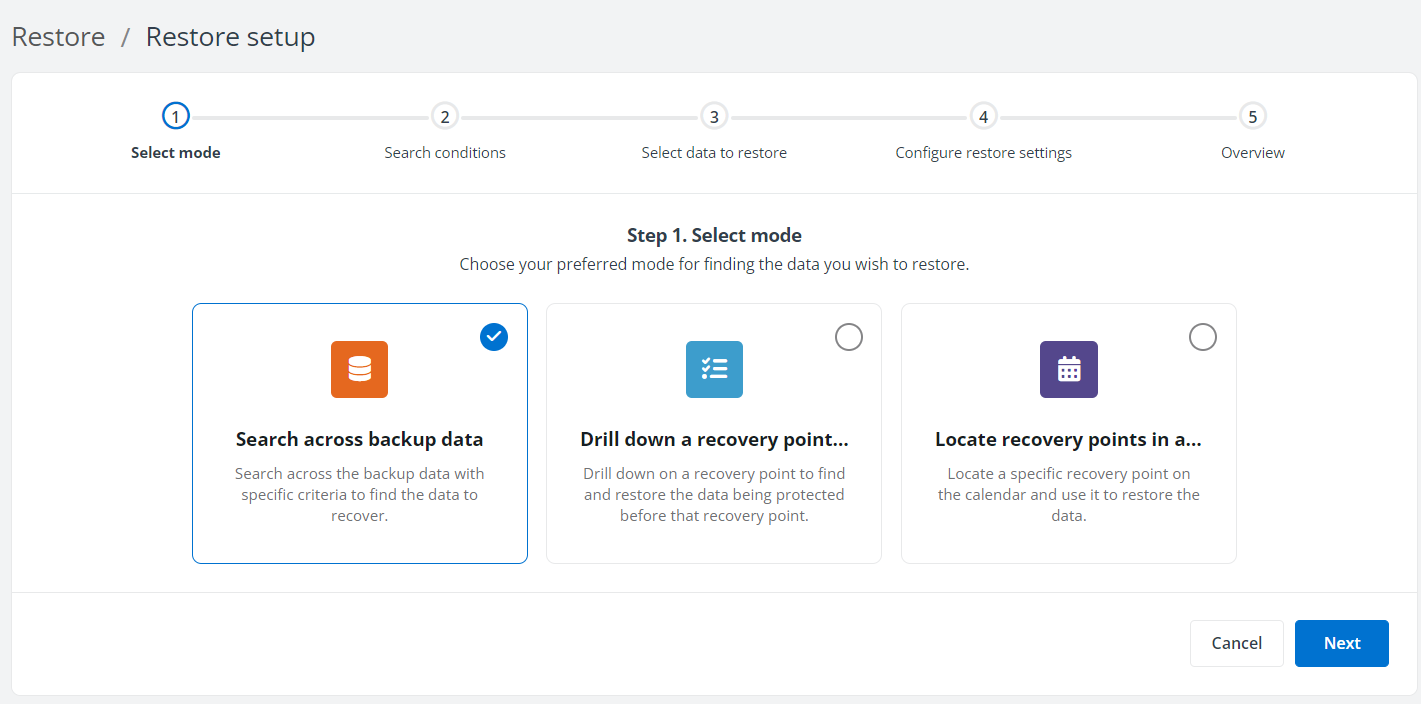
In the Restore wizard, click the organization/environment that you want to recover, and then select your preferred mode for finding the data to restore.
-
Search across backup data – You can cross-search the backup data for records, entities, or fields with specific criteria to find the data that you want to restore.
-
Drill down a recovery point for the data to restore – You can choose one recovery point to drill down for the record, entity, or field to restore.
-
Locate recovery points in calendar view – You can view the recovery points by dates in a calendar view and use it to restore the data.
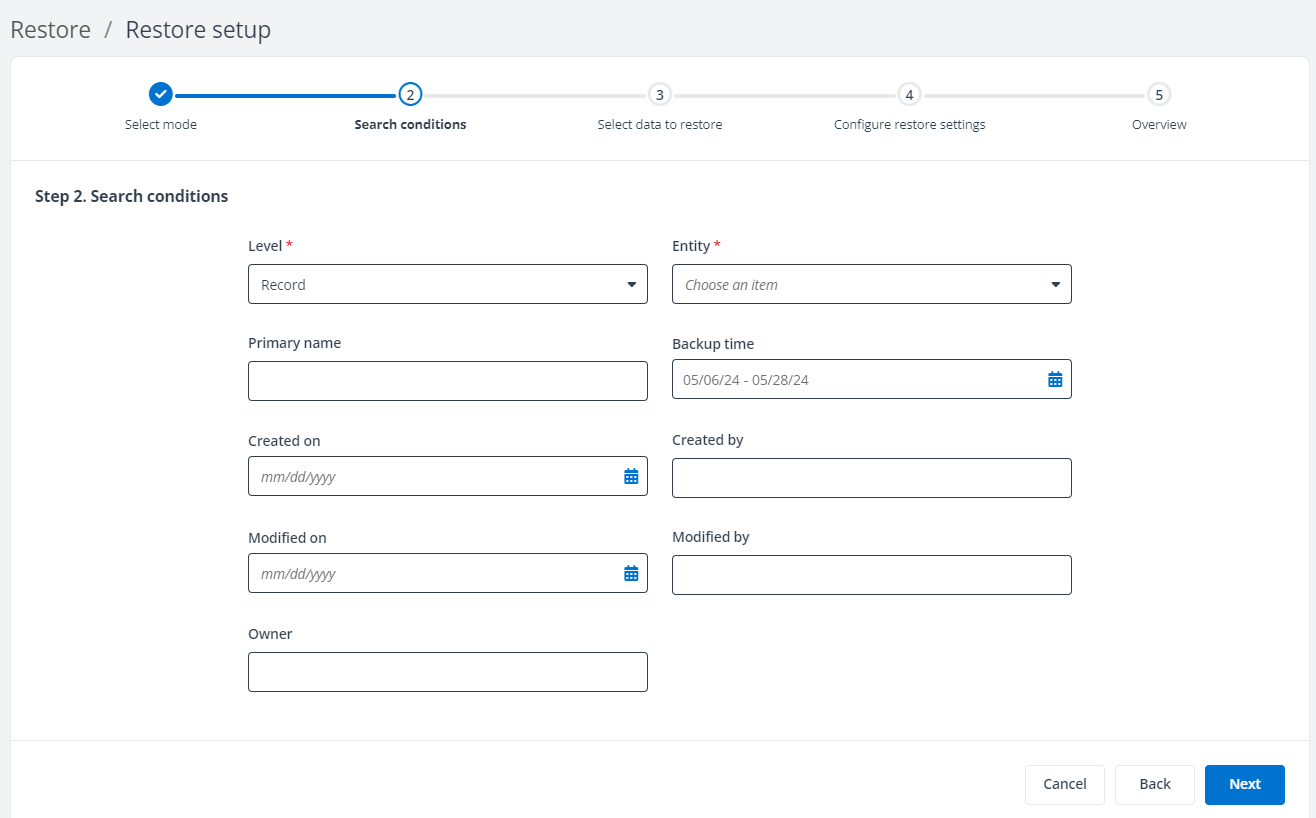
Search cross backup data.
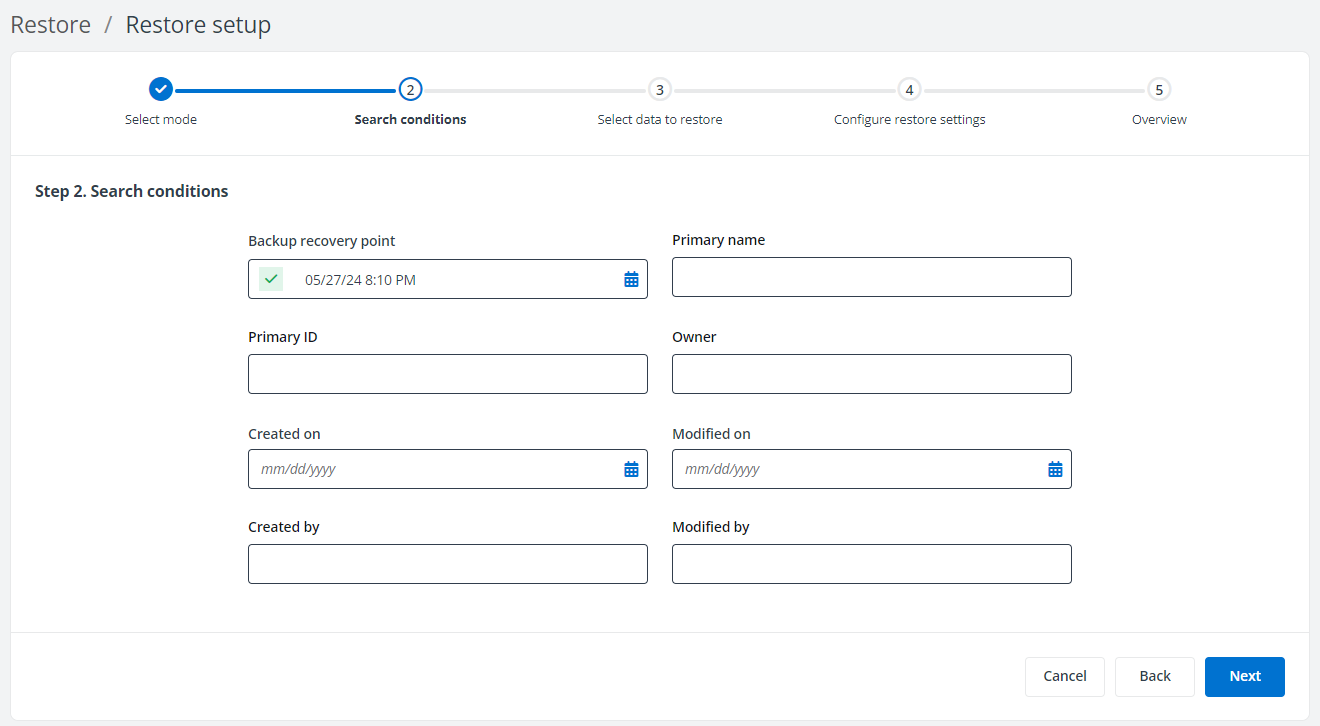
Drill down a recovery point for the data to restore.
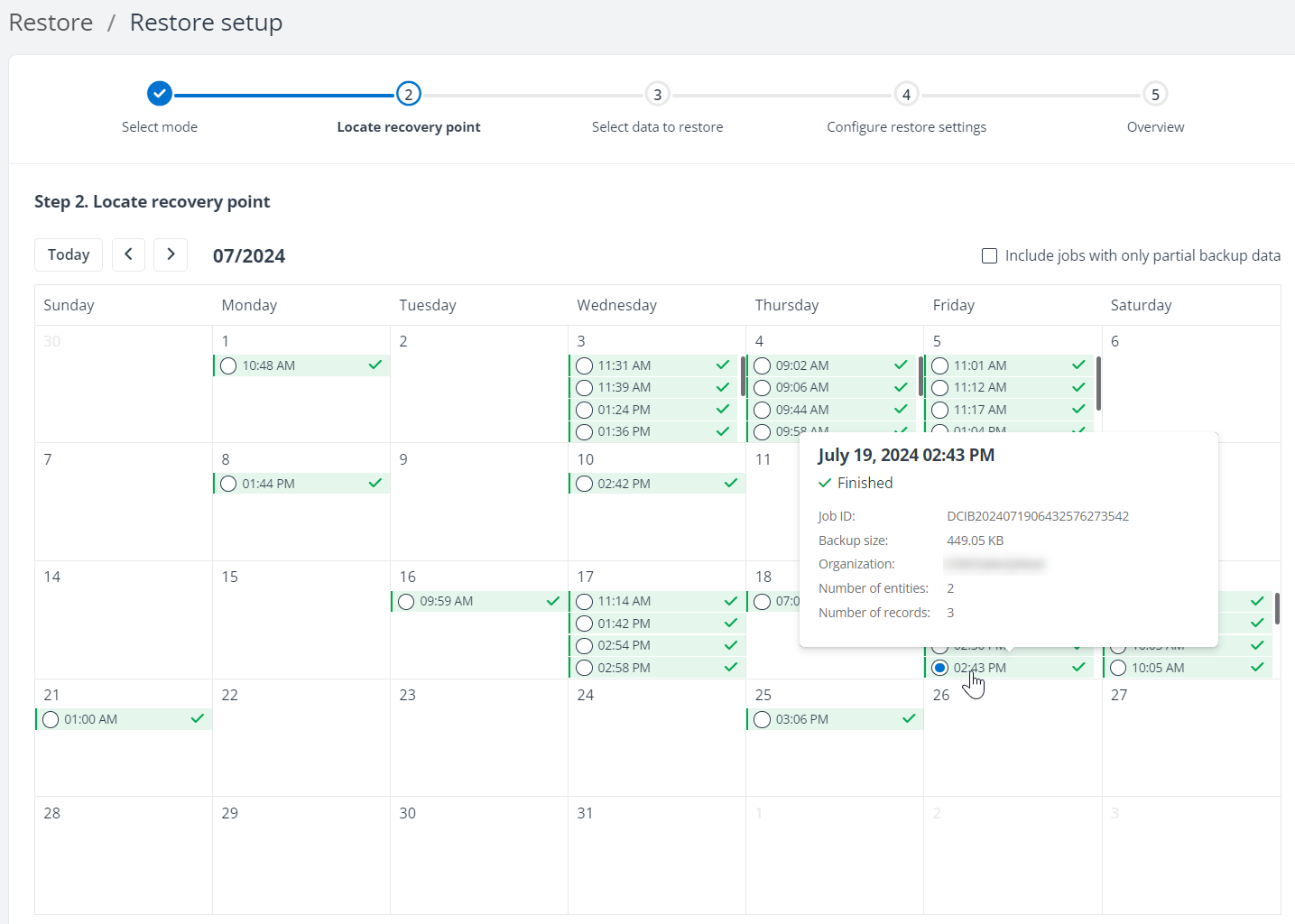
Locate recovery points in a calendar view.
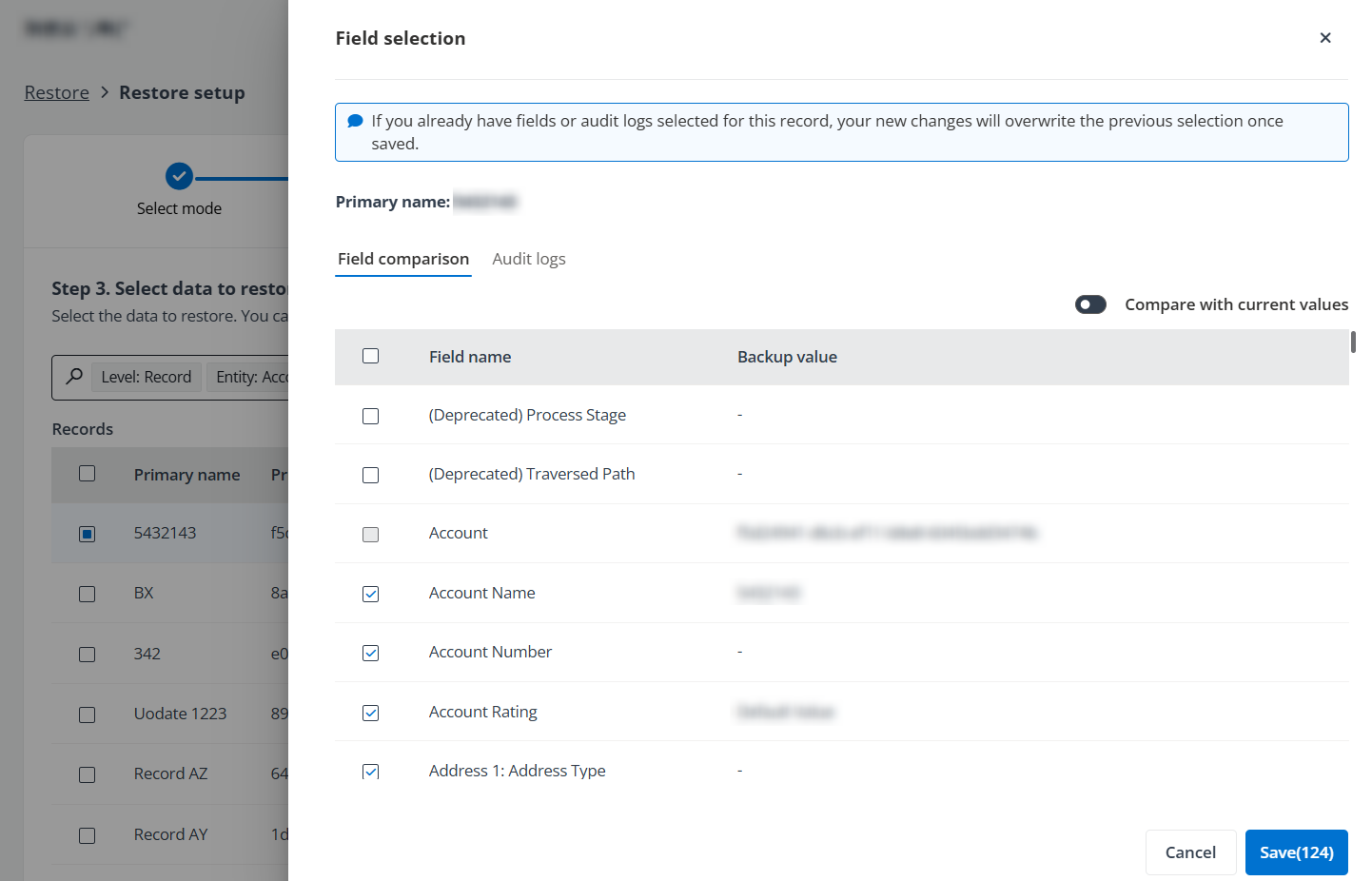
In the search results for records, you can compare the record’s backup data with the current data in Dynamics 365. The differences are highlighted in the Field comparison tab, and you can select certain fields to restore. In addition, for Dynamics organizations, the audit logs included in the selected recovery point backup job allow you to read through the history of changes for rollback. You can select an event to revert a field change.
Restore Related Records
When restoring the backup data at the record level or entity level, you can choose to restore the related records that are associated with the selected records or entities in the following relationships:
-
1:N relationship (one to many) – Used when you are creating a relationship between two entities where there are multiple records from one entity associated with a single record from another entity.
The classic example of this relationship is between Account (1) and Contact (N). You can have one Account with many Contacts who are associated with it. By default, each Contact record has a lookup field targeting an Account record, so each Contact can be set to one Account record. Then, when looking at an Account record, there is a sub-grid of many Contacts that are related back to the Account. We use [Contact à Account] or [Account ß Contact] to represent this 1: N relationship.
-
N:1 relationship (many to one) – is to look at the N:1 relationship in reverse. Therefore, in the example of our [Account to Contact] 1:N relationship, the N:1 relationship is Contact to Account, recorded as [Contact à Account] or [Account ß Contact] as well.
-
N:N relationship (many to many) – With many-to-many, or N:N relationships, a special entity is created called a Relationship (or Intersect) entity. This entity has a relationship with each of the related entities. The classic example of a many-to-many (N:N) relationship is between Opportunity (N) and Competitor (N). You can have many Opportunities with many Competitors who are associated with them. Their Relationship (or Intersect) entity is “opportunitycompetitors” which is invisible in the GUI of Dynamics 365. We use [Opportunity ßà Competitor] to represent this N:N relationship.
Since the May 2019 release, the Restore related records feature has restricted the depth of related records that can be restored to a maximum of three. The restore job will find its related records across all backup data, not only the related records backed up in the selected recovery point. Note that for backups performed before the May 2019 release, the restore job will only find the related records backed up at that recovery point.
If you have such a relationship below:
[Opportunity à Account à Contact]
It means the depth from Opportunity to Account is 1, to Contact is 2; the depth from Account to Opportunity is 1, to Contact is 1, too.
Or, you may have the following relationship:
[Competitor ßà Opportunity à Account à Contact ßà Lead]
-
When restoring the Account with the related record depth set to 1, the related Opportunity records and Contact records will be included.
-
When restoring the Account with the related record depth set to 2, the related Competitor records, Opportunity records, Contact records, and Lead records will be included.
Using a depth of 2 is quite enough to get the related records with complex relationships. We are not recommending setting it to 3, although it is the maximum depth we support. If you are a large tenant with a heavy data size, with a depth of 3, you may retrieve thousands of related records for a single record, leading to the backup taking a long time.
Restore Behaviors Against Record Statuses
Refer to the table below for the different restore behaviors based on the status of the records:
| Record Status in the Backup | Record Status in Dynamics 365 | Restore Behavior |
|---|---|---|
| Closed | Open | Overwrite data with the backup value |
| Open | Open | Overwrite data with the backup value |
| Closed | Deleted | Restore record with the backup value and keep GUID |
| Open | Deleted | Restore record with the backup value and keep GUID |
| Open | Closed | Restore skipped |
| Closed | Closed | Restore skipped |
Out-of-Place Restore
Cloud Backup for Dynamics 365 supports out-of-place restore from the September 2020 release. You can restore the selected records or entities to another organization/environment. However, before you use the Restore wizard to perform an out-of-place restore, you must configure the mapping settings for the source and destination to ensure data integrity in the destination organization/environment after the restore. For details, refer to Configure Mapping Settings.
You must reconfigure the mapping settings before you run the first out-of-place restore job after the January 2023 release.