
Home > Use Usage Reports
Download this articleUse Usage Reports
Usage Reports support reporting Active User, Download Ranking, Site Activity Ranking, and Site Visitor and Activity in your Microsoft 365 tenant. On the Usage Reports page, you can configure an export report plan to define the report type you want to view for a specific report scope, schedule, and notifications for exporting the report.
The report data for Usage Reports can be retrieved by Audit Controller jobs in the Report Center or through the Report Data Collection feature in the AOS interface. You can refer to Choose Data Collection Source for Auditor Reports and Usage Reports to choose how you would like to collect the data.
Create a Report Plan
Follow the steps below to create a new plan for Usage Reports to export reports:
-
Navigate to Report Center > Usage Reports.
-
Click New on the ribbon.
-
In the Scope pane on the left, expand the My Registered Sites tree, and select the container or the sites that you want to include as the report scope.
NOTEYou can perform Advanced Search at the My Registered Sites node or the containers on the data tree to search for the desired site collections via keyword in the URL.
To perform the Advanced Search, right-click the node and then click Advanced Search. Configure the search conditions and click Search. To clear the search result on the data tree, right-click the My Registered Sites node or the container, and then click Refresh.
-
In the Plan Name field, enter a name for the current plan you are creating and an optional description for further reference.
-
In the Usage Report Type field, select the report type for the usage and behaviors that you want to report in your Microsoft tenant. You can select the following report types:
-
Active User – Displays the number of non-system activities for all users.
-
Download Ranking – Displays the number of times that documents have been downloaded.
-
Site Activity Ranking – Displays the most and least active sites, pages, lists, items, and users, as determined by hits.
-
Site Visitor and Activity – Displays event counts (updates, deletions, and views) and unique visitors.
-
Document Last Accessed Time – Displays the last accessed time of documents.
-
-
If you have selected the Site Activity Ranking report type, the Site Activity Ranking Report Data Filter field will appear. You can select Sites, Pages, Lists, Items, or Users to include in this report.
-
Filter the users via the User Filter for whose activities you want to include in the report or exclude.
NOTEIf you want to exclude all system user activities from the reports, go to AOS > Report Data Collection settings, and check if the Exclude activities of Microsoft 365 Service Accounts and AvePoint Online Services Account Pool users option is selected.
-
Include all users – Include all user activities for the selected reports.
-
Users to include – Only include the data of specific users. Enter the e-mail addresses of users and separate them with a semicolon.
-
Users to exclude – Exclude the data of specific users from the report. Enter the e-mail address of the users and separate them with a semicolon.
-
-
Define the time range for the report in the Time Range field. You can select a provided duration from the Duration list, configure the number of recent days/weeks/months to report, or customize the start time and end time for the report.
-
Duration – You can select This Month, Last Month, Last 2 Month, This Week, Last Week, Last 2 Weeks, Today, or Yesterday for reporting.
-
Last _ Days/Weeks/Months – Enter the number that you want to specify for the duration and then select Days, Weeks, or Months from the list behind.
-
Custom – Select the start date and end date from the calendar and configure the time or time zone.
NOTEThe Last Month/Week or the Last X Months/Weeks/Days will not include the data of this month/week/day in the report. For example, if the current date is April 15, 2022, the Last Month refers to March 2022; Last 12 Months refers to March 1, 2021 to April 1, 2022 (Not including April 1); Last 14 days refers to April 1 to April 14.
-
-
In the Export Location field, select a predefined export location profile from the drop-down list, or you can click New Export Location to create a new export location profile. For details, refer to Configure Export Location.
-
Select an export rule to store the report.
NOTEThe default option is Create a New Report. The report will be exported and saved with a new name to the export location. If you only want to keep the latest version of the report in the export location, select the Overwrite Previous Reports option. All the exported reports will use the same name.
-
In the Schedule field, configure whether to set up a schedule to export the report.
-
If you select No schedule, you must manually export the report.
-
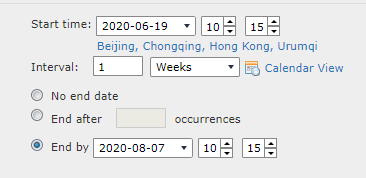
If you select Configure the schedule myself, an area to schedule settings appears. Configure the start time and the interval for the schedule, and configure the end of the export schedule.
-
-
Choose whether to send notifications to notify specific users of the job status. You can select a predefined notification profile or create a new one.
-
Click Save to save the plan. The plan will be displayed on the Plan Manager page. For details on using the Plan Manager page, refer to Operations in Usage Reports Plan Manager. If you have configured the export report schedule, the job will automatically start when it comes to the start time. If you want to run the export report job immediately, click the Save and Run Now button from the drop-down list to save the plan and start the export report job immediately.
Operations in Usage Reports Plan Manager
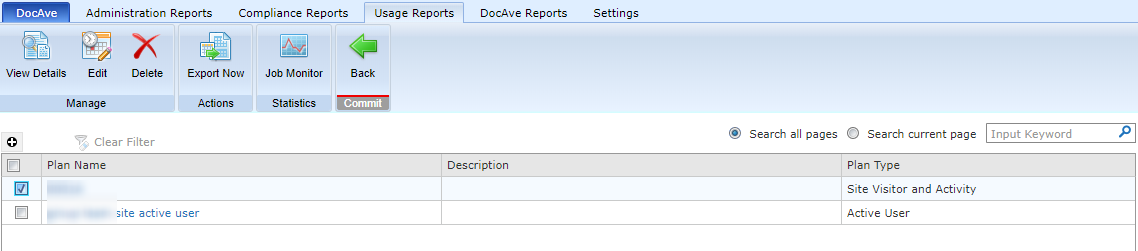
In Usage Reports > Plan Manager page, all the plans created for Usage Reports are displayed in the table. You can view, update, or delete the existing plans, run an export report job against a selected plan, and go to Job Monitor to check the job status.
-
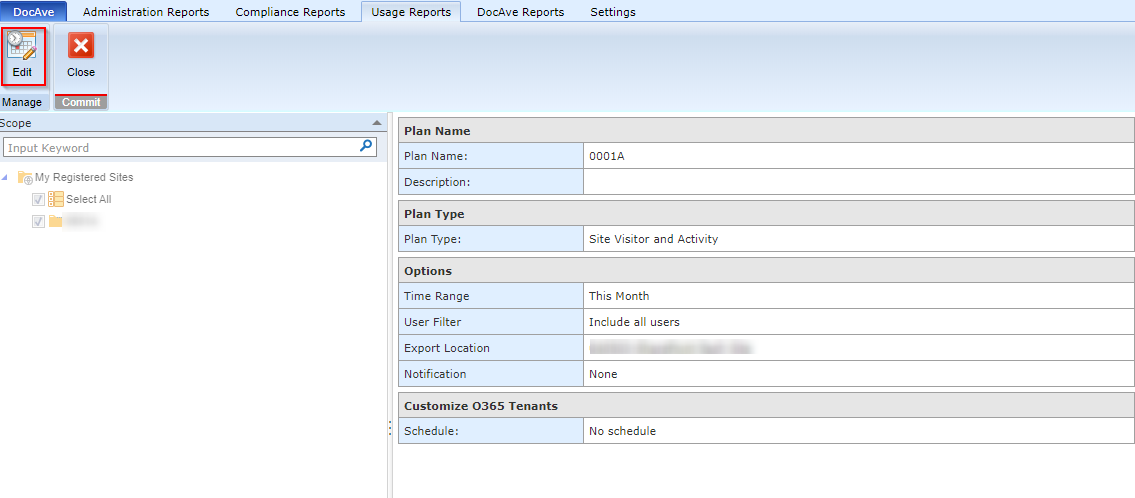
View plan details – Select a plan and click View Details on the ribbon to view the report details. If you want to update the scope or plan settings, click Edit on the ribbon.
-
Edit a plan – To update the report scope or settings of a plan, select the plan and click Edit.
-
Delete a plan – To delete a plan, select the plan and click Delete.
-
Export report now – Select a plan and then click Export Now to start a job to export the report.
-
View jobs – To view the status of a job, go to Job Monitor.