
Home > Compliance Reports > Auditor Reports
Download this articleAuditor Reports
Auditor Reports provide five predefined report templates and allow users to customize reports as desired. You can create a report profile to generate the report, display the report data on the interface, or export the report to a CSV file.

To get a quick start with the Auditor Reports report profile, select a defined report type on the ribbon, enter a name for this profile, and select the object for report scope. The default report time range is This Month. You can update it as you want. At this time, if you do not want to run the report or export report in schedule and e-mail notifications are unnecessary, you can save the profile and start the report job directly. However, if you want to include or exclude specific objects, actions, users, or data types to narrow down your report scope, you can configure the URL Filter, Action Filter, User Filter, and Type Filter on the top of the report pane before you save and run the profile.
The User Filter of Auditor Reports provides options to include all external users or include all users with guest links.
Auditor Reports support reporting for data in the time range of up to 12 months.
-
User Lifecycle – Displays the activities of users within the selected site collections, sites, lists, or libraries.
-
Item Lifecycle – Displays the events on a list item and document.
-
Site Access – Displays the user activities on a site.
-
List Deletion – Displays the deletion events of items. Note that if you select the Exclude site URLs, list URLs, and titles option in the Auditor Controller plan for data retrieval, the List Deletion report will not show any data in the report. Even if you collect this information, later on, there will be no historical data available in the report.
-
Permission Changes – Displays the permission changes events, including Add group members, change permissions, change permission levels, or Break permission inheritance.
-
Custom Report – Displays a custom report. You can customize the report filters for the data that you want to display.
Note that Auditor Reports have a Browser column to display the browser information for viewing items and documents.
Create a Profile
Follow the steps below to create a report profile for Auditor Reports:
-
Navigate to Report Center > Compliance Reports > Auditor Reports.
-
Click the report type that you want to use on the ribbon.

-
In the Report Profile area, enter a profile name.
-
In the step 1 area, expand the My Registered Sites tree to select the object that you want to report.
NOTEYou can perform Advanced Search at the My Registered Sites node or the containers on the data tree to search for the desired site collections via keyword in the URL.
To perform the Advanced Search, right-click the node and then click Advanced Search. Configure the search conditions and click Search. To clear the search result on the data tree, right-click the My Registered Sites node or the container, and then click Refresh.
-
Click the 2. Please specify a time range area and configure the time range to report for. Note that the time range cannot exceed 12 months. You can choose one of the following options to configure the report time range.
-
Duration – The available duration options are This Month, Last Month, Last 2 Months, This Week, Last Week, Last 2 Weeks, Today, and Yesterday.
-
Last n Days/Weeks/Months – Enter a number in the box and then select the Days, Weeks, or Months from the drop-down list as the unit of time.
-
Custom – Select the start time and end time for the time range.
NOTEThe Last Month/Week or the Last X Months/Weeks/Days will not include the data of this month/week/day in the report. For example, if the current date is April 15, 2022, the Last Month refers to March 2022; Last 12 Months refers to March 1, 2021 to April 1, 2022 (Not including April 1); Last 14 days refers to April 1 to April 14.
-
-
If you want to run the report as a scheduled task, go to step 3. Please configure a schedule (Optional) area. In this area, you can configure the schedule to generate the report, and additionally, you can choose to export the generated report to the configured report format and storage location. Follow the steps below to configure a schedule and export report settings:
-
Select the Configure the schedule myself option.
-
Configure the start time, report interval, and end time for the schedule settings to generate a report.
-
If you want to export the generated report, select the Export report option. The Export Report Settings section appears.
-
CSV is the only supported Report Format.
-
Select an existing Export Location, and then you can click View to access the detailed information of the selected export location. You can also choose to configure a new export location, click New Export Location in the drop-down list, and follow the instructions in Create and Edit Export Locations.
-
By default, the Create a New Report option is selected in the Rules list. The exported report will use the default or a custom name with a timestamp. You can configure the name in the next step. With the Create a New Report option selected, the names of the report files are always different in the export location. If you want to use the same name for the report files to only keep the latest version of the report in your export location, select the Overwrite Preview Reports option from the drop-down list.
-
If your export location is a SharePoint Document library, you can choose to break the permission inheritance for the library and assign the Full Control permission level to site collection administrators.
-
To use a custom file name, select the Specify a file name option, and then enter the file name that you want to use.
-
To export reports to a .zip file when the export location is a SharePoint document library, select the Export to a .zip File option.
-
The Split the report by each site collection option will be available if the export location you select is a specific SharePoint Document library. You can select this option, so that the report will be generated separately for each site collection. Note that if your export location uses SharePoint Online document library but it exports report to each site within the report scope, this option is not available.
-
If you want to select columns for the exported report, you can click the Custom Columns option and then select the columns that you want to include in the report.
-
-
If you want to receive e-mail notifications for report generation or exportation, click the Please select a notification profile. (Optional) area and then select an existing profile from the drop-down list. You can click View next to the box to view the details of the profile settings. If you want to create a new e-mail notification profile, click New E-mail Notification option in the drop-down list. The Control Panel > User Notification Settings> Receive E-Mail Settings> Create window appears. For details, refer to DocAve Control Panel Reference Guide.
-
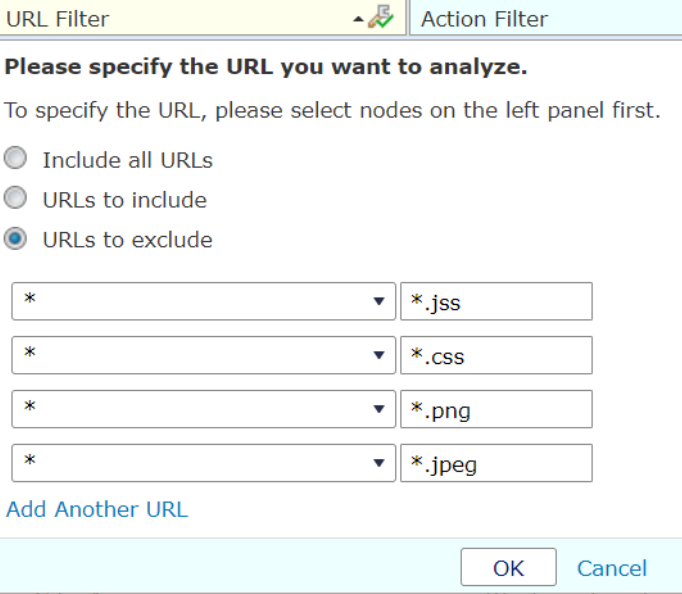
On the top of the report pane, URL Filter, Action Filter, User Filter, and Type Filter are provided. You can filter the objects via URL, and filter users, actions, and data types to refine the report scope.
Note the following:
-
If you use the URL Filter, you can select the * from the Select One list to search for the objects across all the selected sites. In the text box behind, you can also use the wildcard: *.
-
The User Filter supports both exact match and fuzzy search. You can use * or ? as the wildcard for fuzzy search. * represents any characters; ? represents a single character.
-
-
Click Save Profile and Run Report to save the profile and generate the report, or you can choose to save the profile and export the report to the datasheet directly.
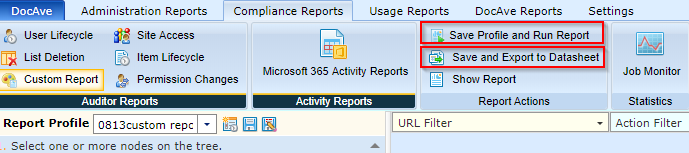
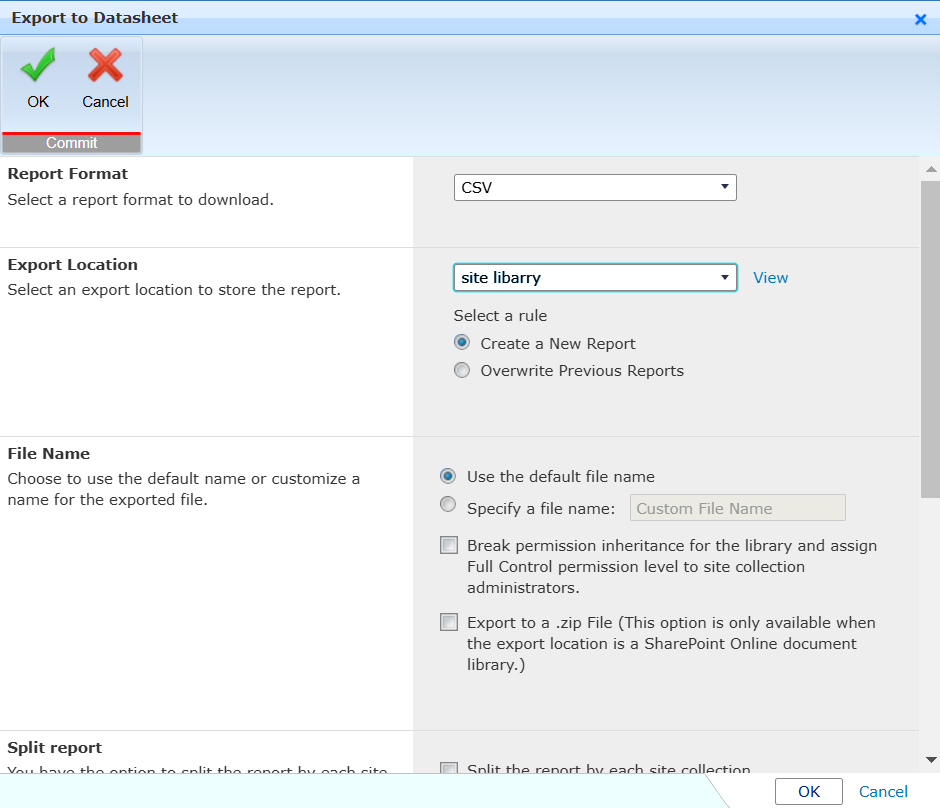
Follow the steps below for the options in Export to Datasheet window:
-
CSV is the only supported Report Format.
-
Export Location – Select an existing Export Location, and then you can click View to access the detailed information of the selected export location. You can also choose to configure a new export location, click New Export Location in the drop-down list, and follow the instructions in Create and Edit Export Locations.
By default, the Create a New Report option is selected in the Select a rule list. The exported report will use the default or a custom name with a timestamp. You can configure the name in the next step. With the Create a New Report option selected, the names of the report files are always different in the export location. If you want to use the same name for the report files to only keep the latest version of the report in your export location, select the Overwrite Preview Reports option.
-
File Name – To use a custom file name, select the Specify a file name option, and then enter the file name that you want to use.
-
If your export location is a SharePoint Document library, you can choose to break the permission inheritance for the library and assign the Full Control permission level to site collection administrators.
-
To export reports to a .zip file when the export location is a SharePoint document library, select the Export to a .zip File option.
-
-
Split Report – The Split the report by each site collection option will be available if the export location you select is a specific SharePoint Document library. You can select this option, so that the report will be generated separately for each site collection. Note that if your export location uses SharePoint Online document library but it exports report to each site within the report scope, this option is not available.
-
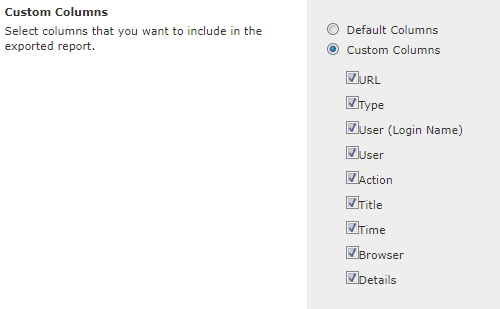
Custom Columns – Select the columns that you want to include in the exported report.
-
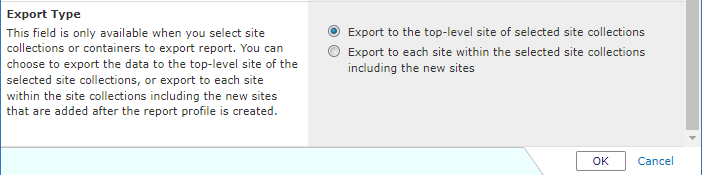
Export Type – If your export location is a SharePoint document library, you can choose to export the report to the top-level site of the selected site collection, or export it to each site within the selected site collections, including the new sites.
 NOTE
NOTEThis field is only applicable to the reports exported to SharePoint document libraries.
-
Advanced Options
This section describes additional filtering and export capabilities for Auditor Reports.
Include All External Users or Users with Guest Links
In Compliance Reports, you can configure the user filters to include all external users or include all users with guest links. Complete the steps below:
-
When configuring a report profile of Compliance Reports, go to the right pane where the report is displayed.
-
Click User Filters to expand the list. Select the Include all external users option to report on the external users’ activities or select the Include all users with guest links option to report on the user activities of the anonymous users.
-
Click OK on the drop-down list.
Export a Report to a ZIP File
The Export to a .zip File feature in Report Center allows you to export Compliance Reports to a ZIP file when the export location is a SharePoint Online Document Library. You can use this feature as follows.
-
Export Report Settings – If you want to configure a report profile to generate and export Compliance Reports to ZIP files according to a custom schedule, complete the settings below.
-
When configuring a report profile, expand the Please configure a schedule (Optional) area and select the Configure the schedule myself option.
-
Select the Export report option. The Export Report Settings area appears.
-
In the Export Report Settings area, select an export location of SharePoint Online Document Library, and select the Export to a .zip File option to export the generated report to a ZIP file.
-
Configure the rest of the settings. For details, refer to the Auditor Report section of Report Center User Guide.
-
-
Save and Export to Datasheet – If you want to export Compliance Reports to a datasheet in a ZIP file after it has been generated, complete the settings below.
-
After you have finished generating the Compliance Reports, to export the reports to a datasheet, click Save and Export to Datasheet on the ribbon. The Export to Datasheet window appears.
-
In the Export to Datasheet window, configure the report format, export location, and file name for the exported file, and select the Export to a .zip File option to export the generated report to a ZIP file.
NOTEThe Export to a .zip File option is only available when the export location is a SharePoint Online Document library.
-
Extend the Time Range of Compliance Reports to 12 Months
Compliance Reports allow you to collect data from the last 12 months. If you want to configure a report profile to generate Compliance Reports to show the data in a time range of more than 2 months, complete the settings below:
-
When configuring a report profile, expand the Please specify a time range area and configure a time range for the collected data.
-
You can select the Last or Custom option to configure a time range of more than 2 months.
-
Configure the rest of the settings. For details, refer to the Report Center User Guide.
If the number of audit records for a generated Compliance Reports is greater than 1 million, a message will pop up informing you that the Report Display pane cannot display the collected audit records, as the number of audit records is too large. You must export the report to view the records, and the cache file of the report will not be saved. The cache files of the Compliance Reports with less than 1 million audit records will be stored for 3 days.