
Home > Administration Reports: Configuration Reports > Create a Report Profile
Download this articleCreate a Report Profile
Follow the steps below to create a new report profile:
-
Navigate to Report Center > Administration Reports > Configuration Reports.
-
In the Report Profile area, enter a profile name.
-
In the Scope area, expand the My Registered Sites tree to select the object that you want to report.
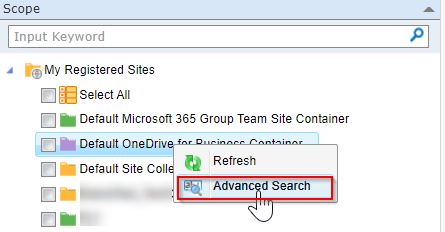
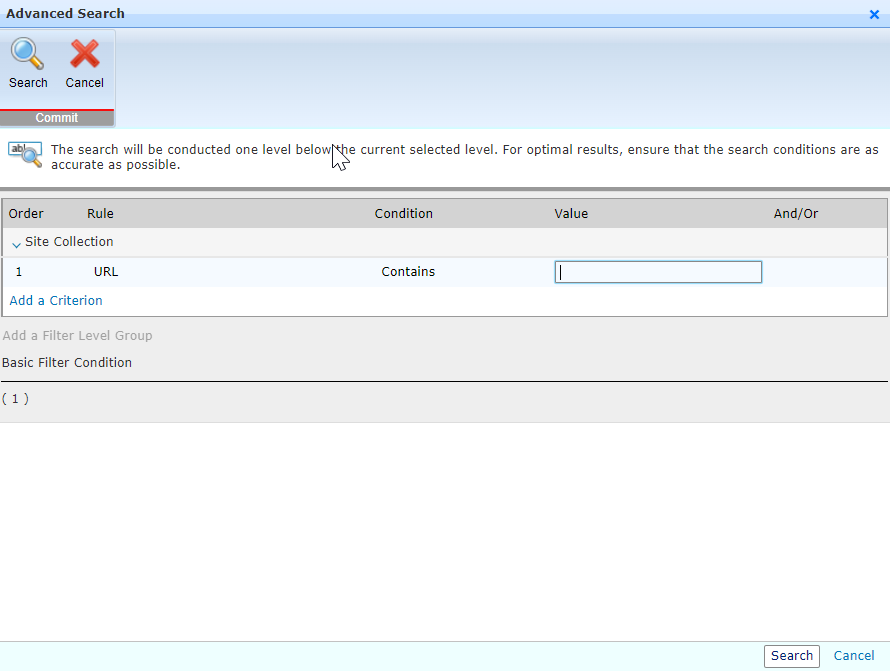
NOTEYou can perform Advanced Search at the My Registered Sites node or the containers on the data tree to search for the desired site collections via the keyword in the URL. To perform the Advanced Search, right-click the node and then click Advanced Search. Configure the search conditions and click Search. To clear the search result on the data tree, right-click the My Registered Sites node or the container, and then click Refresh.
-
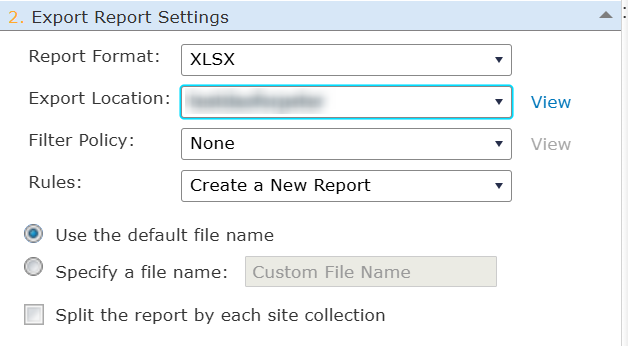
Click the Export Report Settings area and then configure the following settings:
-
Report Format – Select XLS or XLSX from the drop-down list.
-
Export Location – Select an export location profile from the drop-down list. You can click View next to the box to view details about the selected location. If you want to create a new export location profile, click New Export Location in the drop-down list. The Control Panel > Export Location> Create window appears. For details on creating an export location profile, refer to Create and Edit Export Locations. If you select the export location profile using specific SharePoint document library, the Split the report by each site collection option will be available, allowing you to choose to split the report generation for each site collection.
-
Filter Policy – If you want to filter the objects in the selected report scope, you can apply a filter policy. Select a filter policy from the drop-down list to apply and click View next to the box to view the details about the selected filter policy. In a filter policy, you can add rules to search for site collections, sites, lists/libraries, folders, items, documents, or attachments with specific properties; you can also configure the relationship between the rules. If you want to create a new filter policy, click New Filter Policy in the drop-down list. The Control Panel > Filter Policy> Create window appears. For details on creating a new filter policy, refer to DocAve Control Panel Reference Guide.
-
Rules – Select an export report rule from the drop-down list. The default option is Create a New Report. The report will be exported and saved with a new name to the export location. If you only want to keep the latest version of the report in the export location, select the Overwrite Previous Reports option. All the exported reports will use the same name.
-
Choose whether to use a custom file name for the exported reports of this report profile. You can select the Use the default file name option or select the Specify a file name and then enter a custom file name for the exported reports.
-
-
If you want to receive e-mail notifications for the report exportation, click the Please select an e-mail notification. (Optional) area and then select an existing profile from the drop-down list. You can click View next to the box to view the details of the profile settings. If you want to create a new e-mail notification profile, click the New E-mail Notification option in the drop-down list. The Control Panel > User Notification Settings> Receive E-Mail Settings> Create window appears. For details, refer to DocAve Control Panel Reference Guide.
-
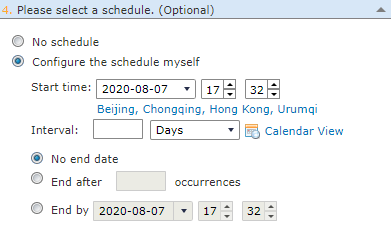
If you want to set up a schedule to automatically export reports to the selected export location, click the Please select a schedule. (Optional) area and select the Configure the schedule myself option. Complete the settings below:
-
Start time – This field is automatically populated with the time you first select the Configure the schedule myself option. The start time cannot be earlier than the current time. You can update the numbers in Hours and Minutes, or you can click the date to open the calendar and select another date. Additionally, you can change the time zone as you desire.
-
Interval – Define how often you want to update the report. You can choose Days, Weeks, or Months from the drop-down list and enter an integer ahead. The report will be exported every n days/weeks/months.
-
Specify how the report exportation ends. You can select one of the following methods:
-
No end date – The report exportation schedule will not stop until the report profile is deleted.
-
End after n occurrences – The report exportation will stop after the report has been exported for the specified times. Enter an integer ahead of occurrences.
-
End by [end time] – Specify an end time to stop the report exportation schedule.
-
-
-
Go to the Report Settings pane to select the data types that you want to include in the report.
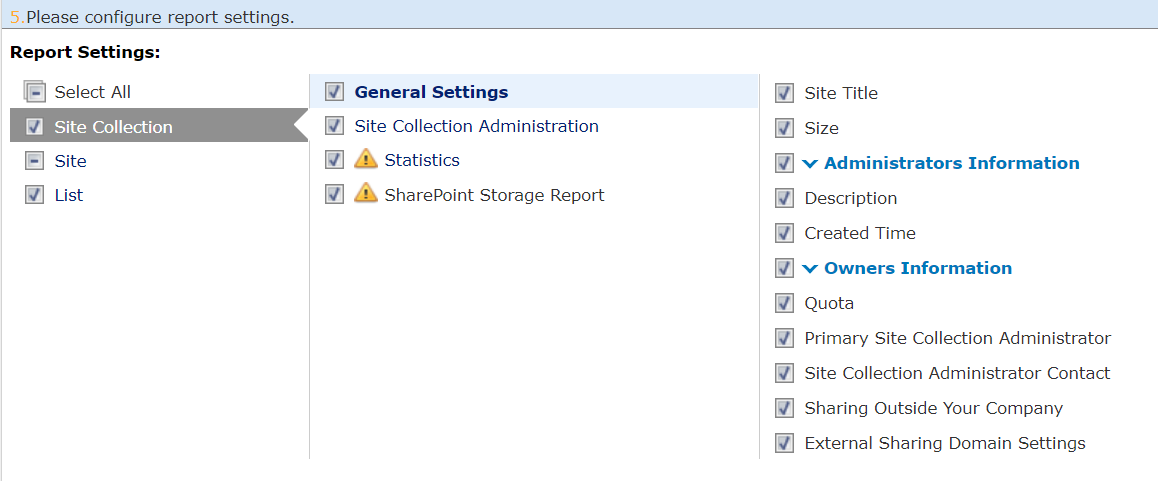
Note the following:
-
The job may take longer with the Statistics option or SharePoint Storage Report option selected.
-
If the site collection URL contains the special character “~,” the storage quota cannot be reported due to the SharePoint API limitations.
-
The quota for OneDrive cannot be reported due to the SharePoint API limitations.
-
The size of the list items cannot be reported due to the SharePoint API limitations.
-
-
In the Generated Report field, you can choose to include both summary report and detailed report, or only include one of them.
-
Click Save Profile and Run Report on the ribbon or at the bottom of this page to save the report profile.