
Home > Compliance Reports > Accepted Domain Reports
Download this articleAccepted Domain Reports
Accepted Domain Reports only support exporting the information of the accepted domains in all tenants or a specific tenant to an export location.
You can select a predefined location to export and customize the file name for the exported file. If your export location is a SharePoint Online document library, you can choose to export reports to a .zip file.
This report does not support being exported to each SharePoint site. Therefore, the export locations that are created for exporting the report to each SharePoint site are not available, and the job will fail if you modify the export location used by the report profile of Accepted Domain Reports to export to each SharePoint site.
While you export the report, you can also choose to export user count for each accepted domain and select to break permission inheritance for the libraries, assign Full Control permission level to the site collection administrator and site owners.
Refer to the section below to create a report profile to export the Accepted Domain Reports.
Create a Profile
Follow the steps below to create a profile for the Accepted Domain Reports:
-
Navigate to Report Center > Compliance Reports > Accepted Domain Reports.
-
Enter a profile name in the Report Profile field.
-
In the Export Report Settings step, select a predefined export location from the Export Location list, or you can click the New Export Location link to create a new one. For details, refer to Configure Export Location.
NOTEIf your export location is a SharePoint Online document library, you can choose to export the reports to a .zip file.
-
Select the Create a New Report option or the Overwrite Previous Reports option from the Rules list for whether you would like to always export reports using the same name. In the previous release, the exported report will use the default or custom name with a timestamp, so the names of the report files are always different. From the March 2022 release, you can select the Overwrite Previous Reports option to only keep the latest version of the report in the export location.
-
You can choose to use the default name for the report file or specify a custom file name. If you want to use a custom file name, select the Specify a file name option and then enter the name that you want to use in the text box.
-
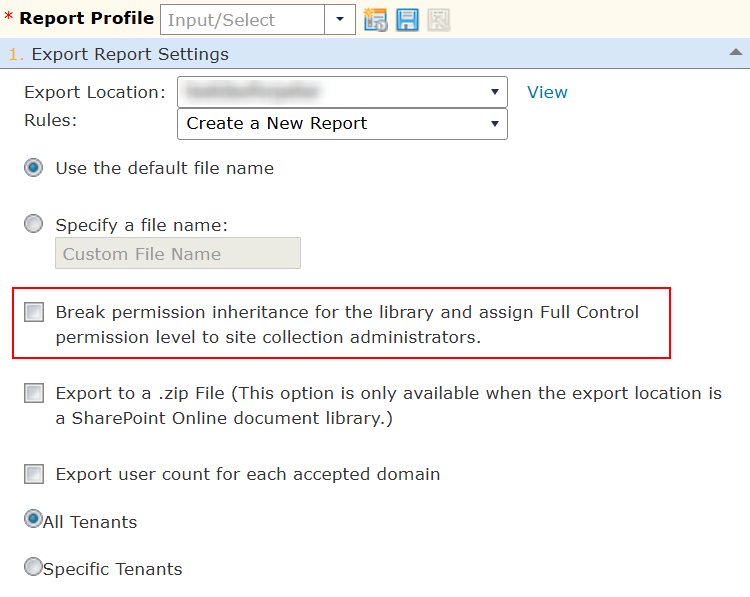
The export report job can also make security changes while the job is running. You can allow this job to break the permission inheritance for the libraries and assign the Full Control permission level to the site collection administrator by selecting the corresponding option.
-
If you want to export the Accepted Domain report with user count for each accepted domain, select the Export user count for each accepted domain option. Note that exporting user count may affect performance.
-
By default, the All Tenants option is selected. You will export the accepted domain information for all your connected tenants. You can also select the Specific Tenants option and select the tenants that you want to include.
-
If you want to receive e-mail notifications for the report exportation, click the Please select a notification profile. (Optional) area and then select an existing profile from the drop-down list. You can click View next to the box to view the details of the profile settings. If you want to create a new e-mail notification profile, click the New E-mail Notification option in the drop-down list. The Control Panel > User Notification Settings> Receive E-Mail Settings> Create window appears. For details, refer to DocAve Control Panel Reference Guide.
-
If you would like to configure a schedule for the report exportation, go to the Please configure a schedule (Optional) area. Choose one of the following options:
-
No Schedule – Select this option if you do not want to configure a schedule for this profile. If you choose this option, you must collect the data manually by clicking Save Profile and Run Report.
-
Configure the schedule myself – Select this option to configure the specific time you want to export the data of this profile. A schedule configuration area appears. You can customize the schedule with the following options:
-
Start time – Select the date and time for exporting the data.
*Note: The start time cannot be earlier than the current time.
-
Interval – Enter an integer into the text box and select Days, Weeks, or Months. The data will be exported repeatedly based on this schedule. Click Calendar View to see the schedules in a calendar.
-
Schedule ending – Designate when to stop exporting the data of this profile. Select No end date for the data of this profile to be exported repeatedly until you stop it manually. Select End after ___ occurrences to have the job stopped after the defined occurrences that you configured in the text box. Select End by Date + Time to specify the exact date and time to stop exporting the data.
-
-
-
Click Save profile and run report to save the configuration and then run the job. You can check the job progress in the Job Monitor and find the exported report in the export location.