
Home > Compliance Reports > Microsoft 365 Activity Reports
Download this articleMicrosoft 365 Activity Reports
Microsoft 365 Activity Reports support reporting for activities in various data sources, such as SharePoint Online, Exchange Online, Teams, Microsoft Entra ID, Sway, Power BI, Viva Engage, Flow, Stream, Project Online, Security and Compliance Center, Skype for Business, CRM, Power Apps, Microsoft Forms, AIR in Microsoft Defender, Azure Information Protection, Copilot, and Power Platform.
The table below shows the supported data sources classified by the content types of Office 365 Management Activity API:
| Content Types | Support Status | Comment |
|---|---|---|
| Audit.AzureActiveDirectory | Fully supported | |
| Audit.Exchange | Fully supported | |
| Audit.SharePoint | Partially supported | Only the following activities are unsupported: FileSyncDownloadedPartial – Downloaded file changes to computer. FileSyncUploadedFull – Uploaded files to document library. FileSyncUploadedPartial – Uploaded file changes to document library. |
| Audit.General (includes all other workloads not included in the previous content types) | Partially supported | Supported workloads: MicrosoftTeams MicrosoftFlow MicrosoftStream PowerBI Project SecurityComplianceCenter Sway Yammer PowerApps CRM SkypeForBusiness MicrosoftForms ThreatIntelligence AirInvestigation PublicEndpoint Aip Copilot PowerPlatform |
| DLP.All (DLP events only for all workloads) | Unsupported |
To use Microsoft 365 Activity Reports in Report Center, you must go to AvePoint Online Services interface to enable the report data collection feature. For details, refer to Enable Report Data Collection.
Refer to the following pages to run the Microsoft 365 Activity Report for activities using the data sources filter:
Note that from the February 2024 release, the operations recorded by Microsoft will be displayed next to their friendly names in the Activity column of the Microsoft 365 Activity Reports.
-
Microsoft Entra ID
-
All Objects
-
Group Objects (Note that other than the Microsoft 365 Group data source, Microsoft 365 Activity Reports does not support the export location that exports report to each site.)
-
-
Exchange Online
-
SharePoint Online: SharePoint Online sites, Microsoft 365 Groups/Teams team sites, and OneDrive sites
-
Teams
-
Sway
-
Viva Engage
-
Stream
-
Flow
-
Project Online
-
Power BI
-
Security and Compliance Center
-
Skype for Business
-
CRM
-
Power Apps
-
Microsoft Forms
-
AIR in Microsoft Defender
-
Azure Information Protection
-
Copilot
-
Power Platform
The following properties can be collected for Microsoft 365 Activity Reports. If you require information on audit log properties not listed in the table, please contact the AvePoint Support team for assistance:
| Data Source | API Properties |
|---|---|
| Common (For the data sources that are not listed in this table, only common properties are collected.) | CreationTime UserId Operation ObjectId ClientIP |
| SharePoint | SourceRelativeUrl SourceFileName SensitivityLabelId SensitivityLabelOwnerEmail DestinationRelativeUrl DestinationFileName EventData TargetUserOrGroupType TargetUserOrGroupName UserAgent ModifiedProperties SourceLabel DestinationLabel SiteUrl |
| Microsoft Entra ID | Target ModifiedProperties |
| Teams | TeamName TeamGuid AdminActionDetail Members ChannelName Name NewValue OldValue AddOnName JoinTime LeaveTime |
| Power Apps | AppName |
| Microsoft Forms | FormName ActivityParameters |
| Stream | ResourceTitle ResourceUrl OperationDetails |
| Power BI | WorkSpaceName |
| Exchange | AffectedItems Item Folders Folder DestFolder Parameters |
| AIP | SensitivityLabelEventData ProtectionEventData Common CurrentProtectionType PreviousProtectionType |
Create a Report Profile
Follow the steps below to create a report profile for Microsoft 365 Activity Reports:
-
Navigate to Compliance Reports > Microsoft 365 Activity Reports.
-
Please specify a time range – In the time range configuration area, choose one of the following options:
-
Duration – Check the Duration checkbox, and then select the time range you want from the drop-down menu. There are seven durations provided, respectively This Month, Last Month, Last 2 Months, This Week, Last Week, Last 2 Weeks, and Today.
-
Last __ Day(s)/Week(s)/Month(s) – Enter an integer into the text box and select by Day(s)/Week(s)/Month(s) from the drop-down menu. For example, if you enter 10 in the text box and select Day(s) from the drop-down menu, and then you run the job, you will collect the data of the latest 10 days.
-
Custom – Check the Custom checkbox to customize the time range.
NOTEThe Last Month/Week or the Last X Months/Weeks/Days will not include the data of this month/week/day in the report. For example, if the current date is April 15, 2022, the Last Month refers to March 2022; Last 12 Months refers to March 1, 2021 to April 1, 2022 (Not including April 1); Last 14 days refers to April 1 to April 14.
-
-
Please configure a schedule (Optional) – In the schedule configuration area, choose one of the following options:
-
No Schedule – Select this option if you do not want to configure a schedule for this profile. If you choose this option, you must collect the data manually by clicking Save Profile and Run Report.
-
Configure the schedule myself – Select this option to configure the specific time you want to collect the data of this profile. A schedule configuration area appears. You can customize the schedule with the following options:
-
Start time – Select the date and time for collecting the data.
*Note: The start time cannot be earlier than the current time.
-
Interval – Enter an integer into the text box and select Days or Weeks. The data will be collected repeatedly based on this schedule. Click Calendar View to see the schedules in a calendar.
-
Schedule ending – Designate when to stop collecting the data of this profile. Select No end date for the data of this profile to be collected repeatedly until you stop it manually. Select End after ___ occurrences to have the job stopped after the defined occurrences that you configured in the text box. Select End by Date + Time to specify the exact date and time to stop collecting the data.
-
-
-
Please select a notification profile (Optional) – In this area, you can select a previously configured e-mail notification profile, and then click View to access detailed information or, click New E-mail to create a new e-mail notification profile. For details on creating an e-mail notification profile, see the User Notification Settings section in the DocAve 6 Control Panel Reference Guide.
-
Filters – The following filters are configurable in the Microsoft 365 Activity Reports:
-
User Filter – Click to load the User Filter tab to set the users whose activity you want to view or do not want to view.
NOTEThe User Filter supports both exact match and fuzzy search. You can use * or ? as the wildcard for fuzzy search. * represents any characters; ? represents a single character.
-
-
Include All Users – By default, this option is selected. The activities of all users can be viewed.
-
Users to Include – Enter the users whose activity you want to view.
-
Users to Exclude – Enter the users whose activity you do not wish to view.
-
IP Address Filter – Click to load the IP Address Filter tab and configure the filter conditions to include or exclude specific IP addresses for accurate data reporting and analysis. This IP Address Filter condition only allows specific IP address.
-
Include all IP addresses – By default, this option is selected. The report will display activities from all IP addresses.
-
IP addresses to include – Enter one or more IP addresses to generate a report for those addresses only. To add multiple IP addresses, click Add to create a new filter condition for each additional IP address.
-
IP addresses to exclude – Enter one or more IP addresses and the report will display data from all IP addresses except those listed here. To add multiple IP addresses, click Add to create a new exclusion condition for each additional IP address.
-
-
Action Filter – Click to load the Action Filter tab to select the actions to be included in the reports.
-
-
All Actions – By default, this option is selected. The actions of all users can be viewed.
-
Custom Action – Select the actions you want to view. You can click Clear All to clear all your selections.
-
Actions to Exclude – Enter the action that you want to exclude as a filter condition. You can click Add another filter condition to add more actions to exclude.
- Object Filter – Click to load the Object Filter tab to set the objects you want to view or do not want to view.
-
Include All Objects – By default, this option is selected. All objects of each action can be viewed.
-
Objects to Include – According to the data source, enter the key property of the objects you want to report. You can click Add another object filter to filter more objects to be included in the reports.
-
Objects to Exclude – According to the data source, enter the key property of the objects you do not want to exclude from the report. You can click Add another object filter to filter more objects to be excluded.
NOTERefer to the table below for the key property of the object type in each supported data source that can be used in Object Filter:
Data Source Filter Value SharePoint Online URL Microsoft Entra ID Microsoft 365 Group name Teams Team name Exchange Online Email subject Microsoft Forms Form name Stream Resource title Power BI Workspace name Others Object ID -
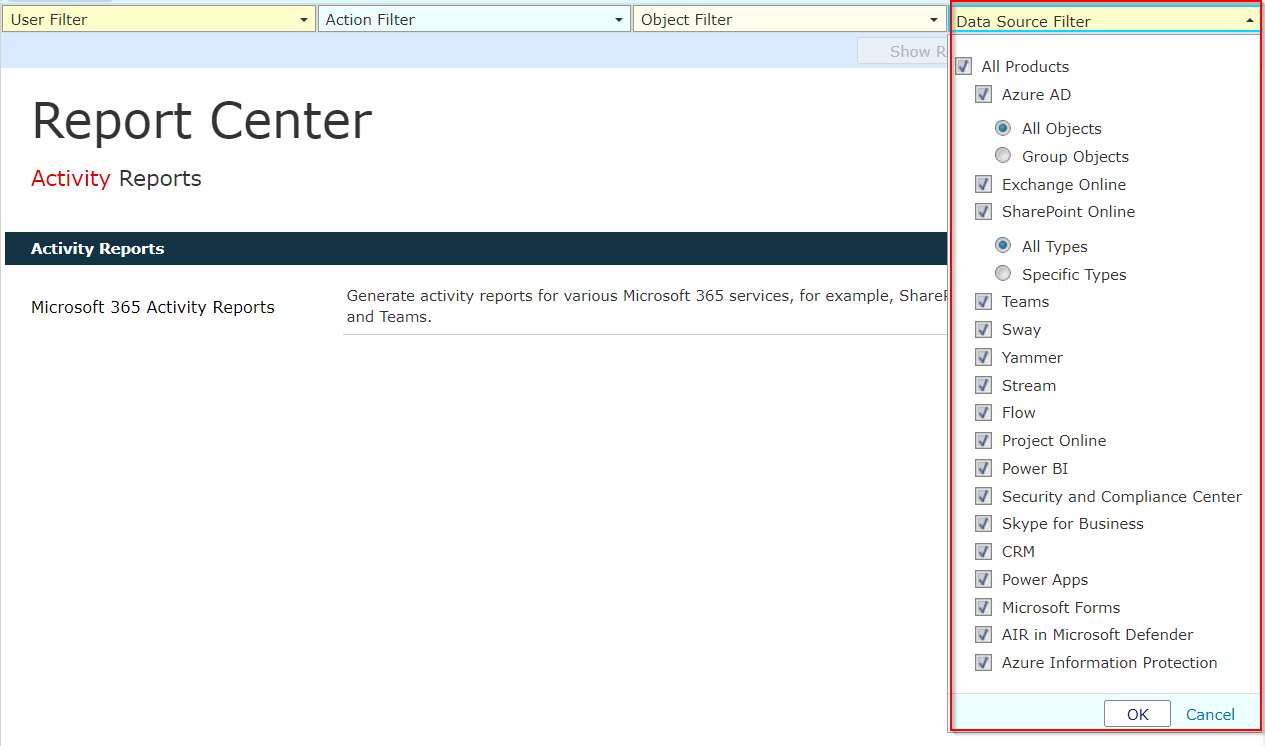
Data Source Filter – Click to load the Data Source Filter tab to set the data source by selecting the corresponding options. By default, the All Products option is selected, and all activities in the supported data sources are included in the reports.
NOTEYou can use the Data Source Filter to filter data of different group types in Microsoft Entra ID, such as the Microsoft 365 Group, Security group, Distribution group, and Mail-enabled security group, and filter the SharePoint sites of specific types, such as SharePoint Online sites, Microsoft 365 Groups/Microsoft Teams team sites, and OneDrive sites.
Note that if you are about to export the report to each site, the Microsoft 365 Activity Reports only supports selecting the Microsoft 365 Group as the data source. Otherwise, the report will not show any data.
-
-
Click Save profile and run report to save the configuration and then run the job. After the job finishes, the report is displayed in the Report Display pane. You can click Show Report to view the history data collected before. However, if this profile has no running job record, the Show Report is grayed out.
Advanced Options
This section describes additional configuration and export options for Microsoft 365 Activity Reports.
Filter Actions from the Microsoft 365 Activity Report
In Microsoft 365 Activity Reports, you can use the Action Filter to filter the specific custom actions or the actions that you want to exclude from the report. Complete the steps below:
-
When configuring a report profile of Microsoft 365 Activity Reports, go to the right pane where the report is displayed.
-
Click Action Filter to expand the list. You can perform the following:
-
Select the Custom Action option, and then select the actions that you want to report in the Microsoft 365 Activity Report.
-
Select the Actions to Exclude option. Enter the action into the text box. To add more actions to exclude, click the Add another filter condition link.
-
-
Click OK on the drop-down list to save your configurations to the Action Filter.
Export Custom Reports and Microsoft 365 Activity Reports with Custom Columns
AvePoint Cloud Management Report Center supports exporting Custom Reports and Microsoft 365 Activity Reports to datasheets with custom columns. To customize which columns will be included in an exported datasheet, complete the settings below:
-
After you have finished configuring a Custom Report or Microsoft 365 Activity Report profile, click Save and Export to Datasheet on the ribbon. The Export to Datasheet window appears.
-
Configure the Report Format, Export Location, and File Name settings.
-
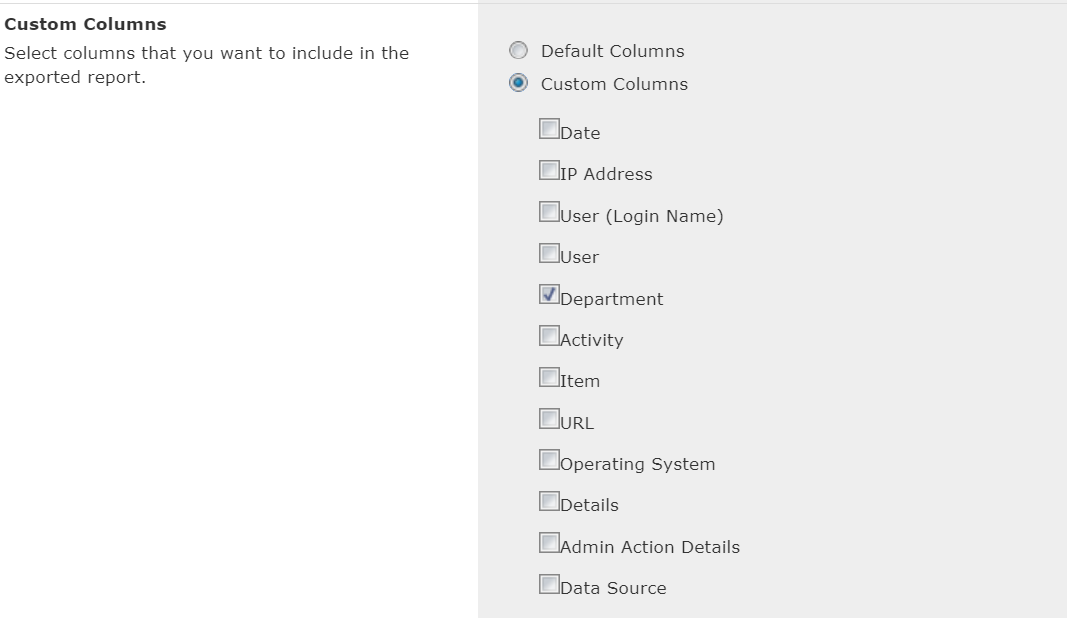
In the Custom Columns area, configure columns to be included in the datasheet according to your scenarios:
-
Default Columns – If you want to include all the columns in the datasheet, select the Default Columns option.
-
Custom Columns – If you want to customize columns to be included in the exported datasheet, select the Custom Columns option and select the checkboxes next to the desired columns.
-
Export Reports to the Datasheet Using the Same Name
By default, when you manually export the Microsoft 365 Activity Reports to the datasheet, the exported report will use the default or custom name with a timestamp. The names of the report files are always different in the export location. From the January 2022 release, you can choose to use the same name for the report files to only keep the latest version of the report in your export location.
Follow the steps below:
-
Navigate to Report Center > Compliance Reports > Microsoft 365 Activity Reports.
-
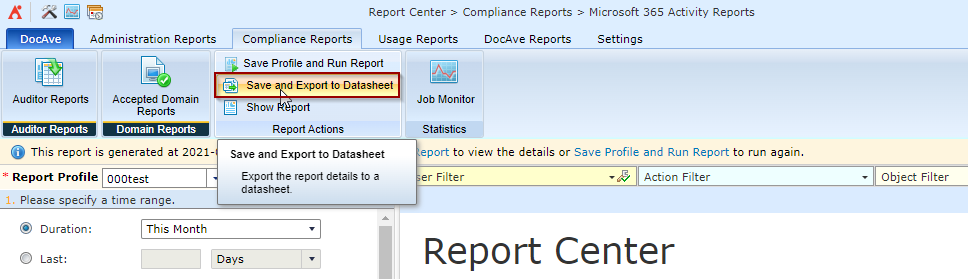
Select a report profile and then click Save and Export to Datasheet button on the ribbon.
-
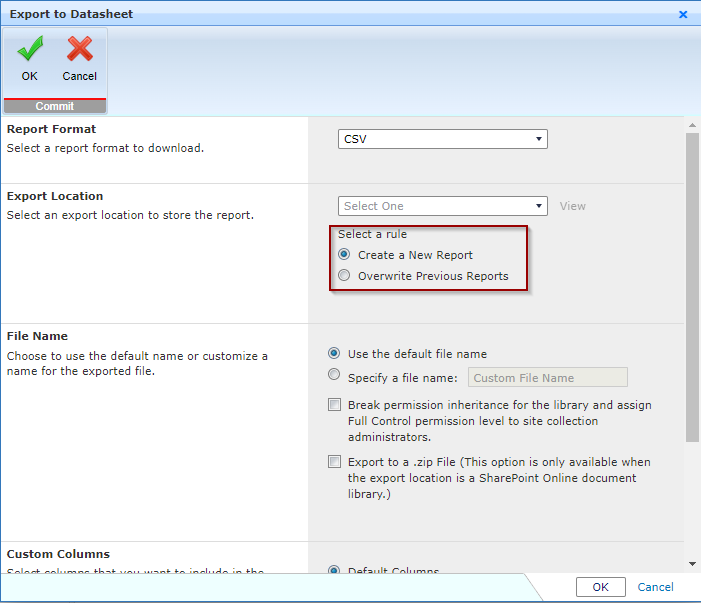
In the Export to Datasheet window, go to the Export Location field.
-
Select an export rule to store the report.
NOTEThe default option is Create a New Report. The report will be exported and saved with a new name to the export location. If you only want to keep the latest version of the report in the export location, select the Overwrite Previous Reports option. All the exported reports will use the same name.
-
Click OK.
Export Report to a Datasheet for Specific Tenants
When you select a Microsoft 365 Activity Reports profile to export the report to the datasheet, you can use the Tenant Filter to include or exclude the report data of specific tenants. You can use this feature to exclude the data of your test tenants.
Follow the steps below:
-
Navigate to Report Center > Compliance Reports > Microsoft 365 Activity Reports.
-
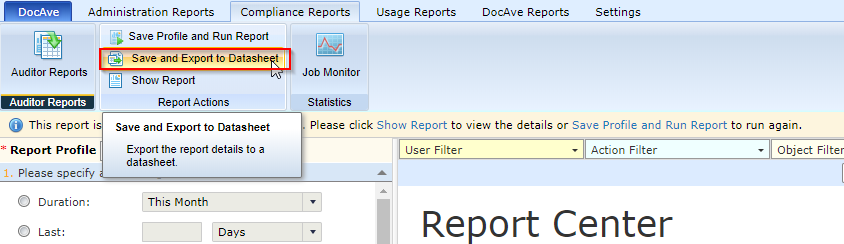
Select a report profile and then click Save and Export to Datasheet button on the ribbon.
-
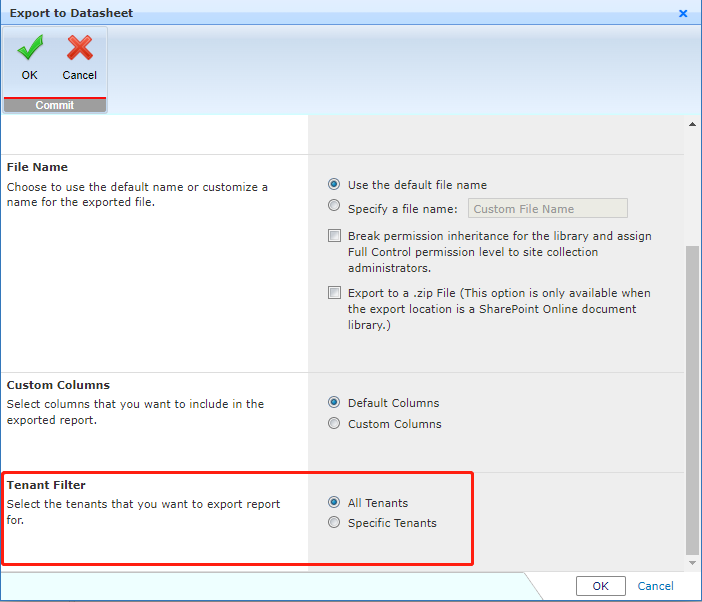
In the Export to Datasheet window, go to the Tenant Filter field.
-
Select the Specific Tenants option, and then select the tenants that you want to include or deselect the tenants that you want to exclude.
-
Click OK.