
Home > Get Started
Download this articleGet Started
Refer to the following steps to get started in DMS Online.
-
Before getting started with DMS Online, ensure you complete the necessary preparations in AvePoint Online Services. Refer to the following steps for details:
-
Make sure you have an AvePoint Online Services account, and the account has a subscription for DMS Online. You can contact your sales representative for assistance. If you do not have an AvePoint Online Services account, refer to Sign Up for AvePoint Online Services to sign up for AvePoint Online Services.
-
Sign in to AvePoint Online Services and click Tenant management in the left navigation to connect your Microsoft tenant. Refer to Connect Your Tenants to AvePoint Online Services for details.
-
Click App management in the left navigation to create an app profile for DMS Online to connect your tenant. Refer to the Create an App Profile for DMS Online below for details.
-
Click User Management in the left navigation to add users who will engage in the use of DMS Online. Refer to Manage Users for details about user management.
-
(Optional) Click Auto discovery to configure scan profiles and containers. For details, refer to Manage Auto Discovery. With Auto Discovery scan profiles configured, the SharePoint Online site collections and Microsoft Team sites will be automatically scanned into specific containers. After the scan process is finished, you can automatically sync the detected site collections to DMS Online. Refer to Auto Sync Site Collections to DMS Online for details.
-
-
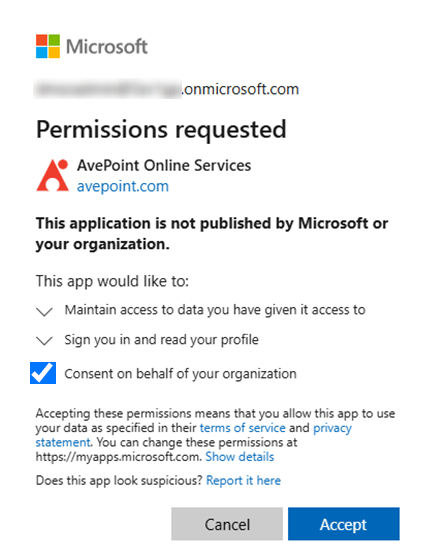
Click Home in the left navigation to access the AvePoint Online Services page. Then, click Document Management System Online under the All services tab. The Permissions requested page appears.
-
Select the Consent on behalf of your organization checkbox and click Accept to make sure users can log in to DMS Online with their own permissions. Then, you can access DMS Online.
-
After accessing DMS Online, you can refer to the following steps to get started in DMS Online:
-
When you first log into DMS Online, the Preparation page appears with your authentication status. You can also click the Preparation button to access the page.
-
If you have configured a DMS Online app profile in AvePoint Online Services, Configured will be displayed next to DMS Online app profile, and you can click Close to close the page.
-
If you do not have an available app profile, such as your app profile has been deleted or expired, you can click Configure to go to AvePoint Online Services to configure one. After the app profile is configured, you can click Refresh to refresh the authentication status. When the app profile information is synchronized to DMS Online, the authentication status will be updated to Configured.
-
-
Import existing site collections in SharePoint Online to manage objects in them. You can also create new site collections in DMS Online. Refer to Site Collections for details.
-
To manage documents efficiently, you can create site collection groups or create new document libraries, document sets, and folders in site collections to classify documents, add frequently used objects to the favorite list for quick access, etc. You can also manage documents in your OneDrive and personal mail attachments in Exchange Online. In addition, DMS Online has integrated with DenshoBako. You can share documents in DMS Online by DenshoBako. Refer to Explorer for details.
To use the favorite list, manage documents in OneDrive, or manage personal mail attachments in Exchange Online, you need to enable the corresponding feature in DMS Online. Refer to Visibility settings for Explorer to manage the features.
You can also use the following features to manage documents based on your needs:
-
Templates – Create templates for the document libraries to display the properties of objects in them. You can also enable and configure conditional settings and machine learning settings in templates to help you manage object properties in a smarter way.
-
Machine Learning – Automatically assign suggested property values to the documents during the upload process rather than manually assigning property values to the documents.
-
My Tasks – As a requester, you can navigate to My tasks > My requests to view and manage submitted requests. As an approver, you can navigate to My tasks > Pending requests to view and manage requests that are pending your review, or navigate to My tasks > Reviewed requests to view requests that you have processed.
-
Monitoring – Track user activities and system events in DMS Online.
-
Create an App Profile for DMS Online
Refer to the following steps to create a DMS Online app profile:
-
Click Create on the App management page. The Create app profile page appears.
-
In the Select servicesstep, select a desired tenant, and choose the app named Document Management System Online.
-
Click Next to go to the Choose setup method step.
-
In the Choose setup method step, select the Modern mode.
-
Click Next to go to the Consent to apps step.
-
Click Consent and the Install app window appears.
-
Click Continue to consent and the Microsoft 365 sign-in page appears.
-
On the Microsoft 365 sign-in page, sign in with a Microsoft 365 Global Administrator account.
NOTEThis account will be added as a Service Administrator of AvePoint Online Services if the account does not already exist in any existing AvePoint Online Services tenant.
-
On the Permissions requested page, review the permissions required for using DMS Online and click Accept to allow the DMS Online app to get access to your data in Microsoft tenant. (The required permissions are listed in the table below.)
Then, the App Management page appears, and the app profile is created successfully.
Permissions Required by App Profile
The table below lists the permissions that should be accepted when you authorize the DMS Online apps created in AvePoint Online Services.
| API | Permission Name | Type | Description | Purpose |
|---|---|---|---|---|
| Microsoft Graph | Directory.Read.All | Application | Read directory data | Retrieve Microsoft 365 users. |
| Microsoft Graph | Group.ReadWrite.All | Application | Read and write all groups | Retrieve and add Microsoft 365 groups and group members. |
| Microsoft Graph | Sites.FullControl.All | Application | Have full control of all site collections | Retrieve settings and permissions of SharePoint Online site collections. |
| Microsoft Graph | TeamMember.ReadWrite.All | Application | Add and remove members from all teams | Retrieve and manage Team members. |
| Microsoft Graph | ChannelMember.ReadWrite.All | Application | Add and remove members from all channels | Retrieve and manage private channel members. |
| Microsoft Graph | TeamMember.ReadWrite.All | Delegated | Add and remove members from all teams | Retrieve and manage Team members. |
| Microsoft Graph | ChannelMember.ReadWrite.All | Delegated | Add and remove members from all channels | Retrieve and manage private channel members. |
| Microsoft Graph | Sites.FullControl.All | Delegated | Have full control of all site collections | Retrieve settings and permissions of SharePoint Online site collections. |
| Microsoft Graph | Directory.Read.All | Delegated | Read directory data | Retrieve Microsoft 365 users. |
| Microsoft Graph | Sites.Read.All | Delegated | Read items in all site collections | Retrieve site and library objects. |
| Microsoft Graph | Files.ReadWrite.All | Delegated | Have full access to all files the user can access | Retrieve files that the user can access. |
| Microsoft Graph | AppCatalog.ReadWrite.All | Delegated | Read and write to all app catalogs | Deploy and publish Teams app. |
| Microsoft Graph | Mail.ReadWrite | Delegated | Read and write access to user mail | Retrieve user mail and email attachments. |
| Microsoft Graph | User.Read | Delegated | Sign in and read user profile | Sign in and read the user profile. |
| SharePoint | Sites.FullControl.All | Application | Have full control of all site collections | Retrieve settings and permissions of SharePoint Online site collections. |
| SharePoint | TermStore.ReadWrite.All | Application | Read and write managed metadata | Retrieve and create managed metadata service. |
| SharePoint | AllSites.FullControl | Delegated | Have full control of all site collections | Retrieve settings and permissions of SharePoint Online site collections. |
| SharePoint | TermStore.ReadWrite.All | Delegated | Read and write managed metadata | Retrieve and create managed metadata service. |
| SharePoint | Sites.Search.All | Delegated | Run search queries as a user | Filter site collections that the user can access and allow the user to search objects in the site collections. |
| SharePoint | User.Read.All | Delegated | Read user profiles | Retrieve user profiles. |