
Home > System Settings > General Settings
Download this articleGeneral Settings
In general settings, you can configure language and time format settings to view and manage the system language and the date and time format. You can also configure logo settings to view and manage the system logo.
Language and Time Format
Refer to the following steps to configure the language and time format:
-
Click Settings on the left navigation to access the Settings page.
-
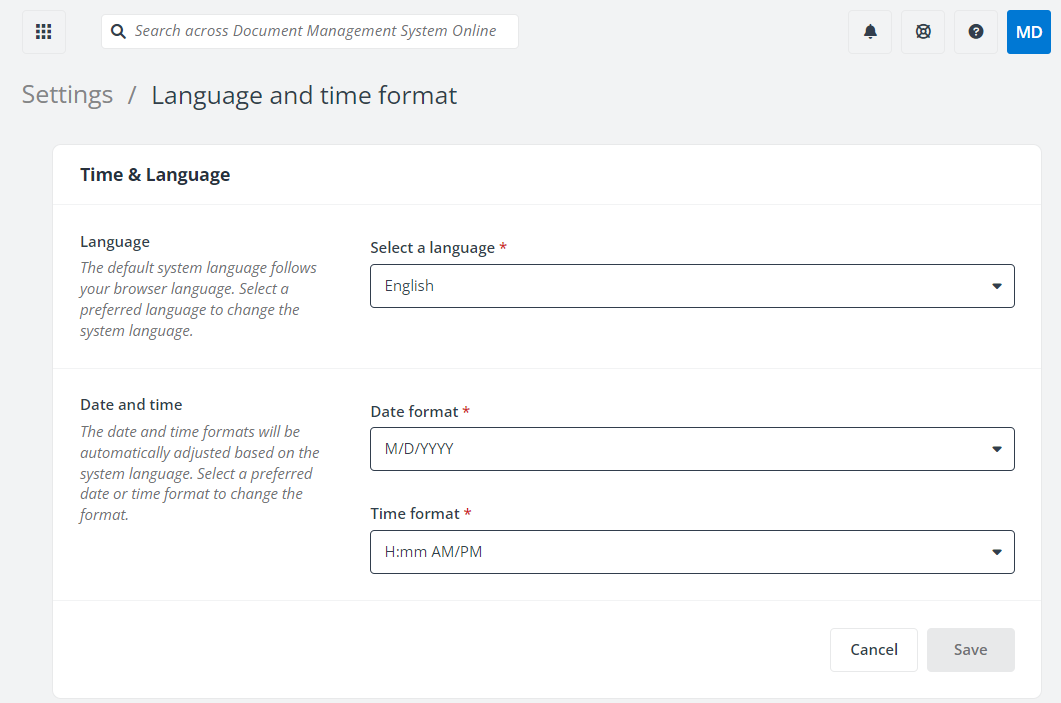
Click Language and time format in the General settings section. The Language and time format page appears.
-
In the Language section, select a preferred language from the drop-down list.
NOTEThe default system language follows your browser language.
-
In the Date and time section, select a preferred date or time format from the drop-down list.
NOTEThe date and time formats will be automatically adjusted based on the system language.
-
Click Save to save your configurations.
Logo
Refer to the following steps to configure the system logo:
-
Click Settings on the left navigation to access the Settings page.
-
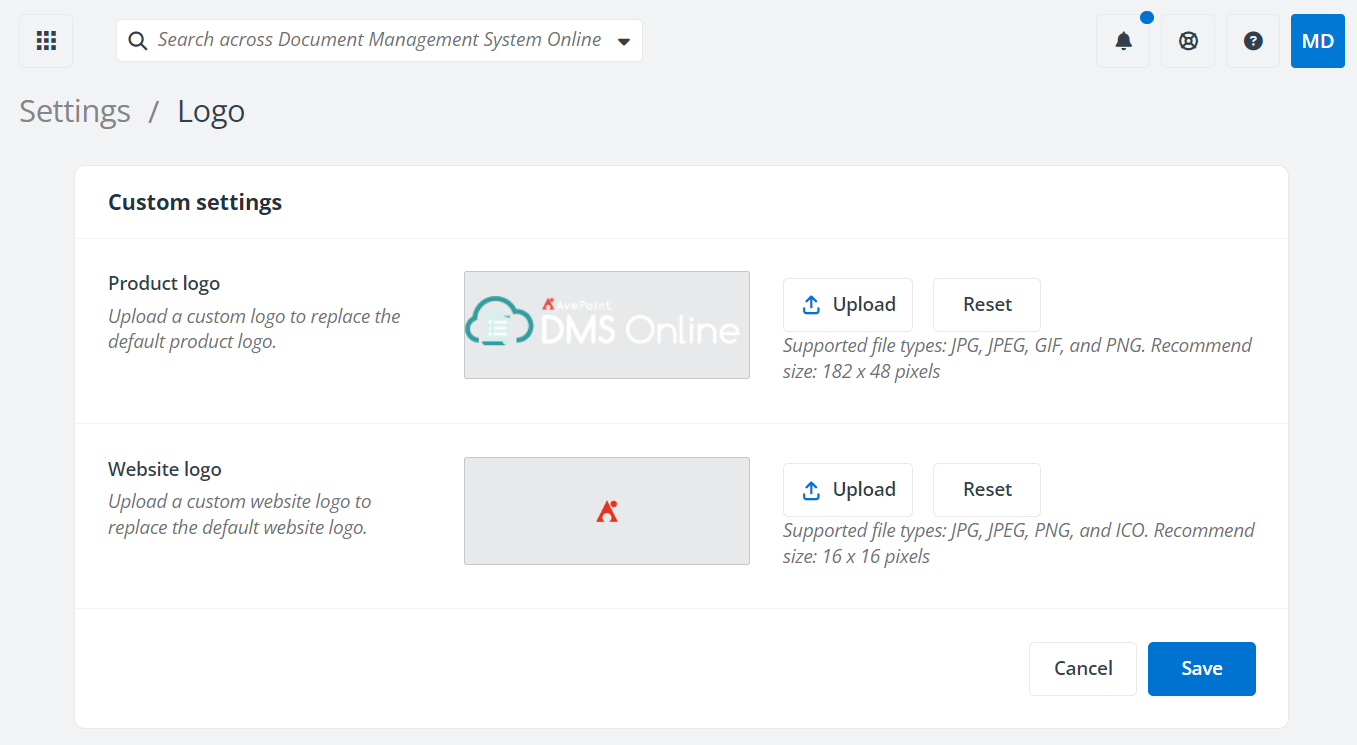
Click Logo in the General settings section. The Logo page appears.
-
Product logo is the logo displayed in the left navigation and the website logo is the logo displayed in your browser tab. Click Upload in the corresponding section to upload a custom logo to replace the default logo. You can also click Reset to reset the logo to the last saved logo.
NOTEThe supported product logo types are JPG, JPEG, GIF, and PNG, and the recommended logo size is 182 x 48 pixels. The supported website logo types are JPG, JPEG, PNG, and ICO, and the recommended logo size is 16 x 16 pixels.
-
Click Save to save your configurations.
Method for Opening Documents
Refer to the following steps to configure the language and time format:
-
Click Settings on the left navigation to access the Settings page.
-
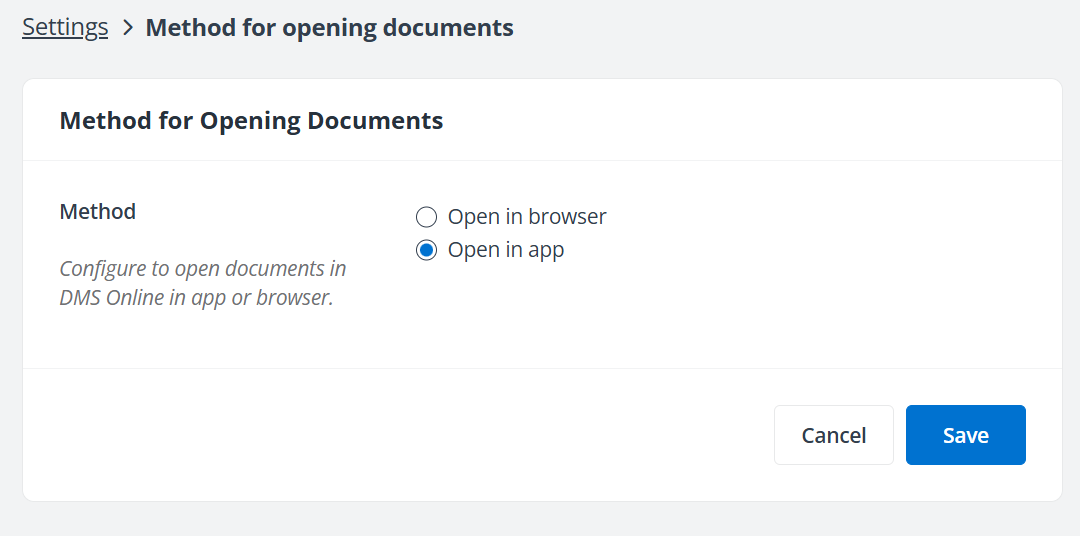
Click Method for opening documents in the General settings section. The Method for opening documents page appears.
-
Select to open documents in browser or app.
NOTEIf you select Open in app, only Word, Excel, and PPT documents can be opened in the app. For PDF documents, they will still be opened in browser. For other types of documents, they will be downloaded to the download location of your browser.
-
Click Save to save your configurations.