
Home > Machine Learning
Download this articleMachine Learning
When you upload documents to a document library managed in DMS Online, you need to manually assign property values to the documents. Machine learning can automatically assign suggested property values to the documents during the upload process to save effort. You can also modify the assigned values based on your requirements.
This functionality is only available when your organization has the Machine learning service in DMS Online.
To use the machine learning functionality, refer to the following sections.
Create a Model
Refer to the following steps to create a model:
-
Click Machine learning on the left navigation to access the Machine learning page.
-
Click Create. The Create model page appears.
-
In the General information step, enter a name and an optional description for the model.
-
Click Next to go to the Seed data step. You can also click Save to save the model.
-
In the Seed data step, add the seed data to this model. The added data will be used to train the model.
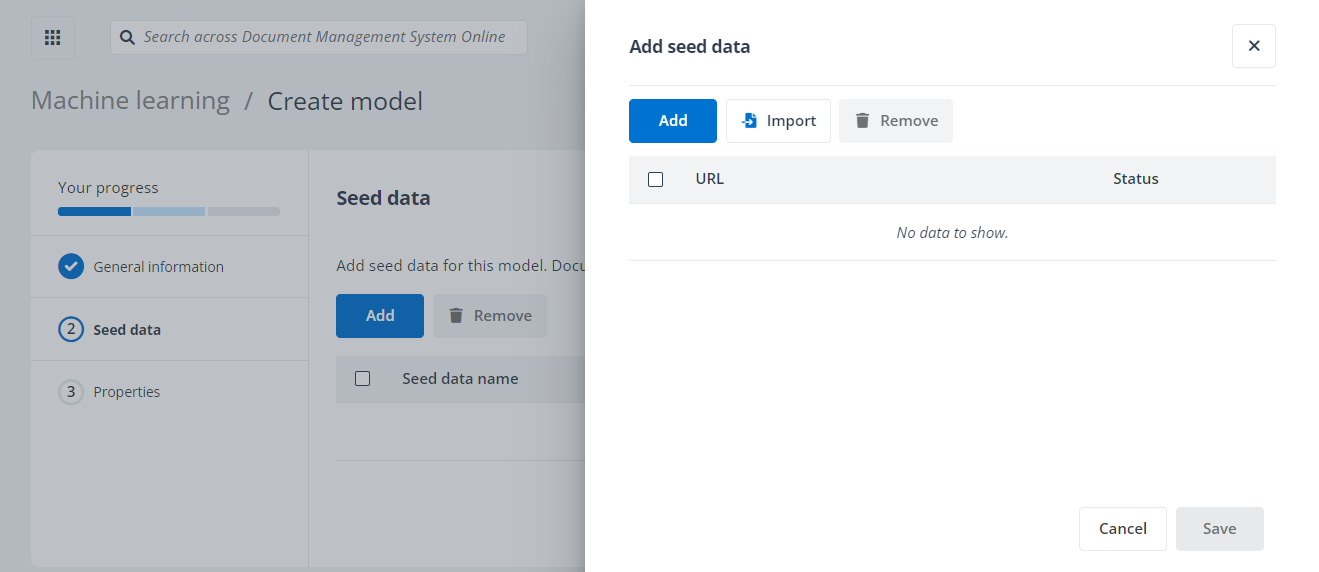
You can manually add seed data or import seed data in bulk.
-
To manually add seed data, refer to the following steps:
-
Click Add on the Seed data page. The Add seed data panel appears.
-
Click Add and enter a document library, document set, or folder URL.
-
Click Save to add seed data.
To remove an added seed data URL, select the URL and click the Delete button or click Remove in the panel. To remove multiple added seed data URLs, select multiple URLs and click Remove in the panel.
-
-
To import seed data in bulk by importing a configured Excel file, refer to the following steps:
-
Click Add on the Seed data page. The Add seed data panel appears.
-
Click Import in the Add seed data panel. The Import window appears.
-
Download the template.
-
Configure the document library, document set, or folder URLs in the file and save the file.
-
Import the file by dragging it or browsing it from the local location.
-
Click Save to import the file.
-
-
-
Click Next to go to the Properties step. You can also click Save to save the model.
-
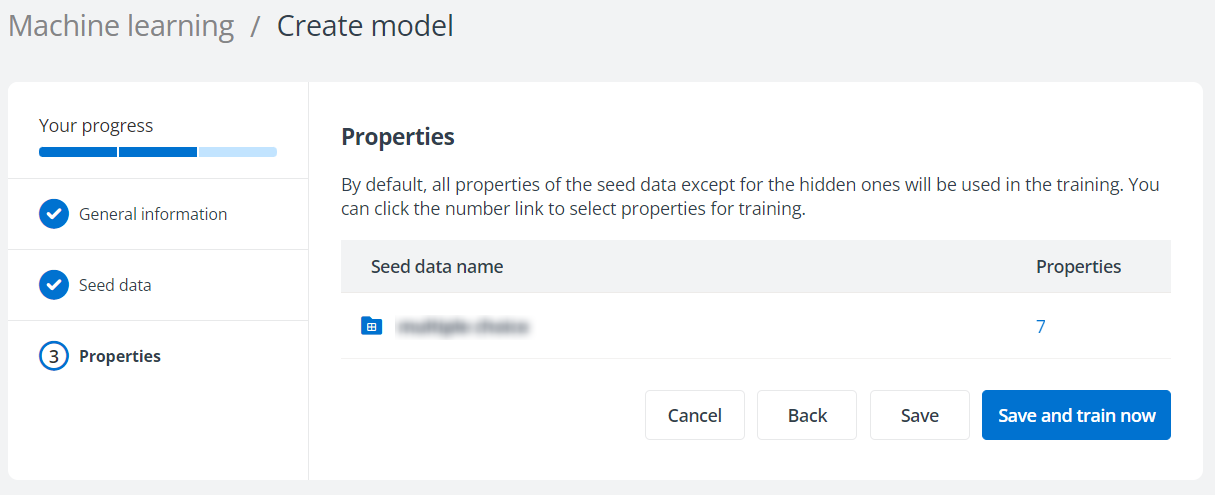
In the Properties step, click the number in the Properties column of the seed data. The Select properties panel appears.
-
Select the properties to train the model. To search for a property, you can enter the property name in the Search by name text box.
The assignments of these properties for the seed data will be used in the model training.
-
Click Save to save your configurations.
-
Click Save to save the model. You can also click Save and train now to save the model and train the model now.
After creating models, you can perform the following actions to manage models:
-
Search model – Search for models by entering the model name in the search box.
-
Filter – Click Filter on the Machine learning page to filter models by the model status.
-
Refresh – Click Refresh to refresh the models displayed in the table.
-
Delete – To delete a model, select the model and click Delete on the Machine learning page.
NOTEThe model that is being trained or published cannot be deleted.
Train the Created Model
When you finish the configuration for a model, you need to train the model to mine the seed data to help identify patterns and behaviors.
You can click Save and train now on the Create model page or refer to the following steps to train the model:
-
Click Machine learning on the left navigation to access the Machine learning page.
-
Click a model name to access the View model details page.
-
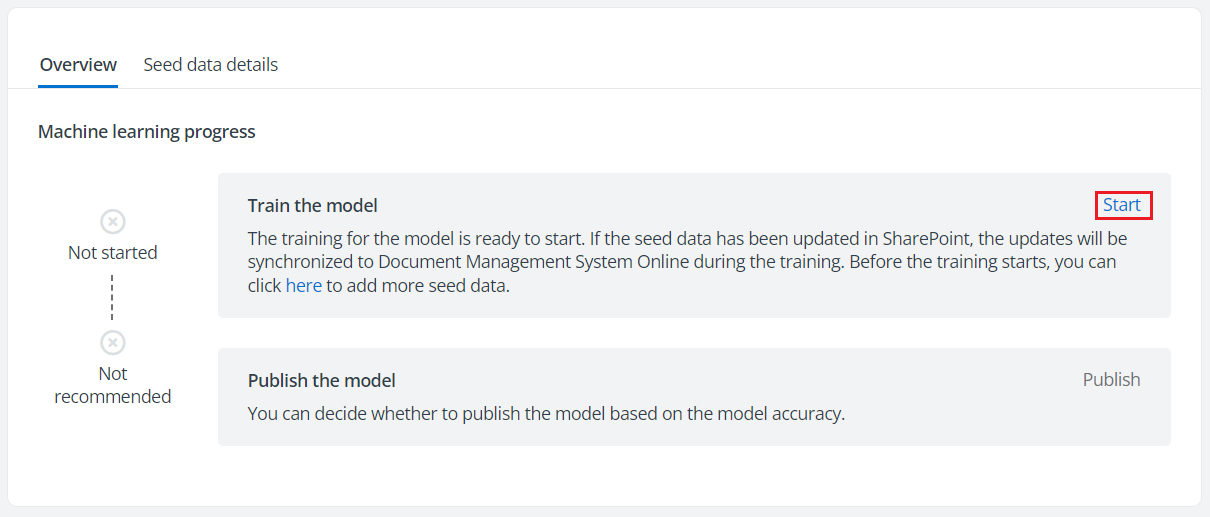
In the Overview tab, click Start in the Train the model section to start training the model. Before you start the training, you can add more seed data to the model.
View Training Results
Refer to the following steps to view the training results when the training of a model is finished:
-
Click Machine learning on the left navigation to access the Machine learning page.
-
Click a model name to access the View model details page.
-
In the Overview tab, check the suggestion on whether to publish the model in the Model accuracy section.
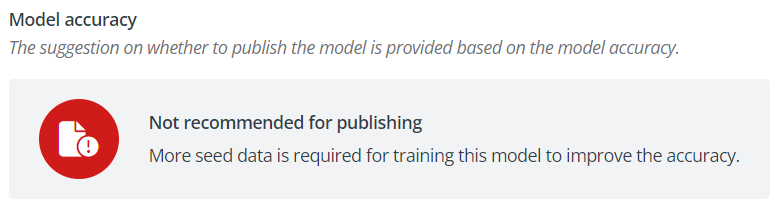
A model will be recommended for publishing when its accuracy reaches 70%.
If the model is not recommended for publishing, you can refer to the following instructions to check the training results:
-
Click the Seed data details tab to view the seed data names, URLs, properties, and the number of properties trained in the model. You can click the seed data name or URL to access the library/document set/folder in SharePoint Online.
-
Click All or the number of selected properties in the Properties and training results column to view details about the seed data. Property names, types, status, and training results of the properties selected for the seed data are displayed in the window. To search for a property, you can enter the property name in the Search by property name text box.
If each value of the property has been applied to 10 documents or more, and the training result of the property reaches the configured confidence threshold, the training result is Good. If some values of the property have been applied to less than 10 documents, or the training result of the property does not reach the configured confidence threshold, the training result is Bad. If no value of the property has been applied to any document, the training result is Not used. Upload more proper documents and assign this property, or add more seed data to tune the model to the highest accuracy.
-
Click a property name to view the details of the training results, including the property values, the count of documents with this property value applied, and the property value status.
Upload more proper documents and assign this property value, or add more seed data to tune the model to the highest accuracy.
-
Publish the Trained Model
You can publish a trained model when it is recommended for publishing. A model that is not recommended for publishing can also be published if you have confidence in the model. Published models can be applied to templates. Refer to the following instructions to publish a model:
-
Select a trained model and click Publish on the Machine learning page to publish it.
-
Click a model name on the Machine learning page to access the View model details page. Then, click Publish in the Publish the model section to publish the model.
After the model is published, you can further configure the following settings for the model:
-
Enable auto training – You can enable auto training for the model to use the property values manually assigned to documents to tune the machine learning model to the highest accuracy.
-
Confidence threshold – When you upload a document, the content similarity between the uploaded documents and the seed data will be compared. By default, when the content similarity reaches 60%, property values can be automatically suggested and assigned to the uploaded documents. You can also customize this confidence threshold.