
Home > Explorer
Download this articleExplorer
On the Explorer page, your site collections will be displayed on the left. With the Favorites feature, OneDrive feature, and Personal mail attachments feature enabled, you can view the Favorites list, OneDrive list, and Personal mail attachments list on the left. Click a container in the left list and you can view the objects within the container in the right table.
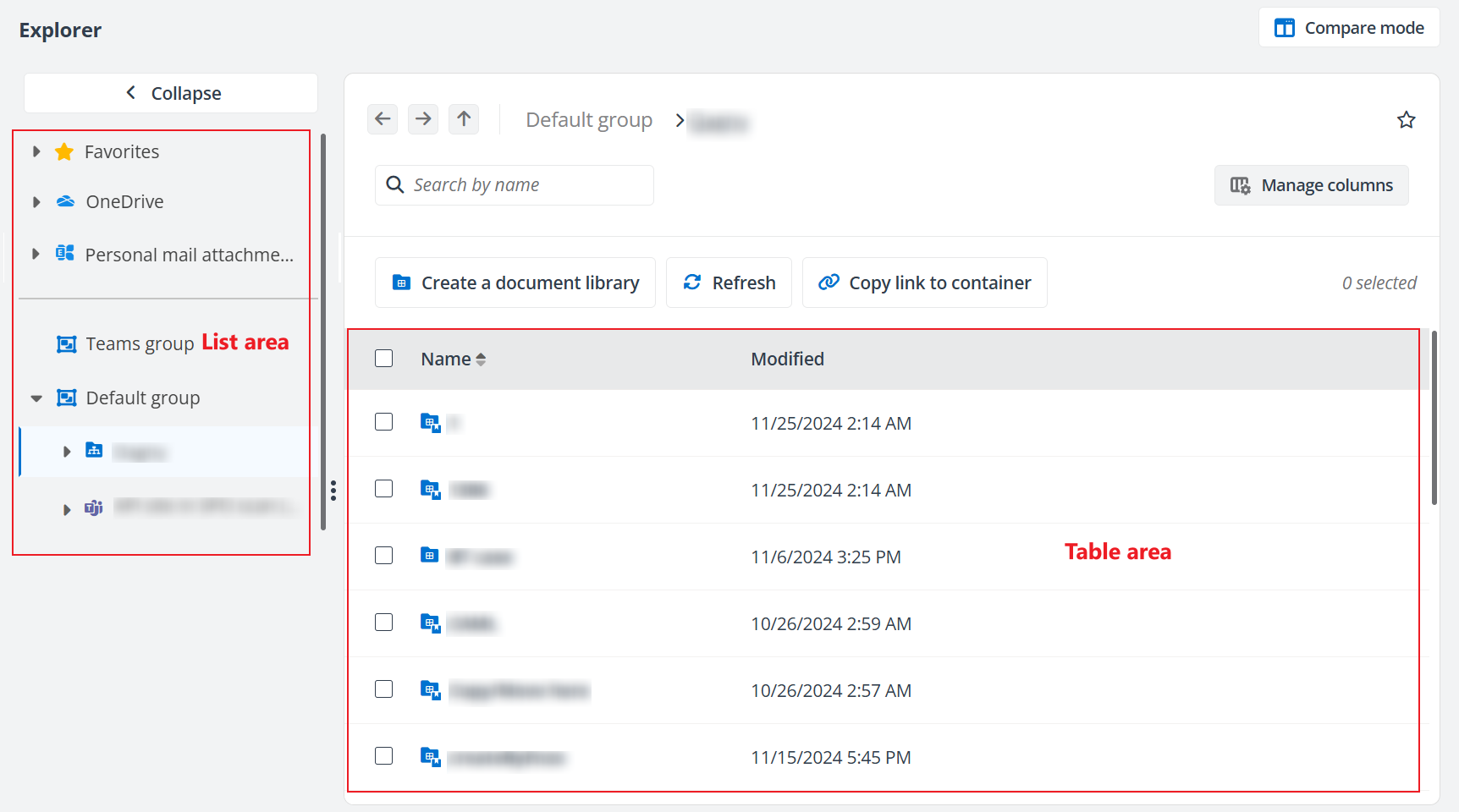
You can manage objects in site collections or OneDrive, create document libraries or document sets in site collections, and create folders in site collections or OneDrive to classify or batch manage the objects.
You can perform the following actions to manage the page:
-
Adjust width – Click the Adjust icon and move your mouse horizontally to adjust the display ratio of the left and right panels.
-
Manage columns – Click Manage columns on the Explorer page to select the columns you want to display on the page, and click Apply to apply the configurations. The Name column cannot be deselected.
NOTEThe Manage columns button is unavailable for the site collection level.
-
Refresh – Click Refresh on the Explorer page to refresh the objects displayed on the page. The documents you upload or create in SharePoint Online will also be displayed in DMS Online.
-
Reorder column – Hover your mouse over a column name and drag the column to your desired location.
-
Go back – Click the Go back button on the Explorer page to go back to the previous page.
-
Go forward – Click the Go forward button on the Explorer page to go forward.
-
Go up one level – Click the Click to go up one level button on the Explorer page to go up one level.
-
Compare mode – Click Compare mode in the upper-right corner of the Explorer page to open the compare mode. You can manage objects in the compare mode. Refer to Manage Objects in DMS Online for details.
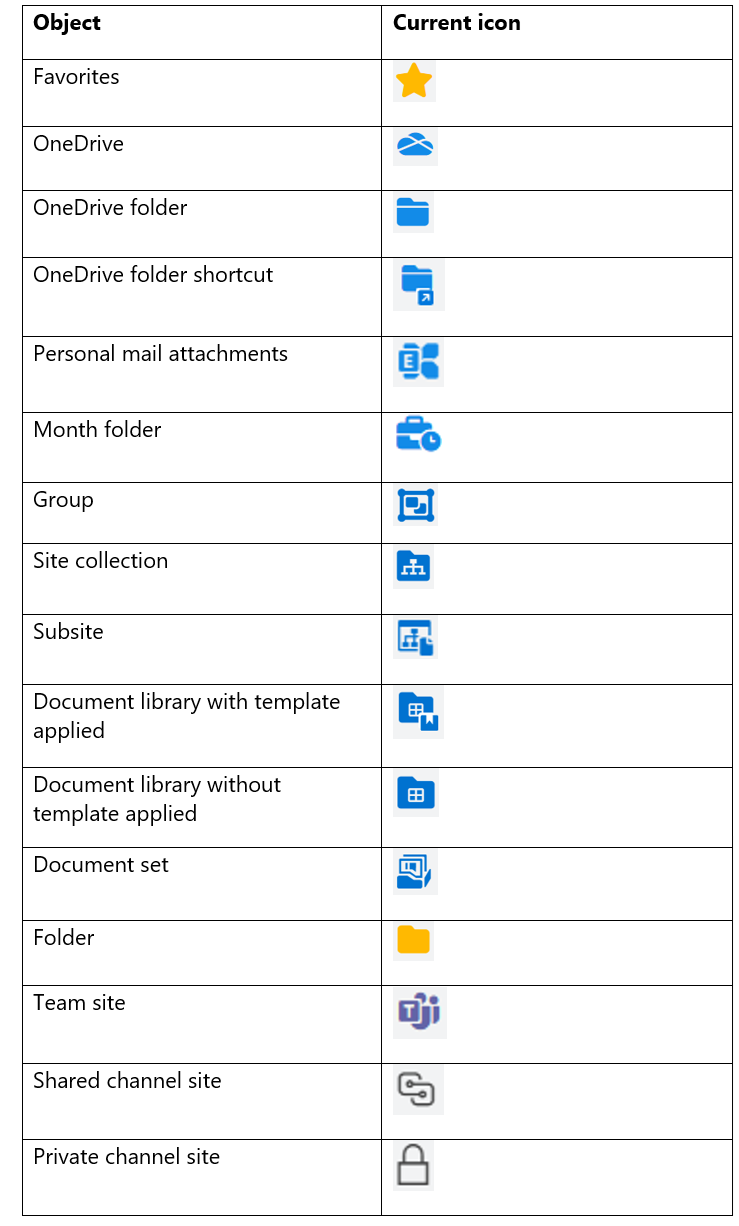
The table below illustrates each object icon on the DMS Online interface:
Create a Container in SharePoint Online
Refer to the following sections to create a document library, document set, or folder in SharePoint Online.
Create a Document Library in a Site Collection
Refer to the following steps to create a document library in a site collection:
-
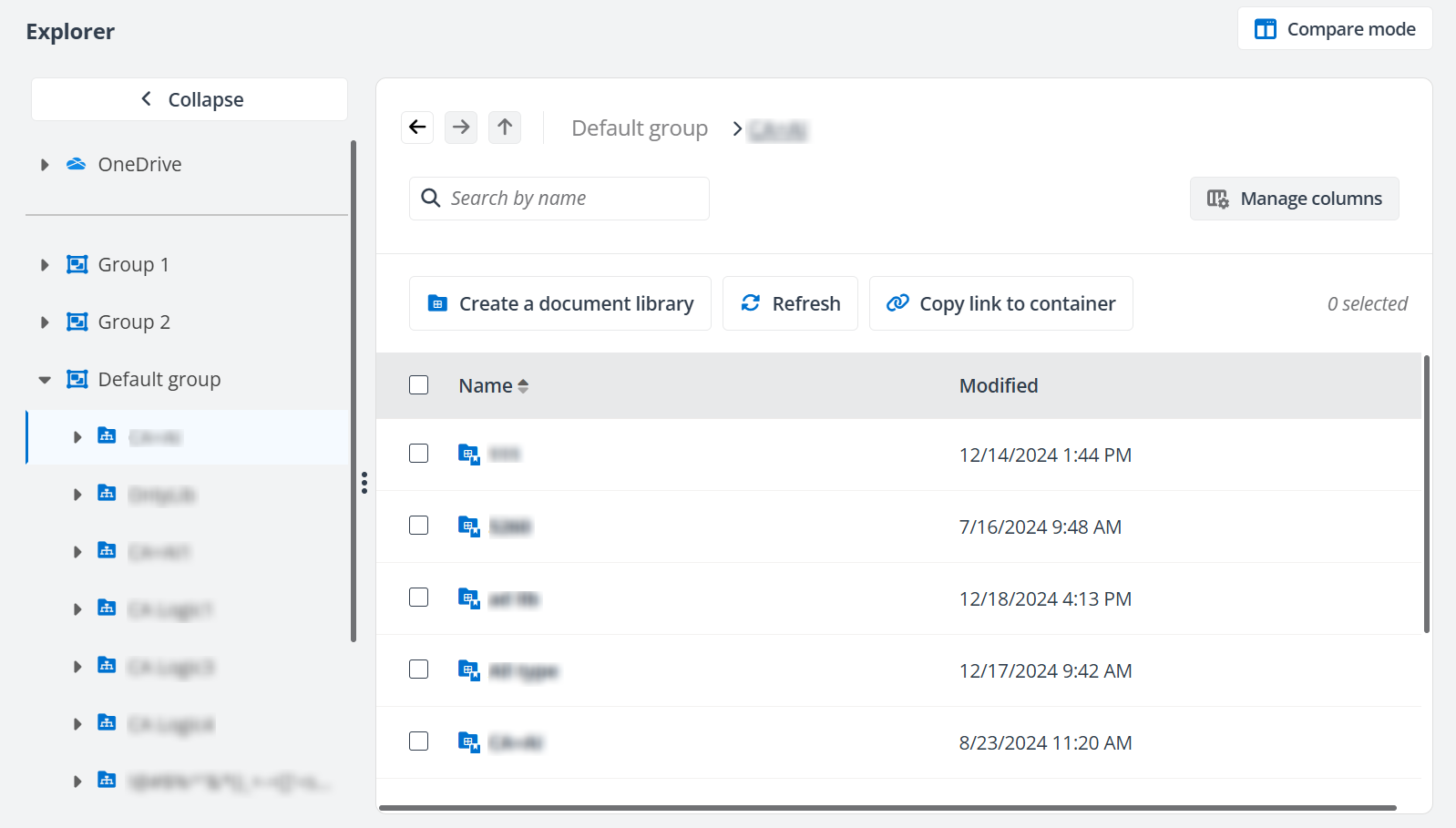
Click Explorer on the left navigation to access the Explorer page.
-
Choose one of the following methods to access the Create a document library panel:
-
Click a desired site collection in the left list and click Create a document library above the table.
-
Hover your mouse over a desired site collection in the left list, right-click the site collection or click the More actions button next to the site collection, and click Create a document library.
-
-
Enter a name for the document library.
-
Enter an optional description for the document library.
-
Select an optional template for the document library. If you do not select a template for the document library, only the default values will be displayed for the objects in the document library. The values include Name, Modified by, Modified time, etc.
-
Click Save to create the document library.
Create a Document Set or Folder in a Document Library
Refer to the following steps to create a document set or folder in a document library of a site collection:
-
Click Explorer on the left navigation to access the Explorer page.
-
On the left, click a document library or a folder or document set in the document library in the Favorites list or site collection.
NOTETo create a document set, make sure the document set feature is activated in the site collection of the document library, and the Document Set content type is available in the document library.
-
Refer to the following instructions to create a document set or folder:
-
To create a document set, complete the following steps:
-
Click Create and click Create document set. The Create a document set panel appears.
-
Enter a name for the document set.
-
Enter the required and optional properties for the document set based on the template applied to the site collection.
-
Click Save to create the document set.
-
-
To create a folder, complete the following steps:
-
Click Create and click Create folder. The Create a folder panel appears.
-
Enter a name for the folder.
-
Enter the required and optional properties for the folder based on the template applied to the site collection.
-
Click Save to create the folder.
-
NOTEIf no template is applied to the document library in DMS Online and multiple content types are configured for document sets or folders in SharePoint Online, you also need to select a content type for the document set or folder.
-
Create a Folder in OneDrive
Refer to the following steps to create a folder:
-
Click Explorer on the left navigation to access the Explorer page.
-
On the left, click the OneDrive list or a folder/shortcut in the list.
-
Click Create folder. The Create a folder panel appears.
-
Select a content type for the folder.
-
Enter a name for the folder.
-
Click Save to create the folder.
Customize Private View for Explorer List
If the Explorer list private view feature is enabled for your organization, you can customize the site collections and Team sites displayed in your Explorer list. Refer to the following steps for details:
-
Click Explorer on the left navigation to access the Explorer page.
-
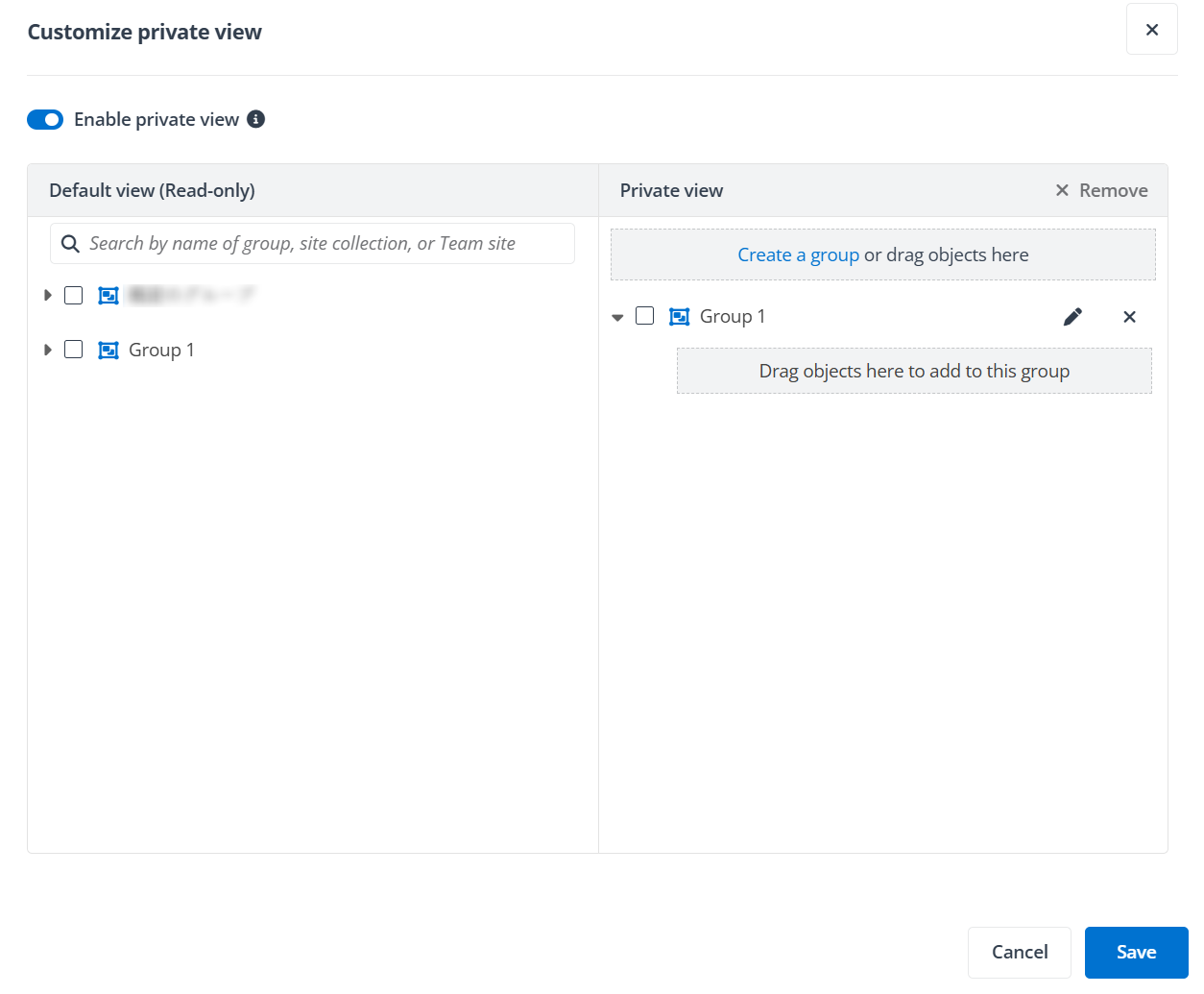
On the Explorer list, click Customize private view to access the Customize private view panel.
-
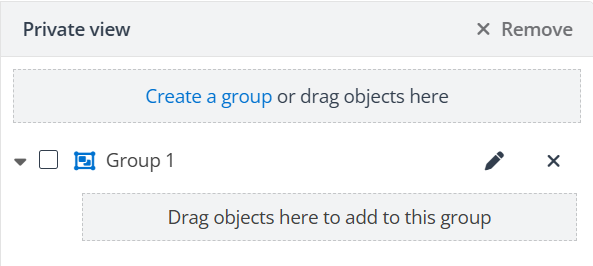
Switch on the toggle button to enable private view. In the Private view section, you can drag desired groups/site collections/Team sites from the default view to the Create a group or drag objects here area to add them to the private view.
You can also click Create a group to create a group and drag desired groups/site collections/Team sites to the Drag objects here to add to this group area under the group to add them to the group.
To rename or remove a group, click the Pencil or Remove button next to the group. To remove a site collection/Team site, click the Remove button next to the site. You can also select one or more objects and click Remove to remove the select objects.
-
Click Save to apply the private view to your Explorer list.
Manage Objects in DMS Online
On the Explorer page, click the container of the objects you want to manage in the left list. The objects within the container will be displayed in the right table. You can search for the desired object by entering the object name in the search box.
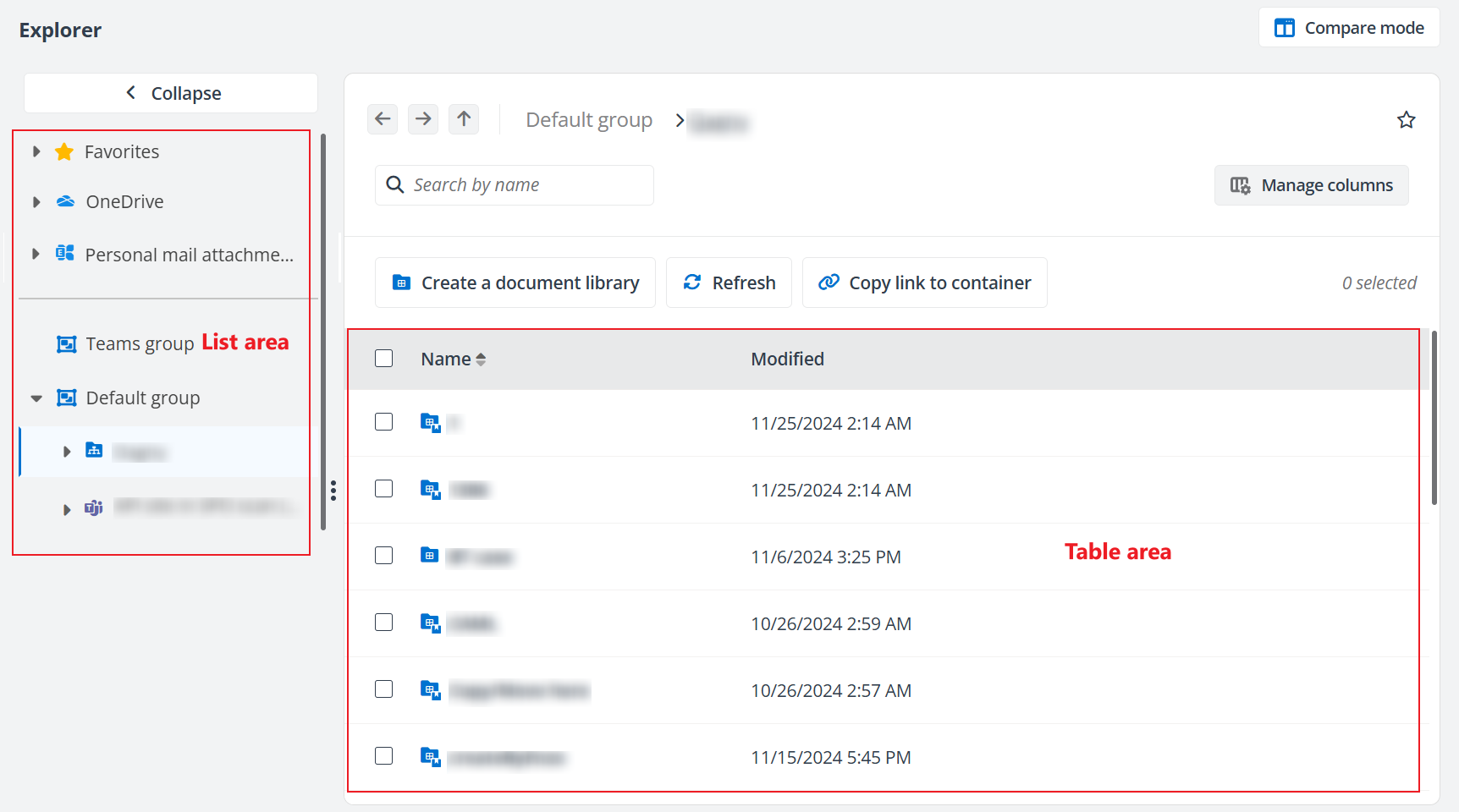
To manage objects in OneDrive or SharePoint Online, you can right-click the object or click the More actions button next to the object and choose an action from the drop-down list to perform the corresponding action:
-
Upload – Refer to Upload Documents for details.
-
Drag and drop – Drag a document from your local device and drop it to the table area in DMS Online to upload the document.
NOTEThis method does not support uploading folders.
-
Open documents – Click the document name to open the document Online.
-
Rename – Click Rename to rename the object.
-
Download – Click Download to download the object to the download location of your browser. This also applies to batch operations.
NOTEDocument libraries cannot be downloaded.
-
Delete – Click Delete to delete the object. For a shortcut in OneDrive, click Remove to remove the shortcut. The original object of the shortcut will not be deleted. The Delete and Remove actions also apply to batch operations.
NOTEWhen you select shortcuts and objects, only the Delete button will be displayed. You can click the button to remove the selected shortcuts and delete the selected objects.
-
Expand list or container – Click the Right arrow button in front of the Favorites list, the OneDrive list, the Default group list, a custom group, or a container in the left lists to expand the list, group, or container.
NOTEThis only applies to objects in the left lists.
-
Collapse list or container – Click the Down arrow button in front of the Favorites list, the OneDrive list, the Default group list, a custom group, or a container in the left lists to collapse the list, group, or container.
NOTEThis only applies to objects in the left lists.
-
Copy or move objects – Refer to Copy or Move Objects for details.
-
Share by DenshoBako – Click Share by DenshoBako to share the object by DenshoBako. Refer to Secure Share from OneDrive/SharePoint for details.
-
To use this feature, note the following:
-
Make sure you have the subscription for DenshoBako. For further assistance, you can contact your sales representative.
-
Make sure you have added all users or groups in your organization who need to use this feature to your subtenants in DenshoBako. For further assistance, you can contact our support team.
-
Make sure you have enabled the DenshoBako integration feature for users in your organization in DMS Online. Refer to Visibility settings for Explorer for details.
-
-
In the Personal mail attachments list, only the built-in Inbox, Deleted Items, and Sent Items folders, as well as custom folders in Exchange Online, will be displayed. Each folder contains subfolders named by Year-Month, and your attachments will be categorized by month.
To manage mail attachments, you can perform the following actions to download or copy the objects to another location.
-
Download – Click Download to download the object to the download location of your browser. This also applies to batch operations.
-
Copy objects – Refer to Copy or Move Objects for details.
For objects in SharePoint Online, you can also perform the following actions for management:
-
Add to favorites – Refer to Add to Favorites to add the object to favorites.
-
Remove from favorites – Refer to Remove from Favorites to remove an object from the favorites list.
-
Trigger workflow – Click Trigger workflow and the Trigger workflow window appears. Select a workflow and click Trigger to trigger the workflow for the document set, folder, or document. You can also trigger a workflow by selecting the object and clicking Trigger workflowon the Explorer page.
-
Copy link to container – Click Copy link to container on the Explorer page to copy the current container link.
-
Edit – Click Edit to edit the name and other properties of the object. You can also edit the object by selecting the object and clicking Edit on the Explorer page.
NOTEIf no template is applied to the document library in DMS Online and there are multiple content types configured in your SharePoint Online, you also need to select a content type for the document.
-
Details – Click Details. On the View details panel, you can view the object details under the Details tab and user permissions under the Permissions tab. For a document, you can also view the version history under the Version history tab.
You can also view the object details by selecting the object, clicking the More actions button on the Explorer page, and clicking Details.
Under the Details tab, you can click Edit to edit the object details.
Under the Permissions tab, you can view the users and groups who have the permission to this object. You can click a group name to view the members in the group. To share the object with a user or group, you can click Grant permissions. The Grant permissions panel appears. Enter the user or group name in the text box, select a permission you want to grant, and click Save to share the object. To edit the permission of a user or group, select the user or group, and click Edit. The Edit permissions panel appears. Update the permission for the user or group and click Save to save the changes. To remove users or groups' permission to the object, select the desired users or groups, and click Delete.
Under the Version history tab, you can click the object version to view the version details, or select a previous version and click Restore to restore the version.
NOTEVersion history is not available for document libraries and folders.
-
Copy link to object – Click Copy link to object to copy the object link. You can also copy the object link by selecting the object, clicking the More actions button on the Explorer page, and clicking Copy link to object.
Upload Documents
Refer to the following instructions to upload documents:
You can upload a document whose size is no more than 2 GB.
-
Click Upload on the Explorer page, select a document, and click Open. The Upload a document panel appears.
-
Enter the required and optional properties for the document based on the template applied to the site collection.
The document properties that have a machine learning model applied are highlighted, and the values predicted via machine learning algorithms are automatically configured for these properties. You can also manually modify the properties. If you do not see any predicted value, it means the content similarity has not reached the configured confidence threshold. You can contact your administrator for more information.
NOTEIf no template is applied to the document library in DMS Online and there are multiple content types configured in your SharePoint Online, you also need to select a content type for the documents.
-
Click Save to upload the document.
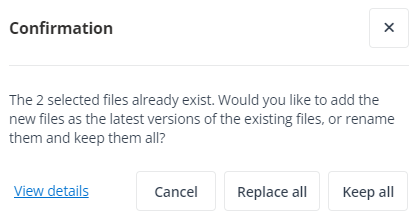
If documents with the same names already exist, a Confirmation window will appear. You can select to add the files to be uploaded as the latest versions of the existing documents, or rename these files by adding a numeric suffix to keep them all. You can also click View details in the window to view the details of the documents and select the conflict resolution for each file.
Copy or Move Objects
For objects in SharePoint Online, refer to the following information to copy or move the objects. For objects in OneDrive, you can only use the drag-and-drop method to copy or move them. Refer to the Drag and Drop Objects section below for details.
Copy Objects
Complete the following steps to copy objects:
-
Click Copy to. Then, the Select a destination panel appears. The action also applies to batch operations. You can select multiple objects, click the More actions button on the Explorer page, and click Copy to to access the panel.
-
Select a destination node to copy the objects to. If the site collection groups are disabled, you can click All site collections to select a site collection to copy the selected objects to. If the site collection groups are enabled, you can click All groups to select a group and select a site collection to copy the selected objects to.
-
Select a document library of the selected destination node or click Create to create a document set/folder in the document library to store the objects.
-
Click Copy here to copy the objects.
NOTEIf you copy a document in Exchange Online or OneDrive to a SharePoint Online site collection, you can configure the new properties for the object after you click Copy here.
Document libraries cannot be copied to another location.
If the template used by the destination is different from that of the source, the properties of the object may not be kept after copying the object to the destination.
The object cannot be copied if the site collection or Team site where the object resides is not included in your private view.
Move Objects
Complete the following steps to move objects:
-
Click Move to. Then, the Select a destination panel appears. The action also applies to batch operations. You can select multiple objects, click the More actions button on the Explorer page, and click Move to to access the panel.
-
Select a destination node in the same site collection to move the objects. If the site collection groups are disabled, you can click All site collections to select a site collection to move the selected objects to. If the site collection groups are enabled, you can click All groups to select a group and select a site collection to move the selected objects to.
-
Select a document library of the selected destination node or click Create to create a document set/folder in the document library to store the objects.
-
Click Move hereto move the objects.
Document libraries cannot be moved to another location.
If the template used by the destination is different from that of the source, the properties of the object may not be kept after moving the object to the destination.
The object cannot be moved if the site collection or Team site where the object resides is not included in your private view.
Drag and Drop Objects
You can copy or move objects to a desired location via the drag-and-drop method in the following ways:
-
On the Explorer page, drag and drop an object across the left list and right panel.
-
In the compare mode, drag and drop an object across the two windows. You can view whether the object will be copied or moved to the destination via the tooltip.
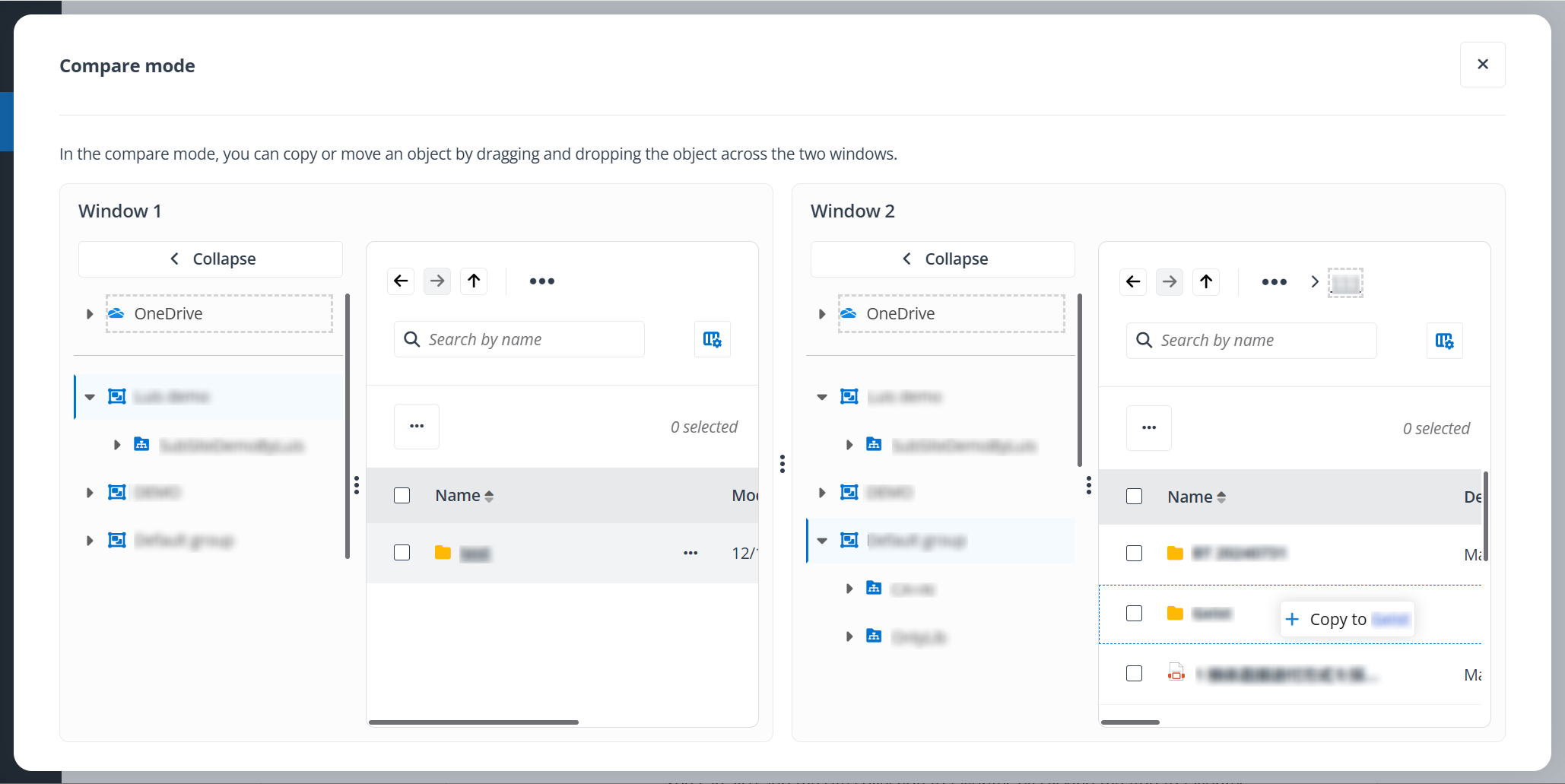
If the source and destination locations are in the same site collection, the object will be moved to the new location. If the source and destination locations are in different site collections, the object will be copied to the new location.
Add to Favorites
Refer to the following instructions to add an object/site collection to favorites:
-
For an object, click Add to favorites to add the object to favorites. You can also add the object to favorites by selecting the object and clicking Add to favorites on the Explorer page.
-
For a site collection, click Add to favorites to add the site collection to favorites. You can also add the site collection to favorites by clicking the Add to favorites button in the upper-right corner of the Explorer page.
The added objects will be listed in the Favorites list on the left.
Remove from Favorites
Refer to the following instructions to remove an object/site collection from favorites:
-
For an object, click Remove from favorites to remove an object from the favorites list. You can also remove the object from the favorites list by selecting the object and clicking Remove from favorites on the Explorer page.
-
For a site collection, click Remove from favorites to remove an object from the favorites list. You can also remove the site collection from the favorites list by clicking the Remove from favorites button in the upper-right corner of the Explorer page.