
Home > My Tasks
Download this articleMy Tasks
You can manage requests you submitted, requests that require your review, and requests you have reviewed in DMS Online. Refer to the following sections to manage these requests.
Manage Submitted Requests
Click My tasks on the left navigation. By default, you can view the requests you submitted in the My requests tab.
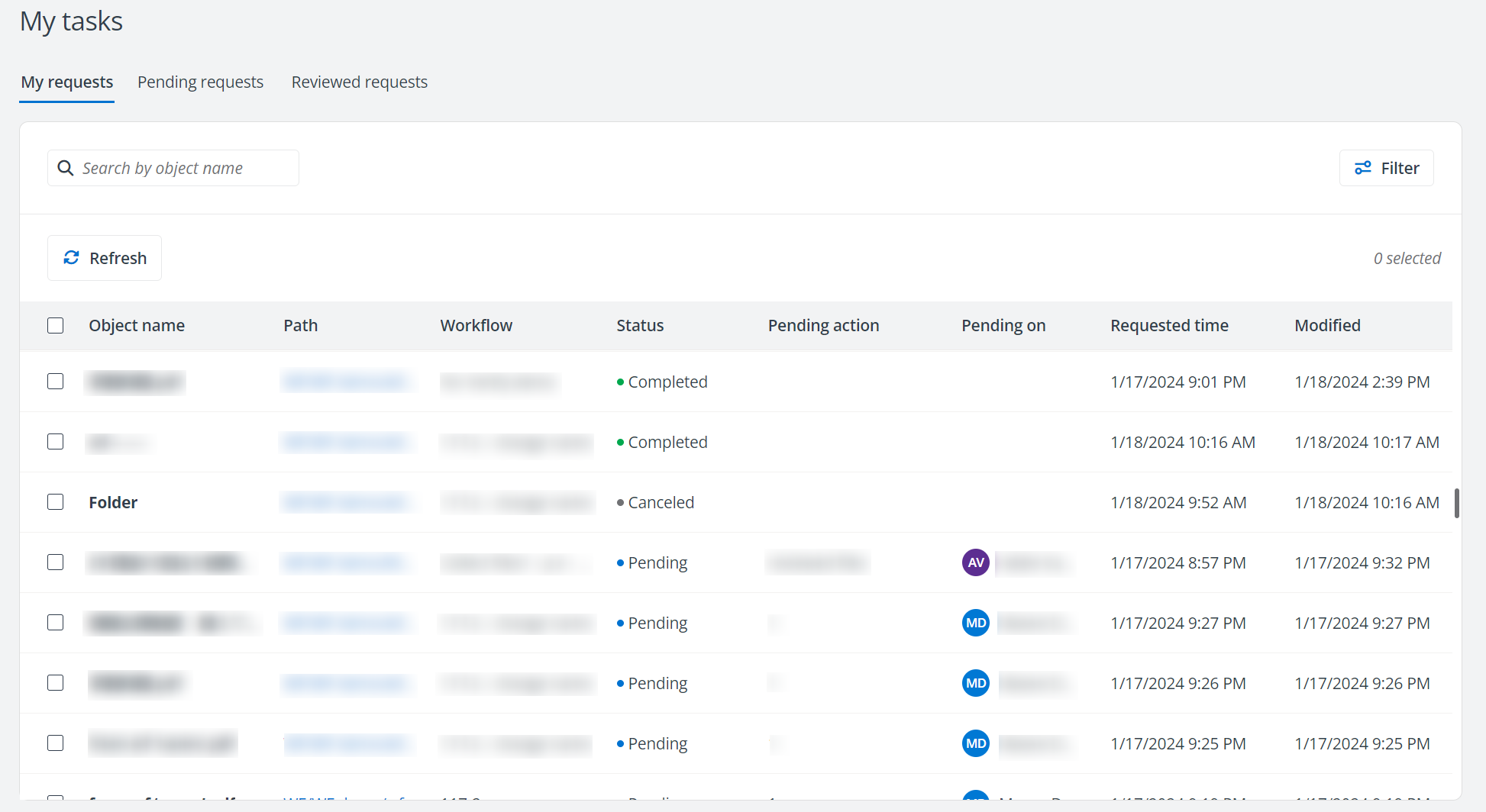
For each request, you can view the name and path of the request object, as well as the workflow, status, current stage reviewers, requested time, and last modified time of the request.
You can also perform the following actions to manage the requests you submitted:
-
Search requests – Search for requests by entering the object name in the search box.
-
Filter – Click Filter above the My requests table to filter requests by status, pending on, requested time, and/or modified time.
-
Refresh – Click Refresh above the My requests table to refresh the requests displayed in the table.
-
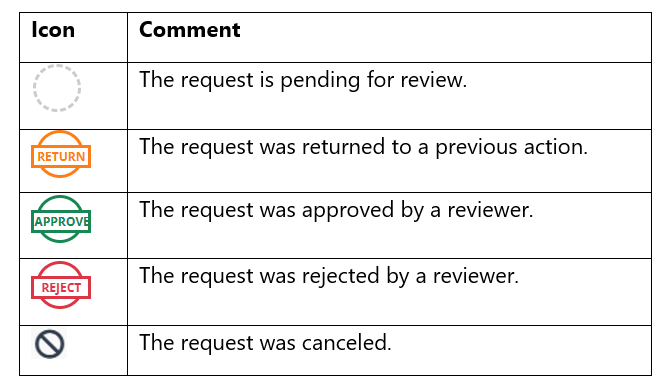
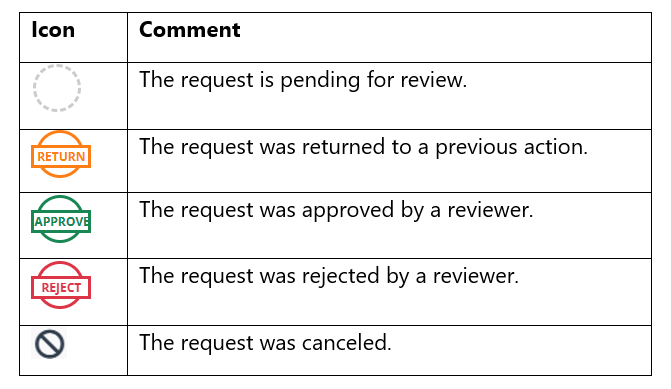
View request details – Click the object name to access the request details page. On the request details page, you can view the object name and the review process of the object. You can also click the object name to open the object location. The table below lists the status that may occur in the review process.
-
Send email notification – Select a request and click Send email notification above the My requests table to send an email notification to the reviewers as a reminder.
NOTEYou cannot send email notifications for requests whose status is canceled, rejected, or completed.
-
Cancel request – Select a request and click Cancel request above the My requests table to cancel the request.
-
Open object location – Click the path link of an object to open the object location.
-
Hand over – Select one or multiple requests and click Hand over above the My requests table. A window appears. You can enter a new requester and click Hand over to hand over the selected requests to the new requester.
-
Reopen – Select one or multiple rejected requests and click Reopen above the My requests table to reopen the requests to the last reviewers for review.
Manage Pending Requests
Click My tasks on the left navigation and click the Pending requests tab to view the requests that are pending your review.
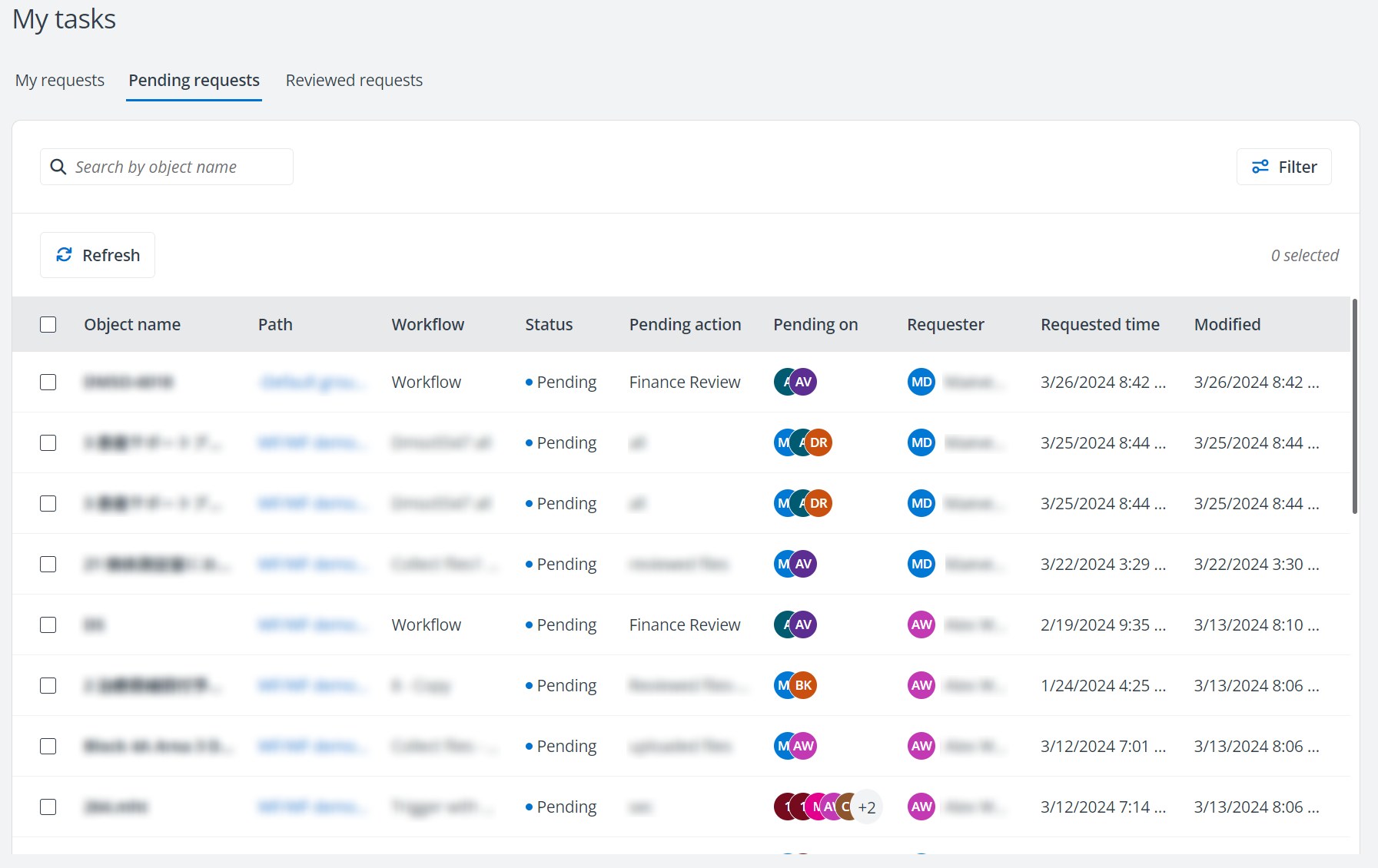
In the Pending requests tab, you can perform the following actions to manage the requests that are pending your review:
-
Search requests – Search for requests by entering the object name in the search box.
-
Filter – Click Filter above the Pending requests table to filter requests by requester, requested time, and/or modified time.
-
Refresh – Click Refresh above the Pending requests table to refresh the requests displayed in the table.
-
View and process request – Click the object name to access the request details page. On the request details page, you can view the object name, Decision section, and the review process of the object. You can also click the object name to open the object location.
In the Decision section, you can process the request. Select a decision, enter your optional comments in the text box, and click Submit to submit your decision.
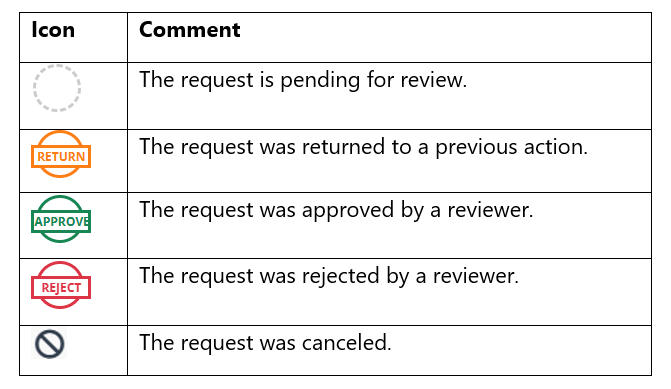
You can view the status that may occur in the review process in the following table.
-
Reassign – Select one or multiple requests and click Reassign above the Pending requests table. The Reassign the request window appears. Configure a new reviewer and click Reassign to reassign the requests.
-
Open object location – Click the path link of an object to open the object location.
Manage Reviewed Requests
Click My tasks on the left navigation and click the Reviewed requests tab to view the requests that you have reviewed.
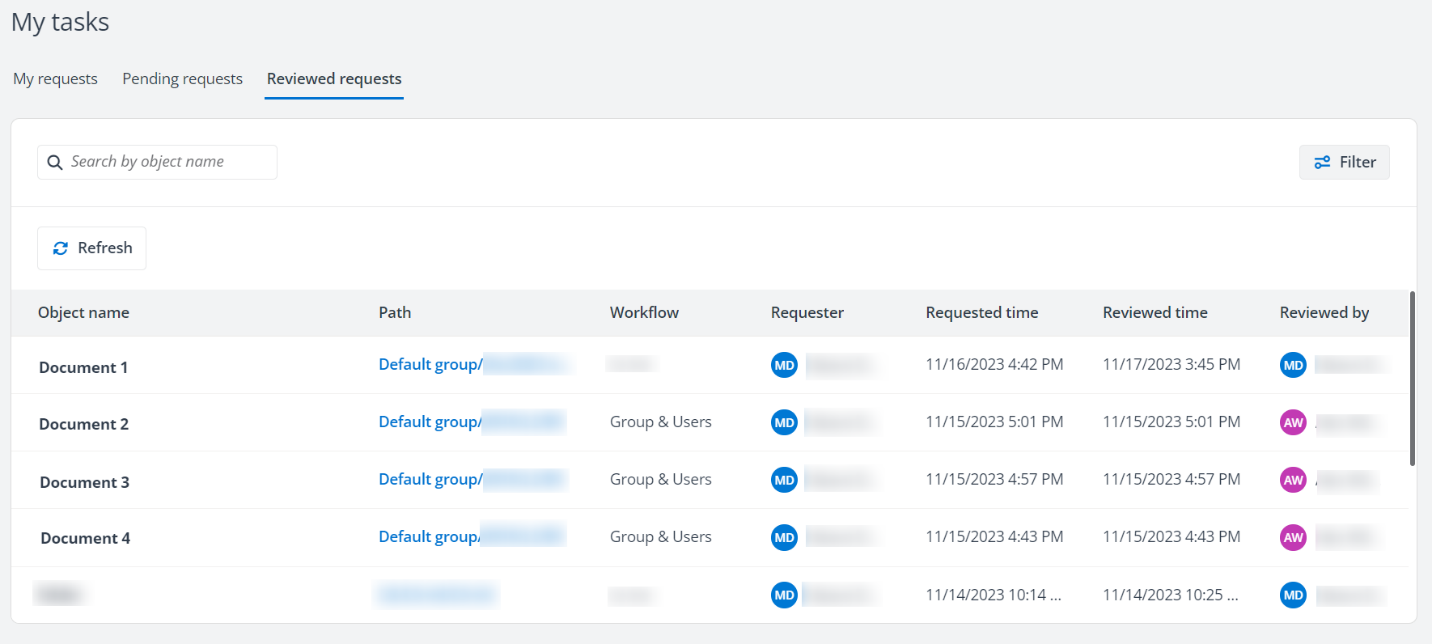
In the Reviewed requests tab, you can perform the following actions to manage the requests that you have reviewed:
-
Search requests – Search for requests by entering the object name in the search box.
-
Filter – Click Filter above the Reviewed requests table to filter requests by requester, requested time, reviewed time, and/or reviewed by.
-
Refresh – Click Refresh above the Reviewed requests table to refresh the requests displayed in the table.
-
View request details – Click the object name to access the request details page. On the request details page, you can view the object name and the review process of the object. You can also click the object name to open the object location. The table below lists the status that may occur in the review process.
-
Open object location – Click the path link of an object to open the object location.