
Home > System Settings > Administration > Permissions
Download this articlePermissions
You can assign permissions to users in DMS Online by configuring permission groups.
Create Permission Groups
Refer to the following steps to create a permission group:
-
Click Permissions on the Settings page to access the Permissions page.
-
Click Create. The Create permission group page appears.
-
In the General information step, enter a name and an optional description for the permission group.
-
Click Next to go to the Members step. You can also click Save to save the group.
-
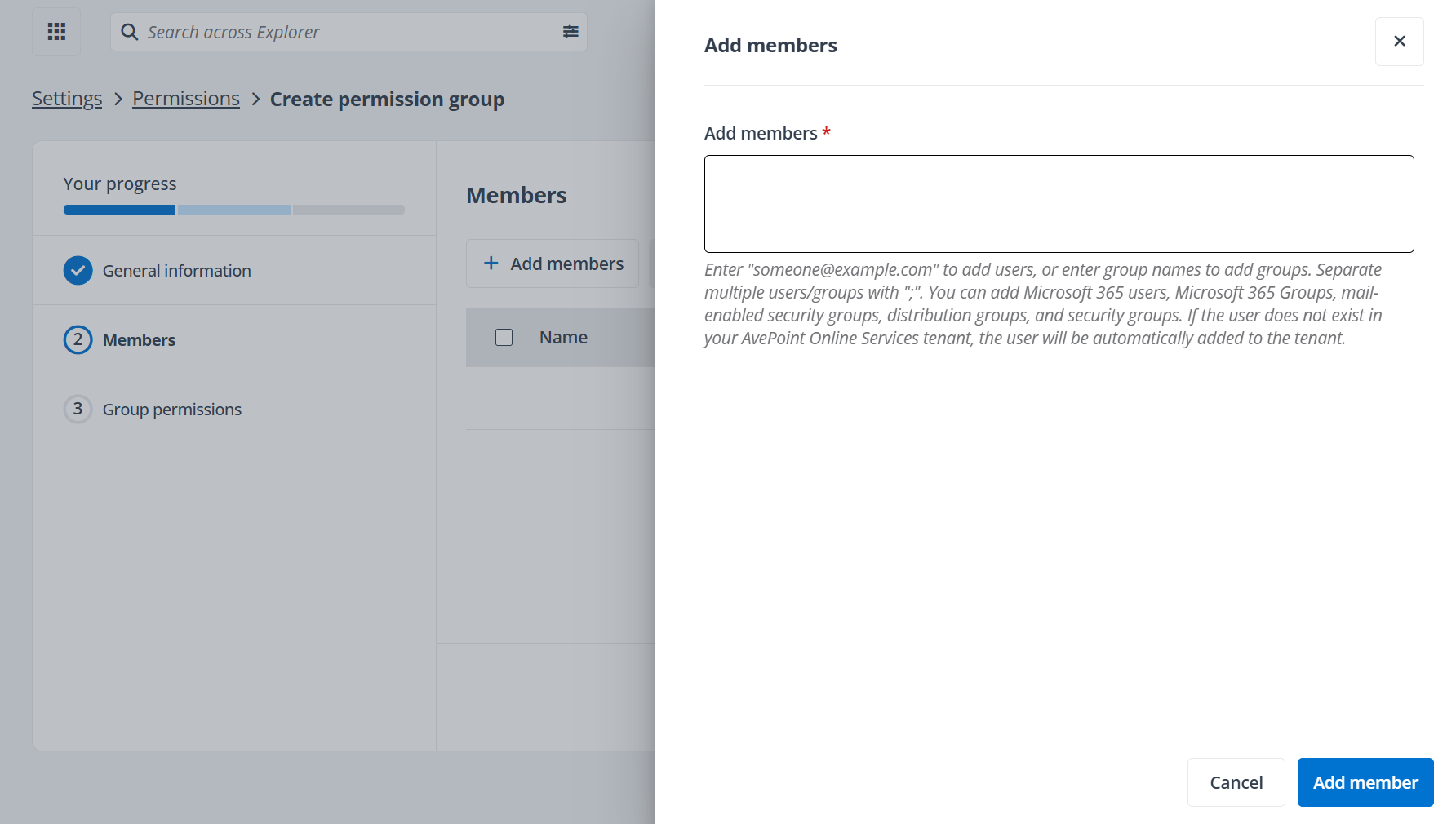
In the Members step, click Add members. The Add members panel appears.
-
Enter the keyword of email addresses of users in AvePoint Online Services in the text box, and select the users from the lists.
NOTEYou can add Microsoft 365 users, Microsoft 365 Groups, mail-enabled security groups, distribution groups, and security groups. If the user does not exist in your AvePoint Online Services tenant, the user will be automatically added to the tenant.
-
Click Add members to add the selected members.
-
Click Next to go to the Group permissions step. You can also click Save to save the group.
-
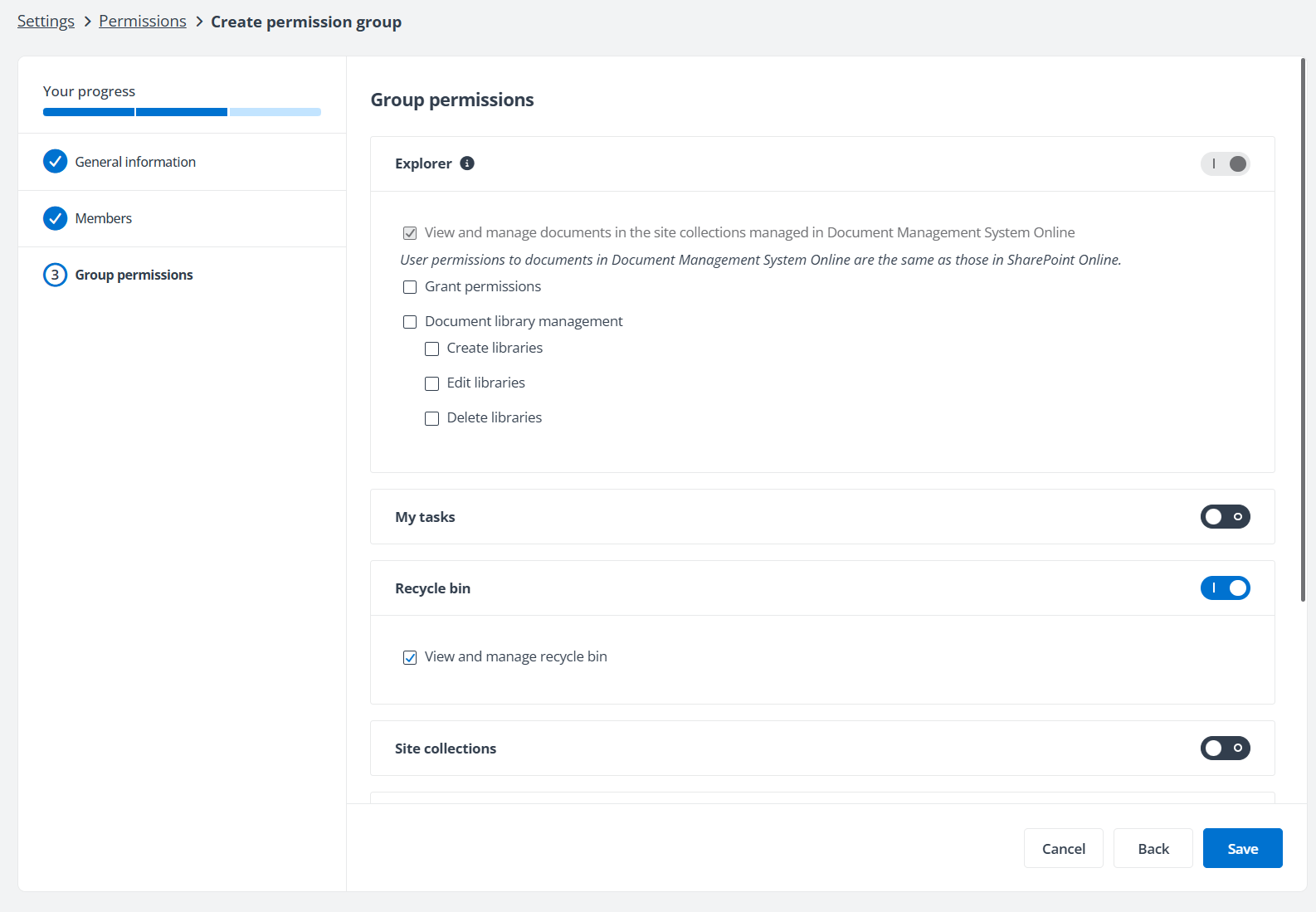
In the Group permissions step, switch on the toggle button next to each permission to enable the permission and configure the detailed permissions for the permission. By default, the View and manage documents in the site collections managed in Document Management System Online permission in the Explorer module is selected and cannot be deselected.
 NOTE
NOTEUsers with the Edit libraries or Manage libraries permission can edit the templates for document libraries, but the modules that allow them to edit the templates for document libraries are different. Users with the Edit libraries permission can edit templates for document libraries in the Explorer module. In addition, users must have Edit permission to the site collections of the document libraries. Users with the Manage libraries permission can edit the templates for document libraries in Site collections module.
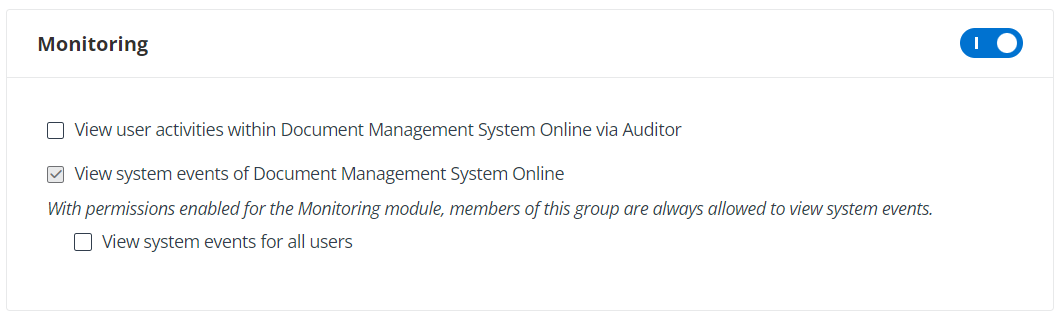
NOTEFor Monitoring permissions, if you do not select the View system events for all users checkbox, users can only view their personal system events in DMS Online.
-
Click Save to create the permission group.
Manage Permission Groups
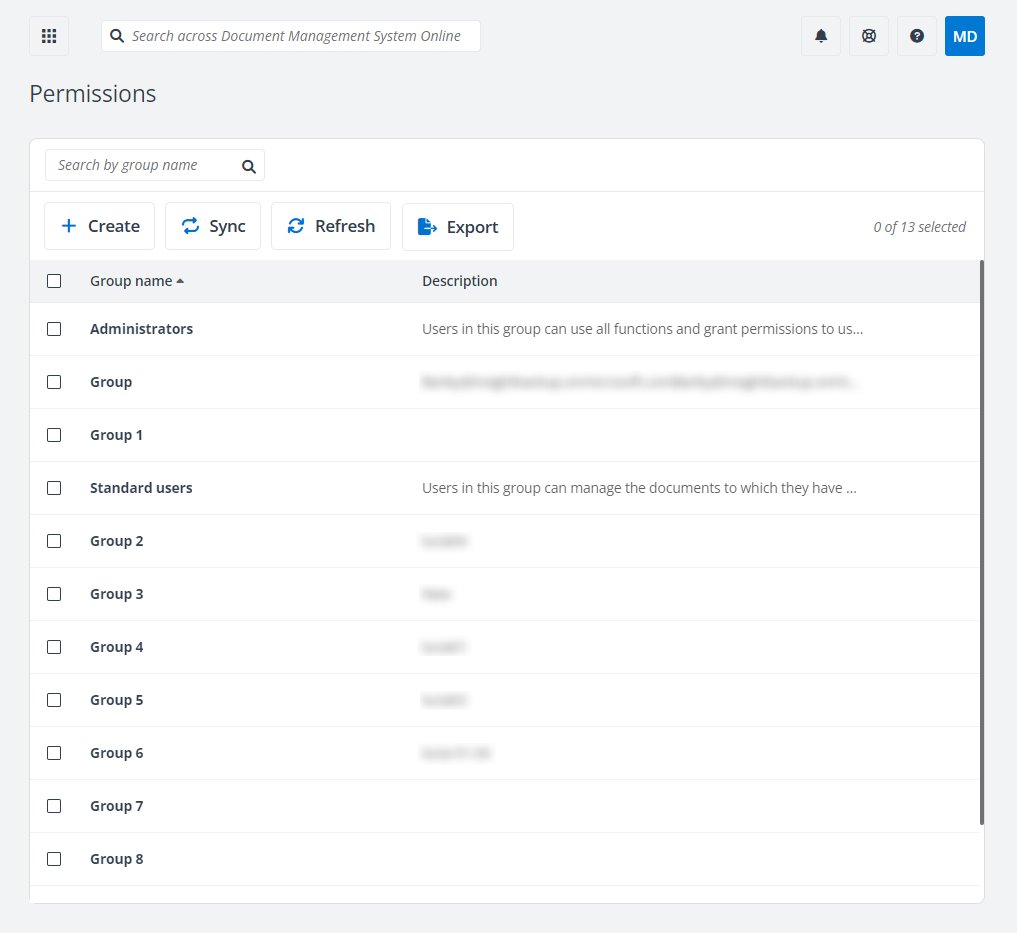
On the Permissions page, you can perform the following actions to manage the permission groups:
-
Search permission group – Search for permission groups by entering the group name in the search box.
-
Sync – Synchronize the user changes in AvePoint Online Services to all permission groups in DMS Online.
-
Delete – To delete permission groups, select the desired permission groups and click Delete on the Permissions page. The permissions obtained by users through their permission groups will also be deleted.
-
Refresh – Click Refresh on the Permissions page to refresh the permission groups displayed in the table.
-
Export – Click Export to export members in all permission groups to an Excel file.
-
View permission groups – Click the permission group name to access the View permission group page to view the details of group members and permissions. On the details of group members page, you can also perform the following actions to the permission group:
-
Sync – For the Administrators group, click Sync to sync service/customized administrators from AvePoint Online Services to the group and check the status of existing administrators. For a normal permission group, click Sync to check the status of existing users/groups. If an administrator, user, or group is deleted from AvePoint Online Services, the entity will also be deleted from DMS Online after synchronization.
-
Search member – Search for members by entering the member’s name in the search box.
-
-
Edit permission groups – To edit a permission group, click the permission group name to access the View permission group page:
NOTEThe Administrators group cannot be edited.
-
Edit general information – Click the Pencil button next to the group name to access the Edit general information panel and edit the name and description of the group. Then, click Save to save the edits.
-
Edit group members – In the Members tab, click Edit at the bottom of the page to edit the members of the group:
-
Add group members – To add a member to the group, click Add members, enter the keyword of users’ email addresses in the text box, and select the users from the lists. Then, click Add members to add members and click Save to save the edits.
NOTEYou can add Microsoft 365 users, Microsoft 365 Groups, mail-enabled security groups, distribution groups, and security groups. If the user does not exist in your AvePoint Online Services tenant, the user will be automatically added to the tenant.
-
Remove group members – To remove a member from the group, click the Delete button next to the member, or select one/multiple members and click Remove. Then, click Save to save the edits.
-
-
Edit permissions – Click the Group permissions tab and click Configure group permissions below the tab to edit the permissions of the group. After editing the permissions, click Save to save the edits.
-